 By
By 
You install a mock GPS app on your phone, drop a pin in London or Tokyo, and verify that Google Maps or Apple Maps shows your blue dot sitting exactly where you intended. Then you open WeChat to share an update or send a pin to a friend, only to find the app still lists the coffee shop down your street. Or worse, your real-time location stays firmly parked in your living room.
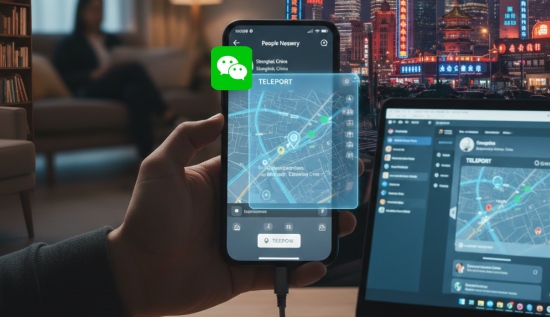
WeChat handles location differently from almost any other social app. It does not treat location as a single coordinate you can simply toggle in a menu, and its internal positioning engine actively bypasses basic developer mock providers. To control your location on WeChat without jeopardizing your account, you need to understand how the platform actually tracks you and what separates a harmless profile tweak from a risky system modification.
Part 1. The 4 Types of Location in WeChat
One of the biggest sources of confusion is that WeChat uses four distinct location mechanisms across different menus. Changing one has zero effect on the others, which is why updating a setting often leaves your chats and posts unchanged.
1. Profile Region
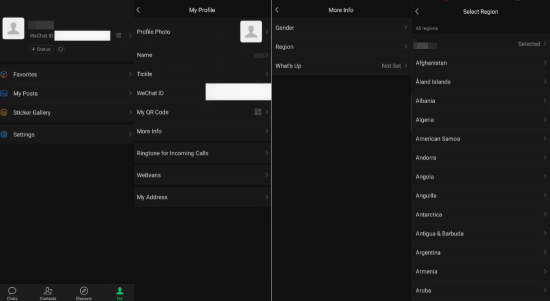
This is a purely cosmetic, static label displayed on your public profile card under Me > Profile > More > Region. You can freely pick any country, province, or city from the built-in dropdown menu. It never queries your phone's GPS, nor does it affect what your contacts see when you share a map pin or browse nearby features.
2. Moments Location Tags
When creating a post on WeChat Moments, tapping Location pulls up a list of points of interest (POIs) nearby. While there is a search bar at the top, it is strictly localized: it only searches businesses, restaurants, and streets within a short radius of your phone's current GPS position. You cannot simply type an overseas landmark like "Eiffel Tower" or a restaurant in Tokyo while sitting at home and expect WeChat to pull up the authentic foreign location. If you type an unrecognized distant venue, WeChat only lets you create a custom text tag that remains anchored to your current geographic area.
This is why tagging an authentic landmark in another city or country on Moments requires your device's actual GPS coordinates to physically match that destination first. Once your system GPS shifts to the target city, WeChat automatically loads the local POI directory for that exact neighborhood.
3. Chat Location Sharing (Send Location vs. Real-Time Location)
Inside any one-on-one or group chat, tapping the "+" icon brings up two distinct location options:
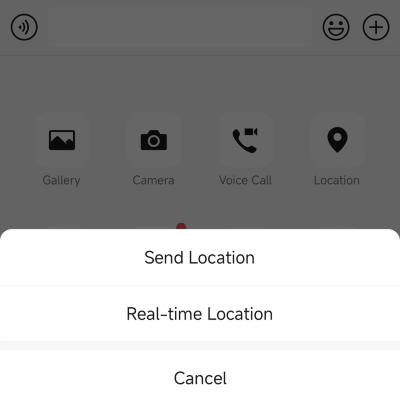
Send Location: Generates a static map card. When you open this picker, WeChat places a pin on your coordinates, but you can manually drag the map or search for a specific address anywhere in the world before hitting send.
Real-time Location: Launches an interactive, two-way tracking session where both parties watch each other move live on a shared map. Unlike static sharing, real-time location continuously streams raw hardware coordinates from your phone. You cannot drag the pin or type an address inside the app; it strictly follows where the operating system says you are moving.
4. Proximity-Based Discovery (People Nearby)
Features that discover local accounts rely entirely on real-time device distance. Regardless of what country is written on your profile card, discovery algorithms calculate proximity strictly through the hardware coordinates reported by your operating system at the moment you refresh the list.
Part 2. Why Standard Mock GPS Apps Fail on WeChat
If you have ever toggled "Select mock location app" inside Android Developer Options and watched WeChat ignore your spoofed coordinates while Google Maps accepted them, you have experienced WeChat's defensive positioning architecture firsthand.
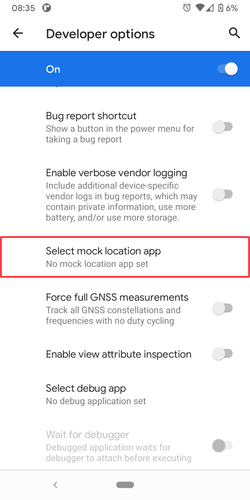
Most basic mobile spoofing apps rely on Android's TestProvider API. They intercept location queries at the standard operating system framework level and return simulated coordinates. Standard consumer apps accept whatever coordinate the system provider returns. WeChat, however, relies on deeply integrated location frameworks, such as dedicated Baidu and Tencent positioning kits, that perform multi-layered sanity checks before trusting a coordinate.
First, authentic satellite fixes generate a constant stream of raw NMEA 0183 sentences, specifically $GPGGA (fix data) and $GPGSV (satellites in view). These sentences contain satellite elevation, azimuth, and signal-to-noise ratios. Basic spoofing apps feed latitude and longitude numbers into the system but fail to synthesize a coherent constellation of orbiting satellites. When WeChat's positioning engine listens on low-level GPS listeners and receives coordinates without valid satellite telemetry, it flags the provider as synthetic.
Second, WeChat cross-references GPS fixes with environmental Wi-Fi and cellular signals. Even when a spoofing app replaces your GPS coordinate with Paris, your phone's network card continues to see the unique MAC addresses (BSSIDs) of your home router and neighboring access points, as well as local cell tower identifiers. When satellite data conflicts sharply with stationary terrestrial Wi-Fi databases, the engine falls back to network triangulation, instantly pulling your location back to your true city.
Part 3. How to Fake Location for WeChat on iOS & Android
Because WeChat detects software-level mock providers inside the mobile operating system, the reliable way to change your position across all WeChat functions—including Real-time Location and Moments—is through a system-level hardware simulation.
Instead of running an app inside your phone that requests mock permissions, a tethered desktop tool communicates directly with your phone's native developer communication bus. On iOS, it uses Apple's official location simulation framework; on Android, it overrides device positioning globally before individual applications ever query it. To WeChat, the incoming coordinate appears identical to an authentic hardware fix.
A dependable solution for this is PoKeep Location Changer. Because it modifies the device's global GPS coordinates externally over USB or Wi-Fi, it leaves the official WeChat app bundle completely untouched, avoiding the security flags associated with modified application packages.

PoKeep Location Changer
Modify your phone's GPS at the operating system level. Safe, stable, and fully compatible with WeChat chats, Moments, and live sharing.
Follow these steps to set a virtual location for WeChat on your iPhone or Android device:
Step 1. Install PoKeep Location Changer on your computer. Open the software and connect your phone using a standard USB cable.
Step 2. Unlock your device screen. Tap "Trust This Computer" on iPhone, or allow USB debugging when prompted on Android.

Step 3. When the mode selection screen appears, choose General Mode to load the world map.
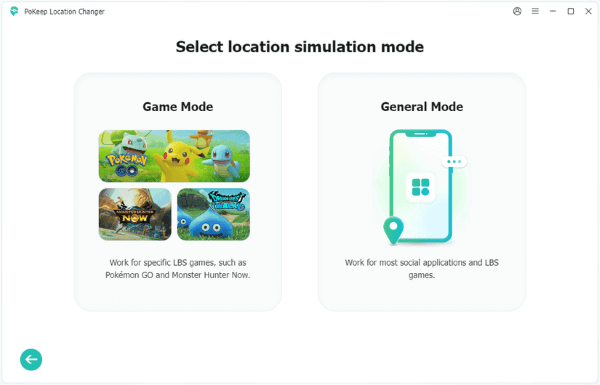
Step 4. For static location sharing or Moments posts, select Teleport Mode in the top-right corner, enter your target city or address in the search bar, and click Start Modifying.

If you plan to join a Real-time Location sharing session, consider using Two-Spot or Multi-Spot Mode instead of Teleport Mode. Simulating a natural walking pace (around 2 to 4 km/h) makes your live marker drift naturally along roads rather than sitting frozen on an exact decimal coordinate for an hour.
Part 4. Does a VPN Change Your WeChat Location?
A widespread misconception is that connecting to a VPN will automatically update your WeChat map location. In practice, a VPN changes only your external IP address, not your geographic coordinates.

WeChat uses your IP address primarily for routing network traffic, serving regional server clusters, and running account security checks. When you tap to share a pin or start live tracking, WeChat queries your phone's Location Services hardware—the satellite receiver, Wi-Fi environment, and cell towers. Because a VPN operates solely at the network routing layer, it cannot alter the GPS coordinates supplied to your apps. If you turn on a London VPN while sitting in New York and open a WeChat chat, your live map pin will still drop directly in New York.
Furthermore, suddenly connecting through commercial datacenter VPN endpoints while simultaneously using WeChat can trigger security alerts. If your login IP suddenly hops across continents while your device hardware indicates you never moved, WeChat's automated fraud filters may flag the session for abnormal activity.
Part 5. Why WeChat Bans Accounts for Spoofing (Real History & Rules)
Changing your location naturally brings up an urgent question: will WeChat ban your account the moment your coordinates jump across the map?
The short answer is no—WeChat does not flag accounts simply because a coordinate changed quickly. Unlike location-based mobile games, WeChat's security filters do not track physical travel speed or enforce artificial cooldown timers. The platform is looking for something far more serious: compromised accounts, malicious code, and automated spam.
The clearest proof of how WeChat polices location tampering happened in late 2019, when e-commerce sellers offered cheap overseas holiday check-ins on Moments. Buyers handed over their login details or QR authorizations, and sellers logged into those accounts remotely from automated servers, using unauthorized plug-ins to inject foreign location tags into the posts. WeChat responded by restricting over one million accounts involved in the scheme.
The sweep targeted hijacked login sessions and rogue code, not the simple coordinates themselves. As long as you keep control of your account and follow a few basic rules, your account remains secure:
1 Never Buy Remote Login Spoofing Services
Paying someone online to post a location on your behalf requires handing over your login credentials, SMS verification codes, or QR code authorization. Logging into your account from an unfamiliar server running automated scripts is the single fastest way to trigger an instant security freeze or permanent suspension.
2 Avoid Modded WeChat APKs and Injected Plugins
Modified APKs and IPAs (often marketed as "WeChat Assistant," "Dual WeChat," or "Auto-Location Mods") promise built-in GPS spoofing. However, WeChat uses sophisticated proprietary encryption (MMTLS) and rigorously verifies the digital signature and runtime integrity of its binary files. When the app detects injected dynamic libraries or hook frameworks, the account is flagged before any location is even transmitted.
3 Rely on Clean System-Level Hardware Simulation
The safest approach is using an external computer-based spoofer that works exclusively with the official, untampered WeChat app downloaded directly from the Apple App Store or Google Play. Because system-level simulation changes the coordinates the operating system provides to all apps, WeChat runs in its native, unhooked state.
Once you are in your new virtual spot, keep your social behavior reasonable. Avoid mass-adding dozens of strangers or sending repetitive messages in a short window, which triggers anti-spam defenses regardless of where your pin is placed.
Part 6. Troubleshooting: Why Your Real Spot Still Appears
The pin moved in the desktop tool, then WeChat opened and still showed your real neighborhood. Work through these four checks in order.
1 Force-Stop WeChat
WeChat keeps the last coordinate it trusted in memory. If the app was already open when you changed the GPS, it can keep painting the old pin. On Android, open Settings > Apps > WeChat > App info and tap Force stop. Wait a few seconds, then open WeChat again. On iPhone, swipe WeChat off the app switcher so it fully quits, then relaunch it.
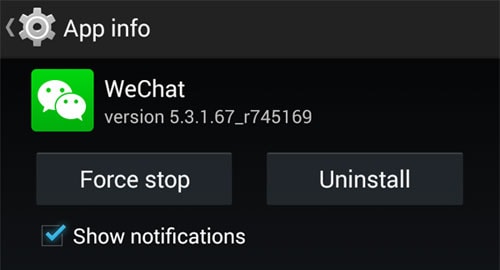
2 Turn Off Wi-Fi Location Scanning
A spoofed satellite fix does not hide the routers around you. Android can still read nearby Wi-Fi names and use them to pull the pin back to your real block. Open Settings > Location > Location services > Google Location Accuracy and switch off Improve Location Accuracy. That toggle is the Wi-Fi and mobile-network scan. Disconnect from your home Wi-Fi and use cellular data before you test WeChat again.
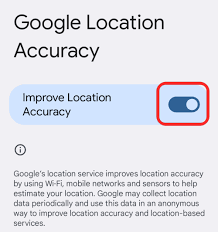
3 Allow Precise Location
If precise location is off, the phone hands WeChat a rough cell-tower estimate and ignores the virtual pin. On Android, open WeChat's location permission and choose Allow only while using the app, with Use precise location switched on. On iPhone, the same page lists While Using the App and a Precise Location switch. Select While Using the App and leave Precise Location on.
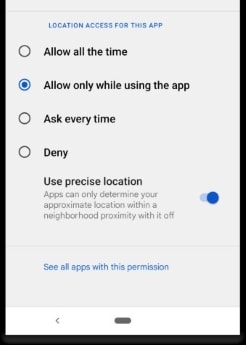
4 You Only Changed the Profile Region
Profile region and the map pin are different settings. Me > Profile > More Info > Region only changes the country text on your profile card. It does not move the pin in a chat or on Moments. To check the GPS you just set, open a chat and tap Location > Send Location.
Part 7. Frequently Asked Questions
Can other WeChat contacts see my location without my permission?
No. WeChat does not broadcast your real-time coordinates publicly. Other users can only see your location if you explicitly send a static location pin in a chat, start a live Real-time Location session, attach a location tag to a Moments post, or enable the People Nearby feature.
Can I search and tag a foreign city on Moments without changing my GPS?
No. The search bar in Moments only queries points of interest (POIs) within a localized radius around your phone's current GPS position. It does not perform a global search. If you search for an attraction in Paris or Tokyo while physically located elsewhere, WeChat will not return the official overseas landmark. To pull up authentic local businesses and landmarks in another city, your phone's system GPS must first be set to that location before opening the post editor.
Will changing my location for WeChat affect other apps on my phone?
Yes. System-level spoofing modifies the GPS coordinates reported by your operating system, meaning navigation apps, ride-sharing services, and social platforms will also reflect the new virtual location. Once you disconnect or restart your phone, your coordinates instantly return to your real physical position.
Is it legal to spoof your location on WeChat?
Changing your device GPS coordinates for personal privacy or testing is generally legal in most jurisdictions. However, using spoofed locations to commit commercial fraud, misrepresent business origins, or evade local regulations violates WeChat's Terms of Service and can result in permanent account termination.


 Leave Your Comment