We are sorry to see you go. If you are experiencing technical issues, please contact our support team before removing the software.
Section 1: For Windows Users
Step 1. Exit PoKeep. Make sure PoKeep is not running. Check your system tray to ensure it is fully closed.
Step 2. Open Control Panel. Click the Start button and search for Control Panel.
Step 3. Go to Programs. Navigate to Programs > Programs and Features.
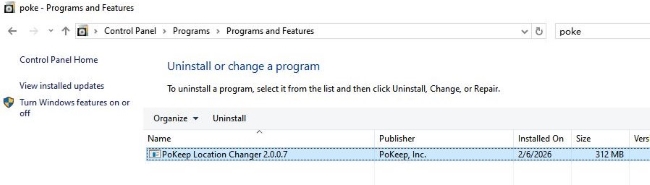
Step 4. Uninstall PoKeep. Find PoKeep in the list, right-click it, and select Uninstall. Follow the setup wizard to complete the removal.
Section 2: For macOS Users
Step 1. Ensure the application is fully closed. If the app is active, press Command + Q or right-click the PoKeep icon in the Dock and select Quit.
Step 2. Open Finder and navigate to your Applications folder. (Tip: You can quickly access this by pressing Command + Shift + A).
Step 3. Locate the PoKeep Location Changer icon and drag it to the Trash (Bin) at the end of your Dock, or right-click the icon and choose Move to Trash.
Step 4. Right-click the Trash icon in your Dock and select Empty Trash to permanently remove the application from your Mac.
Section 3: Still Need Help?
If you encountered any bugs or have suggestions on how we can improve PoKeep, please let us know at support@pokeep.com, Or join our PoKeep Discord community for faster support and real-time assistance. We value your feedback, adn whenever you need to change your location with precision again, PoKeep will be here for you.