 By
By 

If you have just downloaded Rednote (also known as Xiaohongshu or Little Red Book) and found yourself lost in a sea of Chinese characters, you are not alone. As one of the fastest-growing lifestyle apps globally, Rednote attracts millions of international users, but the language barrier remains the biggest hurdle.

This guide acts as your translator, providing a step-by-step tutorial on how to change language on Rednote, interpret the interface, and even unlock location-based features.
Part 1. How to Change Language on Rednote [Android/iOS]
The good news is that Rednote officially supports an English interface. The not-so-good news? The setting is hidden inside menus labeled in Chinese. But don't worry, just follow the steps below, and you can change the language on Rednote in less than 30 seconds.
Step 1. Open the app and tap the "我" character (this means Me if you're using a screen translator).
Step 2. Tap the menu icon (three horizontal lines) in the top-left corner.
Step 3. Tap the gear icon at the bottom of the left panel to open Settings (设置).
Step 4. From the list of options, select the second item with a gear icon, called 通用设置 (General Settings).
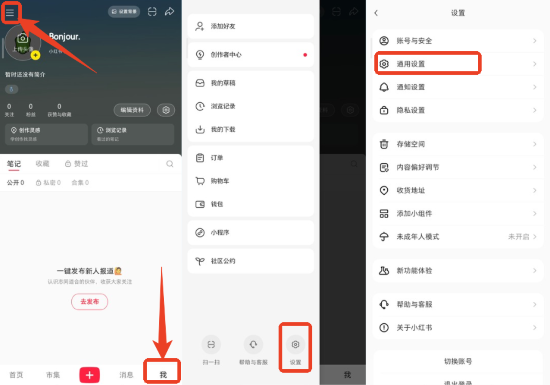
Step 5. Tap the first option named 多语言和翻译 (Languages and translation)
Step 6. Choose English, enable Auto-translation, and tap the red 保存 (Save) button in the top-right corner.
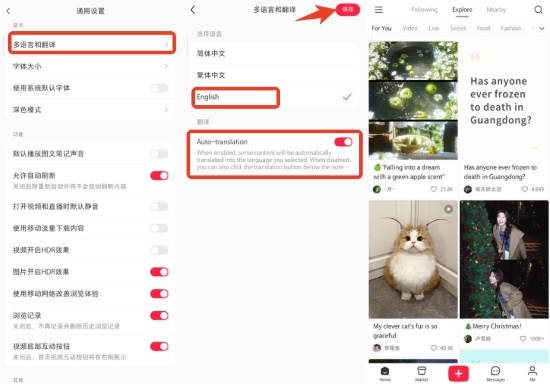
Once completed, Rednote will automatically display the interface, posts, and comments in your selected language, making browsing and interacting much easier.
Part 2. More Ways to Translate Rednote Content Language
If your preferred language isn't supported by Rednote yet, don't worry, you can still translate content using the simple workarounds below.
1 Use iOS Live Text for iPhone Users
This is the smoothest option for iOS users and doesn't require any third-party apps.
Step 1. Take a screenshot of the post or comment section.
Step 2. Open the screenshot in your Photos app.
Step 3. Tap the Live Text icon in the bottom-right corner.
Step 4. Select "Translate" to view the English text directly on the image.

2 Circle to Search for Android Users
Many modern Android phones (such as Google Pixel and Samsung Galaxy devices) include a built-in screen translation feature.
Step 1. Long-press the Home bar or navigation handle to activate Circle to Search (or Google Assistant).
Step 2. Tap the "Translate" button that appears on the screen overlay.
Step 3. Google will instantly translate all text on the screen without closing the Rednote app.
3 The "Long Press" Trick
Sometimes, Rednote allows native translation for specific posts.
Step 1. Long press on the text in a post caption.
Step 2. Wait for the pop-up menu to appear.
Step 3. Tap Translate (or the Chinese characters 翻译).
 Note:
Note:
This feature is inconsistent and may not appear for every post.
Part 3. Bonus: How to Change Location on RedNote
Many users want to change language on Rednote and adjust their location at the same time to discover content from specific regions, especially if you'd like to explore more local Chinese posts (for example, browsing "Shanghai street style" while living in the US). Besides, to display content in the Nearby section, Rednote relies on your phone's real GPS location. This means that simply changing your app language isn't enough, you'll also need to modify your device's GPS coordinates.
Since Rednote doesn't offer a built-in "travel mode" like some social or dating apps, the most practical solution is to use a dedicated location-changing tool such as PoKeep Location Changer.
 Download Free
 Secure Download
 Download Free
Secure Download
Download Free
Secure Download
PoKeep Location Changer is a powerful and user-friendly utility that lets you alter your phone's GPS location without jailbreaking or rooting your device. While it doesn't translate the app interface itself, it solves the "content relevance" issue by allowing you to teleport to another city or simulate real movement across regions.
-
Curate Your Feed: Set your location to cities like Shanghai, Tokyo, London, or Los Angeles to influence the Nearby tab and see region-specific posts and trends.
-
Protect Your Privacy: Browse location-based content without exposing your real physical location to the app.
-
Ease of Use: Enjoy a simple one-click setup on your computer to modify the GPS location of your connected iOS or Android device in seconds.

Part 4. FAQs on RedNote
What Language Does RedNote Support Translation?
What Is the "Explore" Feed Logic?
Why There's No Auto-Translate Button on Settings?
Part 5. Conclusion
Learning how to change language on Rednote is just the first step toward unlocking a world of viral beauty trends, travel tips, and lifestyle inspiration. While the app may require a few extra steps for non-Chinese speakers, switching the interface to English and using built-in screen translation tools can make the platform surprisingly easy to navigate.
Start by adjusting your settings today, and if you are looking to explore trends in specific regions, consider adjusting your location to get the full local experience.
 Related Articles


 Leave Your Comment