 By
By 

Quick Verdict
WhatsApp lets you share a fixed location pin, live location, or Google Maps link depending on your situation. For more control over what GPS location your phone reports, PoKeep can help you share a virtual location on WhatsApp.
Who It's For
This guide is for WhatsApp users who want to send their location, share real-time movement, use Google Maps links, or protect their real GPS position when sharing location.
Key Takeaways:
- Best For Quick Sharing: Send Current Location to share a fixed map pin.
- Best For Real-Time Updates: Use Share Live Location for temporary tracking.
- Privacy Tip: Use PoKeep when you want to share a controlled virtual location instead of your real GPS.
Need to tell someone where to meet you, let a friend follow your trip, or send a nearby place without typing an address? WhatsApp makes location sharing simple, but the best method depends on what you want to share.
You can send a fixed location pin, share your real-time live location, send a place from Google Maps, or share a virtual location when you do not want to expose your real GPS position. This guide explains how to share location on WhatsApp on iPhone and Android, how to share location from Google Maps to WhatsApp, how to stop sharing, and what to do when WhatsApp location is not working.
Current Location vs Live Location on WhatsApp: What’s the Difference?
Before following the steps, it helps to choose the right type of WhatsApp location sharing. Many people tap the Location button without realizing that WhatsApp offers different options.
Current location sends a fixed map pin. It shows where your phone is at the moment you send it, but it does not keep updating after that. This is best when you want to share a meeting point, pickup spot, restaurant, hotel, parking area, or your current address.
Live location shares your real-time movement for a selected duration. The other person can see your location update while the timer is active, which is useful when you are traveling, meeting someone on the way, or letting family know your route.
A searched place or Google Maps link is best when you want to send a destination instead of your real GPS location. For example, you can share a coffee shop, airport terminal, event venue, or a Google Maps route through WhatsApp.
Before You Share Location on WhatsApp
WhatsApp needs location permission from your phone before it can send or update your location. If you have never shared location before, your phone may ask you to allow WhatsApp to access Location Services.
For best accuracy, allow WhatsApp to access your location while using the app. On some Android phones, you may also see an option for precise or approximate location. If you want the recipient to find you accurately, precise location should be enabled.
If the Location option does not work, check your phone settings first. The steps may vary slightly by device, but the general path is Settings > Apps > WhatsApp > Permissions > Location.
How to Share Your Current Location on WhatsApp
Sending your current location is the fastest way to share a fixed pin. The recipient will receive a map preview and can open it to navigate to the location.
How to Share Current Location on WhatsApp iPhone
Step 1. Open WhatsApp and enter the chat where you want to share your location.
Step 2. Tap the plus (+) icon near the message box.
Step 3. Choose Location from the menu.
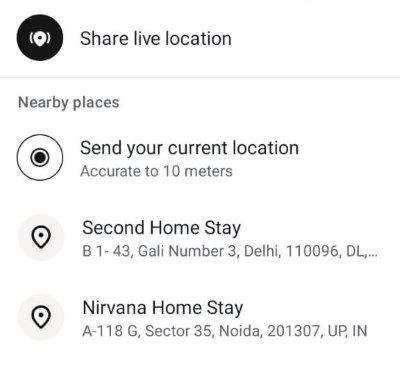
Step 4. Tap Send Your Current Location to send a fixed location pin.
This method does not keep tracking you. If you move after sending the pin, the shared location will not update.
How to Share Current Location on WhatsApp Android
Step 1. Open WhatsApp and choose the individual or group chat.
Step 2. Tap the paperclip attachment icon beside the message box.
Step 3. Select Location.
Step 4. Choose Send Your Current Location.
Android menus may look slightly different depending on your WhatsApp version and phone model. If you do not see Location, check that WhatsApp has location permission in your phone settings.
How to Share Live Location on WhatsApp
Live location is useful when someone needs to follow your movement in real time. It can be shared with one person or inside a WhatsApp group chat.
How to Share Live Location on WhatsApp iPhone
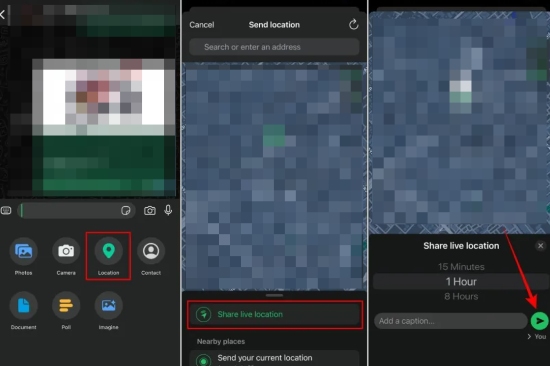
Step 1. Open the WhatsApp chat where you want to share live location.
Step 2. Tap the plus (+) icon.
Step 3. Choose Location.
Step 4. Tap Share Live Location.
Step 5. Select how long you want to share your live location, then send it.
You can add a short message before sending if you want to explain where you are going or when you expect to arrive.
How to Share Live Location on WhatsApp Android
Step 1. Open an individual or group chat in WhatsApp.
Step 2. Tap the paperclip attachment icon.
Step 3. Choose Location.
Step 4. Tap Share Live Location.
Step 5. Select the sharing duration and send it.
While live location is active, the recipient can see your movement on the map. Once the selected duration ends, WhatsApp stops updating your live location automatically.
How to Send a Location Pin on WhatsApp
A location pin does not always have to be your exact current position. You can also search for another place and send that pin in the chat.
This is useful when you want to meet at a restaurant, send a store location, share a hotel address, or guide someone to a place you are not currently standing in.
Step 1. Open the WhatsApp chat.
Step 2. Tap the plus icon on iPhone or the paperclip icon on Android.
Step 3. Select Location.
Step 4. Search for the place or choose from nearby locations.
Step 5. Tap the correct result and send it.
Before sending a searched location, check the name and map preview carefully. Some places have similar names, especially in large cities or shopping areas.
How to Share Location on WhatsApp from Google Maps
Google Maps is better when you want to share a specific place, route, real-time location link, or trip progress. This method is also helpful when WhatsApp’s built-in location feature is not accurate enough.
Share a Google Maps Place on WhatsApp
Step 1. Open Google Maps on your phone.
Step 2. Search for the place you want to share.
Step 3. Tap the place card and choose Share
.
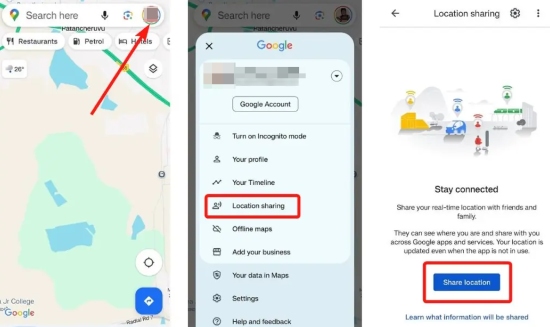
Step 4. Select WhatsApp from the share menu.
Step 5. Choose the chat and send the link.
The recipient can open the link in Google Maps and get directions. This is usually the best option for restaurants, hotels, stores, event venues, offices, or landmarks.
Share Real-Time Google Maps Location on WhatsApp
Step 1. Open Google Maps.
Step 2. Tap your profile picture or initials.
Step 3. Choose Location Sharing.
Step 4. Select a sharing duration.
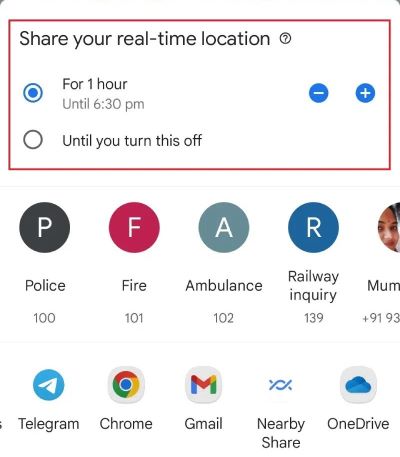
Step 5. Copy the sharing link or choose WhatsApp from the share options.
Google Maps location sharing can be useful when you need longer real-time sharing than WhatsApp live location allows. However, it may show more context than a simple WhatsApp pin, so check the sharing screen carefully before sending.
Share Trip Progress from Google Maps to WhatsApp
If you are actively navigating with Google Maps, you may be able to share trip progress. This lets someone see your route progress and estimated arrival while navigation is running.
Step 1. Start navigation in Google Maps.
Step 2. Open the route options during navigation.
Step 3. Choose Share trip progress.
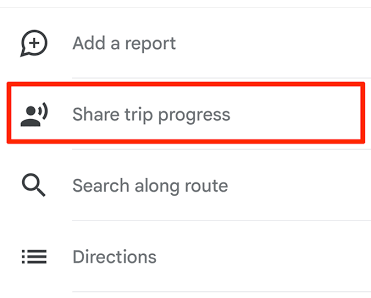
Step 4. Select WhatsApp and choose the chat.
This is useful for airport pickups, ride coordination, road trips, and family safety check-ins. Trip progress sharing usually ends when navigation stops or when you arrive at the destination.
Can You Share Location on WhatsApp Permanently or Indefinitely?
No, WhatsApp does not offer permanent or unlimited live location sharing. Live location is designed to work for a selected duration, then stop automatically.
This matters because many people look for how to share location on WhatsApp all the time, permanently, or indefinitely. WhatsApp is not built for always-on tracking. If you need longer continuous location sharing, Google Maps location sharing, Apple Find My, Google Find Hub, or a dedicated family location app may be more suitable.
For privacy, this limit is helpful. It reduces the chance of accidentally sharing your movement forever with someone you only meant to update temporarily.
How to Stop Sharing Live Location on WhatsApp
You can stop sharing live location before the timer ends. This is important when your plans change, you arrive early, or you no longer want the other person to see your movement.
Step 1. Open the WhatsApp chat where live location is active.
Step 2. Find the live location message.
Step 3. Tap Stop Sharing.
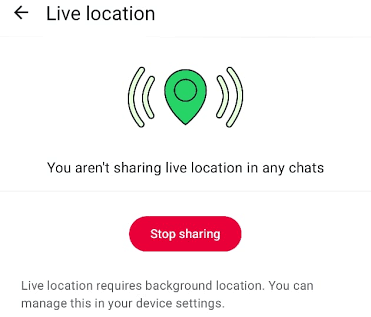
Step 4. Confirm the action if WhatsApp asks.
After stopping live location, the recipient will no longer receive real-time updates from that shared session. If you want stronger control, you can also turn off WhatsApp’s location permission in your phone settings.
What to Do If WhatsApp Location Is Not Working
If WhatsApp location is inaccurate, missing, or not updating, the problem is usually related to phone permissions, internet connection, battery settings, or background restrictions.
Check WhatsApp Location Permission
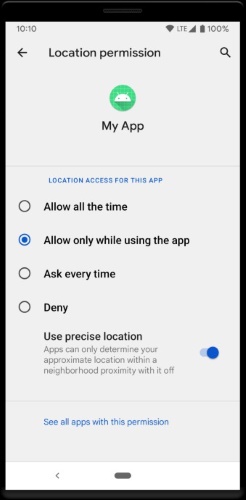
Open your phone settings and make sure WhatsApp is allowed to access location. If your phone offers precise location, enable it when you need accurate sharing.
Check Your Internet and GPS Signal
Live location needs both location access and a stable connection. If you are indoors, underground, in a parking garage, or in a weak network area, the map may update slowly.
Turn Off Battery Restrictions
Battery Saver, Low Power Mode, or strict background app limits can stop WhatsApp live location from updating properly. Allow WhatsApp to run in the background if you need live location to keep updating during a trip.
Update WhatsApp and Restart Your Phone
If the feature still does not work, update WhatsApp from the App Store or Google Play. Restarting the phone can also reset temporary GPS or app permission errors.
How to Share a Virtual Location on WhatsApp with PoKeep
Sometimes you may not want to share your real GPS position. You might be testing how a location-based app behaves, protecting your privacy, creating a virtual travel moment, or sending a controlled location instead of your exact coordinates.

PoKeep Location Changer is useful in this situation because it lets you change GPS location on iPhone and Android without jailbreak or root. After setting a virtual location with PoKeep, location-based apps can read the adjusted GPS position, including social apps such as WhatsApp.


How PoKeep Helps with WhatsApp Location Sharing
PoKeep is not a replacement for WhatsApp’s official live location feature. Instead, it changes the GPS location your phone reports before you use WhatsApp’s location-sharing option.
That means you can use WhatsApp normally after setting your desired virtual location. You can send a location pin, test location behavior, or share a virtual place without manually searching for a map link.
How to Share a Virtual Location on WhatsApp with PoKeep
Step 1. Download and install PoKeep Location Changer on your computer.

Step 2. Connect your iPhone or Android device by following the setup instructions.
Step 3. Choose a location on the map and apply the GPS change.

Step 4. Open WhatsApp on your phone and go to the chat.
Step 5. Tap Location and send the location you want to share.
This is especially useful when you want more control over your WhatsApp location sharing. For best results, use it responsibly and avoid confusing emergency contacts or people who rely on your real-time safety updates.
FAQs About How to Share Location on WhatsApp
How do I share my current location to someone on WhatsApp?
Open the chat, tap the plus icon on iPhone or paperclip icon on Android, choose Location, then tap Send Your Current Location. This sends a fixed map pin.
How do I share live location on WhatsApp?
Open a chat, choose Location, tap Share Live Location, select a duration, and send it. The recipient can see your movement until the timer ends or you stop sharing manually.
Can I share location on WhatsApp from Google Maps?
Yes. Open Google Maps, choose a place or start location sharing, tap Share, then select WhatsApp. You can send a place link, real-time location link, or trip progress depending on what you need.
Can I share location on WhatsApp permanently?
No. WhatsApp live location is time-limited. For longer sharing, use Google Maps location sharing or another dedicated location-sharing app.
Can I send a location that is not my current location?
Yes. You can search for a place inside WhatsApp’s Location menu or share a Google Maps link. If you want your phone itself to report a virtual GPS location, a location changer like PoKeep can help.
Can I share live location in a WhatsApp group?
Yes. Open the group chat, choose Location, and select Share Live Location. Everyone in that group may be able to view the live location during the active sharing period.
Why is WhatsApp live location not updating?
The most common reasons are blocked location permission, weak internet, poor GPS signal, battery saver mode, background app restrictions, or an outdated WhatsApp version. Check permissions first, then update the app and restart your phone.
Conclusion
The best way to share location on WhatsApp depends on your purpose. Use current location for a quick fixed pin, live location for short real-time movement, Google Maps for place links or trip progress, and WhatsApp Status only for location-style updates.
If you want more control over what location your phone reports before sharing, PoKeep Location Changer gives you a practical way to set a virtual GPS location on iPhone or Android. Start with WhatsApp’s built-in tools for everyday sharing, then use PoKeep when privacy, testing, or virtual location control matters more.
 Related Articles



 Leave Your Comment