 By
By 

Whether you are trying to test a newly developed geolocation software, protect your privacy on dating platforms, or gain a strategic edge in AR gaming, finding a reliable way to alter your device's GPS is essential. Modifying your digital coordinates can unlock region-specific content and help mask your actual physical movements from invasive trackers.
However, discovering the best mock location app for Android can be incredibly frustrating. Many users quickly realize that older methods are no longer effective, as modern applications have become highly sophisticated at sniffing out fake GPS data.
This guide will walk you through the essential system settings required to spoof your location, review the top free mobile options available, and explore safer alternatives for users who need an undetectable experience.
How to Enable Mock Locations on Android
Before you can use any mobile spoofing application, you must configure your device's system settings to allow overriding the physical GPS sensor. Android includes a dedicated developer feature specifically designed for this purpose.
Activating this feature is a straightforward process that works across almost all modern Android versions, including Android 14 and 15.
Step 1. Open your Android device's Settings menu and navigate to the "About Phone" section.
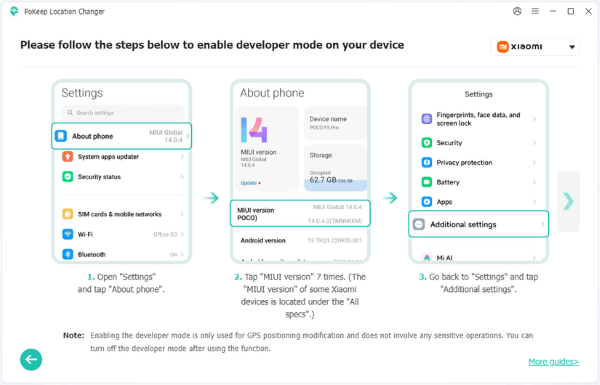
Step 2. Locate the "Build Number" entry and tap it seven times consecutively to unlock Developer permissions. You may be prompted to enter your device PIN.
Step 3. Return to the main Settings menu and open the newly revealed "Developer Options".
Step 4. Scroll down to the Debugging section and find the setting labeled "Select mock location app" or "Allow Mock Locations".
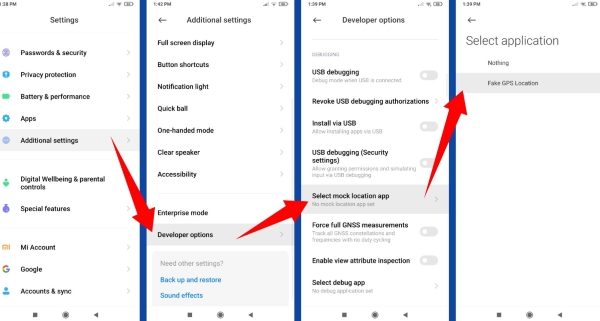
Step 5. Tap this option and choose your downloaded GPS spoofer from the list to set it as the designated mock location provider.
Top Free Mock Location Apps for Android
If you are looking for a free mock location app for Android to handle basic privacy tasks, the Google Play Store and open-source repositories offer several accessible options. These tools are generally easy to install and require minimal setup beyond the developer options configuration.
FakeTraveler
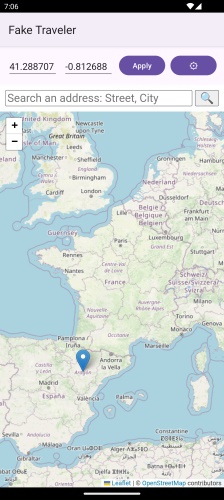
This is a popular open-source option available via F-Droid. The app provides a straightforward map interface where you can select your desired coordinates. To activate the spoof, you simply long-press on the map and tap the Apply button. It is entirely free and lacks the intrusive ads found in many commercial alternatives.
Gmocker & Mock Locations

For users looking for more interactive features, apps like Gmocker allow you to change your phone's GPS location with a single tap. Similarly, the Mock Locations app overrides the GPS and network data for all installed applications on your device. These types of apps often include virtual joysticks, making them slightly more versatile for exploring maps.
Location Changer Fake GPS-Mock
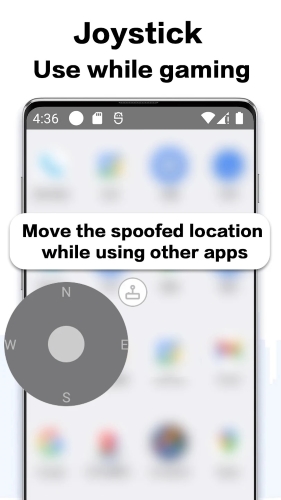
This application provides a highly accessible way to spoof your real location to a fake GPS coordinate with just a single tap. It features a built-in, user-friendly joystick that gives you precise control over setting your virtual movements. This makes it a popular choice for users who want to simulate walking or driving around a specific neighborhood without physically being there.
MockGps (Open Source)
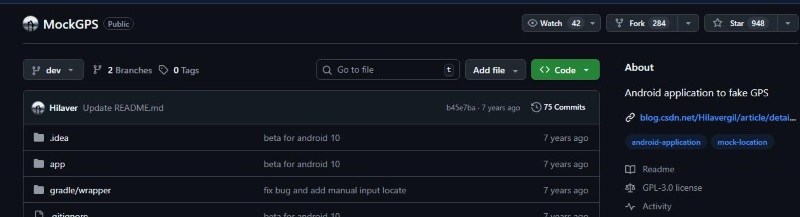
If you prefer community-driven software, MockGps is an open-source Android application hosted on GitHub that provides a convenient way to simulate different geographic locations. Because its code is publicly available, developers and privacy advocates can verify exactly how the application operates. It is a lightweight alternative for those who simply need to test basic location changes without heavy background processes.
GNSS Master
For users needing extreme precision, GNSS Master is a unique utility often paired with external receivers to provide centimeter-level GPS accuracy. Once you install the GNSS Master app and enable mock locations in your Android device, you can feed this highly accurate data into any standard app. It is a fantastic tool for developers testing software that requires pinpoint location stability rather than just a general city-level spoof.
While these free mobile apps are convenient, they come with significant drawbacks. They are highly susceptible to "rubberbanding", a glitch where your location rapidly bounces between your real coordinates and the fake ones.
Why Standard Android Mock Location Apps Fail
When you use the standard mock location app Android settings, the operating system flags the GPS data as artificially generated. This is a massive problem for gamers and power users. Modern AR games, dating apps, and delivery platforms actively scan for this system flag.
If an application detects that a mock location provider is active, it will often block your access, refuse to load map data, or instantly suspend your account.

To bypass this aggressive detection, some Android users resort to rooting their devices and installing complex frameworks to hide the spoofing activity from other apps. However, rooting is highly technical, voids device warranties, and can trigger irreversible security lockouts on banking applications. Most everyday users need a solution that does not require compromising their phone's core security.
The Safest Alternative: Desktop-Tethered Emulators
When mobile apps fail and rooting is too dangerous, desktop-tethered software provides the most reliable and secure path forward. By connecting your phone to a computer, these tools override your location at the system level, bypassing the basic flags that trigger app bans.

Pokeep Location Changer is a desktop tool specifically designed to change the GPS location on mobile devices. It is an ideal solution for location-based apps, gaming scenarios, and privacy-safe simulation workflows. Because the heavy lifting is handled by your PC, the simulated location appears entirely organic to the apps running on your phone.


Instead of just snapping you to a new coordinate, Pokeep focuses on replicating natural human behavior.
- It offers a one-click teleport to instantly jump to any location worldwide.
- You can set up route simulation with multi-point movement.
- It includes an adjustable speed feature to create highly realistic movement paths, ensuring anti-cheat systems do not detect unnatural travel times.
For repeated workflows, the software retains your history and favorite locations, and it is fully compatible with common map, social, and location apps. Using a desktop tether protects your device from the instability of rooted modules while providing the robust features that basic free apps lack.
FAQs about Mock Location Android App
Is spoofing my location illegal?
In most jurisdictions, spoofing your location for personal privacy, testing, or entertainment is not illegal. However, utilizing a mock location app for Android to bypass geographical restrictions on streaming services or to cheat in online games often violates the specific platform's Terms of Service, which can result in account termination.
Do these apps work on Android 14 and 15?
Yes, the core developer settings required to select a mock provider remain intact in newer Android versions like 14 and 15. However, as OS-level security tightens with each update, standard free mobile apps become increasingly prone to detection, making desktop-based emulators a more future-proof choice for consistent results.
Why does my real location keep bouncing back (Rubberbanding)?
This glitch happens when your phone tries to correct the fake coordinates using real Wi-Fi or cellular data. You can easily minimize this by disabling background network scanning.
Step 1. Open your Settings app and tap on "Location".
Step 2. Navigate to "Location Services" or "Improve Accuracy".
Step 3. Toggle off both Wi-Fi scanning and Bluetooth scanning.
How do I mock location for a specific app on Android?
Standard developer settings apply the fake GPS globally to your entire operating system. Restricting the spoof to just one application usually requires rooting your device. To avoid the high risks of rooting, using a stable PC-tethered tool like Pokeep Location Changer allows you to safely manage the device's virtual coordinates across the board without triggering localized app warnings.
Can I use a mock location app for Android TV or tablets?
Yes, because tablets and smart TVs run on the Android operating system, the setup process is usually identical to a smartphone. You can unlock the developer menu by tapping the build number in the system settings to enable the mock location feature.
Will using a fake GPS get my AR gaming accounts banned?
Using basic mobile spoofers carries a massive risk for modern location-based games. Anti-cheat systems easily detect sudden, impossible jumps across the map. To protect your accounts, desktop solutions are highly recommended because they offer adjustable speeds to simulate natural human walking patterns.
 Related Articles


 Leave Your Comment