 By
By 
If you have ever tried to track a family member or friend who uses a different smartphone operating system, you likely know the struggle. While Apple users enjoy seamless tracking via the "Find My" app, this ecosystem is walled off from the rest of the world. This leaves many users asking: how to share location from iPhone to Android without compatibility errors?
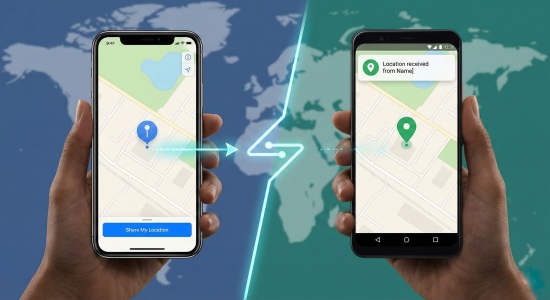
However, that doesn't mean you can't coordinate meetups or keep your family safe across different platforms. In this guide, there are several highly reliable methods to share location from iPhone to Android.
Part 1. Can You Share Location From iPhone to Android
The short answer is: yes, you absolutely can share location from iPhone to Android—just not through Apple's native Find My app.
Apple's "Find My" network is exclusive to iOS devices. If you send a "Find My" link to an Android user, it will often fail to open or redirect them to a generic iCloud web page that isn't optimized for mobile tracking.
Therefore, to share location from iPhone to Android effectively, you need to rely on cross-platform applications that act as a bridge. The best solutions leverage apps you likely already have installed, such as Google Maps or WhatsApp, or dedicated family safety apps like Life360. These tools allow for real-time tracking regardless of the operating system.
Part 2. How to Share Location from iPhone to Android via Google Maps
For most users, Google Maps is the superior choice for cross-platform location sharing. It is likely already installed on your iPhone and the recipient's Android device, and it offers real-time tracking that rivals Apple's native features.
With Google Maps, you can choose to share your live location for a set period (such as one hour) or keep it on indefinitely until you manually turn it off. This makes it a perfect solution if you're wondering how to share location from iPhone to Android quickly and without technical hassle.
Step 1. Open the Google Maps app on your iPhone. Tap your profile picture in the top right corner of the search bar.
Step 2. Select Location Sharing from the menu list, then tap the Share Location button.
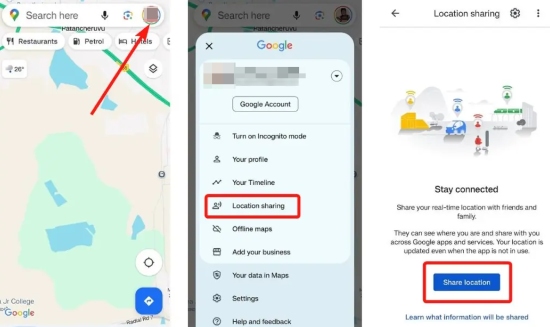
Step 3. Choose your duration. You can tap the "For 1 hour" button to adjust the time with the plus/minus icons, or select "Until you turn this off" for continuous sharing.
Step 4. Select the contact you want to share with. If they don't appear in your immediate contacts list, scroll to the right and tap More Options to send a link via text message (SMS) or email.
Part 3. How to Share Location from iPhone to Android via Social Apps
If you already use messaging or social media apps to stay in touch, you're in luck. Many popular platforms support live location sharing, making it incredibly simple to share location from iPhone to Android without installing anything new.
Here's a quick comparison of the most popular options:
| App | Live Tracking? | Duration Available |
|---|---|---|
| ✅ | 15min; 1 hour; 8 hours | |
| Facebook Messenger | ✅ | 1 hour |
| Telegram | ✅ | 15min; 1 hour; 8 hours; until turned off |
| Snapchat | ✅ | 1 hour; 8 hours; Always |
| ✅ | 1 hour |
1 WhatsApp
If you are already chatting with friends or family on WhatsApp, this is the fastest way to coordinate. WhatsApp allows you to share your "Live Location," which updates as you move, making it perfect for finding each other in crowded festivals or confusing parking lots.
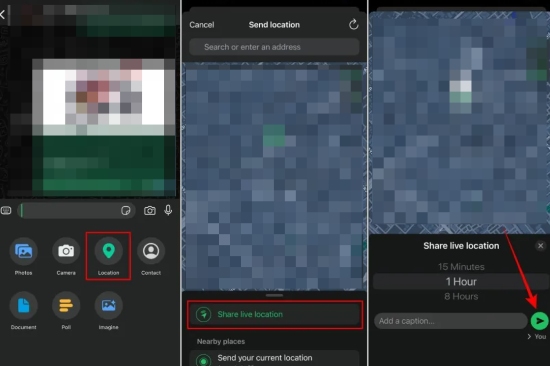
Step 1. Open the chat with the Android user on WhatsApp.
Step 2. Tap the + (Plus) icon next to the text box and select Location.
Step 3. Select Share Live Location. Avoid clicking "Send Your Current Location" if you are moving, as that will only send a snapshot of where you are right now.
Step 4. Pick a duration: 15 minutes, 1 hour, or 8 hours.
2 Facebook Messenger
Since most people already have a Facebook account, Messenger is a convenient backup option. It allows live location sharing for a fixed 60-minute window.
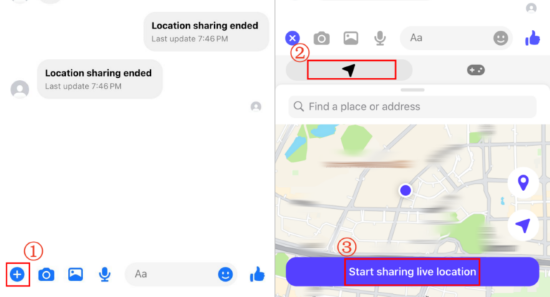
Step 1. Open a chat with the Android user.
Step 2. Tap the + button next to the text box.
Step 3. Select Location > Start sharing live location.
 Note:
Note:
You can stop sharing at any time by tapping the red "Stop Sharing" bar in the chat.
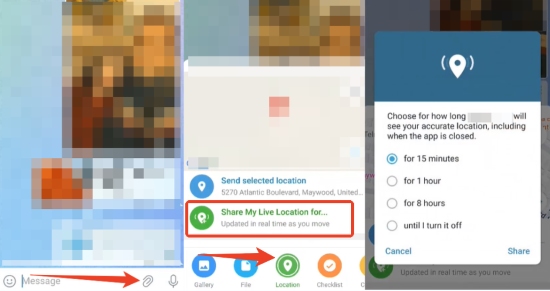
3 Telegram
Telegram is excellent for privacy-conscious users and offers more flexibility than Messenger. It allows you to choose exactly how long you want to be tracked.
Step 1. Open the chat and tap the Paperclip icon (attachment).
Step 2. Select Location.
Step 3. Tap Share My Live Location (Do not tap "Send This Location," which is a static pin).
Step 4. Choose your duration: 15 minutes, 1 hour, 8 hours, or until you turn it off.
4 Snapchat
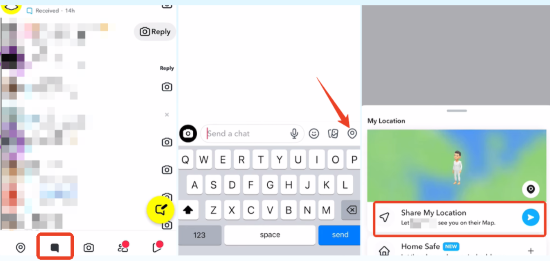
Snapchat isn't just for photos; it has a robust "Snap Map" feature. You can also share your live location with a specific friend without broadcasting it to your entire map.
Step 1. Open the chat with your friend.
Step 2. Tap the Location icon next to the chat bar.
Step 3. Select Share My Live Location.
Step 4. Choose 1 hour, 8 hours, or Always.
5 Instagram
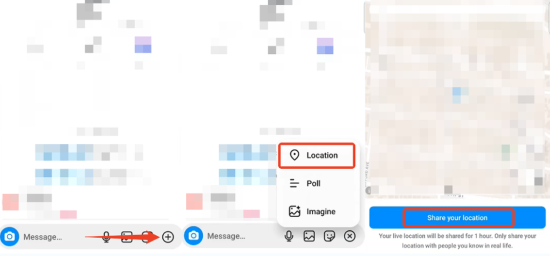
Instagram recently rolled out live location sharing in Direct Messages (DMs). This is perfect if you are coordinating a meetup via Instagram DMs and don't want to switch apps.
Step 1. Open a DM conversation.
Step 2. Tap the + button.
Step 3. Select Location > Share Live Location. Your live location will be shared at a fixed 1 hour.
Part 4. How to Share Location from iPhone to Android via Life360
For parents wanting to track an iPhone from an Android device (or vice versa) for safety purposes, dedicated tracking apps are often better than navigation and social apps. Life360 is the industry standard for cross-platform families. Unlike Google Maps, Life360 allows you to create "Circles" where everyone's location is always visible on a private map. It also includes driving safety reports and crash detection.
Step 1. Download Life360 on both the iPhone and the Android device. Create an account on the parent device.
Step 2. Tap Create a Circle and you will be given a unique invite code.
Step 3. Send this code to the Android user.
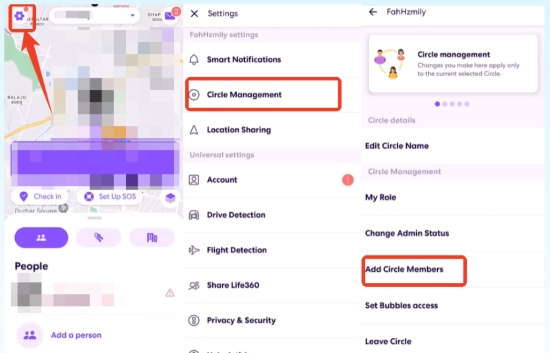
Step 4. Once they install the app and enter the code, they will appear on your circle map immediately.
From there, you can set up Places to receive alerts when someone arrives at or leaves locations like school or work, or simply check anyone's live location at any time.
Part 5. Bonus Tip: How to Fake Your Location for Privacy
Sometimes, you may feel pressured to share your location even when you'd rather keep things private. Maybe you're buying a surprise gift, planning something confidential, or simply want to enjoy a quiet day without being tracked by your family "Circle."
In situations like these, using a professional location changer such as PoKeep Location Changer can be a smart solution. Instead of sharing your real whereabouts, you can display a virtual location to others.

PoKeep Location Changer
Connect your iPhone and Android, control what others see, and stay safe while moving freely.
PoKeep Location Changer lets you appear at a different spot on apps like Life360, WhatsApp, Google Maps, and even Find My, while you're actually somewhere else. It supports both iOS (including iOS 27) and Android, and works without jailbreaking or rooting your device, making it safe and beginner-friendly.
Here's how to use it:
Step 1. Launch PoKeep Location Changer on your computer and connect your iPhone. Finish the quick setup, choose General Mode, and enter the map interface on PoKeep.

Step 2. Select Teleport Mode and enter the address or coordinates where you want your friends to think you are.

Step 3. Click Start Modifying. Your shared location on the Android device will now reflect this virtual spot, keeping your real movements private.
Part 6. Troubleshooting: Why Is Location Not Updating?
If you have set up sharing but the Android phone is not receiving updates from your iPhone, check these settings:
-
Background App Refresh: Go to Settings > General > Background App Refresh and ensure it is turned On for the app you are using (e.g., Google Maps). If this is off, the location won't update when you lock your phone.
-
Location Permissions: Go to Settings > Privacy & Security > Location Services. Find the app and ensure permission is set to Always, not just "While Using." This is crucial for continuous tracking.
-
Low Power Mode: If your iPhone battery is yellow, Low Power Mode is on. This often restricts background data usage and stops location sharing to save battery.

Part 7. Conclusion
Bridging the gap between iOS and Android is easier than it seems. This guide introduced several ways on how to share location from iPhone to Android. By using versatile tools like Google Maps for navigation, social apps for quick updates, or Life360 for family safety, you can share location from iPhone to Android for different purpose.
For those moments when you need to reclaim your privacy without disconnecting, tools like PoKeep Location Changer offer a smart workaround. Choose the method that best fits your needs and stay connected across any device.
 Related Articles


 Leave Your Comment