 By
By 

We have all been there—whether you are planning a surprise party or just taking a mental health day, the desire for privacy is completely valid. However, Apple’s ecosystem is designed for constant connectivity, meaning there is no simple "Pause" button. Most standard methods to pause location on Find My iPhone will immediately alert your friends or display a suspicious "Location Not Available" status.
To help you reclaim your privacy without raising suspicion, I have tested the most common workarounds to see which ones actually keep you under the radar. Below are the 5 best ways to freeze location on Find My iPhone discreetly, allowing you to go off the grid without triggering notifications.
Method 1: How to Pause Find My Location iPhone with The "Airplane Mode" Trick
If you need to pause Find My location sharing for a very short period—say, 30 minutes to an hour—Airplane Mode is the simplest solution. When you enable this mode, your iPhone disconnects from cellular data and Wi-Fi, forcing Find My iPhone to display your "Last Known Location" rather than your live movement. Essentially, it allows you to freeze your location at the specific spot where you toggled the setting on.
How to do it:

Step 1. Swipe down from the top-right corner of your screen to open the Control Center.
Step 2. Tap the Airplane Mode icon (the plane symbol).
Step 3. Ensure Wi-Fi and Bluetooth are also toggled off to prevent any data leakage.
While effective for quick trips, this method "bricks" your phone's connectivity. You cannot receive texts, calls, or use data while hiding. If you stay in Airplane Mode for too long, the status on your friends' devices will eventually switch from a timestamp (e.g., "20 min ago") to "Offline", which can look suspicious if you are trying to pause your location on Find My iPhone without them knowing.
Method 2: How to Freeze Find My Location iPhone Using a Location Changer
Standard methods like leaving an iPad at home (Method 3) have one major flaw: your location dot stays completely frozen in one spot for hours. If someone checks on you, seeing you haven't moved an inch in 6 hours looks strange.
This is where PoKeep Location Changer offers a unique advantage. By tethering your phone (or a spare one) to your computer, you can not only set a fake location but use the Joystick Mode to make your character walk around automatically. This creates a "Live Decoy"—it looks like you are home and active, while you are actually out (without that phone).


-
Simulated Movement: Unlike a frozen dot, PoKeep can mimic walking speed, making it look like you are moving around your house or neighborhood.
-
No "Offline" Status: Since the phone stays connected to your home Wi-Fi/PC, it never shows "Location Not Available."
-
System-Level Spoofing: It overrides the GPS data sent to Find My iPhone directly.
Step-by-Step Guide:
Step 1. Download PoKeep and install it on your computer.
Step 2. Connect your iPhone to the computer via USB. (Note: You must leave the device connected or within Wi-Fi range of the PC for the spoof to hold reliably on newer iOS versions).

Step 3. Select "Joystick Mode" from the interface.

Step 4. Set a route around your block or just around your house and click "Start Moving".
Step 5. Leave this phone at home. Your friends will see you "active" at home while you go out unburdened.
This is perfect if you have a spare iPhone to leave behind, or if you are willing to disconnect for the night and leave your main phone at home to avoid digital stalking.
Method 3: How to Stop Find My Location Sharing via a Secondary Device
If you have an old iPhone or an iPad signed in to the same Apple ID, you can use a native iOS feature to pause location on Find My iPhone without anyone knowing. Apple allows you to choose which device broadcasts your location to your friends.
You can simply leave your iPad at work or home, set it as your primary location source, and then leave with your actual iPhone. To your friends, it will look like you are still sitting right where you left the iPad.
How to set it up:
Step 1. Leave your secondary device (iPad/old iPhone) at the location you want to be seen at.
Step 2. On that device, open Settings.
Step 3. Tap your Name > Find My.
Step 4. Scroll down and tap "Use This iPhone/iPad as My Location".

Does it notify them? No. The switch is seamless. However, once you switch, your friends will see the location of the stationary device. Just remember to switch it back when you return!
Method 4: Turn Off "Share My Location" to Pause Find My Location
If you don't care about "freezing" your location and just want to disappear completely, you can toggle off sharing entirely. However, be warned: this is not subtle.
When you do this, your status inside the Find My app will instantly change to "Location Not Available" or simply disappear from their list. If they try to track you, they will know you have chosen to stop sharing Find My location.
How to do it:
Step 1. Open Settings and tap Privacy & Security.
Step 2. Tap Location Services followed by Share My Location.
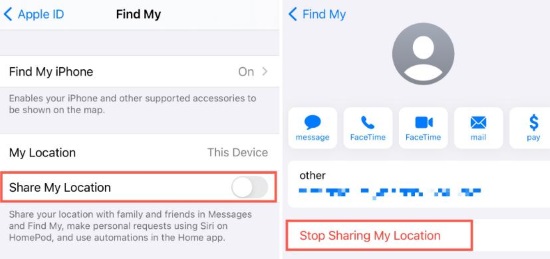
Step 3. Toggle the switch to Off.
In some older versions of iOS or specific iMessage threads, disabling this can actually insert a small gray text in the message chat saying "You stopped sharing location with [Name]." Use this with caution if your goal is to be discreet.
Method 5: Disable Location Services for "Find My" Only
Similar to Method 4, but slightly more specific. Instead of stopping sharing globally, you can revoke the Find My app's permission to access your GPS. This effectively stops location updates for that specific app.
How to do it:
Step 1. Go to Settings > Privacy & Security > Location Services.
Step 2. Scroll down the list and select Find My.
Step 3. Change the access setting to "Never".

Your location will simply vanish. To the observer, it looks the same as if your phone died or you turned off sharing. It effectively stops location find my iPhone tracking, but again, it raises questions.
Comparison: Which Method Should You Choose?
Here is a quick breakdown to help you decide which method fits your current situation.
| Method | Stealth Level | Internet Access? | Cost | Best For... |
|---|---|---|---|---|
| Airplane Mode | Medium (Shows "Offline" eventually) | No | Free | Short trips (Under 1 hour) |
| PoKeep Location Changer | High (Looks 100% Real) | Yes | Paid | Long-term hiding while staying connected |
| Secondary Device | High (Looks 100% Real) | Yes | Free (if you own one) | Users with spare Apple hardware |
| Stop Sharing | Low (Alerts user) | Yes | Free | When you don't care if they know |
FAQs about Pausing Find My iPhone Location
Does Low Power Mode pause location on Find My iPhone?
No, it does not. Low Power Mode temporarily reduces background activity like downloads and mail fetch, but it does not stop "Find My" from updating your location. It might slightly delay the update frequency to save battery, but your friends can still track you.
What does the other person see when I pause my location?
It depends on the method:
Airplane Mode: They see your location at the moment you turned it on, with a timestamp (e.g., "1 hour ago").
PoKeep/Secondary Device: They see you simply sitting at the fake location. It looks perfectly normal.
Stop Sharing: They see "Location Not Available" or "No Location Found".
Can I pause my location for just one person?
Yes. Open the Find My app, tap on the specific person's name in the "People" tab, scroll down, and tap "Stop Sharing My Location". Note that this will remove you from their map entirely, which they will notice the next time they look.
 Related Articles


 Leave Your Comment