 By
By 

Changing your iPhone's location can be incredibly useful, whether you are testing a new app you built or trying to protect your privacy. A highly effective and official method involves using Apple's dedicated development environment. This guide will walk you through exactly how to use Xcode to spoof iOS location data safely and securely.

Why Use Xcode for iOS Location Simulation?
Many users searching for a reliable Xcode spoof iOS location free method choose this route because it is entirely legitimate and avoids the risks associated with jailbreaking. By using Apple's official tools, you ensure your device remains secure while effectively overriding its internal GPS sensors.
It is the gold standard for developers who need to simulate location iPhone data directly from their workstation. You do not need a paid developer account to do this for personal use. All that is required is a Mac computer, a standard USB cable, and a free Apple ID to sign your dummy application.
How to Set Up Your iPhone for Xcode Spoofing
Before you can start manipulating your GPS coordinates, you must prepare both your Mac and your iOS device to communicate with each other. This setup phase ensures your phone will accept the temporary software changes.
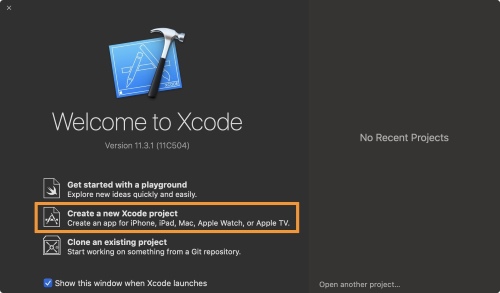
Step 1. Connect your iPhone to your Mac using a trusted USB cable and launch the Xcode application. You will need to create a new, blank iOS App project and log in with your Apple ID under the account settings.
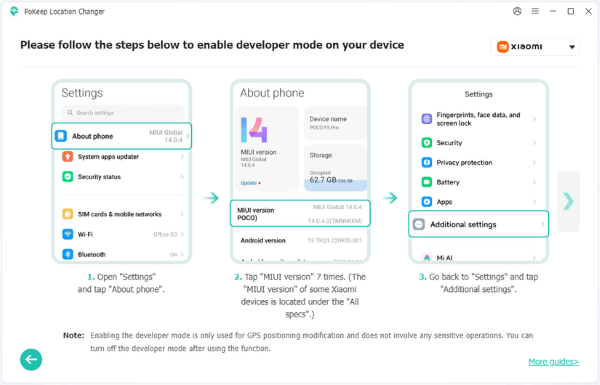
Step 2. Unlock your connected iPhone, navigate to Settings, and tap on Privacy & Security. Scroll down to find Developer Mode and toggle it on.
Step 3. Restart your iPhone when prompted. After it reboots, go to Settings > General > VPN & Device Management to trust your developer profile.
Method 1: Use Xcode to Spoof iOS location via Quick Debug Menu
If you just need to drop a pin in a new city and stay there, Xcode has a built-in feature that takes only a few seconds to execute. This is the fastest way to execute an Xcode change location command without writing any extra files.
For the Virtual Simulator
Step 1. Click the "Play" button in Xcode to build and run your blank project directly onto your physical iPhone.
Step 2. Once the blank app opens on your phone screen, look at the top menu bar on your Mac and click on Debug.
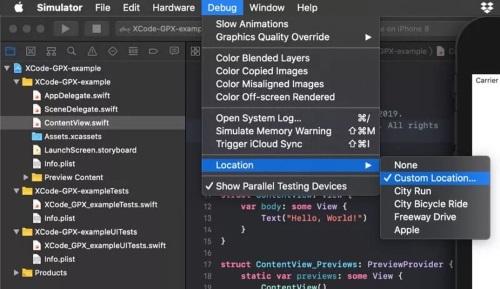
Step 3. Hover over Location.
Step 4. Select Custom Location... to enter specific coordinates, or choose a preset route like "City Run".
For a Physical iPhone
If you have a real iPhone plugged into your Mac via USB and want to change the physical device's system GPS, you must use Xcode's menu.
Step 1. Ensure the main Xcode application is your active window.
Step 2. Make sure your project is currently running on your connected, physical iPhone.
Step 3. Click on Debug in the top menu bar.
Step 4. Click Simulate Location and select your desired city.
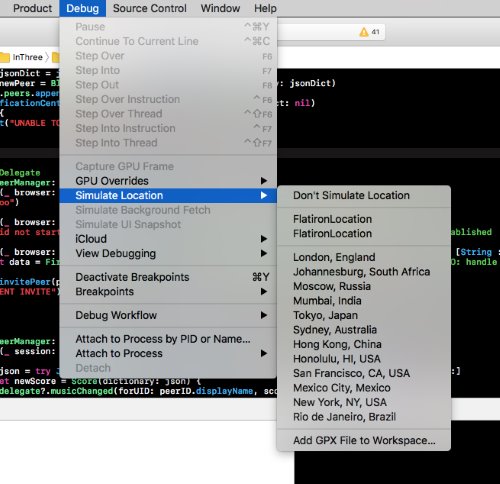
These two menus are very easy to mix up since they are both part of the development workflow. If your ultimate goal is to change the location of the actual phone in your hand, just make sure you are clicking the menu for the main Xcode program while the phone is plugged in.
Method 2: Simulating Movement for iOS in Xcode with a Custom GPX File
Static locations are fine for basic app testing, but simulating a walking or driving route requires a bit more effort. By using an Xcode simulate location GPX file, you can create custom pathways for your device's GPS to follow.
Step 1. Open a plain text editor and create a new file formatted with standard XML waypoint (<wpt>) tags containing your exact target latitude and longitude coordinates. Save this file with a .gpx extension.
Step 2. Drag and drop your newly created GPX file directly into the left-hand navigation pane of your active Xcode project workspace.
Step 3. In the top menu, navigate to Product, choose Scheme, and then click Edit Scheme.
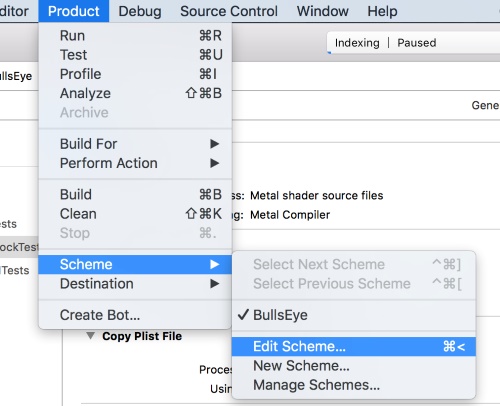
Step 4. Under the Run configuration on the left, check the "Allow Location Simulation" box and select your custom GPX file from the default location dropdown menu.
Overcoming Xcode's Limitations with Pokeep Location Changer
While Apple's official development environment is undeniably robust, it caters primarily to software engineers rather than everyday users. The most glaring restriction is the constant need for a physical connection to your computer. If you attempt an Xcode spoof location Pokemon Go session, you are forced to remain tethered to your Mac; unplugging the USB cable usually causes your iPhone's GPS to instantly revert to its actual coordinates, completely eliminating your mobility.
Furthermore, native developer tools offer zero real-time flexibility.

You won't find on-screen directional joysticks or simple sliders to tweak your walking pace, meaning any adjustments to your movement require coding a brand-new GPX file from scratch. For those seeking a smoother experience without these technical headaches, transitioning to a dedicated software like Pokeep Location Changer is the most logical next step. This desktop utility bypasses the steep learning curve of complex project builds and untethers your mobile device.


By completely removing the need to compile code or remain chained to a desk, Pokeep delivers practical benefits for privacy masking, app testing, and location-based gaming:
- Instant Global Teleportation: Jump directly to any coordinate on the map with a single click.
- Dynamic Route Simulation: Create multi-stop paths and adjust your travel speed on the fly to mimic authentic movement.
- Workflow Automation: Save your most visited spots and historical routes for quick access during repeated tasks.
Ultimately, using a specialized tool shifts your focus away from troubleshooting cumbersome developer software and back to executing your location strategies seamlessly.
FAQs about Xcode Spoof iOS Location
Is it illegal to spoof location?
Spoofing your device's location is generally not illegal for personal privacy, testing your own software, or playing single-player games. However, using it to commit fraud, bypass regional laws, or violate the terms of service of competitive applications can result in account bans.
Why is the Xcode simulate location greyed out?
If you see the Xcode simulate location greyed out, it usually means your application is not actively running on the physical device. You must ensure the app is successfully built and running on the connected iPhone before the debug menu will allow you to alter the GPS data.
How do I stop simulating my location and return to normal?
To revert your iPhone back to its actual GPS coordinates, you simply need to halt the active debugging process within the software. Click the square "Stop" button located at the top left of the main project workspace.
Once the session ends, your device should naturally recalibrate its position. If your phone still stubbornly holds onto the fake coordinates, restarting the iPhone will immediately force the system to ping nearby cell towers and reset your true whereabouts.
Does the developer simulation affect all apps on my iPhone?
Yes, using this official method alters the GPS data at the core system level for the entire device.
This means that once you trigger a simulated coordinate, every single application installed on your phone will believe you are physically standing there. Your weather widgets, default map services, fitness trackers, and third-party social platforms will all automatically update to reflect the newly injected geographic information.
Can I run this developer setup on a Windows computer?
Unfortunately, Apple's proprietary development environment is exclusively built for macOS and cannot be natively installed or run on a Windows PC. Apple strictly limits their official app creation tools to their own hardware ecosystem.
If you only have access to a Windows machine, you cannot use this specific method. You will need to rely on cross-platform third-party desktop alternatives that are specifically engineered to bridge the gap between Windows operating systems and iOS devices.
Will my mock location persist if my iPhone screen locks?
As long as your smartphone remains securely plugged into your Mac and the project background process is actively running, the GPS override will usually stay active even if the display goes to sleep.
However, iOS background task management policies can occasionally disrupt the active connection to conserve battery. Keeping your phone screen awake and unlocked during crucial testing sessions or while running specific apps is highly recommended to maintain absolute stability.
 Related Articles


 Leave Your Comment