 By
By 

Whether you're trying to help a friend find your car in a crowded parking lot, save a hidden scenic spot, or mark a location for a future trip, knowing how to drop a pin on iPhone is an essential skill for every iPhone user.
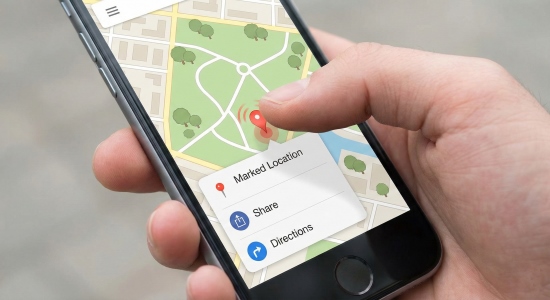
While it seems simple, the process offers powerful hidden features, from precise coordinate tracking to instant sharing across apps. This comprehensive guide will walk you through exactly how to master location pinning on Apple Maps and Google Maps.
Part 1. What Does Drop a Pin Mean on iPhone?
Before jumping into the step-by-step tutorial, let’s first clarify what does dropping a pin mean on iPhone.
In simple terms, dropping a pin is the digital version of placing a pushpin on a paper map. When you tap and hold on a spot in a map app, it places a small red marker (called a pin) at that exact GPS location.
This creates a temporary Point of Interest (POI) for places that don’t have a clear address or official name, such as a specific tree in a park, a meeting point at a festival, or a side entrance to a stadium.
Once you drop a pin on iPhone, you can:
-
Get precise directions to that exact spot
-
Share the location with others via text, email, or messaging apps
-
Save the coordinates to your Favorites or Saved Places
-
Measure the distance from your current location
Part 2. How to Drop a Pin on iPhone in Apple Maps
For most iPhone users, Apple Maps is the default navigation app. Since it’s built directly into iOS, learning how to drop a pin on iPhone using Apple Maps is quick, smooth, and beginner-friendly.
Step 1. Launch the Apple Maps application on your device. You can find your current location by tapping the arrow icon in the top right corner if the map isn't already centered on you.
Step 2. Navigate the map by swiping and pinching to zoom until you find the exact spot you want to mark.
Step 3. Press and hold (long press) on the specific location on the map. After about a second, a red pin will drop onto the screen, and a "Marked Location" card will slide up from the bottom.
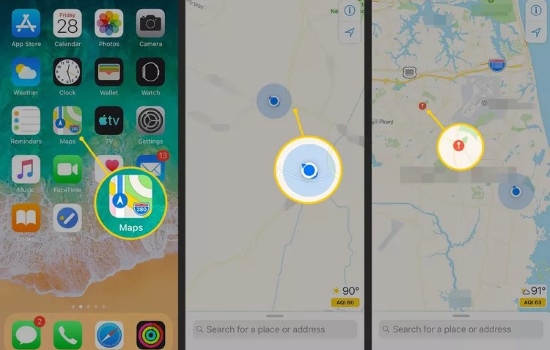
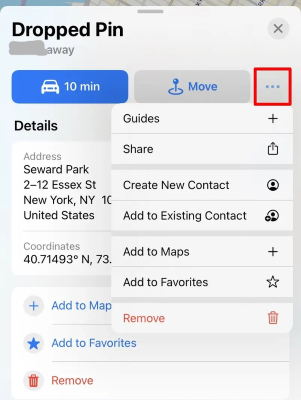
Step 4. Tap Edit Location on the card if you need to refine the spot. This switches to a satellite view where you can drag the map precisely to place the pin exactly where you want it, such as a specific driveway or park bench.
Saving and Organizing Your Pins
Once you have dropped a pin, you can tap the "Add to Favorites" button on the card. This saves the location to your primary list for quick access. Alternatively, you can tap Add to Guides to organize pins into specific collections, like Vacation Spots or Best Coffee Shops.
Part 3. How to Send a Pin Drop on iPhone with Friends
Dropping a pin is often just the first step—you usually need to share it so someone else can find you. Luckily, Apple makes how to send a pin drop on iPhone quick and effortless through its built-in sharing features.
Step 1. Make sure your red pin is selected and the Marked Location card is visible at the bottom of the screen. Then tap the Share icon (a square with an upward arrow).
Step 2. The iOS Share Sheet will appear. Choose how you’d like to send the pin, such as iMessage, AirDrop, Mail, or another messaging app.
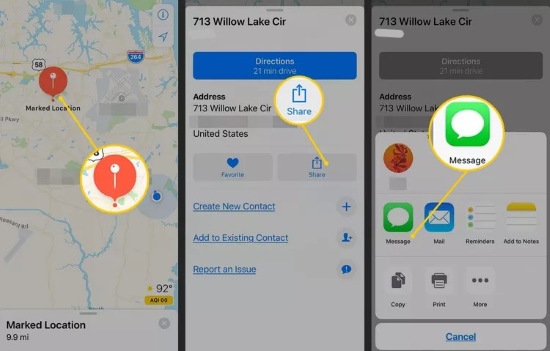
Step 3. Pick your contact and send it. Your friend will receive a small map preview, when they tap it, their default map app opens and provides directions to your exact location.
 Tips:
Tips:
If you are meeting someone in a large public space, use the "Share Current Location" feature in iMessage instead of a static pin. This creates a live link that updates as you move, making it easier to find each other in real-time.
Part 4. How to Drop a Pin on Google Maps iPhone
Many iPhone users prefer Google Maps because of its detailed place information and powerful search features. Thankfully, learning how to drop a pin on iPhone using Google Maps is just as simple.
Step 1. Open the Google Maps app and find the area you wish to mark.
Step 2. Touch and hold on an empty spot on the map. It’s important to press on a blank area, tapping a building or place name will only open that location’s info page instead of creating a new pin.
Step 3. After a moment, a red pin will appear. You’ll also see a small panel at the bottom showing the nearest address along with a “Directions” button.
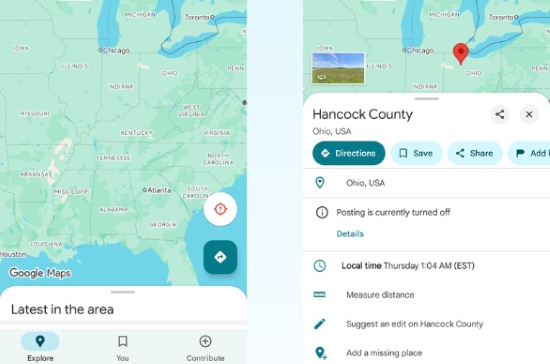
Step 4. Tap the location banner at the bottom to open more options, such as Save, Add lable, and Share.
Tips:
Adding a Label is especially helpful because it lets you give the pin a custom name like Secret Beach Entrance or Best Parking Spot. This name will appear on your map later, making it easy to find important locations again.
Part 5. Bonus: How to Be at Your Dropped Pin Without Moving
Sometimes, simply viewing a location isn’t enough, you may want your iPhone to believe you are actually standing at the pinned spot. Since you cannot physically teleport, you can use software to simulate your presence at a dropped pin. This is where tools like PoKeep Location Changer become essential.
Instantly Be at Any Dropped Pin with PoKeep Location Changer
Drop a pin, press start, and let your iPhone appear exactly where you want — no jailbreak, no hassle, just smooth and secure GPS control.

Step 1. Connect your iPhone to your computer and launch PoKeep Location Changer. After the initial setup, choose General Mode from the interface.

Step 2. You will see a map view similar to Apple Maps. Select movement mode like "Teleport Mode" at the top-right corner.
Step 3. Drop a pin by clicking anywhere on the PoKeep map, or input the specific coordinates you found earlier.

Step 4. Click Start Modifying button. Your iPhone's system-level GPS will instantly jump to that pin.
Part 6. Conclusion
Mastering how to drop a pin on iPhone transforms your device from a passive map reader into an active planning tool. Whether you are using Apple Maps for its seamless iOS integration or Google Maps for its rich data, the "long-press" gesture is the key to marking any spot in the world.
From saving parking spots to learning how to send a pin drop on iPhone to friends, these simple steps solve complex navigation problems. And for those looking to explore the world virtually, tools like PoKeep Location Changer bridge the gap between where you are and where your pin is.
 Related Articles



 Leave Your Comment