 By
By 
For years, iPhone owners looking to change their GPS coordinates without jailbreaking turned straight to iTools. Developed by ThinkSky as an all-in-one iOS manager, its built-in Virtual Location feature let you plug a phone into a computer, click a spot on a map, and move your device pin anywhere in the world.

Today, the software sits in an awkward position. System security updates, shifting developer image requirements, and new hardware alternatives have left many users confused about what iTools actually is and whether it still works. Here is an honest, practical breakdown of iTools Virtual Location in 2026, including the three different products sharing the name, its actual feature set, and what to do when it runs into trouble.
Part 1. What Is iTools Virtual Location
At its core, iTools Virtual Location is a GPS simulation feature built inside the larger iTools desktop utility suite by ThinkSky. It works by establishing a developer communication bridge between your Windows PC or Mac and your tethered iOS device, feeding simulated latitude and longitude coordinates directly into the phone's operating system.
The 3 Different Products That Share the iTools Name
Much of the frustration around iTools comes from mixing up three completely separate tools that share the exact same branding across online guides and gaming forums:
1. iTools Desktop Software (ThinkSky): This is the legacy computer program for Windows and macOS. Virtual Location is a module inside its Toolbox menu. It requires keeping your iPhone plugged into your computer with a USB cable for the entire session. This desktop tool is what this review covers.

2. iTools BT Hardware Dongle: This is a physical Bluetooth accessory popular among location-based gamers. Instead of keeping a computer running, the dongle pairs directly to an iPhone over Bluetooth. In player communities, you will often hear about a "10 km limit." That restriction belongs to this physical Bluetooth dongle, which physically restricts spoofing to within roughly 10 kilometers of your real-world coordinates unless you buy extra RJ45 Ethernet adapters to bypass local GPS signals.

3. iTools - Pocket Multi Tool: This is an unrelated $1.99 utility available on the Apple App Store, created by a different developer. It includes a compass, a seismometer, and coordinate displays. It cannot change or mock your phone's GPS position.

Key Movement Features and Modes
Inside the official ThinkSky desktop suite, Virtual Location provides several distinct ways to navigate across a simulated map:
Move Mode (Virtual Joystick): Displays an on-screen joystick in the bottom-left corner of the map. You can steer your pin in real time using mouse controls or keyboard arrows, tweak travel speed on the fly, and click the Return button to jump straight back to your previous coordinate.
![iTools Virtual Location joystick and speed slider]()
Walking Mode: Lets you set a path between Point A and Point B. The software plots the street route while displaying both actual route distance and straight-line distance. In ThinkSky's documentation, if the straight-line distance between the two points exceeds 1 kilometer, the distance counter turns red.
![iTools walking route showing route distance and straight-line distance]()
![ThinkSky note that a straight line over 1 km turns red]()
Pin Mode: Allows you to drop multiple pins along streets to create an intricate multi-stop path. You can set the route to Repeat (A to B) or Cycle (A to B, then B back to A), with loop counters adjustable from a single run to continuous loops.
![iTools pin mode route with multiple stops and cycle controls]()
GPX Route Import & Export: You can drag and drop pre-recorded GPX route files straight into the map interface or export routes you created. When importing a route, iTools lets you choose whether to start fresh from the beginning or resume from where you stopped during your previous run.
![iTools Virtual Location GPX import button]()
Saved Favorites & Folders: When you discover a useful coordinate, you can copy it to the clipboard, name it, and organize it into custom category folders for quick return trips.
![iTools saved favorite locations with import and export]()


Pricing, Plans, and Subscription Options
Because ThinkSky bundles Virtual Location into its broader iOS management software, purchasing access gives you the full desktop suite:
The ThinkSky store lists three one-time licenses. Premium is $34.95 and covers 5 PCs or Macs. Platinum is $69.95 and covers 15. The bundle is $59.95 and covers 5 computers for iTools plus 5 for AirPlayer. Under the cards, the page says a Premium or Platinum license is required before iTools PC will activate, and that the subscription adds auto GPX generation and unlimited device support.

ThinkSky's Pokémon page also shows a monthly subscription card for the desktop app. It lists the full Virtual Location feature, Advanced GPX, unlimited devices at the same time, and Pokémon feeds for 100 IV and candy. That card does not print a monthly price.

While ThinkSky provides a free trial download, simulation sessions and features are strictly capped until you activate a paid key.
Pros & Cons of iTools Virtual Location
 Pros:
Pros:
- Works without jailbreaking your iPhone or iPad
- Detailed route customization with multi-pin and GPX import
- Includes full iOS device backups and media management
 Cons:
Cons:
- Requires constant USB cable tethering throughout your session
- No Android support; strictly an iOS desktop tool
- Infrequent developer updates cause long delays on newer iOS versions
- Frequent blank map errors caused by outdated map APIs
Part 2. How to Set Up and Use iTools Virtual Location
Because iTools communicates with your iPhone through Apple's developer protocols, the setup requires an active, uninterrupted physical connection. If your USB cable is loose or your drivers are out of date, the simulation will drop immediately.
Step-by-Step Desktop Setup
Step 1. Download and install the full iTools suite from ThinkSky's official site onto your Windows PC or Mac. On Windows, make sure you also have the latest version of iTunes or Apple Mobile Device Support installed so your computer has the necessary USB communication drivers.
Step 2. Connect your iPhone or iPad using an original or MFi-certified USB cable. Unlock the screen and tap "Trust This Computer" when prompted.
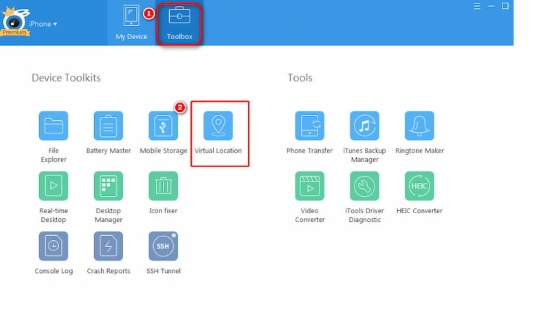
Step 3. Open iTools and click the Toolbox tab on the top menu bar. From there, select Virtual Location to launch the built-in map window. (On older Mac releases, this feature was placed under the Summary tab).
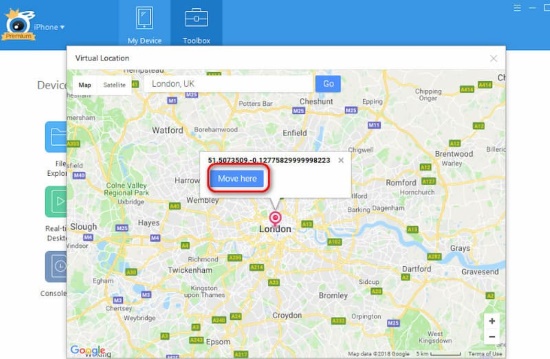
Step 4. Enter your target address or GPS coordinates into the search bar at the top left. Once the map centers on your destination, click Move Here to override your device location.
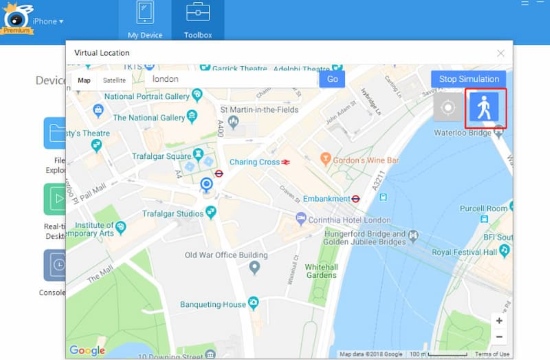
Step 5. To simulate natural travel, click the walking icon or Pin mode, adjust your travel speed using the bottom slider, and select your destination on the map.
Essential Session Rules and Distance Limits
Using iTools smoothly means understanding how desktop simulation actually behaves on your phone:
Keep the USB Cable Plugged In: Unlike wireless location changers, the legacy iTools desktop simulation does not stay active once disconnected. If you pull the cable, the developer bridge breaks, and your phone will either freeze its location or snap straight back to your actual physical position.
The 10 km Limit vs. Safe Walking Speeds: Many online discussions mix these two numbers up. The "10 km limit" belongs strictly to the physical iTools BT hardware dongle, which prevents jumps outside your local neighborhood without extra Ethernet hardware. It is not a software speed limit. For realistic walking inside AR games, keeping your virtual speed under 10 km/h is simply a recommended guideline so games register your movement as human foot travel rather than driving.
Restoring Your Real Coordinates: Clicking "Stop Simulation" inside iTools sends a release command to iOS, but the system location service often takes several minutes to reset. The quickest, most reliable way to restore your real GPS is to unplug your phone and restart it.
Part 3. Common iTools Virtual Location Not Working Issues & Fixes
As iOS security has evolved, desktop tools that rely on older developer frameworks frequently hit roadblocks. Here is what causes the most common errors and how to address them.
1 iTools Virtual Location Unable to Download Separately
Looking for a standalone installer usually leads to broken links or misleading third-party mirrors. ThinkSky does not distribute Virtual Location as an independent executable.

To solve it, you must download the entire iTools desktop software package directly from the official ThinkSky website. Once the suite is installed on your computer, launch it and open Virtual Location through the Toolbox tab.
2 Blank White Map Screen
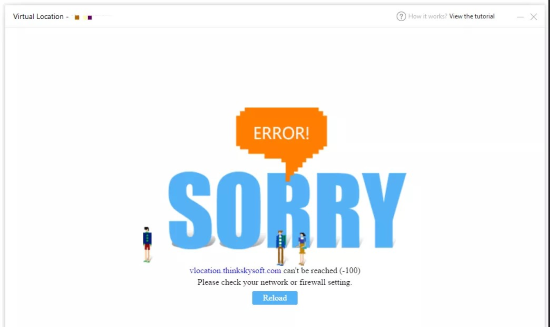
A blank white or grey map screen is the most widely reported problem with legacy iTools builds. It typically occurs when the embedded map component cannot connect to external map servers, either because older releases use deprecated Google Maps API endpoints or because a local firewall or VPN blocks map assets.
You should look at the top-right corner of the map window to see if your version offers a map provider toggle. If available, switch the view from Google Maps to Mapbox to force a reload. Additionally, check that your computer firewall or antivirus is not blocking iTools network requests. If the embedded map API in that specific version has been permanently retired, restarting the app will not help, and you will need an updated software build.
3 Stuck at Developer Mode or Driver Recognition Failure
Another frequent error occurs when iTools freezes on "Loading Developer Image" or fails to recognize a connected iPhone. To simulate coordinates, desktop software mounts a Developer Disk Image matching your exact iOS version.
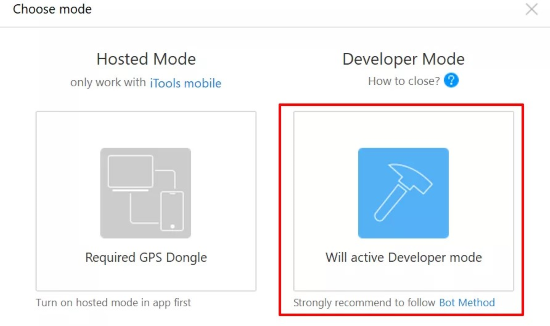
The Fix: Unplug the cable, try a different USB port directly on your computer, and verify you are using an authentic MFi cable rather than a charging-only cord. Unlock your iPhone and make sure you tapped "Trust This Computer." On iOS 16 and later, you must also manually enable Developer Mode under Settings > Privacy & Security > Developer Mode, restart your iPhone, and confirm the prompt.
4 Location Snapping Back or Stopped Working on Newer iOS
When a virtual pin keeps snapping back to your real home or refuses to move, it usually points to a loose connection, location cache conflicts, or operating system incompatibilities.
ThinkSky's official website lists compatibility through iOS 16, explicitly noting that photo export is temporarily unsupported on iOS 18. Meanwhile, user reports on iOS 17 and iOS 18 frequently describe tethered developer simulation failing or resetting within seconds. Because ThinkSky updates its software slowly, official patches for newer iOS releases often take months to appear.
If your iOS version is still supported, clear cached location data by opening Settings > General > Transfer or Reset iPhone > Reset > Reset Location & Privacy. Reconnect to your computer and reapply the location. If your iPhone has already been updated to a recent iOS version that iTools no longer supports, resetting system settings will not bridge the gap.
Part 4. Best Alternative to iTools Virtual Location 2026
If you find iTools Virtual Location too restrictive, cable-dependent, or outdated for your current operating system, PoKeep Location Changer provides a much smoother, dedicated alternative. Instead of burying GPS features inside a large file-management suite, PoKeep is built specifically for reliable location simulation across modern iOS and Android devices.

PoKeep Location Changer
Connect, choose, and move to anywhere in the world - enjoy safer, smoother GPS spoofing on iOS and Android in just a few clicks.
What sets PoKeep Location Changer apart is its stability and modern connectivity. It works without requiring jailbreak or root access, and it avoids the persistent developer image stalls that plague older tools.
-
Wireless Connection: After an initial one-time USB pairing, you can simulate your location over Wi-Fi or Bluetooth, freeing you from keeping your phone tethered to a desk.
-
Broad Platform Support: Works smoothly across both modern iOS and Android smartphones from a single desktop interface, supporting multiple devices at once.
-
Versatile Movement Controls: Includes a 360° real-time GPS joystick, two-spot simulation, and customizable multi-spot routes with realistic speed adjustments.
-
Smart Travel Safeguards: Features a built-in cooldown timer and fluctuation mode that slightly varies your travel speed to mimic authentic human motion.
Step 1. Download and install PoKeep on your Windows PC or Mac.
Step 2. Connect your phone via USB for the initial setup. Unlock your screen and follow the clear prompt to enable Developer Mode on iOS or USB Debugging on Android.
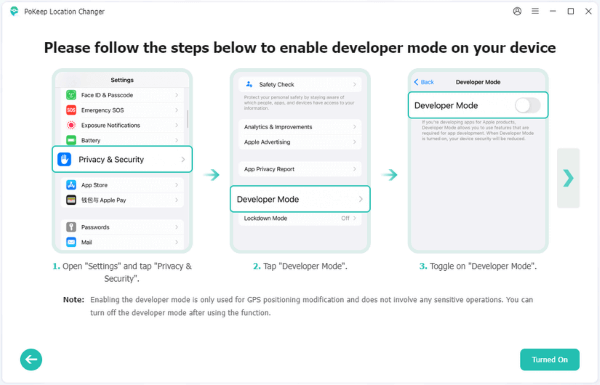
Step 3. Choose your simulation mode—select Game Mode for location-based games or General Mode for privacy and social applications.

Step 4. Select your preferred movement mode, pick a location on the map, and click Start Modifying to update your GPS position immediately.

Part 5. FAQs on iTools Virtual Location
Is iTools Virtual Location free to use?
You can download a trial version of iTools for free from ThinkSky, but simulation sessions and features are strictly limited. Unlocking unlimited location spoofing, GPX routing, and multi-device support requires buying a desktop license or a monthly subscription.
Does iTools Virtual Location support Android?
No. The iTools desktop program is built solely for Apple devices like iPhone and iPad. It does not run on Android, nor does it recognize Android phones connected via USB.
Can I use iTools Virtual Location directly on iPhone without a PC?
Not with the desktop software. The iTools Virtual Location feature requires an active USB cable connection to a Windows PC or Mac. To change location without a computer, the separate physical Bluetooth hardware accessory (iTools BT) is required.
Does iTools Virtual Location work on iOS 17 and iOS 18?
Official ThinkSky documentation states compatibility through iOS 16, while noting that certain features like photo exports are already restricted on iOS 18. While basic teleports may work for some on iOS 17, frequent connection drops, developer image mismatches, and slow developer updates make it unstable on newer iOS builds.
What is the difference between iTools desktop and iTools BT?
iTools desktop is a computer program that modifies your iPhone GPS over a USB cable using developer protocols. iTools BT is a physical Bluetooth dongle that pairs directly with your phone. The Bluetooth dongle has a built-in hardware restriction that limits spoofing to within roughly 10 kilometers of your real location unless paired with extra Ethernet bypass adapters.
Part 6. Conclusion
iTools Virtual Location holds a memorable place in iOS utility history, offering a reliable way to spoof coordinates during the era when jailbreaking began fading away. It introduced flexible movement tools, GPX management, and convenient device backups.
However, running a legacy all-in-one suite with slow update cycles, persistent cable tethering, and outdated map APIs creates frequent friction on modern devices. For users who need seamless wireless spoofing, dependable updates across newer iOS and Android builds, and dedicated movement controls, switching to a dedicated solution like PoKeep Location Changer delivers a much smoother and more reliable experience.
 Related Articles



 Leave Your Comment