 By
By 

Sometimes you want more privacy without turning it into a conversation. Maybe you shared your location indefinitely a long time ago, maybe you only meant to share it temporarily, or maybe you simply do not want your real-time movements visible in Messages anymore.
The tricky part is “without notifying”. On iPhone, stopping location sharing does not always create a direct alert, but that does not mean the other person can never notice. Your location may disappear from Messages, Find My, Maps, or your contact card, or it may show as unavailable depending on the method you use.
This guide explains how to stop sharing location without notifying on iMessage, what the other person may see, and which method fits your situation best.
Does iMessage Notify Someone When You Stop Sharing Location?
In many cases, stopping location sharing through Find My does not send the other person a direct notification. If you started sharing your location in Find My and later stop, the person is not notified and can no longer see you in their friends list. However, if you start sharing again later, they may receive a notification that you started sharing your location again.
That does not mean the change is invisible.
The other person may still realize something changed if your live location disappears, stops updating, or no longer appears under your name in Messages. Apple’s location sharing works across several places, including Find My, Maps, Contacts, and Messages, so stopping sharing in one place can affect what appears elsewhere.
So the honest answer is:
You may be able to stop sharing location without a direct iMessage alert, but you cannot guarantee the other person will never notice.
Is iMessage Location Sharing the Same as Find My?
Not exactly. Many people call it “iMessage location sharing,” but Messages often connects to Apple’s broader location-sharing system.
On iPhone, you can share location in several ways. You can send a one-time location pin in Messages or Maps, share your ETA in Maps, use Check In in Messages, or share your ongoing Live Location through Messages or Find My. Apple notes that ongoing Live Location can be shared in either Messages or Find My, and the sharing works in the same way regardless of which app you start from.
This distinction matters because turning off one kind of sharing may not stop another. For example, sending a current location pin is not the same as sharing your live location indefinitely. A pin only shows one fixed location, while Live Location allows the other person to follow your movements in real time.
Before changing settings, it helps to know which type of location sharing you used.
Common Types of iPhone Location Sharing
| Type of sharing | Where it happens | What the other person sees |
|---|---|---|
| Current location pin | Messages or Maps | A fixed location snapshot |
| Live Location | Messages or Find My | Your ongoing real-time location |
| ETA sharing | Maps | Your live route and arrival estimate |
| Check In | Messages | Your status, and location only if something does not go as expected |
Check In is especially different. It does not automatically share your live location the whole time. It can share your current location, battery, and network signal if the Check In does not end as expected.
How to Stop Sharing Location Without Notifying on iMessage
If you originally shared your location inside a Messages conversation, start there. This is the most direct method for users searching for how to stop sharing location without notifying on iMessage.
Step 1. Open the Messages app on your iPhone.
Step 2. Open the conversation with the person you no longer want to share your location with.
Step 3. Tap the person’s name or profile icon at the top of the conversation.
Step 4. Look for the location-sharing section and tap Stop Sharing My Location if the option appears.
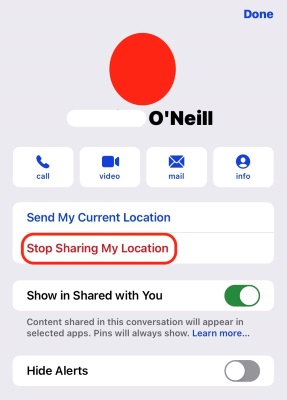
This method is best when you shared your Live Location directly from a Messages conversation. If you do not see the stop-sharing option there, the sharing may be managed from Find My instead.
What Happens After You Stop Sharing in Messages?
The person may not receive a direct alert, but your location may no longer appear in the conversation details. If they often check your location, they may notice that it is missing or unavailable.
This is why the safest wording is not “they will never know.” It is better to understand that no direct notification and completely unnoticeable are two different things.
How to Pause Location Sharing Temporarily Without Notifying on iMessage
Sometimes you do not want to permanently stop sharing. You only want to pause updates for a while. In that case, you have a few temporary options.
Method 1: Turn Off Location Services
Turning off Location Services prevents apps and services from using your device location. On iPhone, go to Settings > Privacy & Security > Location Services, then turn Location Services off. Apple also allows you to control location access for individual apps from this same area.

This is a broad method. It can stop location access across your device, but it may also affect Maps, weather apps, ride-sharing apps, delivery apps, and other services that need location.
Method 2: Change Location Access for Specific Apps
If you do not want to disable all location features, you can adjust individual app permissions.
Go to Settings > Privacy & Security > Location Services, scroll down, choose an app, and select an option such as Never, Ask Next Time Or When I Share, While Using the App, or Always. Setting an app to Never prevents that app from accessing Location Services information.
This method is better when you only want to limit certain apps instead of turning off location for the whole iPhone.
Method 3: Use Airplane Mode
Airplane Mode can temporarily cut off normal wireless connections, which may stop your live location from updating. However, it is not a perfect privacy method.

Wi-Fi and Bluetooth can still be used in Airplane Mode if they are turned back on, so Airplane Mode does not always mean every connection is completely disabled.
Use this only as a short-term pause, not as a reliable long-term way to manage location privacy.
How to Change Your Shared Location Instead of Turning It Off
Turning off location sharing can be noticeable because your location may disappear. If your goal is to avoid showing your real-time physical location while still allowing location-based apps to see a location, changing your GPS location may be a more flexible approach.
There are two main ways to think about this.
Option 1: Share Location from Another Apple Device
If you own more than one Apple device, you may be able to choose which device shares your location. This does not stop sharing; it changes the source of the shared location.
This can be useful if you want your shared location to stay at home on an iPad or another iPhone. However, it only works if the device is signed in properly and eligible for location sharing. It is also not the same as fully disabling location access.
Option 2: Use PoKeep Location Changer to Mask Your GPS Location
A GPS location changer is useful when you want location-based apps to show a different location instead of your real one. This is different from simply turning off sharing. Instead of making your location unavailable, it changes what your device reports as its GPS location.

PoKeep Location Changer is designed to change GPS location on iPhone and Android without jailbreak or root. It supports one-click location changing, GPS joystick movement, and location privacy use cases such as spoofing Find My or Life360. The uploaded PoKeep page also states that location changes are temporary and can be restored by restarting the device.


This option is most relevant when you do not simply want to stop sharing location. It fits users who want to keep certain apps working while avoiding exposure of their real GPS position.
How to Use PoKeep Location Changer
Step 1. Download and install PoKeep Location Changer on your computer.
Step 2. Connect your iPhone or Android device using the supported connection method.
Step 3. Choose a location on the map and start modifying your GPS location.
Step 4. Open your location-based app and check whether the displayed location has changed.
PoKeep should be presented as a privacy and location-control tool, not as a guarantee that no one will ever notice changes. Native iPhone settings control whether location sharing is active; PoKeep helps change the GPS location your device reports.
When to Use Safety Check for Location Privacy
If your concern is personal safety, unwanted tracking, or someone having too much access to your information, use Safety Check instead of only changing one location setting.
Safety Check is available on iPhone with iOS 16 or later. It lets you review who has access to your information, including your location, and use Emergency Reset to immediately stop sharing information. It also lets you review devices connected to your Apple Account.
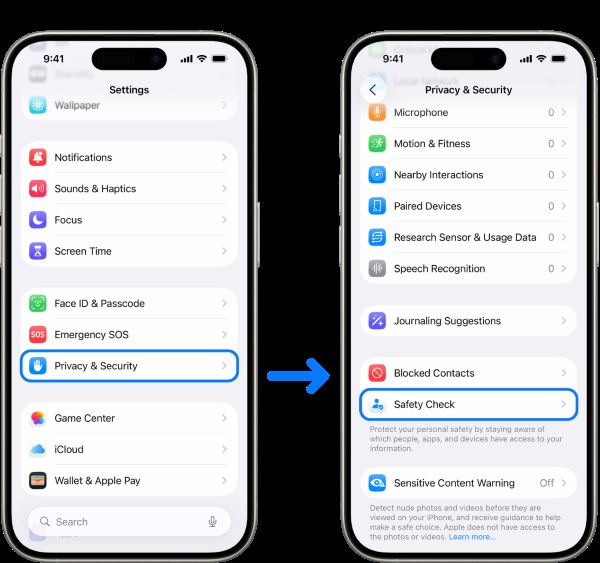
To find it, go to:
Settings > Privacy & Security > Safety Check
Safety Check is especially useful if you are not sure who can see your location, photos, notes, calendars, or other shared information. It is more comprehensive than only stopping location sharing in Messages.
Which Method Should You Choose?
Different methods solve different problems. The best choice depends on whether you want to stop sharing, pause updates, or show a different GPS location.
| Goal | Best method | Will it send a direct alert? | Main limitation |
|---|---|---|---|
| Stop sharing with one person | Find My > People > Stop Sharing | Usually no direct notification | They may notice you disappeared |
| Stop sharing from a Messages chat | Messages contact details > Stop Sharing | Usually no direct notification | Option may not appear if sharing is managed elsewhere |
| Hide from everyone | Find My > Me > Share My Location off | Usually no direct notification | All shared contacts lose access |
| Pause location temporarily | Airplane Mode | Usually no direct notification | Connectivity is affected |
| Stop apps using location | Location Services off | No direct person-to-person alert | Many apps may stop working properly |
| Hide real GPS while apps still work | PoKeep Location Changer | Not the same as stopping sharing | Requires setup and responsible use |
| Personal safety concern | Safety Check | Designed for urgent privacy review | May change multiple sharing settings |
For most readers, the best starting point is Find My. It gives you control over one person or everyone without disabling location across the entire iPhone.
Why Won’t My iPhone Let Me Stop Sharing Location with Someone?
If you cannot stop sharing location, there may be a few reasons.
You Are Looking in the Wrong Place
If you shared your location from Messages, you may expect the stop option to appear in Messages. But if the sharing is managed through Find My, you may need to open the Find My app and stop it from the People tab.
You Are in a Family Sharing Setup
Family Sharing can make location settings feel more complicated. If a parent, guardian, or organizer manages certain settings, some location-sharing controls may not behave the way you expect.
Location Sharing Is Not the Only Active Feature
You may have stopped Live Location but still be sharing an ETA, Check In, or a one-time location pin. A pinned location does not update as you move, while Live Location does. Apple separates one-time location sharing, ETA sharing, Check In, and ongoing Live Location into different sharing types.
An App Still Has Location Permission
Even if you stop sharing with a person, some apps may still have access to your location. Review app permissions under Settings > Privacy & Security > Location Services and change access where needed.
FAQs About How to Stop Sharing Location Without Notifying on iMessage
Can I stop sharing location on iMessage without them knowing?
You can often stop sharing without sending a direct notification, especially through Find My. However, the other person may still notice that your location is no longer available, no longer updates, or no longer appears in Messages or Find My.
Will iMessage send a notification if I stop sharing location?
Not always. Stopping Find My location sharing does not necessarily notify the person, but your location may disappear from places where they used to see it. If you start sharing again later, they may receive a notification.
How do I stop sharing location with one person without notifying?
Open Find My > People, select the person, tap Stop Sharing My Location, then confirm. This stops sharing with that specific person without turning off location sharing for everyone.
How do I stop sharing location with everyone?
Open Find My > Me, then turn off Share My Location. This hides your location from everyone you were sharing with.
Can I just turn off Location Services?
Yes, but it is a broad setting. Turning off Location Services can stop apps and services from using your location, but important iPhone features and location-based apps may not work normally.
Does Airplane Mode stop location sharing?
Airplane Mode may temporarily stop location updates by cutting off wireless connections, but it is not a perfect solution. Wi-Fi and Bluetooth can still be used in Airplane Mode if enabled, so it should be treated as a temporary pause rather than a full privacy strategy.
Is using a GPS location changer better than turning off sharing?
It depends on your goal. If you want to stop someone from seeing your location, Apple’s native sharing settings are the direct solution. If you want location-based apps to show a different GPS position instead of your real one, a tool like PoKeep Location Changer may be more flexible. PoKeep is designed to change GPS location on iPhone and Android without jailbreak or root.
Final Thoughts on Stopping Location Sharing Without Notifying on iMessage
The best way to stop sharing location without notifying on iMessage is usually to stop sharing through Messages or Find My. If you only want to remove one person, use the Find My People tab. If you want to hide your location from everyone, turn off Share My Location. If you need a broader privacy reset, Safety Check is the better option.
Just remember the key limitation:
No direct notification does not always mean completely invisible.
If your goal is to protect your privacy while keeping location-based apps usable, PoKeep Location Changer can be a helpful option because it changes the GPS location your device reports instead of simply turning location sharing off. For the most private and reliable result, combine the right iPhone settings with a clear understanding of what each method actually does.
 Related Articles



 Leave Your Comment