 By
By Seeing the "No New People Around" message on Tinder? Or planning a trip and want to start matching before you arrive? Learning how to change location on Tinder can instantly solve both.
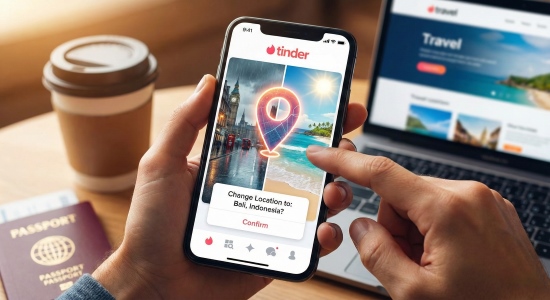
Changing your Tinder location helps you expand your dating pool and connect with people in other cities or countries. However, Tinder locks its official "teleport" feature behind a paid plan, and simply changing your in-app city may not fully protect your real GPS location from other apps.
In this guide, we will break down the most effective methods to change your Tinder location on both iPhone and Android.
Part 1. How to Change Tinder Location via Tinder Passport
Tinder offers a built-in solution called Tinder Passport, which lets you place a pin anywhere on the map and swipe as if you were already there. However, this feature isn't free. Passport is only available with Tinder Plus, Gold, or Platinum. Depending on plan, region and age, subscriptions usually range from $9.99 to nearly $30 per month.
While reliable, Passport has a few drawbacks. You can only use one virtual location at a time, and your profile may show a distance of thousands of miles, something that can look suspicious to some matches unless you hide it.
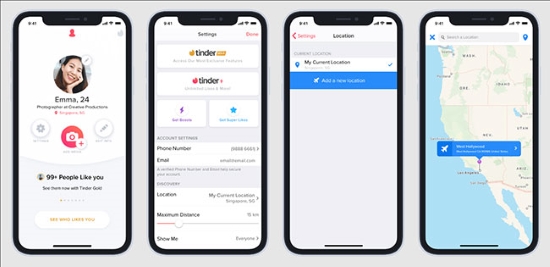
Step 1. Open Tinder and tap on your Profile Icon in the bottom right corner, then select Settings.
Step 2. Scroll down to the "Discovery" settings and tap on Location (on iOS) or Swiping in (on Android).
Step 3. Select Add a new location. You can search for a specific city or move the map pin manually. Once selected, your profile will be visible to users in that area.
Part 2. How to Change Tinder Location via PoKeep Location Changer
If you don't want to pay for Tinder subscriptions and only need to change Tinder location occasionally, PoKeep Location Changer is a smart and affordable alternative.
Instead of modifying your location only inside Tinder, PoKeep changes the GPS data for your entire phone. This means apps like Tinder, Bumble, Hinge, and even Pokémon GO will all think you're in a different city. It supports the latest iOS 26 and Android 16 and works smoothly without jailbreaking or rooting.
-
1-Click to change Tinder location on iOS and Android without jailbreaking or rooting
-
5 flexible movement modes to expand your dating pool and protect privacy
-
Support up to 10 devices at the same time
Step 1. Download and install PoKeep Location Changer on your Windows or Mac computer. Connect your iPhone or Android phone using a USB cable.
 Download Free
 Secure Download
 Download Free
Secure Download
Download Free
Secure Download
Step 2. Launch the program, complete the initial setup, and select General Mode to open the map interface.
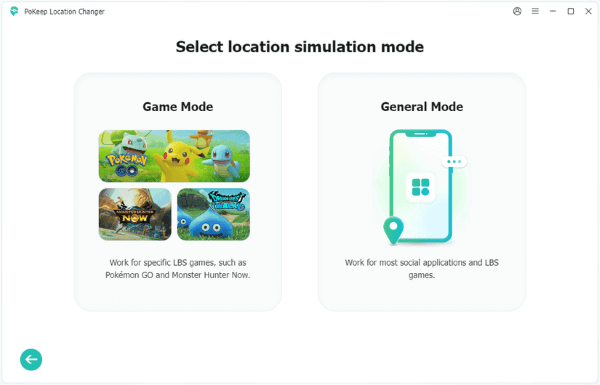
Step 3. To simply move to a new city, ensure you are in "Teleport Mode." Type your desired location (e.g., "Paris") into the search bar and hit enter.
Step 4. Click the "Start Modifying" button. Your phone's GPS will instantly update to the new coordinates. Open Tinder on your phone, and it will refresh with matches from your new location.

Part 3. How to Change Location on Tinder via Fake GPS [Android Only]
Android users on a tight budget have a big advantage. Android supports a feature called Mock Locations, which lets third-party apps feed your phone fake GPS coordinates—making it possible to change Tinder location for free.
However, this method takes a little setup, and most free apps don't offer smooth movement features. To avoid raising red flags, try not to jump between distant locations too often.
Step 1. Go to the Google Play Store and download Fake GPS by ByteRevApps.
Step 2. You must now enable Developer Mode. Go to your phone's Settings > About Phone. Find the Build Number and tap it 7 times rapidly. You will see a notification saying, "You are now a developer!"
Step 3. Return to the main Settings menu and open Developer Options. Scroll down until you find "Select mock location app". Tap it and select the Fake GPS app you just downloaded.
Step 4. Open your Fake GPS app, drop a pin on the map where you want to be, and press the "Play" button. Then launch Tinder, it should now show matches from your new location.

Part 4. How to Change Location on Tinder via VPN [Web Only]
There is a widespread myth that using a VPN (Virtual Private Network) on your phone will change Tinder location. However, the Tinder mobile app relies primarily on GPS data, not your IP address. A VPN changes your IP, but your phone's GPS chip will still tell Tinder exactly where you are standing.
But, this trick does work if you use Tinder via a web browser on your computer.
Step 1. Clear your browser's cookies and cache, or open an Incognito/Private window to ensure no old location data is saved.
Step 2. Launch your VPN software on your computer and connect to a server in the country you wish to swipe in (e.g., connect to a server in Italy).
Step 3. Navigate to Tinder.com and log in. When the Tinder webpage asks for permission to access your location, allow it. It should detect the location of the VPN server rather than your physical home.

Part 5. Essential Safety Tips: Avoiding the Tinder Shadowban
Tinder actively monitors suspicious behavior. If it detects unrealistic location changes—like jumping from New York to London and back within minutes—it may apply a shadowban.
A shadowban is tricky because the app still looks normal to you. You can swipe and send messages, but your profile becomes invisible to other users, which means no new matches at all.
To safely change Tinder location and protect your account, follow these simple rules:
-
Respect the Cooldown Period: After teleporting long distances, wait a realistic amount of time before swiping. For example, moving 100 km should mean waiting at least 40 minutes.
-
Don't Bounce Between Cities: Stick to one location for at least 2 hours. Rapid hopping is a major red flag.
-
Simulate Real Movement: Tools with Two-Spot or Joystick modes (like PoKeep) look more natural than a GPS location that never moves, which can appear suspicious to Tinder's system.
Part 6. Conclusion
Learning how to change location on Tinder can unlock a whole new world of matches and dating opportunities.
If you prefer the official route and don't mind paying, Tinder Passport is a simple and reliable option. But if you want to save money long term, protect your privacy, or avoid iOS restrictions, a dedicated tool like PoKeep Location Changer offers a smarter alternative.
 Related Articles




 Leave Your Comment