 By
By 

If you've been hunting through Find My on your MacBook looking for the option to swap your location from your iPhone to your Mac, you're not alone — and you're not missing something obvious. The path most older guides describe simply doesn't exist on current macOS anymore.

This guide cuts through the confusion. You'll learn exactly what Apple still allows, the one device switch that genuinely works, how to move maps and pins from your iPhone to your Mac, and what to do when none of the native options solve the real problem you're trying to fix.
The Short Answer: Why "Use This Mac as My Location" Is Gone
Here's the truth most articles still get wrong.
Apple's current Find My rules state that the device broadcasting your live location has to be an iPhone, iPad, iPod touch, or Apple Watch signed in with the same Apple Account. A Mac cannot serve as that broadcast source. If you only own a Mac, you can't share your location at all through Find My.
Older versions of macOS did include a "Use This Mac as My Location" toggle, which is why so many people remember seeing it and assume it must still be there somewhere. That option has been removed from current macOS builds. You can search every corner of Find My, System Settings, and iCloud preferences — it will not appear, no matter how recently you updated your software.
This isn't a bug, a missing checkbox, or an account problem. It's a deliberate design choice by Apple.
What You Can Still Do With Find My on Mac
Even though your Mac can't be the location source, the Find My app on macOS is far from useless. Several genuinely helpful things still work.
Turn Share My Location on or off from your Mac
Open Find My, click People, select Me, then click the info button on the map. The Share My Location toggle lives there, and flipping it controls whether your contacts can see you at all. The pin they see is still coming from your iPhone or other eligible device — but you can manage the master switch from the Mac.
Start a new location share with someone
From the same Find My window on your Mac, you can pick a contact and send them a location-sharing invitation. The Mac initiates the share; your iPhone supplies the coordinates.
Send your live location via Messages on Mac
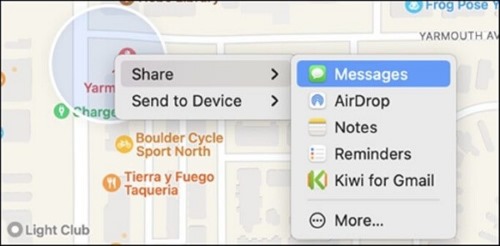
Open a conversation in Messages, click the Info button in the upper-right corner, then click Share My Location and choose a duration. Again, the actual GPS data comes from your paired iPhone, but the Mac is a perfectly functional control panel.
Locate your other Apple devices
Find My on Mac is excellent for tracking down a misplaced iPhone, iPad, AirPods, or AirTag-equipped item — that capability hasn't changed.
What you cannot do, no matter which menu you dig into, is tell Apple to use your Mac's Wi-Fi-derived location instead of your iPhone's GPS.
The Only Native Device Switch That Still Works: iPhone to iPad
If you happen to own an iPad alongside your iPhone, there's good news. You can still natively switch which device broadcasts your Find My location — just not to a Mac.
Steps to switch your location source to iPad
Step 1. On your iPad, open the Find My app.
Step 2. Tap Me at the bottom-left of the screen.
Step 3. Look for Sharing From — it will currently show your iPhone.
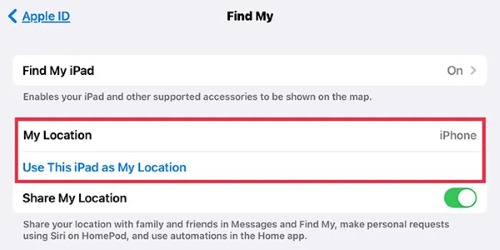
Step 4. Tap Use This iPad as My Location.
The change takes effect immediately. Friends already sharing your location will simply see your iPad's position instead of your iPhone's. They won't get a notification that you switched devices.
One important accuracy caveat
Only Wi-Fi + Cellular iPad models have a built-in GPS chip. Wi-Fi-only iPads derive location from nearby Wi-Fi networks, which can be wildly imprecise — especially indoors or in rural areas. If location accuracy matters for your situation, this method works best on a cellular iPad.
An Apple Watch with cellular can also serve as your location source through similar steps in the Find My app on the watch itself, though most users find the iPad route more practical for everyday use.
How to Send a Location From iPhone to Mac (Maps, AirDrop, Handoff)
A different reading of "change location from iPhone to Mac" is simply: I found a place on my phone, and I want it open on my Mac's bigger screen. This is well-supported by Apple's Continuity features.
AirDrop a pin
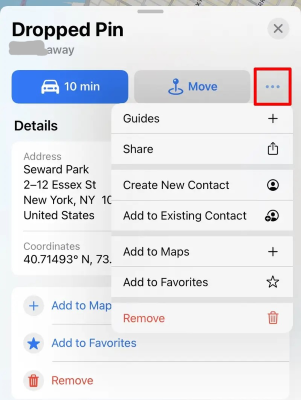
On your iPhone, open Apple Maps, tap and hold the spot you want, then tap the location card. Tap the share button, choose AirDrop, and select your Mac from the device list. The pin will open in Maps on your Mac in seconds.
Use Handoff for active routes
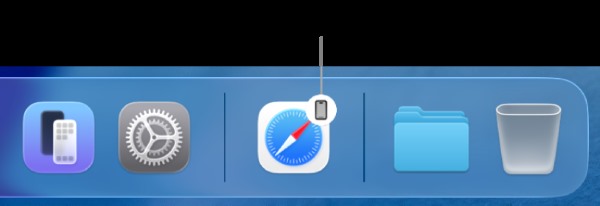
If you've already plotted a route in Maps on your iPhone, Handoff can pass the whole thing to your Mac without any sharing dialogue. Both devices need to be signed in to the same Apple Account with Bluetooth, Wi-Fi, and Handoff enabled. A Maps icon will appear in your Mac's Dock — click it to pick up exactly where you left off.
Share via Messages, Mail, or Notes
Inside the Maps share sheet on your iPhone, you can also send the location to yourself via Messages or Mail, then open the link on your Mac. Works the other direction too: on your Mac, open Maps, search a place or drop a pin, click the share button, and send it via AirDrop or Messages back to your iPhone.
Troubleshooting: When the Switch Option Won't Appear
If you've read this far hoping there's still some hidden setting that will let your Mac take over as the location source, this section is for you. Walking through the checks below will at least confirm everything is configured correctly, even if the final option remains absent.
Check Location Services on Mac
Go to Apple menu → System Settings → Privacy & Security → Location Services and confirm the toggle is on. Scroll down, click Details next to System Services, and verify Find My is enabled.
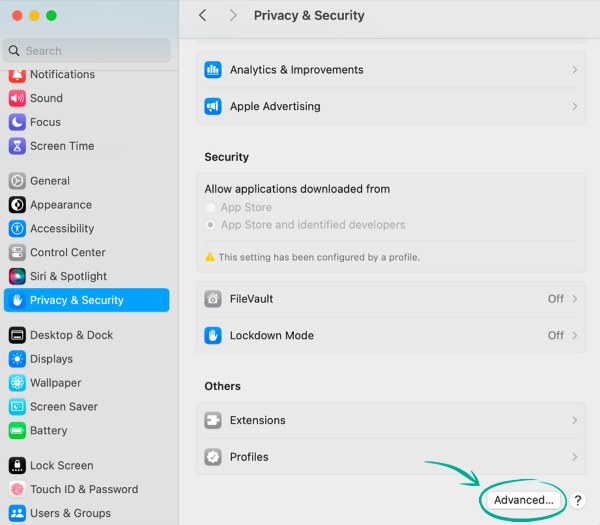
Confirm Find My Mac is turned on
Open System Settings, click your name at the top, then iCloud → See All → Find My Mac → Turn On. If asked, allow Find My Mac to use your location.
Verify the same Apple Account on every device
All of your devices must be signed in with the exact same Apple Account for any of them to even show up as potential location sources. Mismatched accounts — even by a single letter in the email — break the connection silently.
Stop hunting for the removed toggle
Once the above three items are confirmed correct and the "Use This Mac as My Location" option still doesn't appear, the search is over. The feature isn't hiding behind another menu — it's been retired.
When Native Methods Aren't Enough: Changing the Location Your Devices Show
Here's the bigger issue almost no one discusses.
Even when Apple's native tools work perfectly, they only let you choose which of your real devices broadcasts your real GPS coordinates. They don't let you display a different location — and that's what a large share of people searching this query actually want.
Consider the actual scenarios driving this search:
- Planning a surprise visit and you don't want your real movement to give it away
- Stopping Life360 or a partner's tracking app from broadcasting your exact whereabouts
- Playing Pokémon GO, Monster Hunter Now, or another location-based game from your couch
- Accessing geo-restricted dating apps, streaming libraries, or game servers
- Protecting your privacy on social platforms that constantly request location
None of these are solved by swapping your broadcast device. They require setting your devices to show a location of your choosing — something Apple's ecosystem deliberately doesn't permit.
Where PoKeep Location Changer fits

This is the precise gap PoKeep Location Changer was built to fill. It runs natively on macOS, connects to your iPhone, and changes the GPS coordinates your phone reports to every location-aware app — Find My, Life360, Tinder, Pokémon GO, Instagram, WhatsApp, and the rest.


A few capabilities worth knowing:
- One-click teleport to anywhere on the map, with the change reflected instantly across apps that read your phone's location
- 360° GPS joystick for simulating realistic movement, useful for games that detect rapid teleporting as suspicious
- Customizable speed for walking, cycling, or driving, plus a built-in cooldown timer for game safety
- No jailbreak required, with the option to connect your iPhone wirelessly via Bluetooth
- Reversible by design — restarting your iPhone restores your real GPS instantly
PoKeep supports macOS 11 and later, works with iOS 5 through iOS 27. The Mac DMG installer is available directly from the PoKeep site, and the full version typically runs $12.95 with current promotional discounts.
Frequently Asked Questions
Why can't I switch My Location to my MacBook?
Apple has removed the "Use This Mac as My Location" feature from current macOS versions. The device that broadcasts your Find My location must now be an iPhone, iPad, iPod touch, or Apple Watch — Macs are no longer eligible regardless of how they're set up.
Can my Mac replace my iPhone in Find My?
Not as a location source. Your Mac can still display the Find My app, initiate location shares, and locate other devices, but the actual GPS pin shown to your contacts will come from a paired iPhone, iPad, or Apple Watch on the same Apple Account.
Will switching to my iPad notify my friends?
No. Anyone who already sees your location will simply see your iPad's position from that point on without a separate notification. The transition is silent.
How do I restore my real location after using a third-party location changer?
Restart your iPhone. Tools like PoKeep don't make permanent changes to your device, so a simple reboot returns your phone to broadcasting its actual GPS coordinates.
Can I share my location from a Mac if I don't own any other Apple device?
No. Without an eligible iPhone, iPad, iPod touch, or Apple Watch signed in to the same Apple Account, location sharing through Find My isn't possible from a Mac alone.
 Related Articles



 Leave Your Comment