 By
By 

There is nothing quite as frustrating as setting up a new emulator to play your favorite childhood games, only to be stopped dead in your tracks by a "missing files" error screen. If you are trying to run Nintendo DS titles on popular emulators like Delta or melonDS, you have likely run into this exact roadblock. These applications require specific system files to function correctly and boot your game ROMs.
Fortunately, getting your emulator running is a straightforward process once you know where to place these files.
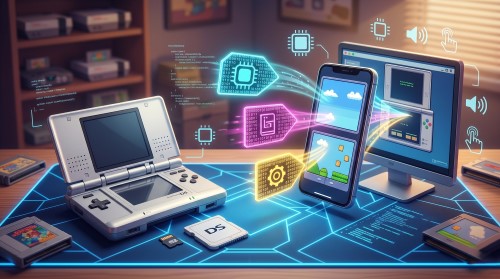
To get your games up and running, you need three specific components: the bios7 file, the bios9 file, and the firmware data. Without these essential pieces of code, your emulator cannot properly mimic the original dual-screen hardware. Let's walk through the exact steps to install these files on the most popular platforms so you can start playing immediately.
Installing bios7.bin and bios9.bin on Delta (iOS)
The Delta emulator has surged in popularity for iPhone users, offering a sleek interface for retro gaming. However, because it emulates complex hardware, it does not come with the necessary system files pre-installed. You will need to manually point the app to your bios7.bin, bios9.bin, and firmware.bin files. Make sure you have these files saved locally in your iOS "Files" app before beginning.
Step 1. Open the Delta Emulator app on your iPhone or iPad.
Step 2. Tap on the gear icon located in the top left corner to access the main Settings menu.
Step 3. Scroll down until you find the "Core Settings" category and tap specifically on the "Nintendo DS" option.
Step 4. Look for the "DS BIOS Files" section at the bottom of the screen, where you will see three distinct slots requiring your attention.
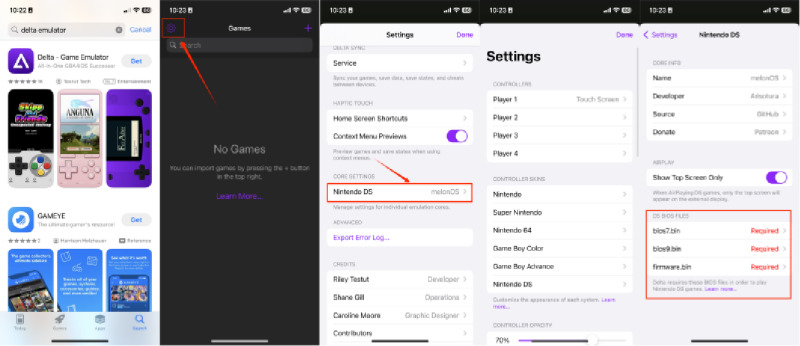
Step 5. Tap each file name individually and use the iOS file browser to select the corresponding file you previously downloaded to your device.
Step 6. Restart the Delta application completely to ensure it recognizes the newly imported system data before you try loading a game.
How To Setup Bios Files In Delta! (2024)
Installing bios7.bin and bios9.bin for melonDS (PC/Android)
For those playing on a PC or using an Android device, melonDS is widely considered one of the most accurate emulators available. Like Delta, melonDS requires the exact same system files to boot successfully. It is important to note that melonDS can be a bit strict about file sizes, typically expecting a standard 256KB firmware dump for optimal compatibility.
Step 1. Launch the melonDS application on your computer or Android device.
Step 2. Navigate to the top menu bar and click on "Config", then select "Emu Settings" from the dropdown.
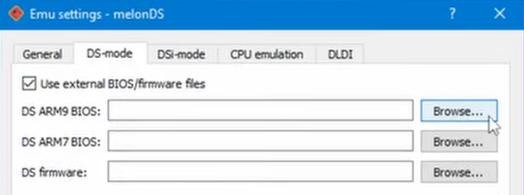
Step 3. Click over to the "DS-mode" tab to access the specific hardware configuration options.
Step 4. Check the box labeled "Use custom BIOS/Firmware" to unlock the file selection paths below it.
Step 5. Click the "Browse" button next to each respective entry to locate and assign your bios9.bin, bios7.bin, and firmware.bin files.
Step 6. Click "OK" to apply your changes and return to the main menu, ready to securely load your ROM.
melonDS Emulator Setup Tutorial 2023 - Nintendo DS on Windows PC!
What Are These Files and Why Are They Required?
Nintendo DS · System layer
Three files → dual-SoC + firmware, then the game would run successfully.
You might be wondering why you even need to bother with a bios7 bin download in the first place. BIOS stands for Basic Input/Output System, and these files contain the original, low-level code from the physical console. They act as the absolute foundation that tells the software how to behave like real hardware. Without them, the emulator is essentially an empty shell with no instructions on how to process game data.
Here is a quick breakdown of what each file actually does:
- bios7.bin: Manages the ARM7 processor core, handling critical tasks like touch screen input, Wi-Fi, and audio processing.
- bios9.bin: Controls the ARM9 processor core, managing the heavier graphical calculations and main gameplay processing.
- firmware.bin: Stores the system settings, boot animations, and user configuration data.
Emulators are incredibly complex software, and these files provide the essential translation layer between your modern device and the retro game code.
Safety First: The Right Way to Acquire BIOS Files
Because these specific files contain proprietary code created by Nintendo, they cannot be legally packaged and distributed alongside emulator applications. This legal restriction is why you must source them yourself. The only officially sanctioned and completely legal method to obtain a bios7.bin, bios9.bin, or firmware.bin file is to extract—or "dump"—them directly from a physical console that you legally own.
Dumping your own hardware ensures that your files are pristine, secure, and fully legal for personal backup use. To do this, you will need your original Nintendo DS or DSi, a compatible flashcart (such as an R4 card), a microSD card, and a homebrew dumping program like dsbf_dump.nds.
Step 1. Download a DS BIOS dumper homebrew application to your computer and transfer the .nds file onto the root of your flashcart's microSD card.
Step 2. Insert the microSD card into your flashcart, and plug the flashcart into your Nintendo DS.
Step 3. Boot up the console, launch the flashcart menu, and run the dumper application just like you would a standard game.
Step 4. Follow the on-screen prompts to extract the BIOS and firmware. Once the process is complete, power down the console and move the microSD card back to your computer to retrieve your freshly generated bios7.bin, bios9.bin, and firmware.bin files.
How To Dump Nintendo DS Firmware For Emulation
Download These BIOS 7/9 Files Directly
While dumping is the recommended route, the reality is that many users no longer have access to their original hardware and turn to the internet to find these required files. If you find yourself in this position, it is crucial to know where the emulation community typically sources secure files, as random Google searches often lead to dangerous sites.
Many third-party ROM hosting sites are notorious for bundling malicious software, intrusive advertisements, and tracking scripts with their downloads. Downloading unknown files directly to your phone or computer can severely compromise your personal data and device security.
Here are some of the links I found:
Level Up Your Mobile Gaming Toolkit
Setting up your retro library is often just the beginning of optimizing your mobile device for gaming. Many players who enjoy emulating classic titles, particularly those from franchise giants like Pokémon, also spend a lot of time playing modern, location-based AR games. Titles like Pokémon GO or Monster Hunter Now require entirely different strategies that revolve around real-world movement and geography.

If you are looking to expand your digital toolkit beyond simple emulation, the Pokeep Location Changer is an excellent desktop companion. Pokeep is a desktop utility designed to change the GPS location on your mobile device safely and easily. This is particularly useful for privacy-safe simulation workflows, app testing, or planning location-based gaming strategies without needing to physically travel.


Here are a few ways Pokeep enhances your location-based activities:
- Route Simulation: Create multi-point movement paths with adjustable speeds to simulate realistic walking, cycling, or driving routes.
- Instant Teleportation: Jump to any location worldwide with a single click to preview geo-specific content or protect your real-world location privacy.
Whether you are using emulators to revisit classic gaming regions or using GPS tools to explore your local neighborhood securely, having the right software makes all the difference. By correctly configuring your emulator files and utilizing smart location management tools, you can transform your everyday smartphone into an incredibly versatile gaming powerhouse.
FAQs about BIOS 7/9 Download
Do I absolutely need BIOS files for every Nintendo DS emulator?
Not necessarily. While Delta and melonDS (in high-accuracy modes) strictly require them, other emulators like DeSmuME use High-Level Emulation (HLE). This means the emulator attempts to recreate the system's functions through software approximation rather than relying on original code. However, using genuine BIOS files always provides higher game compatibility, more accurate audio, and fewer crashes.
Why am I getting an "Invalid Checksum" or "Bad BIOS" error after importing my files?
Emulators are incredibly strict about file integrity. An "Invalid Checksum" error means the file you provided does not perfectly match the exact mathematical hash of a legitimate Nintendo file. This usually happens if the file was corrupted during download, incorrectly dumped, or is the wrong size. For example, standard DS firmware.bin files are usually exactly 128KB, 256KB, or 512KB. If your file is a different size, the emulator will reject it.
Are these BIOS files region-locked? Do I need a Japanese BIOS to play Japanese games?
No, the original Nintendo DS hardware was completely region-free. A set of BIOS and firmware files dumped from a North American or European console will flawlessly boot ROMs from Japan, and vice versa. The emulator relies on the code for hardware processing, not region validation. (Note: This changes if you are emulating the DSi, which did introduce region-locking).
Can I use Nintendo DSi BIOS files to play standard DS games?
Standard DS emulation and DSi emulation use different architectures. While DSi BIOS files share similar names (often labeled as biosdsi7.bin or biosdsi9.bin), they contain completely different boot codes and operating system instructions. To play standard DS games (.nds ROMs) flawlessly, you must use files sourced from an original "Phat" DS or DS Lite.
Is a BIOS required for local multiplayer or connecting to custom Wi-Fi servers?
Yes, absolutely. If you plan to use advanced emulator features—such as melonDS's local multiplayer simulation or connecting to fan-run Wi-Fi servers like Wiimmfi—having accurate, matching BIOS and firmware files is mandatory. The emulator specifically relies on the firmware's original Mac Address and system data to handle wireless communication protocols accurately.
 Related Articles




 Leave Your Comment