 By
By 

In an era where our smartphones constantly track our every move, maintaining digital privacy has never been more challenging. Whether you want to keep your real-time whereabouts hidden from family sharing apps, play location-based games without leaving your house, or simply take a break from being "on the grid," taking control of your GPS data is a smart move. Setting up a decoy location on your iPhone allows you to project a false location to the world while keeping your actual whereabouts secure.

In this comprehensive guide, we will explore exactly how you can effectively mask your location, separate the common myths from the actual facts, and introduce reliable methods to help you maintain your privacy without getting caught.
What Does a "Decoy Location" Actually Mean?
The concept of a decoy location involves broadcasting a false or misleading GPS position to other people or applications. Whether you are trying to maintain personal privacy, protect your real-time whereabouts from family sharing apps, or access geo-specific content, controlling your digital footprint is becoming increasingly important. People often search for ways to set up a decoy location on an iPhone to manage how their location data is shared.
Understanding how your device handles this data is the first step to taking back control.
Using a Secondary Device for Decoy iPhone Location
If you are wondering how to set a decoy location on Find My iPhone, the most straightforward approach involves utilizing a feature officially supported by Apple. Apple allows one specific device to determine the location for your Apple ID within the Find My network. This means if you have an older iPhone or an iPad lying around, you can easily turn it into your physical decoy. By leaving that secondary device at a stationary place, like your home or office, it will broadcast that location to anyone checking your status.
Here is how you can set this up using your spare device:
Step 1. Open the Settings app on the secondary device (the iPad or old iPhone) that you plan to leave behind.
Step 2. Tap on your Apple ID name at the top, then navigate to the "Find My" section.

Step 3. Select the option that says "Use This [Device] as My Location" to anchor your GPS coordinates to that specific piece of hardware.
To make sure it works properly, you should also verify your location settings. Go into Settings, then Privacy & Security, and ensure Location Services are toggled on. You can also verify that "this device" is currently showing as the active location on the phone you intend to leave behind.
Technical spoofing is only half the battle; having a believable story is the other. Check out our 'Decoy Excuse Generator' below—select your current scenario and get an instant, customized alibi to keep your privacy completely intact.
🤫 The Decoy Excuse Generator
Select your current situation to generate a believable alibi that keeps your secret safe.
Glitch
Buffer
Activity
Other Free Alternatives for iPhone Decoy Locations
Beyond the secondary device method, some users attempt to use free software alternatives. These are more technical and usually require a computer to override the iPhone's system GPS.
Using Xcode (The Developer Route)
Xcode is Apple's official integrated development environment (IDE) for macOS. It is primarily used by developers to build apps, but it includes a powerful location simulation tool intended for testing how apps respond to different coordinates.
How it works
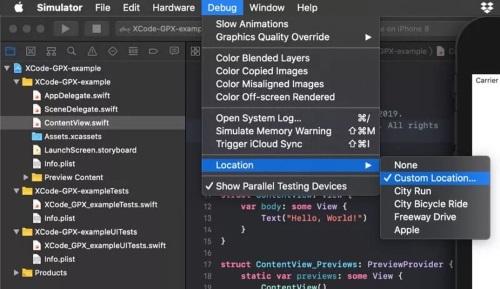
You must connect your iPhone to a Mac, create a "dummy" project, and run it on your device. Once the app is running, you can use the "Simulate Location" menu to select a preset city or upload a custom .gpx file containing specific coordinates.

The Limitations:
This method has a high technical barrier. It requires a Mac and a basic understanding of app development. Additionally, the spoofed location may eventually reset if the device is disconnected or the project stops running, making it less than ideal for long-term privacy masking.
Using 3uTools (The PC-Based Tool)
3uTools is a popular all-in-one tool for iOS devices on Windows. It features a "Virtual Location" tool that allows users to change their GPS coordinates without needing to jailbreak their phones.
How it works:

After connecting your iPhone to a PC via USB, you open the "Virtual Location" tool within 3uTools. You can then search for any address or coordinate on a map and click "Modify virtual location" to teleport your device.
The Limitations:
While it is easier to use than Xcode, it is notably unstable on newer iOS versions. Apple's aggressive system GPS calibration often causes the location to snap back to your real position after a few minutes. This inconsistency can be risky if you are relying on it to maintain a decoy location for an extended period.
The VPN Myth: Why It Won't Work for iPhone Decoy Location
A common misconception is that downloading a Virtual Private Network (VPN) will automatically fake your location on Find My iPhone. While a VPN is a fantastic tool for encrypting your internet traffic and masking your IP address, it operates quite differently from a GPS spoofer. The most flexible and convenient aspect of a VPN is changing your IP address to match a server in a different region.

However, iOS apps like Find My, Apple Maps, and location-based games rely strictly on your device's internal GPS chip, not your IP address. Therefore, simply toggling on a VPN app will not change your actual GPS coordinates on your iPhone. If your goal is to send a decoy location on an iPhone for tracking apps, you need a solution that directly overrides the system's GPS data.
How to Set Up an iPhone Decoy Location Without a Spare Apple Device
Not everyone has a spare iPad or an old iPhone to leave at home. Furthermore, the strict security of the iOS ecosystem prevents you from simply downloading a quick location-faking app directly from the App Store. To properly spoof your location on iPhone without jailbreaking, you generally need to connect your phone to a computer and use desktop simulation software.

This is where dedicated tools like Pokeep Location Changer become highly practical. Pokeep Location Changer is a desktop application designed specifically for changing the GPS location on mobile devices. It provides a reliable workaround for privacy-sensitive travel needs or location-based app testing. Instead of dealing with complex developer tools, you can manage your coordinates through a clean desktop interface.


With this type of software, you can take advantage of a few key capabilities:
- One-click teleportation to instantly move your device's perceived location anywhere in the world.
- Route simulation to mimic natural multi-point movement.
- Saving your favorite decoy locations for repeated privacy workflows.
To use a tool like this, you typically just need to type the location you want to set as a decoy into the software's search bar. After selecting the teleport mode, hitting enter will immediately update your phone's GPS data.
FAQs About iPhone Decoy Locations
Will turning on Airplane Mode work as a decoy location?
No, turning on Airplane Mode or simply disabling your location services does not create a decoy. Instead of broadcasting a fake spot, your device will just drop off the grid entirely.
Applications like Find My will typically display your last known whereabouts alongside a timestamp indicating when you were last seen. Friends or family checking your status will easily notice that your phone is disconnected or paused, rather than actively transmitting from a different place. If you want to maintain the illusion of being somewhere else, you must actively supply alternative GPS data.
Does faking my GPS coordinates affect other applications on my phone?
Yes, overriding your device's GPS will impact almost every application that relies on location data. Because these spoofing methods alter the system-level coordinates, the effects are universal across your entire digital ecosystem.
You should be mindful of how this changes your daily smartphone usage while the decoy is active. For example, consider how it alters these common services:
- Ride-sharing apps will try to pick you up at your fake coordinates.
- Weather widgets will display the forecast for your simulated city.
- Food delivery platforms might attempt to route your dinner to the decoy address.
Always remember to reset your device to its real location before ordering a physical service or calling a cab to avoid major headaches.
Can I use an Apple Watch as the anchor for a decoy location?
While you can easily use an iPad or an old iPhone as your primary location anchor, the Apple Watch operates differently within the Find My network. If you have a GPS+Cellular Apple Watch on your wrist and leave your iPhone at home, the watch will dynamically update your location as you move around.
However, you cannot manually designate an Apple Watch sitting on your nightstand as the permanent anchor while taking your active iPhone with you. Apple's ecosystem generally prioritizes the active iPhone or cellular watch that is currently moving. To successfully leave a physical decoy behind, you must stick to using a secondary iOS or iPadOS device.
Do I need to jailbreak my iPhone to spoof my location?
You absolutely do not need to jailbreak your smartphone to set up a decoy location. Connecting your device to a computer and using desktop simulation software is a highly effective, non-destructive workaround that keeps your phone's operating system intact.
Jailbreaking removes essential Apple security protocols, leaving your device highly vulnerable to malware. It also instantly voids your warranty. While a jailbroken phone can run mobile-native spoofing apps directly from the home screen, the severe security trade-offs are almost never worth the slight bump in convenience.
How to Avoid Getting Caught Faking Your Location
A major concern for many users is whether others can tell if someone is faking their location on an iPhone. The biggest giveaway is usually unrealistic movement. For instance, if your Find My app shows you instantly jumping from New York to London in a matter of seconds, it becomes painfully obvious that you are using a decoy strategy.
Maintaining the illusion of realistic travel is essential for successful location spoofing.

If you are using desktop software like Pokeep Location Changer, you can avoid these red flags by utilizing its adjustable speed features. Instead of instantly teleporting, you can simulate a route with realistic movement paths that mimic walking, cycling, or driving speeds. By planning your fake movement carefully and avoiding sudden map jumps, your decoy location setup will appear entirely natural and remain undetected.
 Related Articles






 Leave Your Comment