 By
By 

Whether you want to catch rare Pokémon, access geo-restricted streaming, or protect your privacy on Find My, knowing how to change location on iPhone is essential. However, Apple’s security in iOS 17/18 means simple apps no longer work.
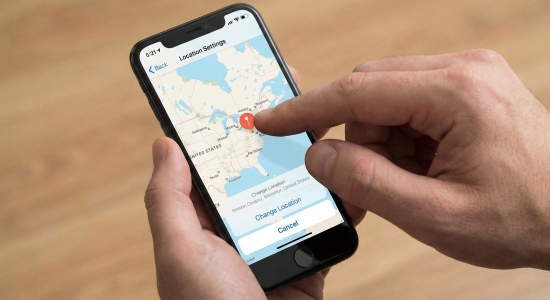
To successfully spoof your position, you must target either your IP address for Netflix or GPS coordinates for Games/Tinder. This 2026 guide provides the fastest, tested methods to safely modify your iPhone location using VPNs, desktop software, and expert workarounds.
Part 1. What to Know Before You Change Location on iPhone?
How Does iPhone Location Work
Modern iPhones use a Hybrid Positioning System to determine your location, which means they don’t rely on GPS alone. Instead, your device combines multiple data sources to calculate a highly accurate position. It uses GPS/GNSS satellite signals for precise outdoor tracking, Wi-Fi positioning to scan nearby routers and match them with Apple’s location database, and cell tower triangulation to estimate your position based on nearby cellular signals.
On top of that, Apple uses sensor fusion, data from the barometer, accelerometer, and gyroscope, to track movement, direction, and elevation changes in real time. Because your iPhone blends all these technologies together, changing just one element (like your IP address) won’t fully alter your physical location, which is why different methods are needed depending on your goal.
So to change location on iPhone, you must first identify exactly which location you need to change:
| Location Type | Related Settings | Function |
|---|---|---|
| Digital Location | IP Address | Used by websites and streaming services (e.g., Netflix, Hulu). |
| Physical Location | GPS | Used by apps like Maps, Find My, Tinder, and Pokémon GO. |
| Account Location | Apple ID | Used to determine which apps you can download. |
Once you know your goal, choosing the right method becomes much easier. In the next sections, we'll walk you through the best way to change each type of location step by step.
Why Spoofing is Difficult on iOS
Apple places a strong emphasis on security and privacy, which makes location spoofing much harder on iPhones than on many other devices. Because iOS cross-references multiple data sources - GPS, Wi-Fi networks, cell towers, and internal motion sensors - a simple app from the App Store cannot easily “trick” the system into thinking you’re somewhere else. Apple tightly controls system-level permissions, preventing ordinary apps from overriding core location services.
As a result, if you truly want to change location on iPhone, you typically need to override the GPS system at a developer level using a computer-based tool or specialized hardware rather than relying on a basic mobile app.
Part 2. Use VPN to Change Location on iPhone [For Streaming/Online Privacy]
If your goal is to watch a movie available only in the UK or to browse the web more anonymously, you need to learn how to change IP location on iPhone. Luckily, this is the easiest method and doesn't require any technical skills.
The most reliable solution is using a VPN (Virtual Private Network). A VPN routes your internet traffic through a server in another country or state, hiding your real IP address and assigning you a new one.
Step 1. Download a reputable VPN app from the App Store (e.g., NordVPN, ExpressVPN, or ProtonVPN).
Step 2. Open the app and create or sign in to your account.
Step 3. Select a server in the country or state you wish to appear in.
Step 4. Tap Connect to activate the VPN.

 Note:
Note:
A VPN only changes your IP address. It does not change your GPS coordinates. If you open Google Maps or Tinder while using a VPN, the apps will still see your real physical location because they rely on your phone's GPS chip, not your internet connection.
Part 3. 4 Ways to Change GPS Location on iPhone [For Games, Dating & Find My]
If you need to move your "blue dot" on a map, in other words, change GPS location on iPhone for a dating app, Find My, or a location-based game, you must override the GPS sensor on iPhone.
Because iOS doesn't allow GPS spoofing natively, this requires external tools. Below are the three most effective ways to change GPS location on iPhone in 2026.
1 Use Third-Party Desktop Program to Change iPhone Location
The most stable and secure way to fake GPS on modern iOS versions (especially iOS 17 and later) is to use desktop software. These tools work like a virtual “driver” for your iPhone, telling the system that your device is located somewhere else.
Among the available options, PoKeep Location Changer stands out for its strong compatibility with the latest iOS updates (including iOS 27) and its built-in safety features designed specifically for gaming. It supports USB, Bluetooth, and Wi-Fi connections, giving you flexible ways to change GPS location on iPhone without being limited by cables, perfect for gaming or long-term use.
Easily change your GPS location on iOS devices to anywhere without jailbreaking
-
Joystick Mode: Lets you move your GPS location in real time using an on-screen controller, making movement look natural in games like Pokémon GO.
-
Cooldown Timer: Automatically calculates safe waiting times between location jumps to reduce the risk of account bans.
-
Multi-Device Support: Change the location of multiple iPhones and Android at once (great for families or multi-account users).
We tested PoKeep Location Changer on an iPhone 15 Pro running iOS 27. The connection was stable over Wi-Fi, and the joystick felt responsive during a 30-minute Pokémon GO session without any rubber-banding issues.
Step 1. Download PoKeep Location Changer on your PC or Mac. Plug your iPhone into the computer using a USB cable.
Step 2. On your iPhone, go to Settings > Privacy & Security > Developer Mode and turn it on. (This is required for the computer to modify your GPS).
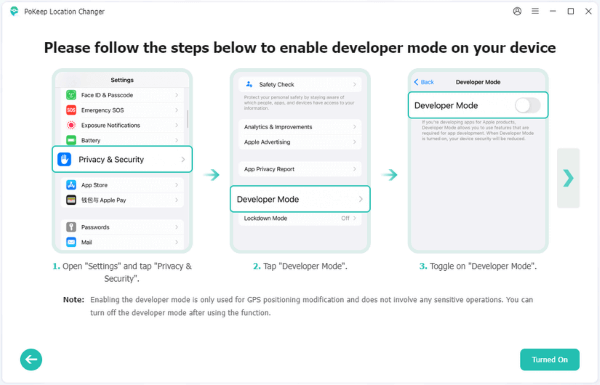
Step 3. Click Next, and choose Game Mode for playing games like Pokemon GO or General Mode for changing location on Tinder and other apps.

Step 4. Enter your desired address in the software and click Start Modifying.

2 Use Xcode on Mac to Change Location on iPhone
For tech-savvy users who want a free solution, Apple's own developer tool, Xcode, can simulate location. This is intended for app developers to test their software, but it works for personal use too.
Step 1. Download Xcode from the Mac App Store.
Step 2. Launch Xcode and create a new "Single View App" project.
Step 3. Connect your iPhone to the Mac.
Step 4. In Xcode, go to the Features > Location.

Step 5. Choose a pre-set city or enter a custom location with specific coordinates.
3 Use External GPS Dongle to Change Location on iPhone
If you want to know how to change location on iPhone without a computer, a hardware dongle like iTools BT or Gfaker is a portable option. These are small accessories that plug into your iPhone's charging port. The hardware overrides the internal GPS signal of the iPhone. You then use a companion app (often installed via TestFlight) to control your location.


4 Use Another iOS Device as Your Location
If you only want to change location on Find My app that your friends will see, you can do this by using a secondary Apple device, like an iPad.
Step 1. Take another spare iOS devices and ensure it’s logged into the same Apple account as your main iOS device.
Step 2. Open Settings on your spare iOS device and tap your name.
Step 3. Go to Find My and tap the option that says Use this iPad as My Location.
Step 4. Place the spare iOS device at where you want to be.
Now, when friends check your location, they will see where the iPad is, even if you are out with your iPhone. This is a simple way to maintain privacy without using external software, though it requires owning a second Apple device.
5 Safety and Best Practices for Location Spoofing
When you change your iPhone location, especially for gaming, it is vital to act naturally. Rapidly "jumping" from New York to London in seconds is a red flag for most apps.
Always utilize the Cooldown Timer if you are using Pokeep for games like Pokémon GO or Monster Hunter Now. This ensures you wait a realistic amount of time before performing actions in a new city, keeping your account safe while you explore the world from home.
Part 4. Adjust Settings to Change Location on iPhone App Store [For Downloading Apps]
Sometimes, you might want to download a game or app that is only available in a specific country (e.g., Japan or the US). To do this, you must change location on iPhone settings within your Apple ID.
-
Cancel all active Apple subscriptions (Apple Music, TV+, iCloud, etc.).
-
Spend any remaining Apple ID balance.
-
Prepare a valid payment method for the new country.
Step 1. Open the Settings app.
Step 2. Tap your Name at the top.
Step 3. Tap Media & Purchases > View Account.
Step 4. Tap Country/Region.
Step 5. Select Change Country or Region and choose your desired country.
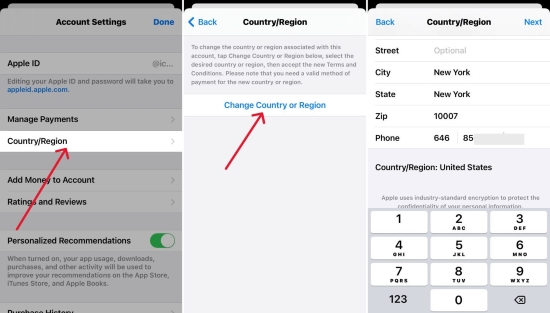
Step 6. Agree to the terms and enter your new payment information.
Once completed, the App Store will automatically refresh to show the top charts and apps for that specific region.
However, if you don’t have another valid payment method for the new country, you may need to create a new account for that new country.
Part 5. FAQs on Changing iPhone Location
Can You Change Your Location on an iPhone Without Them Knowing?
Yes. If you use a professional tool like Pokeep or the Another Device method, your location will change on the map for your friends and family on Find My without sending them any notification or alert.
How to Turn Location on iPhone?
Go to Settings > Privacy & Security > Location Services and toggle the switch to "On." You can also manage individual app permissions from this menu.
How to Change iPhone Location to Another Device?
On the device you want to be your official location, go to Settings > [Your Name] > Find My and tap Use this iPhone as My Location.
Part 6. Conclusion
Learning how to change location on iPhone gives you far more control over your digital life—from what content you can access to how much privacy you maintain online.
Whether you use a VPN to change IP location on iPhone for safer browsing and streaming, rely on desktop software like PoKeep Location Changer to change GPS location on iPhone for games and dating apps, or change App Store location on iPhone to download region-exclusive apps, the key is choosing the right method for your specific needs.
 Related Articles
 Leave Your Comment