 By
By 
Changing your iPhone's location without paying for a monthly subscription or jailbreaking your phone sounds like an easy win. In the open-source community, iFakeLocation on GitHub has long been the most recommended option. It is completely free, runs on your desktop, and controls your device over a standard USB cable.

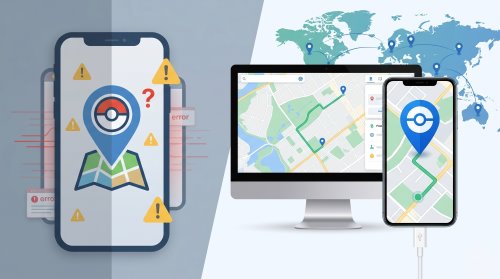
However, if your device runs a recent iOS version, plugging your phone in might lead straight into an error dialogue before your coordinates ever move. We ran a hands-on test across modern iOS builds to verify what still works, what breaks permanently, and how to get your coordinates moving safely.
Part 1. What Is iFakeLocation
iFakeLocation is an open-source desktop utility created by developer master131. Instead of sideloading modified IPA files or jailbreaking your iPhone, the program runs on your computer (Windows, macOS, or Linux) and controls your device over a tethered USB connection.
Under the hood, iFakeLocation uses Apple's official developer debugging framework. In older iOS versions, developers could mount a "Developer Disk Image" onto a connected device to simulate locations for app testing. Once mounted, the software commands the iPhone's Core Location daemon to report mock coordinates. Every app on your phone, including Apple Maps, Google Maps, dating apps, and social platforms, treats these mock coordinates as your genuine physical location.
Part 2. Test: Does iFakeLocation Work on iOS 17 to 26?
To see exactly where the tool stands today, we tested it on an iPhone 14 running iOS 26.3 connected to a Windows 10 PC over USB.
The "iOS Version Not Supported" Error
At first, the setup seemed smooth. After downloading the project, plugging in the iPhone, and tapping Trust on the lock screen, the web interface opened at http://localhost:49215/. Clicking Refresh immediately identified the phone model and unique device identifier.
The problem appeared the moment we selected a point on the map and clicked Set Fake Location. Instead of updating the GPS coordinates, the program threw an immediate pop-up window:
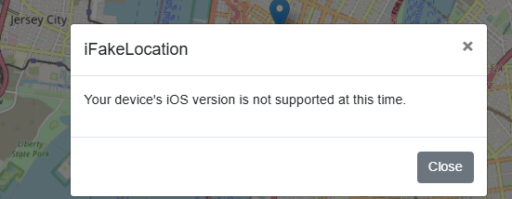
The dialogue stated plainly: "Your device's iOS version is not supported at this time." No location changes occurred on the device, and Apple Maps continued to display our real-world location.
Why It Stopped Working from iOS 17 Onward
This error is not a loose cable, an uninstalled driver, or a Windows firewall glitch. It is hardcoded into the project itself.
The official master131 repository has not been updated since August 20, 2022. In its source code, the project's internal updates.json file only provides download links for Developer Disk Images up to iOS 17.0. Furthermore, the device communication module in DeviceInformation.cs contains an explicit exception that halts execution whenever the operating system version reports 17 or greater:
"Setting location is currently not supported for iOS 17 or newer."
Apple fundamentally changed how developer disk images work starting with iOS 17. Static images were replaced by personalized developer disk images requiring unique runtime signatures from Apple's verification servers, and location communication transitioned to Apple's newer RemoteXPC protocols. Because iFakeLocation was abandoned before these protocols were implemented, the software cannot mount developer images or establish a location tunnel on iOS 17, iOS 18, or iOS 26. GitHub issue #141 and issue #174 remain open with no official solution.
Does the iFakeLocation2 Fork Fix It?
You might also come across a community fork named iFakeLocation2 (by TypeTen). It added several convenient interface features, including interactive multi-point route drawing, walking speed selectors, and random wandering modes.
However, iFakeLocation2 only upgraded the frontend web interface. The underlying USB communication library remains identical to the original unmaintained codebase. Testing an iPhone on iOS 17 or newer with iFakeLocation2 results in the exact same "iOS version is not supported" dialogue.
Part 3. iFakeLocation Setup Guide for iOS 16 and Older
If you have a secondary iPhone or iPad running iOS 16 or earlier, the original iFakeLocation release is still fully functional and free to use.
System Requirements
Before launching the tool on an older device, verify that your computer meets these essential prerequisites:
-
Operating System: Windows 10/11 (64-bit), macOS Monterey or later, or Ubuntu Linux.
-
Drivers (Windows only): The standalone desktop installer for iTunes downloaded directly from Apple's website. The Microsoft Store version lacks the background USB services required to communicate with the phone.
-
Runtimes: Visual C++ 2015 Redistributable (Windows) and .NET Core 6.0 Runtime (macOS/Ubuntu).
-
Hardware: An authentic MFi-certified Lightning or USB-C cable to maintain a steady physical connection.
Step-by-Step Installation
Step 1. Download the release archive for your operating system from the official GitHub repository and unzip it to a local folder.
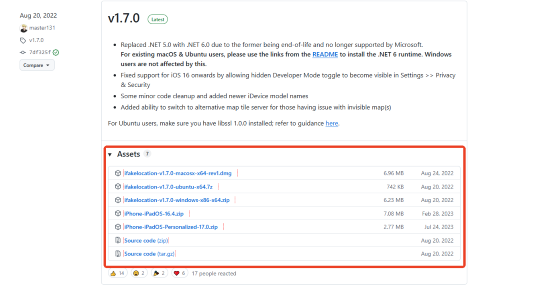
Step 2. Connect your iPhone or iPad to your computer using your USB cable. Unlock the screen and tap Trust when prompted.
Step 3. Launch iFakeLocation.exe (or the binary on Mac/Linux). Your default browser will automatically open the management interface at http://localhost:49215/.
Step 4. Click Refresh in the top dropdown menu and select your device from the list.
Step 5. Search for an address in the search box or double-click anywhere on the map, then click Set Fake Location.

Part 4. Troubleshooting & Real Location Reset
Understanding which problems can be solved and which are permanent dead ends saves significant setup time.
Fixable USB and Driver Glitches
If you are on iOS 16 or older and the software fails to work, you are likely dealing with a connection or driver conflict:
Device dropdown remains empty: This usually happens when Apple Mobile Device Support is missing. Uninstall iTunes if you downloaded it from the Microsoft Store, install the standalone version directly from Apple, reconnect your phone, and confirm the Trust prompt on your lock screen.
App hangs while downloading images: The software attempts to download developer disk images from remote GitHub repositories on first launch. If you have an active network proxy, VPN, or restrictive firewall, it can block these background requests. Temporarily disable system proxies and try again.
Important reminder: If your phone runs iOS 17, iOS 18, or iOS 26, reinstalling drivers or switching cables will not fix the issue. The version blocker is hardcoded into the software.
How to Reset Your Real Location
Because iFakeLocation modifies system-level GPS through Apple's developer framework, your phone will remain pinned at the spoofed coordinates even after you pull out the USB cable. Apps like Apple Maps, Google Maps, and social networks will continue reading the mock location.
To safely return to your true physical location:
Step 1. While still connected, click Stop Fake Location inside the iFakeLocation web interface.
Step 2. If the coordinates remain frozen after disconnecting, open your iPhone's Settings > Privacy & Security > Location Services. Toggle the main Location Services switch off, wait 5 seconds, and toggle it back on. Open Apple Maps to confirm your blue dot has locked onto your real position.
If you use location modification for location-based games such as Pokémon GO, keep in mind that game servers track movement plausibility. Jumping instantly across different countries or states without observing natural travel times triggers anti-cheat cooling periods. Always close the game before moving coordinates and allow adequate cooldown time before interacting with in-game elements.
Part 5. Modern Alternative: PoKeep Location Changer
For users on iOS 17, iOS 18, or iOS 26, using an abandoned developer utility is no longer viable. Bypassing modern iOS security requires software that actively supports Apple's Developer Mode and modern connection protocols.
PoKeep Location Changer provides an actively maintained desktop location spoofer for both iOS and Android. It handles modern iOS Developer Mode handshakes natively without requiring command-line tools, manual developer disk downloads, or jailbreaks.

PoKeep Location Changer
Plug in, pick a location, and spoof safely on iOS and Android with powerful, detection-friendly features.
Unlike basic static pins, PoKeep includes features tailored for everyday use and game safety. It offers realistic walking speeds, natural movement pauses, multi-spot route creation, and an interactive joystick. A built-in cooldown timer helps keep travel patterns within reasonable limits.
-
Native support for modern iOS (including iOS 17, 18, and 26) as well as Android devices
-
Dedicated Game Mode and General Mode to prevent app crashes and location conflicts
-
Five flexible movement options: Instant Teleport, Jump Teleport, Two-Spot Route, Multi-Spot Route, and 360-degree Joystick
-
Customizable travel speeds (walking, cycling, driving) with realistic speed fluctuations
-
Automatic cooldown calculation to protect against in-game detection flags
Step 1. Download and install PoKeep on your Windows PC or Mac. Connect your iPhone to your computer using a USB cable.
Step 2. Follow the simple on-screen prompt to enable Developer Mode on your iPhone (Settings > Privacy & Security > Developer Mode). Once confirmed, click Next.
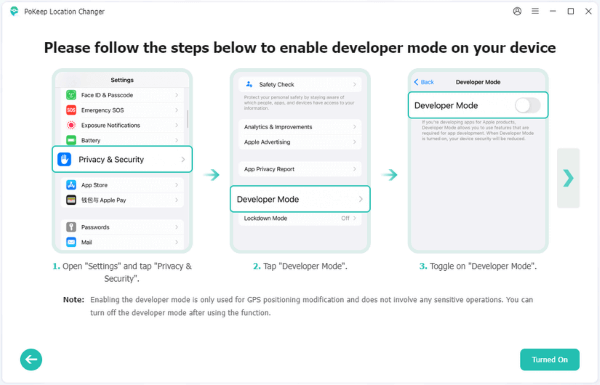
Step 3. Select Game Mode or General Mode depending on whether you are gaming or adjusting social privacy.

Step 4. On the interactive map, choose your preferred movement mode from the top-right toolbar. Set your target destination and speed, then click Start Modifying.

Part 6. Conclusion
iFakeLocation remains a respectable chapter in open-source iOS tooling. For devices on iOS 16 and older, it still provides a simple, free way to override system GPS via a USB tether. However, its development stopped before Apple revamped iOS location debugging. For anyone running iOS 17 or newer, the "version is not supported" dialogue cannot be bypassed without rebuilding the tool from scratch.
When you need reliable location spoofing on modern iOS versions, choosing an actively maintained tool like PoKeep Location Changer provides seamless compatibility, built-in route simulation, and essential cooldown protections without the troubleshooting headaches.
 Related Articles




 Leave Your Comment