 By
By 
In today's fast-changing world of digital streaming, Netflix has become much more advanced in how it controls regional content and manages account sharing. Whether you're relocating to a new home, traveling overseas, or simply wondering how to change location on Netflix to explore a wider content library, the rules in 2026 are very different from before.
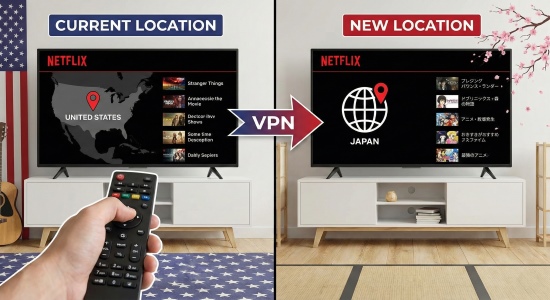
In this guide, you'll find clear, detailed solutions that show you exactly how to change Netflix location and overcome common location-based restrictions, so you can enjoy Netflix without unnecessary limits.
Part 1. How Does Netflix Know Your Location
Before learning how to change Netflix location, it helps to understand how Netflix figures out where you’re watching from. In 2026, Netflix relies on several technologies working together to identify your location accurately.
One of the main signals is your IP address, which acts like a digital fingerprint and shows your general region, including your country and city. This information allows Netflix to determine which content library you're allowed to access.
Netflix also enforces its Netflix Household policy by analyzing device identifiers and Wi-Fi network data. This helps the platform associate your account with a primary home location and detect access that happens outside that environment.
On mobile devices, the Netflix app may also reference GPS-related metadata to check whether your physical location matches your network information. By combining these methods, Netflix can limit password sharing and enforce regional licensing rules more effectively.
| Method | What it reveals | Primary use |
|---|---|---|
| IP Address | City, ZIP, and ISP | Determine which movies you are allowed to see. |
| Wi-Fi Network | Whether you’re at home | Enforce the Netflix Household policy. |
| Device ID | Specific hardware | Identify shared accounts and unauthorized devices. |
| GPS Data | Precise coordinates | Cross-reference mobile users' physical location. |
Part 2. How to Set or Change Your Netflix Primary Location
If you've recently moved, switched internet providers, or replaced your home router, you may see an error on your TV that blocks access to Netflix. This usually means Netflix no longer recognizes your current connection as your Primary Location.
To resolve this issue, you'll need to update your Netflix Household settings using a TV that’s connected to your home Wi-Fi network. Doing so syncs your account with your new network information and restores normal access.
Step 1. Turn on your TV and open the Netflix app. Use your remote to navigate left and open the main menu, then select Get Help.
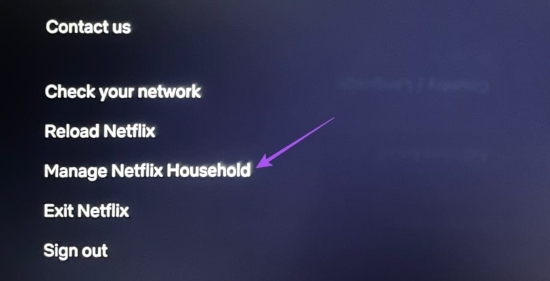
Step 2. In the help section, choose Manage Netflix Household. You'll be given the option to confirm or update your current primary location.
Step 3. Select how you'd like to receive a verification link, either by email or text message. This link is time-sensitive and typically expires within 15 minutes, so make sure your phone or computer is nearby.
Step 4. Open the verification link and tap Yes, This Was Me. Once confirmed, the Netflix app on your TV will refresh automatically, and your primary location will be successfully updated.
Part 3. How to Change Location on Netflix for Travelling
When you're traveling, there's usually no need to permanently change your Netflix location. Instead, Netflix offers a temporary verification option designed specifically for users who are away from home.
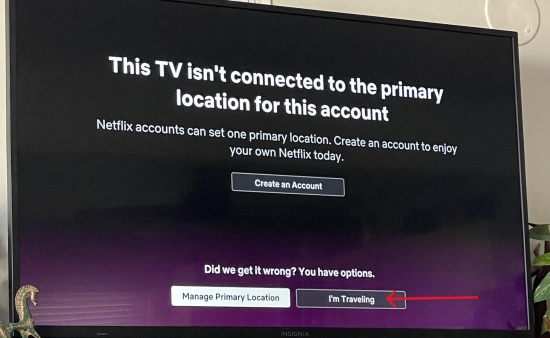
If you're staying at a hotel, Airbnb, or second home, you may see a prompt asking whether you're traveling. Choosing this option will send a temporary access code to the account owner's email address. Enter the code on the TV you're using, and Netflix will unlock access for around 30 days.
For frequent travelers who return to the same destination, there's an even simpler workaround. By connecting your phone, tablet, or laptop to your home Wi-Fi at least once a month, you "check in" that device with your Netflix Household. This allows it to continue working smoothly while you're on the road, without repeated verification prompts.
Part 4. How to Change Location on Netflix for International Content
While the methods above help resolve household and travel-related issues, many users want to change location on Netflix to unlock international libraries. This is especially popular for accessing exclusive Japanese anime, Korean series, or European dramas that aren’t available in the U.S.
1 Using a VPN to Change IP Address
A Virtual Private Network (VPN) is one of the most common tools for changing your digital location. When you connect to a server in another country, your IP address appears to originate from that region, allowing Netflix to show a different content library.
However, Netflix has become very effective at detecting and blocking standard VPN traffic. To make this method work in 2026, you'll usually need a premium VPN service that regularly rotates its IP addresses to avoid detection.
Step 1. Install a reputable VPN app, such as NordVPN or ExpressVPN.

Step 2. Create an account or log in to the app. A paid subscription may be required.
Step 3. Select the country you want to access and connect to a server in that region.
Step 4. Open Netflix and browse the content library for the selected country.
2 Using PoKeep Location Changer to Change GPS Location
For mobile users on iOS and Android, changing your IP address alone may not be enough. The Netflix app can compare your IP location with your device’s GPS data. If these locations don't match, Netflix may default back to your real location or display a proxy-related error.
Pokeep Location Changer provides a more reliable solution by modifying your device's GPS location at the system level. Rather than simply hiding your internet connection, it makes your phone report that you are physically located in another city or country.

PoKeep Location Changer
Connect, click, and unlock shows from any country, explore international libraries, and enjoy your favorite content without borders - all in just a few taps.
Step 1. Download and launch PoKeep Location Changer on your computer, then connect your iPhone or Android device using a USB cable.
Step 2. Follow the on-screen setup instructions, click Next, and select General Mode.
Step 3. Enter the city or country you want to “travel” to using the search bar, then click Start Modifying. Your device's GPS location will update instantly.

Step 4. Open Netflix on your phone. With both your network and GPS locations aligned, Netflix will detect you as being in the new region, allowing you to explore that country’s content library without triggering proxy warnings.
3 Bonus: Top Global Netflix Libraries to Explore
| Country | Best Known For | Exclusive or Early-Access Titles |
|---|---|---|
| Japan | Anime & Variety | Jujutsu Kaisen (Season 3), Baki-Dou: The Invincible Samurai, Steel Ball Run (JoJo), Viral Hit (Live-action) |
| South Korea | Prestigious Cinema | Squid Game (Season 2/3), Bloodhounds (Season 2), Culinary Class Wars (Season 3), Tantara (Starring Gong Yoo) |
| United Kingdom | British Classics | The Resident, The Wonder Years, Madame Web, Monday Night Raw (WWE Live) |
| Canada | Movie Buff Paradise | Schitt's Creek (Seasons 4–6), Kung Fu Panda 4, Five Nights at Freddy’s, Lost in Translation |
Part 5. How to Manage Netflix Account and Billing Location
It’s important to understand that changing your Netflix viewing location, whether through a VPN or GPS-based tools, does not automatically change your account’s billing country. Your subscription price, currency, and payment region are tied to the country where your Netflix account was originally created.
If you want to change your billing country permanently, you’ll need to cancel your current Netflix membership and allow the remaining days on your plan to expire. Once the account becomes inactive, you can sign in again while physically located in the new country. Alternatively, you can use a location-changing tool like PoKeep Location Changer to restart your subscription in the local region and currency.
 Try It Free
 Secure Download
 Try It Free
Secure Download
Try It Free
Secure Download
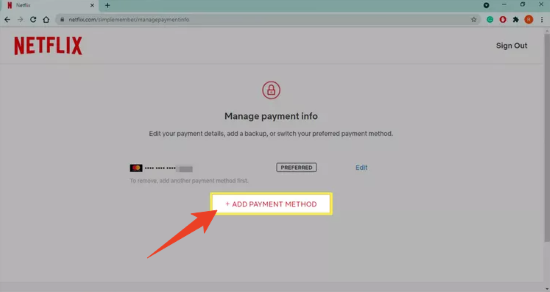
To update your payment details, visit the Manage payment info page on Netflix. From there, select Update and choose Add Payment Method to enter your new billing information.
Part 6. FAQs on Changing Location on Netflix
Can You Use Netflix in Two Different Locations?
Yes, but there are a few limitations. Mobile devices such as phones and tablets can be used in different locations, as long as they connect to the account’s Primary Location at least once every 30 days. However, using the same Netflix account on two TVs in separate households isn’t allowed unless you add an Extra Member slot to your plan, which comes with an additional monthly fee.
Why Is Netflix I'm Travelling Option Not Showing?
This usually happens when the device is already associated with a different Netflix Household or when your account has reached its limit for temporary travel verification codes. Clearing the Netflix app cache may help, and it's also a good idea to check whether the account owner has recently used the traveling feature, as this can temporarily disable the option.
Part 7. Conclusion
Learning how to change location on Netflix is no longer just about clicking a button. It requires understanding how Netflix balances network data, device recognition, and physical location signals.
If your goal is to change location on Netflix to explore international content, a more advanced approach is often necessary. Combining a high-quality VPN with a hardware-level GPS solution like PoKeep Location Changer helps keep your IP address and physical location in sync, allowing you to enjoy global Netflix libraries without constant errors or restrictions.
 Related Articles


 Leave Your Comment