 By
By 

Quick Verdict
Changing your location on Disney Plus depends on what type of location you want to change. Household, streaming region, home country, GPS location, and download storage all work differently.
Who It's For
This guide is for Disney+ users who are dealing with Household verification, regional content differences, travel-related issues, account country changes, or want to understand whether changing GPS location can affect Disney Plus.
Key Takeaways:
- Identify the type of location first: Disney+ Household, country/region, device GPS, and download location require different solutions.
- Use Disney+ official options for account issues: Update Household, away-from-home verification, and home-country support are the correct solutions for most location problems.
- GPS changes are different from streaming regions: A GPS location changer can modify your device coordinates, but it should not be considered a guaranteed way to change Disney+ Household or catalog region.
If you want to change location on Disney Plus, the first thing to understand is that Disney+ does not use one universal “location” setting. Your Household, streaming country or region, home country, device GPS location, and download storage location are all different things.
That means the right fix depends on what you are actually trying to change. Updating your Disney+ Household can solve a TV verification problem, while traveling to another country can affect the content available to you. Changing your phone's GPS is a separate process again and should not be confused with changing your Disney+ streaming region.
Can You Change Your Location on Disney Plus?
Yes, but there is no single Disney+ button that changes every type of location.
Use this quick guide first:
| What you want to change | What it means | Best approach |
|---|---|---|
| Disney+ Household | Your primary home and associated devices | Update Household |
| Temporary location | You're traveling or away from home | Use the away-from-home verification option |
| Disney+ country/region | The region Disney+ believes you're streaming from | Check travel, network, and account conditions |
| Home country | Your subscription/account's home country | Disney+ verification or support may be required |
| Phone GPS location | Coordinates reported by your iPhone or Android | Use a GPS location changer |
| Download location | Where offline downloads are stored | Check Disney+ App Settings |
The most common mistake is trying to solve a Household or streaming-region issue by changing GPS. These systems do not work the same way.
How to Change Disney Plus Household Location
If Disney+ says your TV is not part of your Household, changing the Household is usually the correct solution.
Disney+ describes a Household as devices associated with the subscriber's primary personal residence. It can use factors such as subscription activity, linked devices, and internet connection to determine that relationship.
Importantly, Disney+ states that it does not use precise geolocation to establish a Household. Because of this, changing the GPS coordinates on your phone is not a reliable way to change your Disney+ Household.
How to Update Household on Disney Plus
When an eligible TV shows a Household-related prompt, look for the UPDATE HOUSEHOLD option.
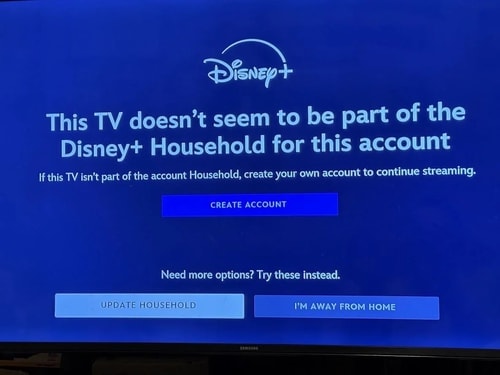
The general process is:
Step 1. Select UPDATE HOUSEHOLD on the affected device.
Step 2. Disney+ sends a one-time verification code to the email address connected to the account.
Step 3. Complete the verification to associate the current location with the Household.
Only update your Household when the device really belongs to your primary residence.
What to Do When You're Away From Home
If you're staying at a hotel, visiting family, or temporarily using Disney+ somewhere else, look for an option such as I'M AWAY FROM HOME instead of replacing your Household.
Disney+ may require account verification using a one-time code.
This distinction matters because repeatedly changing the Household every time you travel can create unnecessary account problems.
What If Disney Plus Says the Household Update Limit Was Reached?
Disney+ provides Household-update controls, but its current public help information does not clearly publish a universal numerical limit for how many times every account can change its Household.
If you see a message saying the update limit has been reached, contact Disney+ Support and explain that you need to correct the Household associated with your account.
Use an Extra Member Instead of Changing Household
For eligible subscriptions, Extra Member can be a better option when someone regularly uses Disney+ outside the main Household.
An Extra Member is designed for someone who does not live in the primary Household. Eligibility and availability depend on the subscription and market, and the Extra Member generally needs to be in the same country or region as the account holder.
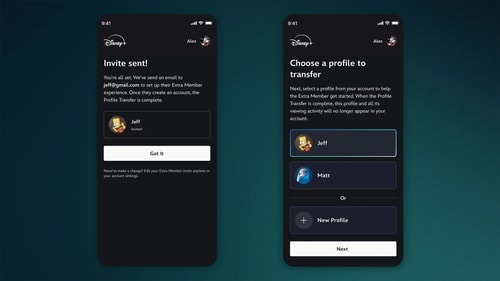
If your goal is simply to share Disney+ with someone living elsewhere, this is more appropriate than constantly changing the Household.
How to Change Country or Region on Disney Plus
Changing your Disney Plus country or streaming region is different from changing your Household.
Disney+ is available in specific countries and regions, and the movies, shows, languages, and other content available can vary depending on location.
If you travel internationally, you may therefore notice that:
- a movie disappears from your library;
- a title becomes available that you did not see at home;
- available languages change;
- the overall catalog looks different.
There is generally not a simple Account → Country → Change Region setting that lets you freely select another Disney+ catalog.
If You're Traveling to Another Country
When Disney+ is available in the country you're visiting, the content you can stream may reflect that location.
If the service suddenly looks different while traveling, it does not necessarily mean there is something wrong with your account. It can simply be the result of regional licensing and availability.
There can also be special portability arrangements in some regions. For example, eligible users traveling within the European Economic Area may have home-country verification options that affect their streaming experience.
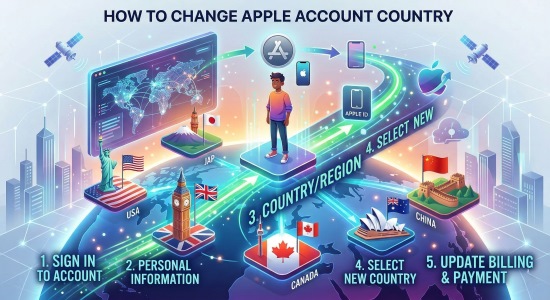
If You Permanently Moved to Another Country
A permanent move is more complicated than temporary travel.
You may need to review:
- whether Disney+ operates in your new country;
- your home-country information;
- your subscription provider;
- your payment method and billing country;
- your Disney+ Household.
Disney+ has separate home-country verification processes in some markets, and resolving them may require contacting support rather than changing a setting yourself.
If your subscription is billed through Apple, Google, a mobile carrier, or another third party, account-country and payment changes may also need to be handled through that provider.
Why Is Disney Plus Saying I'm in a Different Region?
A wrong-region message does not automatically mean Disney+ is reading the GPS coordinates from your phone.
One of the most important location-related Disney+ errors is Error Code 73, which can appear when Disney+ believes you are accessing the service from an unsupported region.
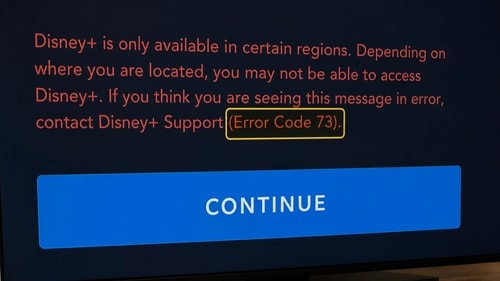
Disney+ specifically identifies VPNs and IP anonymizers as possible causes of this problem.
That tells us that network and IP location clearly matter to Disney+'s regional checks.
If Disney+ suddenly thinks you are somewhere else, try these fixes:
Step 1. Turn off any VPN, proxy, Smart DNS, or IP-anonymizing service.
Step 2. Restart Disney+ and your streaming device.
Step 3. Restart your modem or router if the network location appears incorrect.
Step 4. Confirm Disney+ is officially available where you are currently located.
Step 5. Check whether the same error occurs on another network.
Step 6. Contact Disney+ if your home-country or account information appears incorrect.
Can a VPN Change Disney Plus Location?
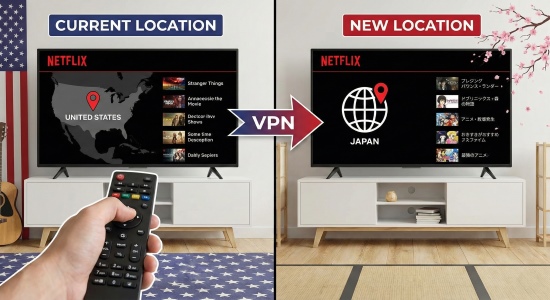
A VPN changes the internet-facing IP address used by your device, which means it can affect how websites and streaming platforms identify your network location.
However, that does not mean Disney+ officially provides VPN-based region switching.
Disney+ can detect or block VPN and IP-anonymizing connections, and these services can trigger location-related errors such as Error 73.
A VPN is not a guaranteed Disney+ region changer.
If you're experiencing a legitimate location error while using a VPN, the first troubleshooting step should usually be to turn the VPN off, not change to another VPN server.
How to Change Region on Disney Plus Without a VPN
Whether you need a VPN at all depends on what “region” means in your situation.
If you want to:
- change your Disney+ Household: use Update Household;
- watch while traveling: use Disney+'s travel or verification options;
- correct your home country: use Disney+ account verification or support;
- change phone GPS: use a GPS location changer;
- change download storage: use Disney+ App Settings.
None of those necessarily requires a VPN.
If your goal is specifically to make Disney+ believe that your network connection originates in another country, changing GPS coordinates alone should not be expected to accomplish that.
GPS vs. IP Location: Does Changing Phone Location Affect Disney Plus?
GPS location and IP location are two different signals.
Your GPS location tells apps where your phone appears to be geographically. Your IP address identifies the network connection through which you are accessing the internet.
Disney+'s own Household documentation says precise geolocation is not used to establish a Household, while Disney+'s region-error documentation explicitly discusses VPNs and IP anonymizers.
Changing GPS is not a guaranteed way to:
- change Disney+ Household;
- switch Disney+ catalogs;
- bypass Error 73;
- change the subscription's home country.
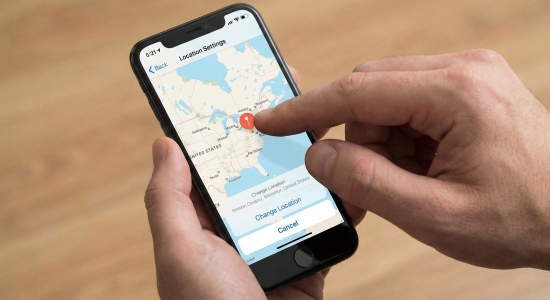
If your actual goal is to change the GPS location reported by your iPhone or Android device, that is where a GPS location changer is relevant.
How to Change GPS Location With PoKeep Location Changer
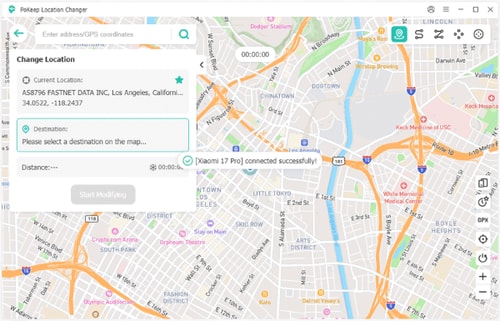
PoKeep Location Changer is designed specifically for changing the GPS location reported by iPhone and Android devices.


It can change mobile GPS coordinates without requiring an iPhone jailbreak or Android root, and PoKeep provides a free trial so the location-changing function can be tested before purchasing.
The basic workflow is straightforward:
Step 1. Install PoKeep on a compatible Windows or Mac computer.
Step 2. Connect your iPhone or Android device.
Step 3. Select the destination you want on the map.
Step 4. Apply the new GPS location.
Step 5. Open the mobile app where you want to test the changed device location.

PoKeep is particularly useful when an app genuinely relies on mobile GPS coordinates. Its product functionality includes changing iOS and Android geolocation and supports location-based apps without requiring you to physically travel to the selected point.
Your original GPS location is also reversible; PoKeep's current documentation states that restarting the device restores the real location.
PoKeep changes device GPS. It does not replace Disney+'s Update Household function and is not a guaranteed method for switching Disney+ streaming countries.
How to Change Disney Plus Download Location
“Disney Plus change download location” can mean something completely different from changing country or GPS location.
If you're trying to change where offline Disney+ videos are stored, start inside the Disney+ mobile app:
Step 1. Open your profile.
Step 2. Go to App Settings.
Step 3. Review the available download and storage options.
Step 4. If your device offers a Download Location or external-storage option, choose the available storage destination.
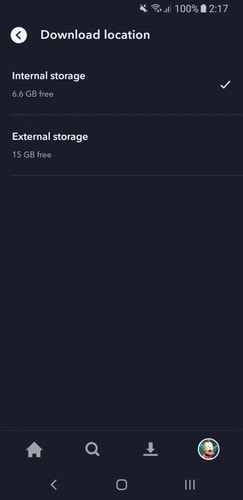
Support for external storage can depend on the device, operating system, and Disney+ app version.
If an SD card or external-storage option does not appear, do not assume your device supports moving Disney+ downloads there.
Also remember that moving the storage location does not change the country or regional catalog from which those videos are provided.
Disney Plus Change Location FAQ
Can I change my location on Disney Plus?
Yes, but it depends on what location you mean. You can update your Disney+ Household, verify that you're away from home, resolve home-country issues, change device GPS, or change download storage through different methods.
How do I change my Disney Plus home location?
If you mean your Disney+ Household, select Update Household on an eligible device and complete the one-time verification process associated with your account.
Why does Disney Plus think I'm in another country?
Your network connection may be identified as being in another region. VPNs, proxies, IP anonymizers, travel, ISP geolocation, or account-country issues can all contribute to location problems.
Can I change Disney Plus region without a VPN?
For Household, travel verification, home-country corrections, GPS changes, and download storage changes, a VPN is not required. If you mean changing the streaming catalog's network region, Disney+ does not provide a normal country selector, and GPS spoofing alone should not be expected to change it.
Does changing GPS location change Disney Plus region?
There is not enough evidence to claim that changing GPS alone switches Disney+ catalogs. Disney+ says precise geolocation is not used to establish a Household, while network/IP-related services such as VPNs are explicitly referenced in its regional error handling.
Can PoKeep change Disney Plus location?
PoKeep can change the GPS location reported by an iPhone or Android device. It is not a replacement for Disney+'s Household controls or a guaranteed Disney+ country-switching method.
How many times can I update my Disney Plus Household?
Disney+ may restrict Household updates, but there is no reliable universal numerical limit publicly documented for every account and market. If Disney+ says you've reached the limit, contact support.
Can I change Disney Plus download location to an SD card?
Some devices and app versions may provide an external-storage or download-location option in App Settings. If the option does not appear on your device, Disney+ may not currently support changing downloads to external storage there.
Final Takeaway
The key to changing location on Disney Plus is figuring out which location you actually need to change.
For Household problems, use Disney+'s Household controls. For wrong-region errors, investigate your internet connection and account region. For a permanent international move, check home-country and billing requirements. For downloads, use the app's storage settings.
And if what you actually need to change is the GPS location of your iPhone or Android device, a dedicated GPS tool such as PoKeep can handle that task without jailbreak or root. Keep GPS location separate from Disney+'s Household and streaming-region systems.
 Related Articles


 Leave Your Comment