 By
By 

Hulu location problems can show up in several ways. Your TV may say you are not at home, your mobile device may ask for location permission, your local channels may look wrong, or Hulu may stop you from changing your Home location again. These issues feel similar, but they do not always have the same fix.
The key is understanding what kind of Hulu location you are trying to change. Hulu may look at your Home network, device GPS, browser location permission, IP address, or account settings depending on your plan and device. If you use Hulu + Live TV, this becomes even more important because your Home network affects local channels and in-home streaming.
This guide explains how to change Hulu location correctly, how to fix common Hulu location errors, and when a GPS location changer like PoKeep can help on iPhone or Android.
Before You Change Hulu Location, Know What Hulu Is Checking
Changing Hulu location is not always as simple as changing one setting. Hulu uses different location signals for different situations, so the right solution depends on whether you are using Hulu on a TV, phone, browser, or Live TV plan.
Before you change anything, identify which location layer is causing the problem.
Hulu Home Location for Live TV
For Hulu + Live TV, the most important setting is your Home network. This is the residential internet network tied to your primary home. It helps Hulu determine local channels, in-home streaming, and whether a living room device is being used from the correct place.
This setting matters most for Smart TVs, streaming sticks, gaming consoles, and other living room devices. If your TV is connected to a different Wi-Fi network from the one set as Home, Hulu may show a Home location error even if you are physically in the right area.
Hulu also limits how often you can change your Home location. That means you should only change Hulu Home location when you actually move, switch to a new primary home internet network, or need to correct a real Home setup issue.
Device GPS and Location Services
On iPhone, Android, tablets, and browsers, Hulu may also need location services. This is especially common for Live TV access, browser viewing, and mobile streaming.
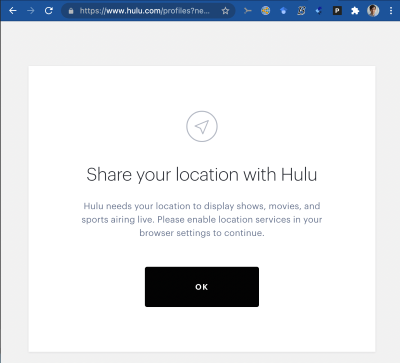
If location permission is disabled, Hulu may fail to confirm where you are. In that case, changing your Home network will not solve the issue. You need to check device settings, app permissions, or browser location access first.
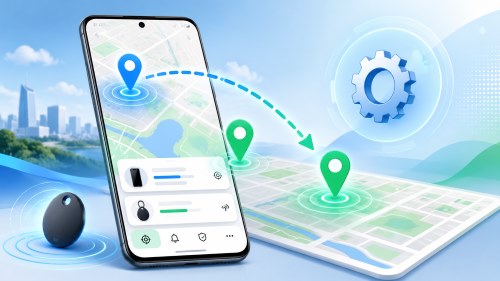
This is also where a GPS location changer may be relevant. A tool like PoKeep can change the GPS location on iPhone or Android, which can help when the issue involves device-level location detection rather than Hulu’s Home network setting.
IP Address and ISP Geolocation
Hulu can also rely on your internet connection and IP-based location. If your ISP assigns a dynamic IP address or your IP is mapped to the wrong city, Hulu may think you are somewhere else.
This can happen even when you are sitting at home. It is especially frustrating for people using certain 5G home internet, mobile-style home internet, shared Wi-Fi, or networks where the IP location changes often.
If the problem is IP geolocation, changing phone GPS alone may not fix it. You may need to restart your modem/router, check your public IP location, contact your ISP, or contact Hulu support.
How to Change Hulu Home Location Officially
If you moved or changed your primary home internet, you can update Hulu Home location from your Hulu account. This is the official method for Hulu + Live TV subscribers.
Step 1 Connect to your primary home internet network
Use the residential Wi-Fi or wired internet connection that you want Hulu to treat as your Home network.
Step 2 Open Hulu in a computer or mobile browser
Go to your Hulu Account page and sign in with the account owner profile.
Step 3 Find the Home location setting
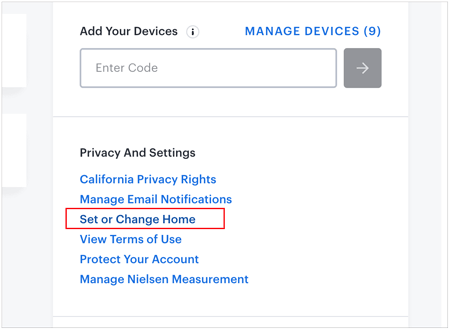
Look for the Privacy and Settings area, then choose Set or Change Home.
Step 4 Confirm the new Home network
Follow the prompts to set your current network as your Hulu Home location.
Do not use this option casually while traveling. Hulu limits Home network changes, so changing Home for a short hotel stay, vacation rental, or temporary visit may waste one of your available changes.
How to Change Hulu Location on TV
Changing Hulu location on TV is different from changing location on a phone. Most TVs and streaming devices do not use GPS like mobile devices do. Hulu usually checks whether the device is connected to the Home network registered to your Hulu + Live TV account.
If Hulu says your TV is not at home, start with the network.
Step 1 Make sure your TV or streaming device is connected to your Home Wi-Fi
If it is connected to a guest network, mobile hotspot, neighbor’s Wi-Fi, travel router, or a different ISP connection, Hulu may treat it as out of home.
Step 2 Restart your TV, router, and streaming device
A fresh connection can help if Hulu is reading old network data or a temporary IP change.
Step 3 Log out and log back into Hulu
This can refresh your account session and force Hulu to re-check your current network.
Step 4 Change Home only if your actual home network changed
If you moved or replaced your primary home internet, use the official Home location setting from your Hulu Account page.
For Roku, Fire TV, Apple TV, Android TV, game consoles, and Smart TVs, the main idea is the same: the device needs to be on the same primary Home network registered to Hulu. If you are in another house, Hulu Live TV may not behave like a normal mobile stream.
How to Change or Fix Hulu Location on iPhone and Android
On mobile devices, Hulu location issues often come from location permissions. If Hulu cannot access your device location, Live TV or local content may not load correctly.
How to Fix Hulu Location on iPhone or iPad
Open your iPhone or iPad settings and check location permissions for Hulu.
Step 1. Open Settings.
Step 2. Go to Privacy & Security > Location Services.

Step 3. Make sure Location Services is turned on.
Step 4. Find Hulu in the app list.
Step 5. Allow Hulu to access your location while using the app.
After changing the setting, close Hulu completely and reopen it. If the problem continues, restart your device and check whether VPN, proxy, iCloud Private Relay, or other privacy tools are affecting your connection.
How to Fix Hulu Location on Android
Android settings can vary by device, but the process is similar. You need to make sure system location is turned on and Hulu has permission to use it.
Step 1. Open Settings.
Step 2. Go to Location.
Step 3. Turn location access on.
Step 4. Open app permissions and find Hulu.
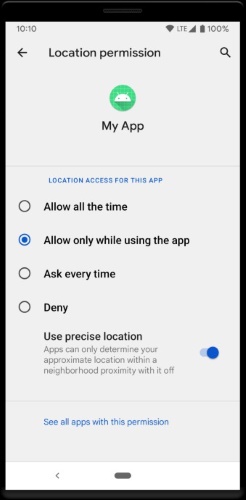
Step 5. Allow Hulu to access location while using the app.
Then reopen Hulu and test again. If Hulu still shows the wrong place, compare your GPS location with your IP location. A phone may show the correct GPS location while the network IP still points somewhere else.
How to Use PoKeep to Change Device GPS Location for Hulu on Mobile

If your Hulu issue involves mobile GPS or device-level location services, PoKeep Location Changer can be useful. PoKeep is designed to change GPS location on iPhone and Android without jailbreak or root, and it supports 1-click location changing for location-based apps.


This is most relevant when Hulu or your browser is reading the location from your iPhone or Android device. It is not the same as changing your Hulu Home network, and it should not be treated as a guaranteed fix for Hulu + Live TV Home restrictions or IP-based proxy errors.
Here is how to use PoKeep for mobile GPS location control:
Step 1 Download and install PoKeep
Install PoKeep on your Windows or Mac computer, then open the program.
Step 2 Connect your iPhone or Android device

Connect your phone to the computer and follow the on-screen setup. PoKeep supports iOS and Android location changing without jailbreak or root.
Step 3 Choose the location you want to use

Search for a city, address, or point on the map. Once selected, PoKeep can modify your device GPS location.
Step 4 Open Hulu and check location access
Launch Hulu on your mobile device and make sure Hulu has permission to access location services.
PoKeep fits best as a device GPS solution. If your problem is Hulu Home location, local channel availability, ISP geolocation, or a VPN/proxy error, you may need to combine mobile GPS fixes with the official Hulu account or network troubleshooting steps below.
How to Fix Hulu Change Location Errors
Hulu location errors usually happen for one of four reasons: Home network mismatch, location services being disabled, IP address problems, or hitting the Home location change limit. The fastest way to fix the problem is to match the error with the cause.
Hulu Says You Are Not at Home
This usually happens on a living room device connected to a different network from your registered Home network. Check your TV Wi-Fi first. If your router has multiple networks, make sure the TV is not connected to a guest network or secondary network.
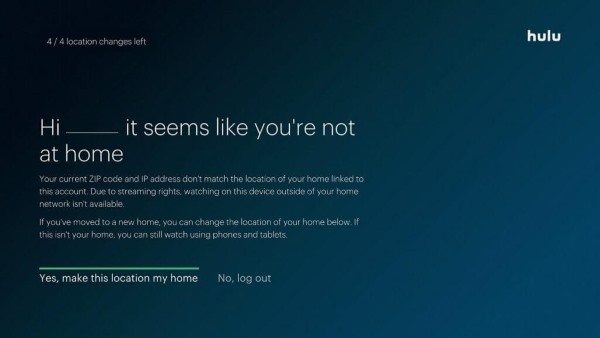
Restart your modem, router, and TV device. Then log back into Hulu. If you recently changed your home internet provider or moved to a new address, update your Hulu Home location from your account page.
Hulu Home Location Change Too Many Times
If Hulu says you have no remaining Home location changes, you may have already used the allowed Home changes within the current 12-month period. Do not keep trying random networks, because that will not create more changes.
The practical next step is to contact Hulu support. Explain whether you moved, changed ISPs, or were affected by incorrect IP detection. This is especially important if Hulu changed or flagged your location because of dynamic IP issues rather than an actual move.
Hulu Location Is Wrong Even at Home
If Hulu shows the wrong city or local market while you are at home, your IP address may be mapped incorrectly. This can happen when an ISP routes traffic through another region or assigns a dynamic IP that geolocation databases read incorrectly.
Restart your modem/router first. Then check your public IP location using a reliable IP lookup tool. If the city or state is wrong, contact your ISP and Hulu support. Changing phone GPS may not fully solve an IP-based Hulu location problem.
Hulu Detects a VPN or Anonymous Proxy
A VPN changes your IP address, but Hulu may block anonymous proxies and VPN connections because they make geographic verification harder. If you see a proxy error, turn off the VPN, proxy, private relay, or network-level privacy tool and try again.
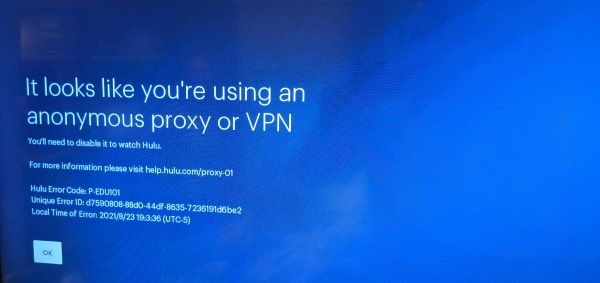
If you need location control on a mobile device, a GPS changer and a VPN solve different problems. A VPN changes network location; PoKeep changes device GPS location. For Hulu, those signals may be checked separately.
VPN vs GPS Location Changer for Hulu: What Is the Difference?
A VPN and a GPS location changer are often confused, but they do not work the same way.
A VPN changes the IP address that websites and apps see from your internet connection. This may affect IP-based location, but it can also trigger Hulu’s proxy or VPN detection. If Hulu blocks the connection, the stream may not load at all.
A GPS location changer changes the location reported by your mobile device. PoKeep is useful when the app or browser relies on iPhone or Android location services. This is especially helpful for device-level location testing, privacy control, and mobile GPS scenarios.
For Hulu, neither method should be treated as a universal replacement for the official Home network setting. If you use Hulu + Live TV, Home network rules, local channel availability, mobile check-ins, and account location settings still matter.
FAQs About Changing Hulu Location
Why won’t Hulu let me change my location?
Hulu may block the change because you reached the Home location change limit, your device is not on a residential Home network, your location services are disabled, or your IP address does not match your actual location. For Hulu + Live TV, Home network rules are stricter than normal app location settings.
How many times can you change Hulu Home location?
Hulu Home network changes are limited within a 12-month period. Because of that limit, you should only change Home location when your primary home or home internet network actually changes.
Can I use Hulu Live TV in two different homes?
Hulu + Live TV is built around one primary Home network. Mobile devices may work differently while traveling, but living room devices are expected to connect from the registered Home network. If you have two permanent homes, one Hulu Live TV account may not work the way you expect across both locations.
Why is my Hulu location wrong?
Your Hulu location may be wrong because your device location permission is off, your TV is connected to the wrong Wi-Fi, your VPN/proxy is interfering, or your ISP assigned an IP address that points to another city. Start by checking the device type and network before changing Home location.
Can PoKeep change Hulu location?
PoKeep can change GPS location on iPhone and Android, which can help when the Hulu issue involves mobile device location services. It does not directly change your Hulu account Home network, local channel rules, or ISP IP address. For the best result, use PoKeep for GPS-related mobile scenarios and use Hulu’s official account settings for Home network changes.
Can a VPN change Hulu location?
A VPN changes your IP address, but Hulu may detect and block anonymous proxy or VPN traffic. A VPN is not the same as a GPS location changer, and it may not fix mobile GPS permission issues or Hulu Live TV Home network restrictions.
Final Thoughts on Changing Hulu Location
Changing Hulu location works best when you understand which location signal is causing the issue. Hulu Home location controls Live TV household access and local channel behavior. Mobile location services affect iPhone, Android, tablet, and browser verification. IP address issues can make Hulu think you are somewhere else even when you are at home.
For official Home network changes, use your Hulu Account page and avoid wasting limited changes on temporary travel. For mobile GPS-related situations, PoKeep Location Changer offers a simple way to change iPhone or Android GPS location without jailbreak or root. Used in the right situation, it can make Hulu location troubleshooting more flexible while keeping the official Home network rules clear.
 Related Articles


 Leave Your Comment