 By
By 

Quick Verdict
Google Find Hub location usually cannot be manually changed like a profile address. The right approach is to adjust Android location settings, Find Hub permissions, offline finding, and sharing controls—or use PoKeep when you need to change your phone’s GPS location.
Who It's For
This guide is for Android users who want to fix wrong Find Hub locations, manage location sharing, improve tracker updates, or change GPS location on their own device.
Key Takeaways:
- Main Fixes: Check Android Location, Find Hub permissions, offline finding, and sharing settings.
- Wrong Location: Refresh Find Hub, sync recent location, and make sure the device is online.
- GPS Tip: Use PoKeep when you need app-level GPS location control beyond Find Hub settings.
Google Find Hub is useful when you need to locate a lost Android phone, tablet, earbuds, tracker tag, or other compatible accessory. But when the location looks wrong, outdated, or too visible to others, many users start searching for how to change Google Find Hub location.
The important thing to know is that Find Hub location is not like changing a profile address. In most cases, you cannot simply type a new place into Find Hub and make your phone or tracker appear there. Instead, you need to change the Android location settings, Find Hub permissions, offline finding options, or sharing controls that affect how Find Hub detects and displays location.
This guide explains what you can actually change, how to fix common Find Hub location problems, and what to do if your real goal is to change GPS location on your own iPhone or Android device.
What Does “Change Google Find Hub Location” Actually Mean?
Before changing any setting, identify what you are trying to fix. This helps you avoid wasting time in the wrong menu.
You may need to:
- Update Android location settings so Find Hub can detect your device.
- Change Find Hub permissions so the app can access location properly.
- Adjust offline finding settings for better tracker or accessory updates.
- Stop sharing your location or item location with others.
- Fix a wrong, old, or unavailable Find Hub location.
- Change Google Home Hub address, which is a different setting.
- Change your phone’s GPS location for other apps using a dedicated location changer.
The sections below cover each situation step by step.
Method 1. Change Android Location Settings for Google Find Hub
If Find Hub shows an old location or cannot locate your device, Android location settings should be the first place to check. Find Hub depends on system-level location access, so turning location off can prevent accurate updates.
Step 1. Open Settings on your Android phone.
Step 2. Tap Location.
Step 3. Turn on Use location.
Step 4. Open Location Services if your device shows this option.
Step 5. Turn on Wi-Fi scanning and Bluetooth scanning if you want better location accuracy.
Wi-Fi and Bluetooth scanning help Android estimate location more accurately, especially indoors or when GPS signals are weak. This can be useful for Find Hub, map apps, and tracker-related services.
On some Android phones, the path may look slightly different. Pixel, Samsung, Xiaomi, Motorola, and other Android brands may use different labels, but the key settings are usually under Settings > Location or Settings > Security & privacy > Device finders.
Method 2. Allow Find Hub to Access Your Location
If your phone’s location is turned on but Find Hub still does not update correctly, check the app permission. Android lets you control whether an app can access location all the time, only while using the app, ask every time, or not at all.
Step 1. Open Settings.
Step 2. Tap Apps.
Step 3. Find and open Find Hub.
Step 4. Tap Permissions.
Step 5. Choose Location and allow the permission that matches your needs.
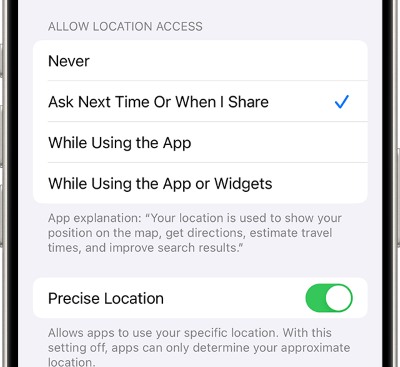
If your phone offers a Precise location switch, keep it on when you want more accurate Find Hub updates. If precise location is off, Find Hub may still work, but the displayed location can be less exact.
This method is especially helpful when Find Hub opens normally but shows a vague area, an old position, or no updated location.
Method 3. Change Find Hub Offline Finding Settings
Find Hub can help locate some devices and accessories even when they are offline. This works through encrypted recent locations and, in some cases, signals from nearby Android devices in the Find Hub network.
To change these settings:
Step 1. Open Settings on your Android device.
Step 2. Tap Google.
Step 3. Open All services if your device shows tabs.
Step 4. Tap Personal & device safety.
Step 5. Select Find Hub.
Step 6. Tap Find your offline devices.
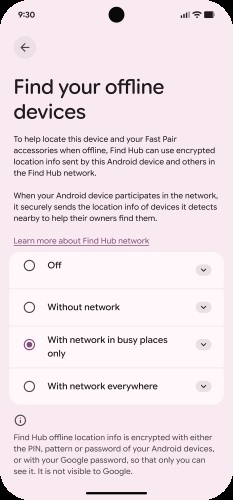
You may see options such as Off, Without network, With network in busy places only, or With network everywhere. If you use tracker tags, luggage trackers, earbuds, or accessories, the network-based options can make Find Hub more useful when the item is not near your own phone.
For the best chance of frequent updates, choose a network option that works beyond only your own device. If your tracker is often in low-traffic places, With network everywhere may help more than a busy-places-only setting.
Method 4. Change or Stop Google Find Hub Location Sharing
Some users do not want to change the Find Hub map location. They want to change who can see it. Find Hub includes sharing controls for people, devices, accessories, and item-location links.
If you shared an accessory or tracker tag with someone, you can stop sharing from the Find Hub app.
Step 1. Open Find Hub.
Step 2. Select the shared device, accessory, or tracker tag.
Step 3. Tap Settings.
Step 4. Choose the person you want to stop sharing with.
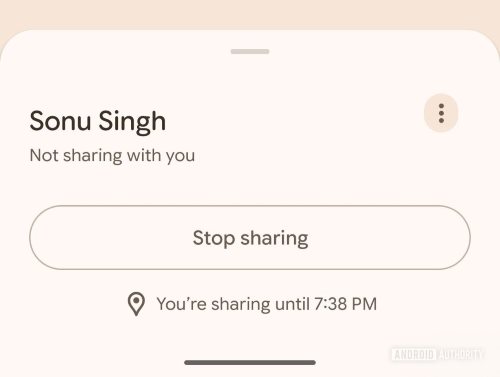
Step 5. Tap Stop sharing.
If you generated a shared item-location link, such as for lost luggage, open the item in Find Hub and stop sharing from the item-location sharing section. Shared links are designed for temporary access, so they are useful for situations like airline baggage recovery, but you should stop sharing once the item is found.
Method 5. Fix Google Find Hub Wrong, Old, or Unavailable Location
A wrong Find Hub location does not always mean something is broken. The device may be offline, out of battery, in a low-signal area, or unable to sync encrypted recent location data.
Try these fixes in order.
Refresh Find Hub Location
Open Find Hub, select the device or accessory, and refresh the device list. If the device is online and Find Hub can access its location, the map may update after a short delay.
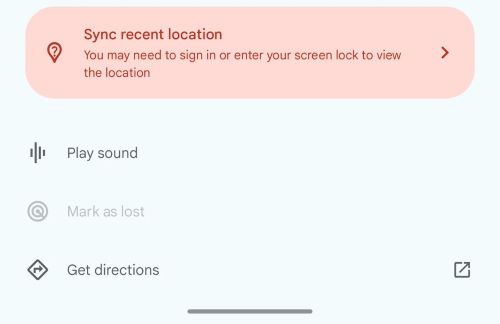
If you see Sync recent location, tap it and follow the screen-lock or account verification prompts. This helps Find Hub confirm that you are allowed to view the most recent location.
Check the Lost Device Itself
If you still have the device, make sure it is signed in to the correct Google Account, connected to Wi-Fi or mobile data, and has location enabled. Also check whether Allow device to be located is turned on in Find Hub settings.
For accessories and tracker tags, keep Bluetooth on and make sure the accessory has battery power. If the tag was reset, removed, or paired to another account, it may need to be added to Find Hub again.
Restart Offline Finding
If Find Hub says it cannot access location, try resetting the offline finding setting.
Step 1. On the device with the issue, open Settings.
Step 2. Go to Google services.
Step 3. Tap Find Hub.
Step 4. Open Find your offline devices.
Step 5. Note your current option, then temporarily choose Off.
Step 6. Turn your previous offline finding option back on.
After that, return to Find Hub and refresh your device list. If prompted, sign in again or enter your device screen lock.
Method 6. Change Your Phone GPS Location with PoKeep Location Changer
If your goal is not just to fix Find Hub but to change the GPS location used by your own phone, native Find Hub settings may not be enough. Find Hub is mainly designed for finding and securing devices, not for freely simulating a different location.

That is where PoKeep Location Changer fits naturally. PoKeep lets you change GPS location on iPhone and Android without jailbreak or root, making it useful when you need app-level location control for maps, social apps, location-based games, testing, or privacy-related scenarios.


With PoKeep, you can choose a destination on the map and change your phone location in a few steps. It also supports movement features such as joystick control, two-spot movement, multi-spot routes, jump teleport, GPX route import, favorite locations, and history records.
When PoKeep Makes More Sense Than Find Hub Settings
Use PoKeep when you want to:
- Change your GPS location on your own iPhone or Android device.
- Test how an app behaves in another city or region.
- Simulate route movement instead of staying at one fixed point.
- Use a location-based app without physically moving.
- Restore your real location after testing by restarting your device.
Google Find Hub Location vs Google Home Hub Location
The phrase Google Home Hub location can cause confusion. Google Find Hub and Google Home Hub are not the same thing.
Google Find Hub is used to locate Android devices, accessories, tracker tags, and shared locations. It is part of Google’s device-finding ecosystem.
Google Home Hub, often referring to Nest Hub or Google Home devices, uses a home address for weather, local results, routines, and smart home context. If you want to change that address, open the Google Home app, go to Home settings, choose your home name, and edit Home address.
So if your Nest Hub shows the wrong weather or local information, change your Google Home address. If your Android phone or tracker shows the wrong map position, check Find Hub and Android location settings instead.
FAQs About Changing Google Find Hub Location
Is Google Find Hub the same as Find My Device?
Yes, Find Hub is the newer, expanded version of Google’s device-finding service. It covers Android phones and tablets, and it also supports compatible accessories, tracker tags, earbuds, watches, location sharing, and item sharing.
Can I fake my location directly inside Google Find Hub?
Find Hub does not usually provide a manual option to type in a fake location for a device or tracker. It displays location based on device signals, recent encrypted location data, and the Find Hub network.
If you want to change GPS location on your own phone for app-level use, use a dedicated GPS location changer like PoKeep instead.
Why is Google Find Hub showing the wrong location?
Find Hub may show the wrong or old location if the device is offline, out of battery, signed into a different Google Account, blocked from location access, or unable to sync recent location data. Tracker tags may also update slowly in low-traffic areas because they rely on nearby Android devices.
How do I turn off Google Find Hub location?
You can turn off Find Hub by opening Android settings, going to Google services, opening Find Hub, and turning off the option that allows the device to be located. You can also stop sharing people, devices, accessories, or item links from inside the Find Hub app.
How accurate is Google Find Hub location?
Accuracy depends on the device, GPS signal, Wi-Fi and Bluetooth scanning, mobile data, nearby Android devices, offline finding settings, and whether the item is in a busy or remote area. A phone with active location services usually updates more directly than a Bluetooth tracker hidden in a low-traffic location.
Can PoKeep change Google Find Hub location?
PoKeep changes the GPS location behavior of your own connected iPhone or Android device. It is useful when your actual goal is to change phone GPS location for apps, testing, routes, maps, games, or privacy scenarios. Find Hub’s own sharing, offline finding, and device recovery features should still be managed through Google’s native settings.
Conclusion
Changing Google Find Hub location usually means changing the settings that control location access, offline finding, sharing, and accuracy. Start with Android location services, Find Hub permissions, offline finding options, and troubleshooting tools like Sync recent location.
If you only want Find Hub to show the correct device or accessory location, native Android settings are the right solution. If your real goal is to change the GPS location of your own iPhone or Android device for other apps, PoKeep Location Changer gives you a more direct way to control phone location without jailbreak or root.
 Related Articles



 Leave Your Comment