 By
By 

Quick Verdict
Changing UKG Pro location depends on what you mean: address, work location, schedule view, or GPS permission. Most profile updates can be done in self-service, while worksite, geofencing, and clock-in rules are usually controlled by your employer.
Who It's For
This guide is for employees who want to update UKG Pro location details, fix GPS or clock-in location errors, or understand why UKG Pro asks for location access.
Key Takeaways:
- Main Options: Update your address, change location/job preferences, or adjust schedule location views.
- GPS Issues: Check iPhone, Android, or browser location permissions if UKG shows no location data.
- Important Limit: Worksite, payroll, and geofencing settings may require HR, manager, or admin approval.
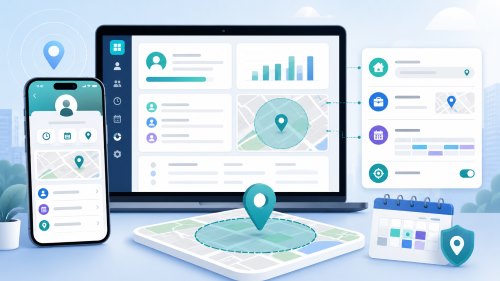
Trying to change your UKG Pro location can mean several different things. Some users want to update their home address after moving. Others want to change their preferred work location, view another location’s schedule, fix a clock-in location error, or understand why UKG Pro asks for GPS permission on mobile.
Because UKG Pro is usually configured by each employer, not every employee sees the same menus or options. Your company may allow self-service updates for some items, while other location changes may require HR, payroll, manager, or system administrator approval. This guide explains the main types of UKG Pro location changes and what you can realistically do in each situation.
What Does “UKG Pro Location” Mean?
Before changing anything, it helps to identify which type of location you are dealing with. In UKG Pro and UKG Pro Workforce Management, “location” may refer to your personal address, your assigned worksite, your preferred scheduling location, a location shown in the schedule view, or the GPS location used during mobile clock-in.
These location types are not interchangeable. Updating your home address does not automatically change your worksite. Selecting a preferred location does not always transfer you to another store, department, or branch. Changing your phone’s GPS permission also does not change your official employee record.
The most common UKG Pro location meanings are:
- Profile location: Your home address, phone number, or personal contact details.
- Work location: Your assigned store, site, department, cost center, or business-structure location.
- GPS location: The phone or browser location used for mobile punch, geofencing, or timekeeping validation.
Understanding this difference will save time and help you choose the right fix.
How to Change Your Address in UKG Pro
If your goal is to change your home address in UKG Pro, look for the personal information or employee profile area. The exact wording may vary by employer, but the path is often similar to a personal profile or employee self-service menu.
Step 1. Sign in to your UKG Pro account through your employer’s official login page.
Step 2. Open the Myself, Personal, or Employee Profile section.
Step 3. Look for an option such as Name, Address and Telephone, Personal Information, or Contact Information.
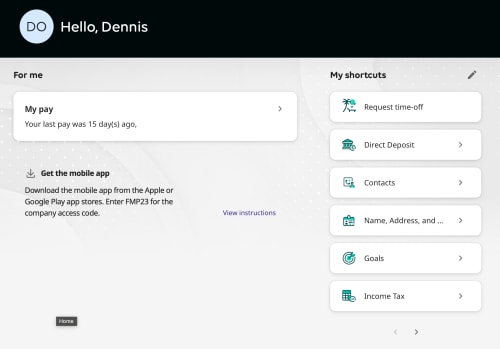
Step 4. Choose Edit, update your address, then save or submit the change.
Step 5. Check whether the change needs approval from HR or payroll.
If you moved to a different city, state, or country, your employer may need additional payroll or tax information. In that case, changing the address field alone may not complete the process. Contact HR or payroll if the address update is pending, rejected, or missing from your available options.
How to Change Work Location or Job Preferences in UKG Pro
Some UKG Pro Workforce Management setups allow employees to choose preferred locations and jobs. This is commonly used for shift swaps, open shifts, self-scheduling, or manager scheduling visibility.
This type of change is usually a preference, not a guaranteed transfer. For example, you may be able to mark a nearby store as a preferred location, but that does not automatically mean you are assigned there for payroll, timekeeping, or manager reporting.
Step 1. Open your UKG Pro or UKG Pro WFM profile.
Step 2. Look for Location and Job Preferences or a similar profile setting.
Step 3. Select the locations or jobs available to your account.
Step 4. Save your changes and check whether manager approval is required.
Step 5. Confirm with your manager if you expect the change to affect scheduling.
If the location you want is not listed, it may not be included in your assignment, job transfer set, or employer’s business structure. In that case, the solution is usually not a phone setting. You may need your manager or UKG administrator to update your access.
How to Change the Location Schedule View in UKG Pro
If you are trying to view another location’s schedule, UKG may provide a Location Schedule or Locations & Jobs selector. This lets you change what schedule information is displayed, depending on your access.
This does not always change your own assigned work location. It may only change the location, job, or team schedule you are viewing.
Step 1. Go to My Information or the schedule area in UKG.
Step 2. Open Location Schedule if your organization provides it.
Step 3. Use Assignment, Locations & Jobs, or a similar filter.
Step 4. Choose the location or job you want to view.
Step 5. Apply the selection and check the updated schedule display.
If you cannot see another location’s schedule, your employer may have limited schedule visibility by role, department, location, or permission level.
Why Some UKG Pro Locations Are Not Available
UKG Pro locations are often tied to the employer’s business structure. This can include stores, regions, departments, cost centers, jobs, or labor categories. Employees usually see only the locations they are allowed to access.
A missing location can happen for several reasons. Your job may not be eligible for that location. Your manager may not have assigned you to that business unit. Your organization may require approval before you can work shifts there. The location may also be hidden because of role-based permissions.
If you need access to a missing location, contact your manager, HR, payroll, or UKG administrator. They can confirm whether the location should be added to your profile, schedule permissions, transfer set, or work assignment.
Does UKG Pro Use Your Location for Clock-In?
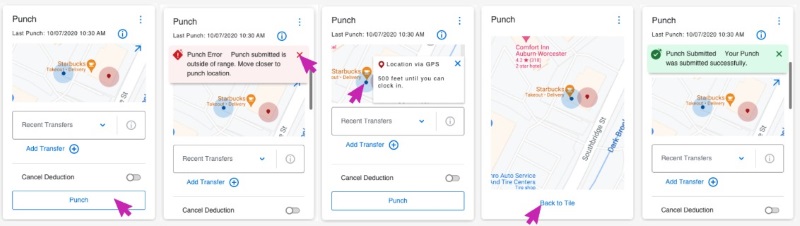
UKG Pro can use location during clock-in or clock-out if your employer enables mobile punch, GPS validation, geofencing, Wi-Fi validation, QR code validation, or similar timekeeping rules. This is usually part of UKG Pro Workforce Management rather than a simple profile setting.
For example, your employer may require you to punch in only when you are within an approved work area. UKG may compare your device’s reported location with a known workplace location. Some organizations also use workplace Wi-Fi or QR codes to confirm that employees are physically at the correct site.
This depends on employer setup. UKG Pro does not behave the same way for every company, and some employees may never use GPS-based punching at all.
How UKG Pro Geofencing Works
Geofencing creates a virtual boundary around a workplace. When you clock in or out, the system may check whether your device is inside that approved area. If you are outside the allowed zone, the punch may be rejected, flagged, or accepted with a location-related note, depending on employer configuration.
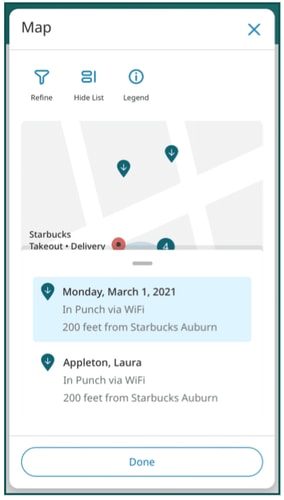
Some setups use GPS coordinates and radius. Others use Wi-Fi networks to confirm location. Some employers may use QR codes, especially when GPS accuracy is unreliable indoors.
This is why UKG Pro location problems can happen even when you are physically at work. Weak GPS signals, disabled location permission, browser blocking, Wi-Fi issues, or inaccurate device location can all affect clock-in behavior.
How to Fix UKG Pro “No Location Data” or Location Permission Errors
If UKG Pro cannot detect your location, start with basic permission and device checks. This is especially important if you are clocking in from a phone or browser.
Fix UKG Pro Location on iPhone
Step 1. Open Settings on your iPhone.
Step 2. Go to Privacy & Security > Location Services.
Step 3. Make sure Location Services is turned on.
Step 4. Find the UKG app and allow location access while using the app.
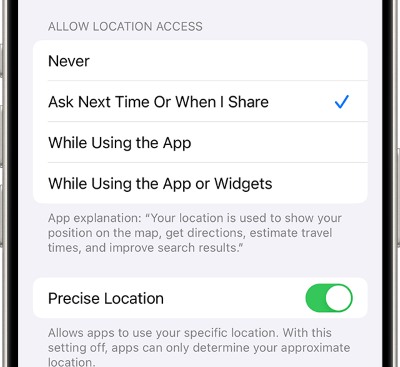
Step 5. Enable Precise Location if your employer requires accurate GPS for punching.
After changing the settings, close and reopen the UKG app. If the error continues, restart your phone and try again from the correct workplace area.
Fix UKG Pro Location on Android
Step 1. Open Settings on your Android device.
Step 2. Go to Location and make sure location is turned on.
Step 3. Open App location permissions or the UKG app’s permission settings.
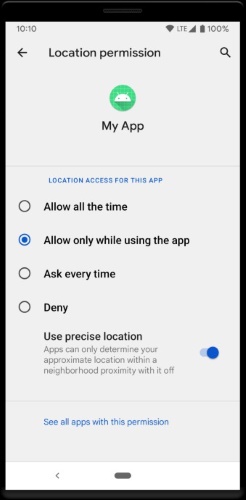
Step 4. Allow UKG to access location while the app is in use.
Step 5. Choose precise location if your device offers that option and your workplace requires it.
If UKG still shows a location error, check whether battery saver, VPN, weak GPS signal, or poor network connection is interfering with accurate location detection.
Fix UKG Pro Location on Desktop or Browser
If you use UKG Pro from a computer, location access may depend on browser permissions. A browser can block location sharing even when your operating system location setting is enabled.
Step 1. Open UKG Pro in your browser.
Step 2. Check the location permission icon near the address bar.
Step 3. Allow location access for your employer’s UKG or mykronos site.
Step 4. Refresh the page and try again.
Step 5. If needed, open browser settings and reset site permissions.
Desktop location is not always as precise as phone GPS. It may rely on browser data, network signals, Wi-Fi information, or system settings. If your employer requires precise workplace validation, mobile clock-in may work better than desktop clock-in.
How to Turn Off Location for UKG Pro
You can usually turn off app location permission through your iPhone or Android settings. However, if your employer requires location for mobile punching, turning it off may prevent you from clocking in or may create an exception that needs manager review.
On iPhone, go to Settings > Privacy & Security > Location Services, then adjust the UKG app permission. On Android, go to Settings > Location > App location permissions, then change UKG’s location access.
Before turning off location access, consider whether UKG is required for your attendance workflow. If location is part of your employer’s timekeeping policy, ask HR or your manager what alternatives are available.
Can You Manually Change UKG Pro GPS Location?
For official UKG Pro records, the safest answer is: use the settings your employer provides. Change your address through employee self-service, update preferences if available, and ask HR or payroll to correct worksite or assignment details.
Device GPS location is different. A phone’s GPS can be changed or simulated with certain tools, but UKG Pro timekeeping may also rely on employer rules, account permissions, geofencing settings, Wi-Fi validation, QR codes, audit logs, and approval workflows. A GPS change alone may not update your official UKG location or solve a rejected punch.
If your UKG location is wrong because of a legitimate worksite, schedule, or payroll issue, contact your employer instead of trying to force a workaround.
Where PoKeep Location Changer Fits

PoKeep Location Changer is useful when you need to change or simulate GPS location on your own iPhone or Android device. It supports one-click GPS location change, works without jailbreak or root, and includes movement options such as joystick control, two-spot movement, multi-spot movement, and jump teleport mode.


For this UKG Pro topic, PoKeep is best understood as a GPS simulation tool for general location-based app testing, privacy scenarios, maps, social apps, or checking how apps respond to different device locations. It can help users understand how device GPS affects apps that read location data.
However, UKG Pro is often tied to workplace attendance, payroll, and employer-managed compliance rules. PoKeep should not be treated as a guaranteed way to bypass UKG Pro geofencing, time clock restrictions, or company policy. For UKG-related work location problems, official profile settings and HR/admin support remain the right first step.
FAQs About Changing UKG Pro Location
Can I change my address in UKG Pro?
Yes, if your employer enables employee self-service address updates. Look for a personal information, employee profile, or name/address/telephone section. Some address changes may need HR or payroll approval.
Can I change my work location in UKG Pro?
Sometimes you can select preferred locations or jobs, but changing your official assigned work location usually requires employer approval. If the location affects scheduling, payroll, or timekeeping, contact your manager or HR.
Why does UKG Pro ask for my location?
UKG Pro may ask for location when your employer uses mobile punch, geofencing, Wi-Fi validation, or location-based timekeeping. The exact behavior depends on your organization’s configuration.
Can I turn off location for UKG Pro?
You can turn off location permission in your iPhone or Android settings, but doing so may stop mobile punch or create an exception if your employer requires location for timekeeping.
Why does UKG Pro say “No Location Data”?
This usually means the app or browser cannot access your location. Check phone location settings, app permissions, precise location, browser site permissions, network connection, and GPS accuracy.
Can PoKeep change UKG Pro location?
PoKeep can change or simulate device GPS location on iPhone and Android, but UKG Pro work location and clock-in rules may involve employer-managed settings, geofencing, Wi-Fi, QR codes, audit records, and approval workflows. Use official UKG and HR channels for workplace location changes.
 Related Articles




 Leave Your Comment