 By
By 
Have you ever tried downloading an app only to discover that it isn't available in your region? This is a common frustration for iOS users who simply want access to a new game, a regional streaming service, or a useful productivity tool from another country. However, you may encounter many restrictions when changing Apple account country. Fortunately, getting past these digital borders is entirely possible when you know the right steps.
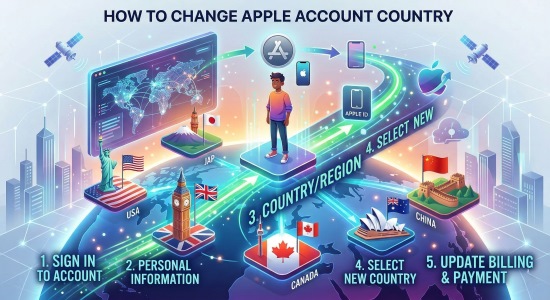
We are going to explore exactly how to change Apple account country. This comprehensive guide breaks down the official methods and the most effective workarounds to ensure you never lose access to your favorite digital content.
What Happens When You Change Apple Account Country?
Before you dive into your system settings, it's important to understand what happens when changing Apple account country. Apple links your purchase history, subscriptions, and media library to the regional App Store where those items were originally purchased. Once you change Apple account country, your App Store automatically switches to the new region, updating the local currency, language preferences, and the available app catalog.
However, this transition can affect your previous downloads. Some apps, music, or other content may temporarily disappear from your visible purchase history. If a particular app or media item isn't licensed for distribution in your new region, you won't be able to download it again unless you switch your account back to the original country. It is always a wise strategy to download all essential apps and media to your local device storage before initiating the transfer.
What to Do Before Changing Apple Account Country
Apple enforces a very strict set of rules that must be followed before the system will allow you to modify your account location. If you attempt to bypass these prerequisites, you will likely encounter the "Cannot Change Country in App Store" error message.
To prepare your account for the switch, ensure you have completed these tasks:
-
Spend any remaining Apple Account balance so your store credit is exactly zero.
-
Cancel all active subscriptions and wait for the current billing cycle to completely expire.
-
Leave any active Family Sharing groups, as these are strictly region-locked.
Once these conditions are met, you will need a valid payment method and a physical billing address located in the destination country to finalize the official transition.
How to Change Apple Account Country on Any Device
If you meet all the official requirements, changing Apple account country is usually a straightforward process. You can update your region from almost any Apple device, but the most common method is through your iPhone or iPad since it immediately updates your App Store storefront.
Change Apple Account Country on iPhone and iPad
Step 1. Open the Settings app on your device and tap your name at the top of the screen.
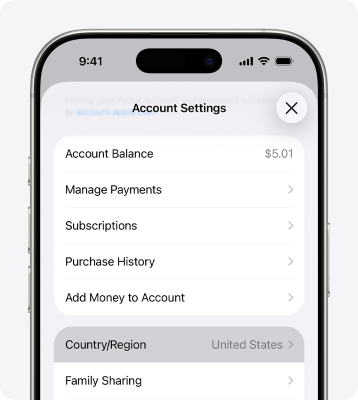
Step 2. Select Media & Purchases, then tap View Account and authenticate with Face ID or your password.
Step 3. Tap Country/Region, select your new destination from the list, and carefully follow the onscreen instructions to enter your updated payment information.
Change Apple Account Country Online
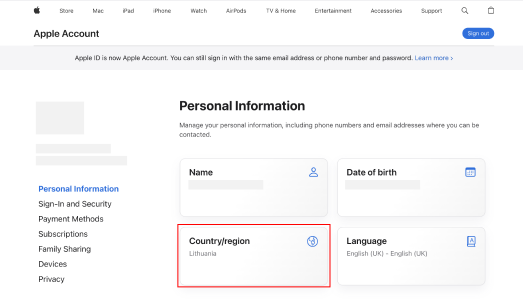
Step 1. Open your preferred web browser and navigate to the official account.apple.com portal.
Step 2. Sign in with your credentials, then navigate to the Personal Information section.
Step 3. Click on Country/Region and input your new localized payment method and billing address to save the changes.
How to Change Region Without Canceling Subscriptions or Adding a Card
Many users get stuck when changing Apple account country because they can't cancel an active subscription (such as Apple Music) or don’t have a valid payment method from another country. If your goal is simply to download a free regional app, there's a practical workaround: create a secondary Apple ID for the new region.
Step 1. Open your iPhone Settings, tap your name, select Media & Purchases, and choose Sign Out (this only signs you out of the store, not your iCloud data).
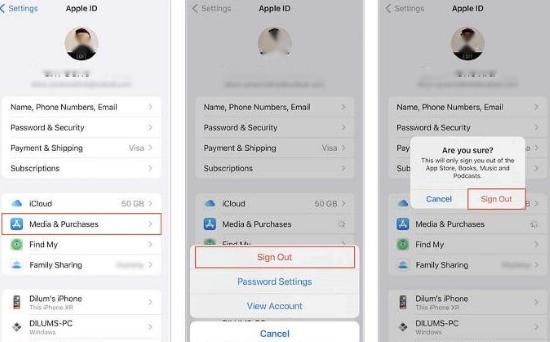
Step 2. Open the App Store, tap the profile icon, and create a new Apple ID, ensuring you select your desired foreign country during the setup process.
Step 3. When prompted for a payment method during account creation, select "None" and enter a random valid address for that specific region to complete the setup and start downloading free localized apps.
Beyond the App Store: Changing Your iPhone's GPS Location
Successfully downloading a foreign app is often only half the battle. Many regional streaming services, dating platforms, and augmented reality games utilize your device's physical GPS hardware to enforce their geo-blocks. Even if the app is installed on your device, it may still block certain features if it detects that you are not physically located in the supported country.
This is where PoKeep Location Changer becomes extremely useful.
PoKeep Location Changer is a powerful desktop tool that lets you easily modify your iPhone or Android device's GPS location, without jailbreaking or rooting your phone. After using the App Store workaround to download a region-restricted app, PoKeep allows you to instantly teleport your device's GPS location to match that region.

PoKeep Location Changer
Change your device's GPS location in seconds, bypass regional restrictions, and enjoy apps and content from any country without hassle.
The software also includes advanced features such as a multi-spot route simulator to mimic natural movement and a 360-degree virtual joystick, making it an excellent companion for location-based apps and games.
Step 1. Download and install PoKeep on your computer.
Step 2. Connect your phone to computer, launch PoKeep Location Changer, and finish the necessary setup.
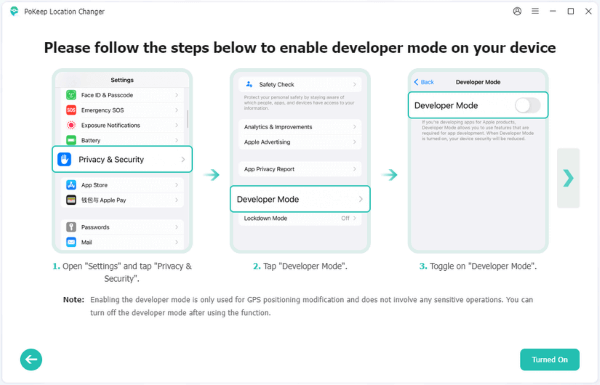
Step 3. Choose General Mode when asked and you’ll enter the map interface.

Step 4. Use the five icons in the top-left corner to choose your preferred movement mode and start adjusting your virtual location.

Conclusion
Apple's regional restrictions don't have to be a permanent barrier to accessing the apps and content you want. Whether you're moving to a new country or simply trying to download a region-locked app, understanding how to change Apple account country gives you the flexibility to unlock more content on the App Store.
Using the official settings is perfect if you have the local payment details ready, but the secondary Apple ID workaround remains the absolute best method for keeping your current subscriptions and store balance completely intact.
 Related Articles




 Leave Your Comment