 By
By 

Apple Maps uses your Home and Work locations to make directions faster, personalize route suggestions, and help you find familiar places without typing the full address every time. But when you move, change jobs, work from a different office, or notice that Apple Maps drops the pin in the wrong place, those saved locations can quickly become annoying.
The good news: you can change Apple Maps Home and Work location directly in the Maps app. In newer iOS versions, Maps can even store a Home or Work address that is different from the one saved on your Contacts card, which means you may need to check both places depending on what is showing the wrong address.
This guide walks through every practical fix: changing Home or Work in Apple Maps, correcting a wrong pin, removing an old saved address, updating Contacts, fixing AutoFill-related address issues, and understanding the difference between a saved Apple Maps address and your live GPS location.
How to Add Apple Maps Home or Work Location
The most direct way to change Apple Maps Home or Work location is inside the Maps app. This is the method to use when the saved Home or Work shortcut itself is wrong.
Step 1. Open the Maps app on your iPhone.
Step 2. Scroll down to the Places or Library section. Depending on your iOS version, you may see saved places such as Home, Work, School, Favorites, or recent pins.
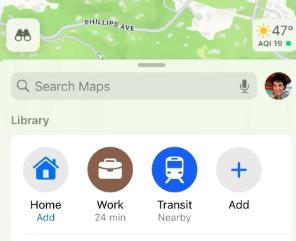
Step 3. Tap Add if you want to create a new Home or Work address. Search for the correct address, then select it from the results.
Step 4. Scroll to Type, then choose My home or My work.
Step 5. Tap Done to save the new location.
Apple Maps also lets you save a Home, Work, or School location that is separate from the address stored in Contacts. That is useful if, for example, you want Maps to route to your apartment entrance while your Contacts card keeps your formal mailing address.
How to Change an Existing Home or Work Address in Apple Maps
If Apple Maps already has a Home or Work location saved, you do not always need to delete it first. You can edit the saved place details.
Step 1. Open Apple Maps.
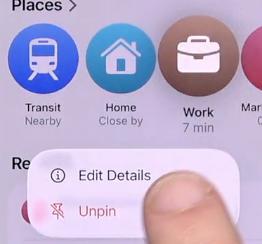
Step 2. Under Places or Library, touch and hold the saved Home or Work address.
Step 3. Tap Edit Details.
Step 4. Change the label, type, or location details as needed. For example, you can rename the pin, assign it as Home or Work, or refine where the pin appears on the map.
Step 5. Tap Done.
This method is best when Apple Maps has the right general location but the saved details need updating. For example, you may want to rename “Office” to “Work,” switch a saved address from Home to Work, or update the pin after moving to a new building in the same area.
Correct Address, Wrong Pin? Refine the Apple Maps Home or Work Location
Sometimes the address is technically correct, but the map pin lands in the wrong spot. This often happens with apartments, large office buildings, gated communities, campuses, rural addresses, or new developments.
In that situation, do not immediately replace the address. Instead, refine the pin location.
Step 1. Open Maps on your iPhone.
Step 2. Under Places, touch and hold the Home or Work address you want to correct.
Step 3. Tap Edit Details.
Step 4. Tap Refine Location on the Map.
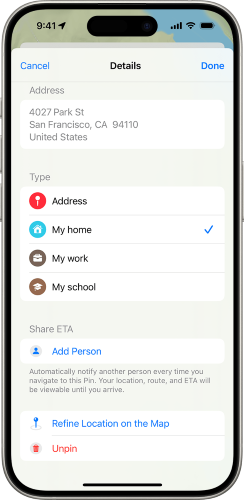
Step 5. Drag the map until the pin sits on the correct entrance, building, driveway, or office location.
Step 6. Tap Done.
This fix is especially helpful when navigation takes you to the back of a building, the wrong side of a street, or a nearby address with the same complex name. Apple’s Maps settings support refining the pin without necessarily changing the address text itself.
How to Remove an Old Home or Work Location from Apple Maps
If Apple Maps keeps showing an outdated Home or Work location, removing it and adding the correct one again can be cleaner than editing it. This is also useful when you have duplicate saved places or an old address keeps appearing in your Library.
Step 1. Open Apple Maps.
Step 2. Scroll to Places or Library.
Step 3. Touch and hold the Home or Work location you want to remove.
Step 4. Tap Unpin.
After removing the old address, add the correct Home or Work location again using the method above. Apple lists Unpin as the way to remove a set address from Maps.
Apple Maps Still Shows the Wrong Home or Work? Try These Fixes
Changing Apple Maps Home or Work usually solves the problem, but not always. Your iPhone may still show an old address in Safari AutoFill, Siri suggestions, Contacts, visited places, or search history.
That does not always mean Apple Maps failed to update.
Different Apple features can use different address sources. Apple Maps may use a saved place in Maps, while Safari AutoFill and some personal suggestions may rely on your Contacts card or location history.
Update Your Contact Card for Home and Work Address
Your Contacts app has a personal card, often called My Card. This card can store your home address, work address, phone number, email, birthday, and other personal details.
To update it:
Step 1. Open the Contacts app.
Step 2. Tap My Card at the top of the list.
Step 3. Tap Edit.
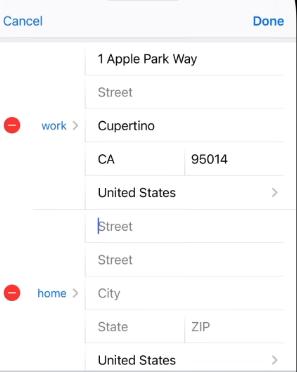
Step 4. Find the address section and update the Home or Work address.
Step 5. Tap Done.
This matters because your Contact Card can be used by features outside Apple Maps, including AutoFill and other Apple services. Apple also notes that Maps may ask whether you want to add a Maps address to your Contact Card, which is useful when you want both places to match.
Fix Home Address on iPhone AutoFill
If Safari or forms on your iPhone still insert the wrong home address, update My Card first. AutoFill often pulls personal address information from your saved contact details rather than from the Home shortcut in Apple Maps.
After editing My Card, reopen Safari or the app where AutoFill appeared wrong. In some cases, restarting the app or your iPhone can help the updated contact information appear correctly.
This is an important distinction: changing Apple Maps Home location is for navigation, while changing your Contact Card is often the fix for AutoFill.
Clear or Review Old Apple Maps History
If Apple Maps continues suggesting an old address, check whether it is coming from search history, recent directions, or visited places rather than your saved Home/Work shortcut.
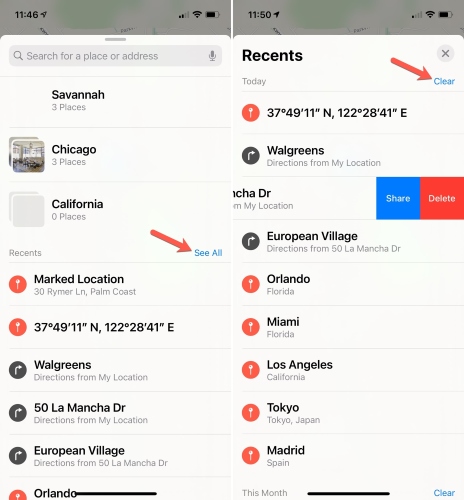
Apple Maps includes visited-place and location-history controls. You can remove specific visited places, clear visited places history, or adjust how long Maps keeps visited-place data.
A good troubleshooting flow is:
- Remove the old Home or Work from Maps with Unpin.
- Add the correct Home or Work again.
- Review recent searches, directions, and visited places if old suggestions still appear.
This helps separate “wrong saved Home location” from “old place still appearing as a suggestion.”
When a GPS Location Changer Like PoKeep Makes Sense
PoKeep Location Changer is not needed for simply editing your Apple Maps Home or Work shortcut. Apple Maps already gives you native tools to change, refine, or remove saved addresses.


However, PoKeep can be relevant when your real goal is to temporarily change your device’s GPS location rather than update a saved place. The product page describes PoKeep as a location changer for iPhone and Android that can change GPS location without jailbreak or root, use a GPS joystick, support location-based apps, and simulate movement.

That makes it a better fit for scenarios such as:
- Testing how a map, social, dating, or location-based app behaves in another area.
- Simulating movement for app testing or location-based experiences.
- Temporarily changing GPS location while keeping the Apple Maps Home/Work shortcut unchanged.
PoKeep’s basic workflow is straightforward: install the desktop program, connect an iPhone or Android device by USB or Wi-Fi, choose a destination on the map, and start modifying the GPS location.
FAQ About Changing Apple Maps Home and Work Location
How do I change home and work locations in Apple Maps?
Open Apple Maps, scroll to Places or Library, then add or edit the saved Home or Work address. For an existing saved place, touch and hold the address, tap Edit Details, make your changes, and tap Done.
Why does Apple Maps keep showing my old home?
The old address may still be saved in Maps, Contacts My Card, recent searches, visited places, or suggestions. Remove the old Maps pin, add the correct one, then check Contacts and Maps history if the old address continues to appear.
Does changing Apple Maps Home change AutoFill?
Not always. Apple Maps Home is mainly for navigation. Safari AutoFill and other personal information features may use the address saved in Contacts > My Card, so update your Contact Card if AutoFill still shows the old address.
How do I fix a wrong Apple Maps Home pin?
If the address is correct but the pin is wrong, open Apple Maps, touch and hold the saved Home location, tap Edit Details, choose Refine Location on the Map, move the pin, and tap Done.
Can I change my current iPhone GPS location from Apple Maps?
No. Apple Maps lets you change saved places like Home and Work, but it does not let you manually set your live GPS location. For live GPS location changes, you would need a separate location-changing tool, and you should use it only for legitimate, responsible purposes.
Final Thoughts on Changing Apple Maps Home and Work Location
For most people, the fix is simple: open Apple Maps, edit the saved Home or Work location, and refine the pin if needed. If your iPhone still shows an old address elsewhere, check Contacts My Card, AutoFill, Maps history, and Location Services before assuming Apple Maps is broken.
The key is knowing what you are trying to change.
Apple Maps Home and Work are saved navigation shortcuts. Your Contacts address is personal profile data. Your live GPS location is a separate device-level signal. Once you separate those three, it becomes much easier to fix the exact location problem you are seeing.
 Related Articles




 Leave Your Comment