 By
By 

Most desktop emulators like BlueStacks and NoxPlayer can no longer run Pokémon GO out of the box. Niantic enforces Google's Play Integrity API and hardware-backed attestation, so unmodified game clients crash or fail authentication before you ever reach the map.
Playing Pokemon Go on a PC monitor is still possible, but it requires specific setups. After our testing, working options come down to running a modified client like PGSharp inside compatible emulators, or mirroring a physical phone to your computer with an external location changer to bypass emulator detection entirely.
Pokemon GO Emulator Tests (PGSharp on Computers)
After our testing various workarounds, running PGSharp on a desktop emulator proved to be the most viable way to play Pokémon GO on a PC. In this section, we will show how the tested three popular desktop Android emulators (MuMu Player, BlueStacks, and NoxPlayer) work on a Windows 11 host PC (Intel Core i7, 32 GB RAM, hardware virtualization enabled) to verify which setups can actually run the game.
1 MuMu Player Pokemon GO Emulator Test with PGSharp
MuMu Player is the only mainstream Android emulator capable of running Pokémon GO with a modified client in our tesing. We initialized a MuMu Android 12 instance configured with 4 CPU cores, 5 GB RAM, a display resolution of 1600 × 900, and 240 DPI. We then installed the latest PGSharp APK package.
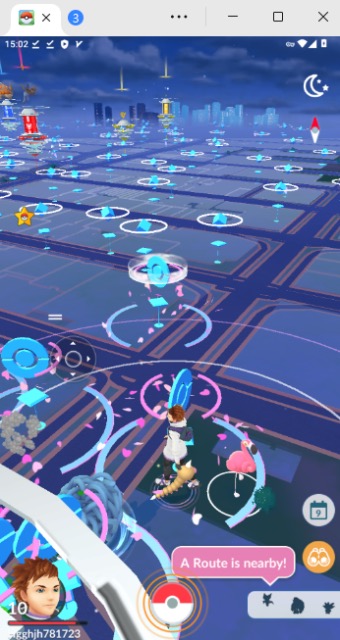
The results were immediate and functional: Pokemon GO booted without crashing, displaying the signature floating PGSharp star icon and touch joystick overlay. The game successfully rendered a dense downtown area populated with active lure modules, Gyms, and wild spawns.
2 BlueStacks Pokemon GO Emulator Test with PGSharp
BlueStacks is the most recognized Android emulator, but it is currently a dead end for Pokémon GO players.
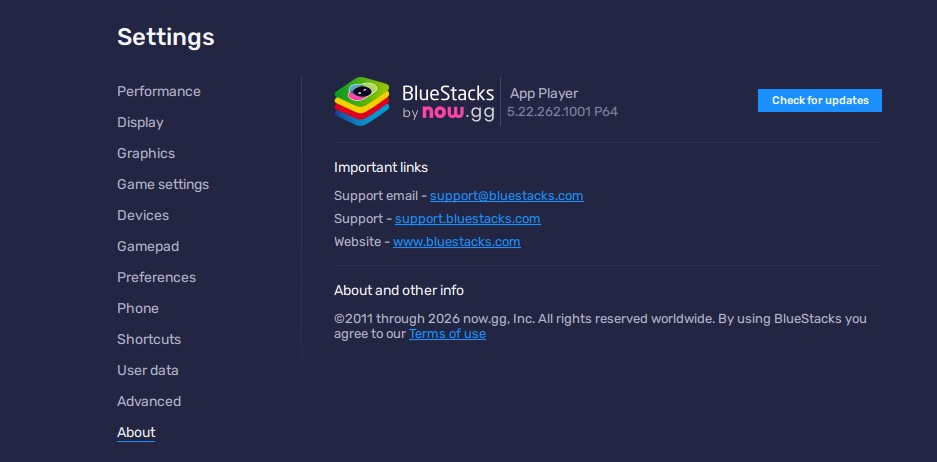
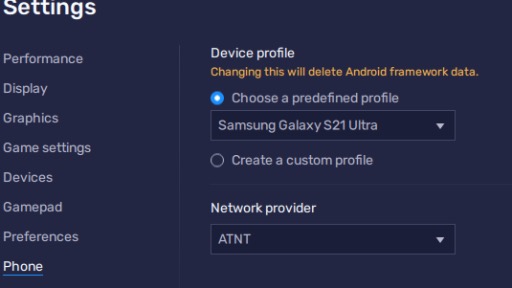
We tested BlueStacks App Player version 5.22.262.1001 P64 (Pie 64-bit instance), which has historically been the recommended base for location-based games. We configured the device profile to a Samsung Galaxy S21 Ultra on the AT&T network profile.
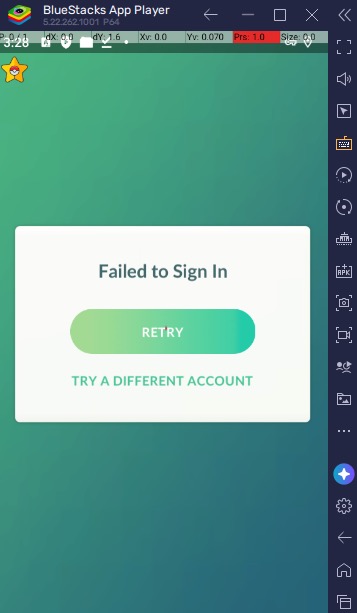
We downloaded and installed the PGSharp APK. The app launched and displayed the PGSharp star icon alongside touch coordinate metrics in the top bar. However, the game stalled at the authentication screen. Every login attempt produced a modal dialogue: "Failed to Sign In", with only "RETRY" and "TRY A DIFFERENT ACCOUNT" buttons. Switching between Google Sign-In and Pokémon Trainer Club did not resolve the issue. BlueStacks' virtual environment fails the required cryptographic handshake with Niantic's servers.
3 NoxPlayer Pokemon GO Emulator Test
NoxPlayer has long marketed dedicated Pokemon GO integration, but modern Windows compatibility issues make it unreliable today.
During our installation of NoxPlayer, the engine failed during initial virtualization initialization, throwing a critical error: "Virtual machine failed to start, please repair", with a prompt to disable Hyper-V.
Even after manually disabling Windows Hyper-V, Virtual Machine Platform, and Windows Hypervisor Platform features and rebooting the host computer, NoxPlayer failed to boot its Android kernel consistently.
2026 Pokemon GO Emulator Status Matrix
The table below summarizes the compatibility, setup complexity, and account safety of major PC emulation methods:
| Method | Official App | PGSharp Support | Setup Effort | Ban Risk | Current Verdict |
|---|---|---|---|---|---|
| MuMu Player (Android 12 / 6) | Crashes | Working | Moderate (APK Sideload) | High (Modified APK) | Playable on Alt Accounts |
| BlueStacks 5 (P64) | Crashes | Auth Blocked ("Failed to Sign In") | Moderate | Very High | Not Recommended |
| NoxPlayer / LDPlayer | Crashes | Unstable / Crashes | High (VM Conflicts) | Very High | Avoid |
| MEmu Play | Crashes | Black Screen on Boot | Moderate | Very High | Avoid |
| Android Studio (RootAVD + Magisk) | Requires Complex Root Bypass | Fragile | Extreme (Dev Tools) | High | Not for Casual Players |
| Phone Mirroring + PoKeep | 100% Native Support | Not Needed (Official App) | Simple (Plug & Play) | Low (No Client Modification) | Safest Long-Term Solution |
Why iOS Pokemon GO Emulators Don't Exist on PC
During our exploration, we found that there's no working iOS emulator exists for Windows or Mac that can run Pokémon GO out there. Maybe it's because Apple keeps iOS closed, and there is no consumer virtualization for PC hardware.
1 Why iPhone Pokemon GO Emulators on PC Do Not Work
Two tools are often mistaken for iOS emulators, but neither works for the game:
Xcode Simulator (macOS): Built for developers to test source code, not App Store binaries. It has no App Store access and cannot run pre-compiled games like Pokémon GO.
Browser-based tools (like Appetize.io): These stream lightweight app previews for demos. They lack the 3D graphics, live GPS feeds, and performance needed for gaming.
2 Can SpooferPro Run in an iOS VM on Mac?
No. Modified iOS apps like SpooferPro only run on physical hardware. They rely on device certificates through AltStore or Sideloadly and hook into real iOS system processes that virtual machines (like UTM or Corellium) cannot replicate for gaming.
For iOS players, the only practical options are sideloading directly onto a physical iPhone, or connecting the phone to a computer and changing GPS coordinates with a tool like PoKeep Location Changer while using the official app.
Pokemon GO Emulator Setup with MuMu and PGSharp
If you understand the ban risks and wish to experiment using a secondary burner account, MuMu Player running PGSharp is the only Pokemon GO emulator setup that passed our practical testing. Follow these steps to set it up correctly:
Step-by-Step Pokemon GO Emulator Installation
Step 1. Download and install MuMu Player from its official website. Open the Multi-Instance Manager and create a new Android 12 (64-bit) instance.
Step 2. In the instance settings, allocate at least 4 cores and 5 GB RAM. Save and launch the virtual device.
Step 3. Open the built-in browser inside MuMu and go to the official PGSharp website. Download the latest ARM64 APK directly in the emulator and install it when prompted.
Step 4. Once installed, launch Pokémon GO. Set your birth year to confirm age, log in with an alternate account, and verify that the PGSharp star overlay and joystick respond to keyboard mapping.
Better Than a Pokemon GO Emulator: Screen Mirroring + PoKeep
If your goal is simply to enjoy Pokémon GO on a big monitor with keyboard controls without risking account bans on modified APKs, there is a proven alternative: The Hybrid Setup.
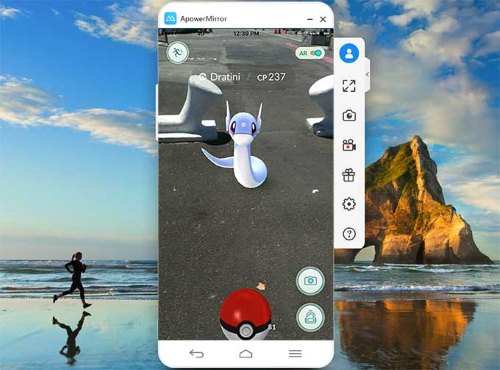
Instead of forcing a virtual machine to emulate Android hardware, you run the official, unmodified Pokémon GO app on your real physical phone (iPhone or Android). You mirror the phone's display to your monitor for big-screen visuals, and use PoKeep Location Changer on your computer to direct avatar movement.


Why Mirroring + PoKeep Beats a Pokemon GO Emulator
 Advantages of PoKeep Hybrid Setup:
- Uses the official App Store / Play Store client—no modified APK binaries.
- 100% immune to emulator VM detection errors and Play Integrity crashes.
- Compatible with both iOS (iPhone/iPad) and Android devices without rooting or jailbreaking.
- Smooth 360-degree keyboard joystick (W, A, S, D) and realistic speed sliders.
- Integrated cooldown timer prevents jumping too quickly between coordinates.
 Limitations:
- Requires a physical phone connected to your PC or Mac via USB or Wi-Fi.
- Screen mirroring requires a separate free tool (like scrcpy, Phone Link, or AirPlay).
Step-by-Step Setup Without a Pokemon GO Emulator
Step 1. Download and install PoKeep Location Changer on your Windows or Mac computer.
Step 2. Connect your iPhone or Android phone to your computer using a USB cable. If you are using iPhone, tap "Trust This Computer" on your device first. Once paired, you can switch to wireless Wi-Fi mode for future sessions.

Step 3. Mirror your phone's screen to your computer monitor. For Android, use free tools like scrcpy or Windows Phone Link. For iPhone, open QuickTime Player (New Movie Recording > select iPhone as camera) or use AirPlay mirroring.
Step 4. In PoKeep, select Joystick Mode from the upper toolbar. Adjust your speed slider to a natural walking pace (around 7–9 km/h, well below the speed limit threshold).

Step 5. Open the official Pokémon GO app on your phone. Control your trainer's movement across your monitor using the W/A/S/D keys while throwing Pokéballs directly on your device screen or with your mouse.
Pokemon GO Emulator FAQs
Can I play Pokemon GO on an emulator in 2026?
Running the official Google Play Pokemon GO app on emulators like BlueStacks or Nox fails due to Niantic's Play Integrity and SafetyNet checks. The only working configuration verified in September 2026 is MuMu Player paired with a modified client like PGSharp. However, modified clients carry an elevated ban risk.
Does BlueStacks work with PGSharp in 2026?
In our tests on BlueStacks 5.22.262 (Pie 64-bit), PGSharp installed and launched, but stalled at the login screen with a persistent "Failed to Sign In" error. BlueStacks' virtual environment fails modern server-side integrity checks.
Which emulator works with PGSharp right now?
MuMu Player is the most consistent option. In our testing, MuMu running an Android 12 instance (4 cores, 5 GB RAM) successfully ran PGSharp with full map rendering, PokeStop spinning, joystick movement, and Pokemon catching. Community players also report stability on legacy MuMu 6 (Android 6 64-bit).
Can BlueStacks use my computer's proxy or VPN?
Yes. You can configure manual proxy settings inside BlueStacks under Settings > Network. However, proxies only alter your public IP address. They do not forge hardware serial numbers, simulate sensor telemetry, or bypass Google Play Integrity attestation.
Is there an iOS emulator for Pokemon GO on PC or Mac?
No consumer iOS emulator exists that can run Pokemon GO on a PC or Mac. Apple's ecosystem does not support full iOS virtualization for gaming. Xcode Simulator is intended for app developers and cannot run the official App Store Pokemon GO app.
Can SpooferPro run in an iOS virtual machine on Mac?
No. SpooferPro is a modified IPA designed specifically for physical iOS devices installed via sideloading tools like AltStore or direct enterprise certificates. There is no supported or stable setup for running SpooferPro inside a virtual machine on macOS.
Will playing Pokemon GO on an emulator get my account banned?
Yes, the risk is substantial. Niantic's three-strike policy treats modified game binaries and automated virtual environments as terms-of-service violations. If you experiment with MuMu and PGSharp, always use a disposable secondary account rather than your primary trainer profile.
What is the safest way to play Pokemon GO on a PC monitor?
The safest approach is phone screen mirroring combined with an external GPS controller like PoKeep Location Changer. The game runs natively on your physical phone's official, unmodified app, eliminating emulator detection risks while allowing you to view gameplay on a large monitor and control avatar movement with keyboard hotkeys.
Pokemon GO Emulator Final Verdict
The era of effortlessly playing official Pokémon GO on standard PC emulators like BlueStacks has effectively ended. Stricter hardware integrity attestation has transformed emulators into an unstable cat-and-mouse game of login errors and account suspensions.
If you want to experiment on an alternate account with joystick features, MuMu Player paired with PGSharp is currently the only functional emulator setup. But for trainers who value their main account and simply want the big-screen experience with keyboard controls, the hybrid setup—pairing phone screen mirroring with PoKeep Location Changer—provides the same PC freedom without putting your progress on the line.
 Related Articles
 Leave Your Comment