 By
By 

Quick Verdict
Pokémon GO tags help organize Pokémon for battles, evolution, trading, transferring, and future upgrades. Use a few clear tags, combine them with search filters, and favorite valuable Pokémon for protection.
Who It's For
This guide is for Trainers who want to organize storage, search tags, and fix missing tags.
Key Takeaways
- Use action-based tags: Try
Build Next,Trade Queue, orTransfer Later. - Search tags easily: Use
#Tag Namewith filters such as4*orage0. - Favorite valuable Pokémon: Tags organize Pokémon but do not prevent transfers.
As your Pokémon Storage grows, finding the right Pokémon becomes increasingly difficult. A valuable PvP candidate may disappear among recent catches, a Pokémon saved for a Community Day move may be evolved too early, or a rare trade may be transferred during a rushed cleanup.
Pokémon GO tags solve this problem by letting you build custom groups around your own plans. Instead of remembering why each Pokémon was saved, you can mark it for a specific league, investment, trade, event, or collection goal.
What Are Tags in Pokémon GO?
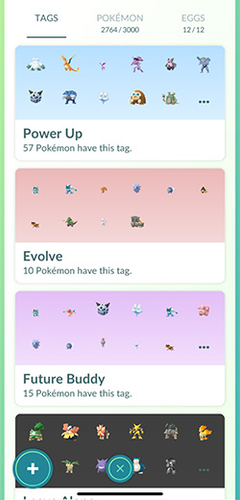
Pokémon GO tags are custom labels that organize Pokémon into groups. The feature becomes available at Trainer Level 15, and the Tags page can be opened from Pokémon Storage. Each tag can have its own name and background color.
One Pokémon can carry multiple tags at the same time. For example, an Azumarill could be placed in 'Great League', 'Build Next', and 'Second Move' because those tags describe its role, current status, and next required action.
Tags are especially useful for information the game cannot determine automatically. Pokémon GO knows whether a Pokémon is Shiny, Shadow, Lucky, or eligible to evolve, but it does not know whether you intend to trade it, invest Stardust in it, wait for an exclusive move, or make it your next Best Buddy.
Pokémon GO Tags vs. Favorites and Search Filters
Tags, Favorites, nicknames, and search terms have different jobs. Understanding those differences prevents unnecessary tags and reduces the chance of accidentally removing an important Pokémon.
| Feature | Best use | Protects against transfer? |
|---|---|---|
| Custom tag | Recording a purpose, plan, or category | No |
| Favorite star | Protecting an important Pokémon | Yes |
| Nickname | Displaying information directly in storage | No |
| Search term | Finding a characteristic the game already records | No |
| Saved search | Reusing a complex filter | No |
Favorited Pokémon cannot be transferred through the normal transfer process. Custom tags do not provide the same documented protection, so valuable Pokémon should normally be both tagged and favorited.
A tag such as 'Do Not Transfer' may remind you to stop, but it is not a substitute for the Favorite star.
How to Create Pokémon GO Tags
Creating a new tag takes only a few steps:
Step 1. Open Main Menu → Pokémon, switch to the Tags page, and tap the plus button.
Step 2. Enter a tag name, choose a background color, and tap Done.
Step 3. Open the new tag, tap Add Pokémon, select the Pokémon, and apply the tag.
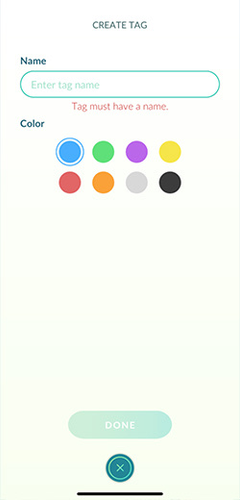
Tags can also be assigned from an individual Pokémon's action menu. Tapping a tag beneath the Pokémon's HP bar lets you remove it, add another tag, or view every Pokémon carrying that label.
How to Tag Multiple Pokémon at Once
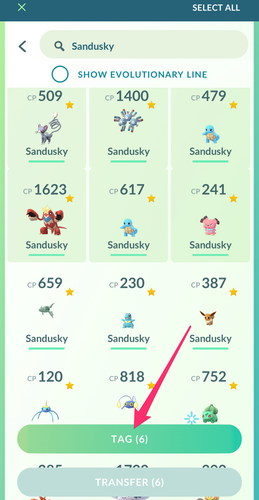
Open Pokémon Storage and press and hold one Pokémon to enter multi-select mode. Select the other Pokémon you want to organize, open the available actions, and assign the desired tag.
This is especially helpful after Community Day, GO Fest, a raid event, or a long catching session. Instead of editing every Pokémon individually, you can select an entire group and add a temporary tag such as 'Event Review'.
How to Edit or Delete Pokémon GO Tags
Open the Tags page and select the tag you want to manage. From there, you can change its name or color, view its Pokémon, or delete the category. Tag management is separate from transferring Pokémon, so removing a category does not perform a Pokémon transfer.
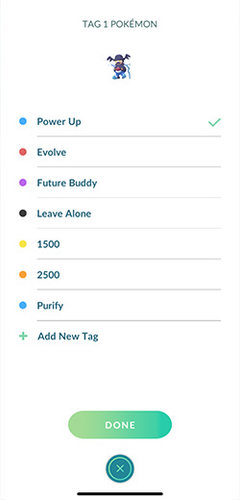
Before renaming a frequently used tag, remember that its search command will also change. A tag called 'Build Next' is found with '#Build Next', while a renamed tag such as 'Power Up Next' requires the new name.
Best Pokémon GO Tags to Use
The best tags are not necessarily the ones that describe the most Pokémon. They are the ones that help you make decisions quickly.
A compact system is usually better than dozens of categories that require constant maintenance. Start with a small group, use it for a week, and add another tag only when you repeatedly encounter a problem the existing system cannot solve.
Essential Pokémon GO Tags List
| Tag name | What it is for |
|---|---|
| Build Next | Your highest-priority investment projects |
| Power Up | Pokémon selected for future power-ups |
| Evolve Later | Pokémon waiting for evolution |
| Exclusive Move | Pokémon waiting for a special evolution move |
| PvP Build | Promising Pokémon that are not battle-ready |
| Raid Ready | Completed raid attackers |
| Trade Queue | Pokémon available for ordinary trades |
| Transfer Later | Pokémon being held for a transfer bonus |
| Buddy Next | Future Buddy or Best Buddy projects |
| Elite TM | Pokémon reserved for an Elite TM |
| Second Move | Pokémon awaiting another Charged Attack |
| Event Hold | Pokémon saved until an event rule or bonus is confirmed |
These tags cover the most common decisions without duplicating too many built-in filters. They can later be expanded into more specialized PvP, raid, trade, and collection groups.
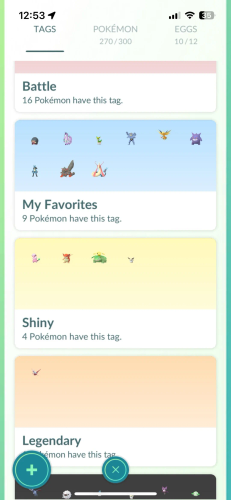
How to Search Pokémon GO Tags
To search a custom tag, enter a hashtag followed by its exact name:
This displays Pokémon carrying the 'Build Next' tag. Tag searches can be combined with the standard Pokémon Storage filters using operators such as '&' for conditions that must all match and '!' for exclusions.
Useful Pokémon GO Tag Search Examples
Shows perfect-IV Pokémon in the 'Power Up' tag.
Shows tagged Pokémon that currently meet the game's evolution requirements.
Shows Pokémon caught within the last 24 hours that were added to your trade queue.
Shows Fire-type Pokémon assigned to the 'Raid Ready' tag.
Shows investment candidates that have not been favorited. Review this result carefully and add the Favorite star where protection is needed.
The available inventory search terms include CP ranges, catch age, Buddy Level, evolution eligibility, Favorites, Shiny status, Shadow status, costume Pokémon, tags, backgrounds, and numerous other characteristics.
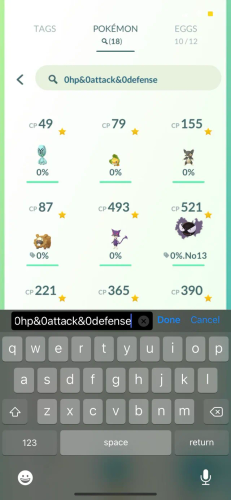
How to Find Untagged Pokémon
Community search references have documented shortcuts for locating Pokémon without tags, but the exact behavior and syntax have changed across app versions. Because this type of search is often used before mass transfer, do not rely on a community shortcut without testing it on a small sample first.
A safer cleanup workflow is to create a temporary 'Reviewed' tag. Add it to every Pokémon you have checked, then search:
This leaves Pokémon that have not entered your review process. Confirm every result and protect valuable Pokémon with the Favorite star before transferring anything.
A Better Way to Build Your Pokémon GO Tags List
The easiest system to maintain uses three layers:
| Layer | What it describes | Examples |
|---|---|---|
| Purpose | Why the Pokémon is kept | Great League, Raid, Trade |
| Status | How ready it is | Ready, Build, Waiting |
| Action | What must happen next | Power Up, Evolve, TM |
A single Pokémon may carry one tag from each layer. An Ultra League candidate could be tagged 'Ultra League', 'Build', and 'Second Move', giving you a complete explanation without an excessively long nickname.
Colors can reinforce the same structure. For example, green can represent completed Pokémon, yellow can represent investments, red can mark required action, and blue can identify battle categories.
Consistency matters more than the exact colors chosen.
A Fast Pokémon Storage Cleanup Workflow
A repeatable process is more valuable than a perfect tag list. Use tags while reviewing Pokémon instead of waiting until storage is completely full.
After a Catching Session
Step 1 [Appraise and favorite]
First, appraise important catches and immediately favorite anything that must not be transferred.
Step 2 [Assign action tags]
Next, assign action tags such as Build Next, Trade Queue, or Transfer Later.
Step 3 [Clear low-value catches]
Finally, clear low-value catches only after checking event, trade, PvP, and collection requirements.
Before a Transfer Bonus
Step 1 [Prepare trade candidates]
Move possible trade candidates into Trade Queue and reserve valuable exchanges with Special Trade or Reserved.
Step 2 [Queue for transfer]
Place the remaining eligible Pokémon into Transfer Later, then review that tag again when the bonus begins.
This separates the decision to remove a Pokémon from the irreversible transfer action. Pokémon transfers cannot be reversed, so an additional review is worth the effort.
Before Community Day or a Special Event
Step 1 [Create temporary tag]
Create a temporary event tag such as CD Review. Add evolution candidates, trade candidates, and Pokémon waiting for the event move.
Step 2 [Post-event cleanup]
After the event, split the group into permanent categories and delete the temporary tag. Temporary event tags should not remain indefinitely because they quickly fill the Tags page with outdated information.
Organize Location-Based Catching Sessions With PoKeep
Tags manage Pokémon after they are caught, but they can also support location-based session planning. A Trainer visiting several hunting areas may create temporary categories such as Route A, Raid Day, Regional Trade, or XL Session, making it easier to compare the results of each session later.
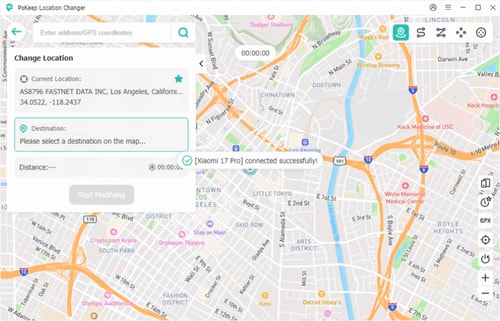
PoKeep Location Changer includes a 360-degree joystick, two-spot movement, multi-spot routes, jump teleport, favorite routes, location history, GPX import, and a cooldown timer.


Favorite routes and historical records can help you return to previously used areas, while matching Pokémon GO tags can keep catches from each route or objective separated.
A simple combined workflow could be:
Step 1. Save or select a planned route in PoKeep.
Step 2. Use a temporary Pokémon GO tag for that session's catches.
Step 3. Review the tagged group and move valuable Pokémon into permanent battle, trade, or collection categories.
PoKeep does not create or control Pokémon GO tags; the two tools serve different purposes.
end
Pokémon GO Tags Disappeared: What to Do
A missing Tags tab does not automatically mean Pokémon GO permanently removed the feature. The app may have failed to load part of the inventory interface, the local game data may be outdated, or the connection may have interrupted synchronization.
Try these fixes in order:
Step 1. Close Pokémon GO completely, reopen it, and restart the phone if necessary.
Step 2. Update Pokémon GO and switch between Wi-Fi and mobile data.
Step 3. Open Settings → Advanced Settings → Refresh Game Data.
Refreshing game data may disable Adventure Sync, so check its setting again afterward. On Android, clearing the Pokémon GO app cache may also resolve temporary client problems. Reinstalling the official app is a later option after confirming that you know the account's login provider and credentials.
Tags Still Missing After Reinstalling
Confirm that you signed into the same Pokémon GO account. Accidentally using another Google account, Apple login, Pokémon Trainer Club account, or other login provider can make the collection appear different.
Next, check the current Pokémon GO Known Issues information and use in-app support to report the problem. Include the phone model, operating system, Pokémon GO version, time the issue began, and whether the Tags tab or only individual tag assignments are missing.
Avoid rebuilding a large tag system immediately. If the problem is a temporary loading or synchronization issue, the original tags may return after the client reconnects correctly.
Pokémon GO Tags FAQ
What tags should I make in Pokémon GO?
Start with Build Next, Evolve Later, PvP Build, Raid Ready, Trade Queue, Transfer Later, Buddy Next, and Event Hold. Add more categories only when a repeated storage problem requires one.
Where are tags in Pokémon GO?
Open the Main Menu, select Pokémon, and switch to the Tags header near the upper-left area of Pokémon Storage. The tagging feature is available from Trainer Level 15.
What do tags do in Pokémon GO?
Tags place Pokémon into custom groups based on your own criteria. They can represent battle roles, planned investments, trades, event preparation, personal collections, or any other purpose.
Can one Pokémon have multiple tags?
Yes. A Pokémon can be assigned another tag without removing its existing categories, allowing it to have separate purpose, status, and action labels.
How do I search tags in Pokémon GO?
Enter # followed by the tag name. For example, #Raid Ready displays Pokémon assigned to that tag, and #Raid Ready&fire narrows the group to Fire-type Pokémon.
Does a Pokémon GO tag prevent transfer?
No documented transfer protection comes from a normal custom tag. Use the Favorite star to prevent a Pokémon from being transferred normally.
Can other Trainers see my Pokémon GO tags?
Normal custom organization tags are intended for managing your own collection. The special Remote Trade tag is an exception because Pokémon marked with it can be shown to eligible Forever Friends during the Remote Trade process.
Did Pokémon GO get rid of tags?
The continued official tagging documentation indicates that tags remain a supported inventory feature. When the Tags tab disappears, restart and update the app, refresh game data, test another connection, and check current Known Issues information before assuming the feature was removed.
Does deleting a tag delete the Pokémon?
Deleting a category is separate from transferring a Pokémon. However, removing a tag also removes that organizational reminder, so favorite valuable Pokémon before changing or cleaning up tags.
Final Thoughts on Pokémon GO Tags
The best Pokémon GO tags system is not the one with the most categories. It is the one that quickly explains why each Pokémon is being kept and what should happen to it next.
Use built-in searches for facts the game already records. Use tags for your own decisions, priorities, and future actions. Combine both with Favorites, saved searches, regular reviews, and clearly named temporary categories to keep even a large Pokémon collection manageable.
 Related Articles







 Leave Your Comment