 By
By 

Figuring out how to change browser location settings can feel surprisingly complicated, especially when websites still seem to know exactly where you are even after you try hiding it. Browsers use a combination of your IP address, nearby Wi-Fi networks, and internal device sensors to pinpoint your exact coordinates. While this is great for finding nearby coffee shops, it can be frustrating if you are trying to protect your privacy, test a website, or access region-specific content.

This comprehensive guide will walk you through the most effective ways to modify your geographical data across all major platforms. Whether you need to change browser location on a smartphone or tweak your desktop settings, there are multiple reliable methods available to you.
Why Change Your Browser Location?
People alter their browsing country for a variety of legitimate reasons. Privacy is a major concern, as many users simply do not want third-party websites tracking their daily movements and building profiles based on their whereabouts. Web developers and SEO professionals also frequently need to simulate different global regions to ensure their localized search results and website features are working correctly for international visitors.
Sometimes, you might just be dealing with a technical glitch. If you have ever wondered, "Why is my browser showing the wrong location?", it is often because of outdated cached data or IP address confusion. Knowing how to manually manage and correct these browser location settings gives you complete control over your digital footprint.
The Mobile Solution: Changing Browser Location on iPhone & Android
When you try to change browser location on mobile devices, you will quickly discover that browser extensions and developer tools simply do not exist for smartphone browsers. Mobile versions of Safari and Chrome pull their geographical data directly from your device's built-in system GPS. Because of this strict integration, the only way to effectively spoof a mobile browser is to change the GPS coordinates at the operating system level.
This is where a dedicated tool like PoKeep Location Changer becomes incredibly useful. PoKeep is designed to safely mock your iOS location or fake your GPS on Android devices without requiring any complex jailbreaking or rooting procedures. By altering your device's global GPS data, every single app on your phone—including Chrome, Safari, and location-based games—will instantly believe you are in the new destination.


Step 1. Download and install PoKeep on your computer, then connect your iPhone or Android device via USB or Bluetooth, choose “Universal Mode”.

Step 2. Open the software, select your desired destination on the interactive map, and choose your preferred movement mode.

Step 3. Click the button to start modifying your location, and your mobile browser will immediately reflect the new coordinates.
The Desktop Solutions: Chrome, Edge, Safari, and Firefox
Desktop browsers offer far more flexibility for spoofing your whereabouts. Because they rely heavily on the HTML5 Geolocation API rather than dedicated GPS chips, you can easily manipulate the data they send to websites.
Method 1: Use a Change Browser Location Chrome Extension
For most casual users, installing a dedicated add-on is the fastest and easiest way to bypass geographical restrictions on a desktop computer. Extensions like "Location Guard" allow you to easily change your geographic location to a desired value to protect your privacy. These tools intercept the location requests made by websites and feed them fake coordinates instead.
Step 1. Open the Chrome Web Store or Firefox Add-ons page and search for a reputable geolocation extension.
Step 2. Install the extension and open its internal options menu to access the configuration map.
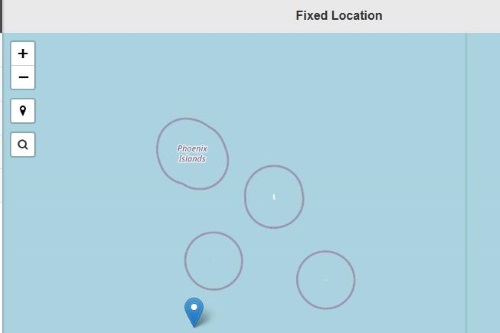
Step 3. Drop a pin on your desired global location and save your settings to apply the fake coordinates to your browser.
Method 2: Manual Spoofing via Developer Tools
If you do not want to install third-party software, you can manually input fake coordinates using built-in developer options. This method is perfect for those asking how to change browser location in Chrome or Edge without downloading anything extra.
Step 1. Open Chrome and click the three-dot icon located on the top right of your browser window, then navigate to "More tools" and select "Developer tools".
Step 2. Once the panel opens, look for the "Sensors" tab. If it is not immediately visible, click the three-dot button right next to the gear icon, go to "More tools", and select "Sensors" from the list.
Step 3. In the Sensors menu, click the Location drop-down menu to either choose a pre-configured city or manually type in specific latitude and longitude coordinates.
How to Change Location in Google Chrome (2026 Updated)
How to Manage Native Browser Location Settings
Sometimes you do not need to fake your location; you just need to stop websites from asking for it altogether. All modern web browsers allow you to restrict which sites can access your data.
To manage your location settings in Chrome, open the browser and click the three-dotted menu in the top right-hand corner, followed by Settings. From there, navigate to Privacy and security, look under "Permissions", and select Location to choose your preferred default setting. You can also adjust these preferences for specific sites from this menu.
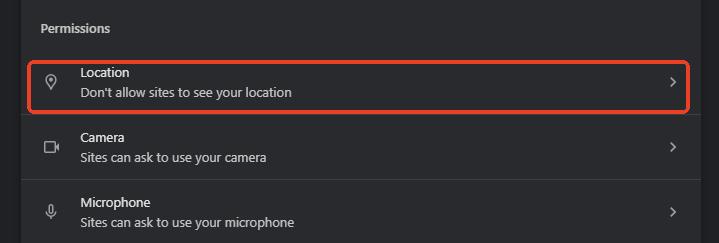
If you are using Microsoft Edge, select Settings, navigate to Privacy, search, and services, then go to Site permissions, click All permissions, and select Location. For Firefox users looking to change location for a specific website, you can simply go to the site in question and click the permissions icon (often a flag or lock) located on the right-hand side of the URL bar to reset the preferences.
VPN vs. GPS Spoofer: Why Is My Browser Location Still Visible?
A common source of frustration occurs when users activate a Virtual Private Network (VPN) but notice that websites like Google Maps still know their exact physical address. This happens because a VPN only masks your IP address.
Modern browsers rely on the HTML5 Geolocation API, which looks at nearby Wi-Fi routers and Bluetooth beacons to determine your physical position, completely ignoring your IP address.
To achieve complete digital anonymity, you must tackle both tracking methods simultaneously. A VPN is excellent for encrypting your internet traffic and bypassing basic regional blocks. However, to stop browser-level tracking, you must pair your VPN with a GPS spoofer (like PoKeep for mobile) or utilize the developer tools mentioned above.
 Note:
Note:
You can also try disabling Wi-Fi if your actual location is still showing, as websites frequently use nearby Wi-Fi signals to determine where you are.
 Related Articles


 Leave Your Comment