 By
By 

Navigation apps have become an indispensable part of our daily commutes and road trips, but sometimes you need to view the map from an entirely different perspective. People frequently want to change location on Waze for a variety of practical reasons. You might be coordinating travel for a family member, checking rush hour traffic for a future commute, or trying to maintain your privacy while using location-based apps.

While Waze is incredibly powerful for live navigation, it doesn't make spoofing your starting point immediately obvious. Depending on whether you need a simple route preview or a comprehensive system-wide GPS override, different methods will serve you best.
Need 1: Route Planning and Changing Waze Starting Point
If your main goal is to calculate drive times from a place you aren't currently located, the app offers a highly useful built-in solution. This native feature is excellent for planning an evening trip earlier in the day or checking a friend's expected arrival time. Waze refers to this function as "Plan a drive".
Using this feature allows you to simulate a Waze route without actually modifying your smartphone's system GPS data. It serves strictly as a preview tool, meaning you cannot initiate live turn-by-turn navigation from the mocked spot. However, for obtaining quick traffic estimates, this remains the safest and most accessible workaround.
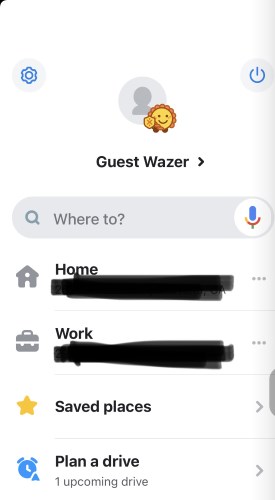
Step 1. Open the Waze app and tap the "Plan a drive" option located in the main menu.
Step 2. Input your final destination into the search bar.
Step 3. Tap the "From" field (which defaults to your current location) and enter the custom starting point you want to use.
Need 2: Android System Spoofing and Fake GPS for Waze
Sometimes a basic in-app preview simply isn't robust enough for your needs. If you want to test location-dependent data, employ gaming strategies, or fool other installed applications simultaneously, you must spoof your Waze location at the device's system level. Fortunately, Android smartphones make this process highly accessible through hidden developer menus.
By activating Developer Options, you can authorize a third-party application to feed mock GPS coordinates directly to your phone's operating system. Consequently, when you launch your navigation map, it will genuinely register that you are standing exactly where the mock app placed you.
Step 1. Navigate to your device Settings, select "About phone", and tap "Build number" seven times to reveal Developer Options.
Step 2. Install a highly-rated GPS spoofer for Waze from the Google Play Store.

Step 3. Return to Developer Options, tap "Select mock location app", and designate your newly installed application to handle the system GPS.

Need 3: iOS Support and Simulating Live Routes on Waze
While the Android workaround handles static spoofing well, it often struggles to simulate realistic driving patterns, and iPhone users face even stricter security roadblocks. If you want to actively simulate multi-point movement or need a reliable iOS Waze location changer without jailbreaking your device, a desktop-tethered program is mandatory.

This is exactly where software like Pokeep Location Changer becomes the logical solution. As a dedicated desktop tool, Pokeep connects directly to your smartphone and overrides the GPS natively to ensure flawless compatibility with standard map and social platforms. It completely eliminates the need for risky device modifications or complex technical setups.


Rather than merely teleporting your pin to a static area, this software includes features tailored for authentic travel simulation. You can easily configure multi-point movement, which perfectly mirrors a complex Waze driving route.
Additionally, the adjustable speed settings ensure your mocked journey looks entirely natural to any background app monitoring your movement.
For repeated workflows, like testing a daily commute or mapping out geo-specific content, you can utilize the following features:
- Use the history and favorite locations tabs for instant access.
- Customize specific movement speeds to replicate walking, cycling, or driving.
FAQs about Changing Location on Waze
Will Waze ban my account for using a location spoofer?
Generally, Waze does not strictly ban users simply for changing their starting point using the native "Plan a drive" feature. However, if you use a third-party GPS spoofing tool to aggressively jump between continents in a matter of seconds, the app might temporarily glitch or stop loading live map data. To avoid any potential software issues, it is always best to simulate realistic travel speeds. Tools that offer adjustable movement paths make it much harder for navigation apps to detect anything unusual.
Does Waze Invisible mode fake my GPS location?
No, turning on Invisible mode does not change your actual GPS coordinates. This native privacy setting simply hides your username and vehicle icon from other Waze users on the public community map. Your phone's operating system still knows exactly where you are, and the app still tracks your real-time movement for routing purposes. If you want to completely mask your whereabouts from the system itself, you must use a dedicated Waze location changer.
Will changing my Waze location affect other apps on my phone?
This entirely depends on the specific method you choose to use. If you only use Waze's in-app routing preview, your other applications will remain completely unaffected and continue to read your true physical coordinates.
Conversely, if you utilize Android Developer Options or a desktop tether like Pokeep Location Changer, the location change happens at the system level. This means every application on your device—including weather widgets, social media check-ins, and fitness trackers—will genuinely believe you are standing at the spoofed location.
Can I share a fake live ETA with friends while spoofing?
Yes, you can share a live ETA from a spoofed location, provided you are using a tool capable of live route simulation.
Because a basic, static fake GPS app only holds your digital pin in one exact spot, your ETA will never update or decrease naturally as time passes. By using software that supports multi-point movement along a customized simulated route, Waze will actively calculate your driving progress. This allows the app to send realistic, continually updating ETA notifications to your chosen contacts just as it would during a real drive.
Conclusion: Mastering Your Waze Location
Learning how to change location on Waze does not have to be a complicated endeavor. If you only need a quick traffic check from a secondary starting point, the app's native planning tools are highly effective and easy to use.
Conversely, if your goals involve rigorous app testing, protecting your privacy on iOS, or generating a realistic simulated drive, a specialized tool delivers the necessary stability. Evaluate your exact requirements, select the most appropriate method, and regain full control over your mobile GPS data.
 Related Articles



 Leave Your Comment