 By
By 

You open BetMGM, try to place a bet, and suddenly the app says it cannot verify your location. Or maybe you traveled to another legal betting state, but the app still looks like it is set to your previous state. In that moment, “change BetMGM location” can sound like one simple setting — but BetMGM location actually involves several different things.
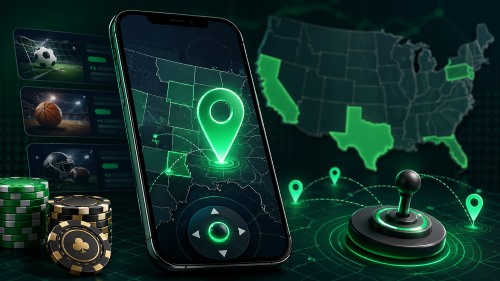
There is the state selected in the BetMGM app, the address on your account, and the real-time geolocation check that confirms where you physically are before wagering. These are not the same.
This guide explains how to change BetMGM state, fix BetMGM location not working issues, handle the BetMGM location plugin on desktop, and understand what you should avoid when location verification fails.
How to Change BetMGM Location in the App
When most users search for how to change location on BetMGM, they usually mean changing the active state or market inside the app. This is useful when you travel from one BetMGM-supported state to another and the app is still showing the wrong state.
Step 1. Open the BetMGM app and log in to your account.
Step 2. Go to the Account page.
Step 3. Open or scroll through the Account Details area.
Step 4. Scroll to the bottom and choose the state you want to switch to.
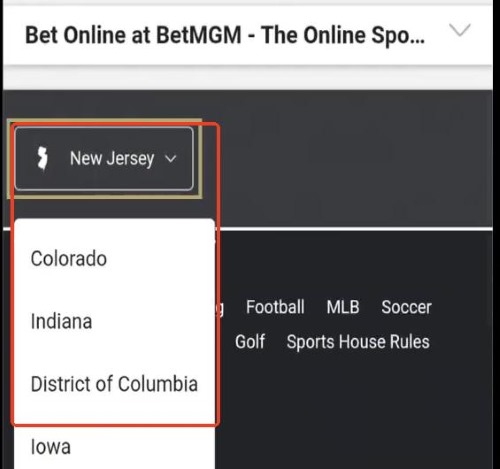
Step 5. Check the BetMGM logo or state indicator near the top-left area of the screen to confirm you are in the correct state view.
This changes the BetMGM app state, but it does not override the real geolocation check. To place wagers, you still need to be physically located in a state where BetMGM is licensed and online betting or gaming is legal.
Can You Use Your BetMGM Account in Another State?
Yes, you may be able to use the same BetMGM account in another supported state, but the ability to place bets depends on where you are physically located at the time. BetMGM has also been moving toward a more seamless account and wallet experience across supported markets, including nationwide access improvements for Nevada bettors.
This does not mean you can bet from anywhere. It means your account experience may be more portable, while wagering still depends on state or province rules.
A simple way to think about it:
Your account can travel with you.
Your betting access depends on your real location.
If you are visiting a legal BetMGM state, switch to the correct state in the app and allow BetMGM to verify your location. If you are in an unsupported location, wait until you are physically inside a supported market, or use PoKeep Location Chnager to change location to the target state before attempting to wager.


BetMGM Change Address: What You Can and Can’t Edit Yourself
Some users search BetMGM change location when they actually want to update their home address, phone number, or other account information. That is different from switching states or passing a geolocation check.
Your registered account details are tied to identity verification, security, and compliance. If your account information is incorrect, use BetMGM’s account support or customer service options rather than trying to fix it through the state selector. Account settings, personal details, and support procedures may vary by market.
BetMGM State vs. BetMGM Address
BetMGM state controls which market view you are using in the app.
BetMGM address is part of your account profile.
BetMGM geolocation checks where your device is physically located right now.
These three items work together, but changing one does not automatically change the others.
How to Fix BetMGM Location Not Working on Mobile
If the BetMGM app cannot locate you on iPhone or Android, start with the basics. Many location errors come from disabled permissions or a weak network signal.
Step 1. Turn on device Location Services.
Step 2. Allow BetMGM to access your location in your phone settings.
Step 3. Enable Wi-Fi, even if you are using cellular data.
Step 4. Close and reopen the BetMGM app.
Step 5. Restart your phone.
Step 6. Update the BetMGM app to the latest available version.
Step 7. Disable VPNs, proxies, remote desktop apps, or similar tools before trying again.
If the app still cannot verify your location, try connecting to a stronger Wi-Fi network. If you are near a state or province border, move farther inside the supported area before attempting another verification.
BetMGM Location Plugin Download and Setup
Desktop users may see references to the BetMGM location plugin, often known as the Player Location Check plugin. This plugin helps verify your physical location when you use BetMGM through a computer browser.
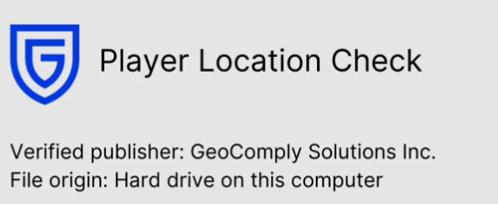
If prompted, download and install the Player Location Check plugin from the official BetMGM flow shown on your screen. After installation, return to the BetMGM page or pop-up and select the option to verify your location. The plugin may run in the background during location checks.
Fix BetMGM Location Plugin Problems on PC or Mac
If the BetMGM location plugin is not working, check these areas first:
Step 1. Make sure Wi-Fi is enabled on your computer.
Step 2. Confirm your browser has permission to access location.
Step 3. Disable VPN, remote desktop, screen-sharing, or VNC software.
Step 4. Restart the browser after installing the plugin.
Step 5. Try another supported browser if the first one fails.
Step 6. Restart your computer and attempt verification again.
If your computer recently changed networks, routers, or hardware, location checks may temporarily fail. A stable Wi-Fi connection usually gives the geolocation system more signals to work with.
Can You Change Your Location So You Can Gamble?
With geographic restrictions varying so wildly, many users naturally search for ways to change BetMGM location using VPNs or GPS spoofing apps. People value their digital privacy and frequently look for accessible tools to bypass regional blocks.

If you are interested in location modification for general privacy, accessing geo-blocked streaming content, or playing location-based games, the PoKeep Location Changer is an exceptional tool. PoKeep allows you to safely change your GPS on iOS and Android without the technical risks of jailbreaking or rooting your device. It features a responsive 360° GPS joystick for gaming and lets you manage up to 10 devices simultaneously via a safe Bluetooth connection.
However, we must provide a candid reality check regarding real-money sportsbooks. Using a VPN or location spoofer is a direct violation of BetMGM’s Terms and Conditions. GeoComply is specifically engineered to detect these masking tools, and attempting to bypass their banking-level systems can lead to immediate account suspension and frozen funds.
While PoKeep remains a premier location changer for Pokémon GO, dating apps, and social media privacy, it is highly recommended that you play by the rules when engaging with financial betting platforms. Always ensure you are physically present in a legal state to enjoy a secure and uninterrupted experience.
Final FAQs About Changing BetMGM Location
How do I change the state on BetMGM?
Open the BetMGM app, go to the Account page, scroll through Account Details, and use the state selector near the bottom. After switching, confirm the correct state view through the app’s visible state or logo indicator.
Why is BetMGM showing the wrong location?
BetMGM may show the wrong state if the app is set to a previous market, your permissions are blocked, your Wi-Fi signal is weak, or software on your device is interfering with geolocation. Start by switching to the correct state, enabling location permissions, turning on Wi-Fi, and disabling VPN or remote desktop tools.
Why is BetMGM location not working on PC?
PC location issues often involve the Player Location Check plugin, browser permissions, weak Wi-Fi signals, VPNs, remote desktop tools, or new network hardware. Install the official location plugin when prompted, allow browser location access, keep Wi-Fi enabled, and restart the browser before trying again.
Can I use my BetMGM account in another state?
You may be able to access your BetMGM account while traveling, but real-money wagering depends on being physically located in a supported legal market. Switch to the correct state in the app and allow location verification before betting.
Can I use a VPN to change BetMGM location?
No. A VPN is more likely to cause geolocation failure than solve it. VPNs and similar tools can interfere with BetMGM’s location verification process, and attempting to hide or fake your location is not a safe way to use a regulated betting platform.
Can PoKeep change BetMGM location?
PoKeep can change BetMGM location, but it should not be used respectfully to BetMGM geolocation rules.
 Related Articles



 Leave Your Comment