 By
By 

Thumbtack location problems usually happen at the worst time. Maybe your home address is outdated, your project is showing the wrong city, or your Thumbtack Pro account is sending leads from places you do not actually serve. Sometimes the issue is not even your Thumbtack account—it is your phone’s GPS permission, app location access, or device-level location setting.
The best way to change Thumbtack location depends on what you are trying to fix. A customer changing a home address needs a different method than a pro changing service area. And if your goal is to temporarily change your phone GPS location for privacy, testing, or app-location control, that is a separate solution entirely.
This guide walks through the most common problems one by one so you can choose the right fix.
First, Identify Which Thumbtack Location You Need to Change
Before changing anything, separate the different types of Thumbtack location data. This prevents you from editing the wrong setting and wondering why nothing changed.
| Situation | What You Need to Change |
|---|---|
| You moved to a new home | Customer address or home profile |
| Your project is tied to the wrong place | Project location or project details |
| You are a Thumbtack Pro getting leads too far away | Service area, travel area, or targeting preferences |
| Your business moved | Pro business address/account details |
| Thumbtack cannot detect your area | Phone location permissions or app settings |
| You want a temporary GPS location change | Device GPS location with a tool like PoKeep |
For Thumbtack Pro users, travel area is managed inside the Thumbtack Pro app under Services > selected service > Job preferences > Travel areas. Customer address updates are handled through the Thumbtack app home profile, and Thumbtack notes that this customer address update is app-only.
Problem 1: “I Need to Change My Home Address on Thumbtack”
If you use Thumbtack as a customer, your home address helps Thumbtack understand where you need local services. This matters for searches like “Thumbtack near me,” matching with nearby pros, and sending project details to the right professionals.
Step 1. Open the Thumbtack app.
Step 2. Tap Home from the bottom menu.
Step 3. Scroll to your address.
Step 4. Tap the address and update it.
This is the best starting point if you moved, entered the wrong address, or keep seeing pros from the wrong area. Since app interfaces can change, check Thumbtack’s Help Center if your app layout looks different.
Problem 2: “I Need to Change the Location of a Project on Thumbtack”
If you already submitted a project, the location attached to that project may affect which pros see it and whether they are willing to respond. For example, a house cleaning request, photography booking, moving job, or home repair project usually depends heavily on the project address.
Open the Thumbtack app and review the project details first. Look for edit options inside the project page, message thread, or project management area. If the location cannot be edited after submission, the cleaner option may be to cancel or close the incorrect project and create a new one with the correct address.
This is especially important when the wrong location changes the job scope. A pro may quote differently for a nearby job than for a job across town, and travel time can affect pricing, availability, and response quality.
Problem 3: “I’m a Pro and Want Leads in a Different Area”
For Thumbtack Pro users, changing location usually means changing where your business receives leads—not simply changing your phone GPS. Your key settings are service area, travel area, business address, and targeting preferences.
To change Thumbtack Pro service area, start here:
Step 1. Open the Thumbtack Pro app.
Step 2. Tap Services from the bottom menu.
Step 3. Choose the service you want to edit.
Step 4. Scroll to Job preferences.
Step 5. Edit Travel areas based on where you want to work.
Thumbtack’s travel preferences allow pros to define where they work, including whether they travel to customers, customers travel to them, or the work can be remote. This makes travel area one of the most important settings for anyone searching “Thumbtack change service area.”
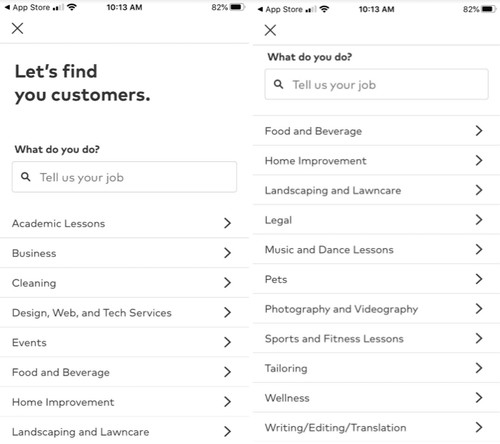
If you offer multiple services, check each one separately. A photographer, tutor, cleaner, and contractor may have different travel limits. Updating only one service may not fix location issues for every lead type.
Problem 4: “Thumbtack Sends Me Leads Too Far Away”
When Thumbtack leads come from the wrong city, the first thing to check is your travel area. A radius that is too wide can bring in distant customers, while a wrong business address can make even a reasonable radius point to the wrong place.
Next, review whether remote services are enabled. Remote jobs can come from outside your normal local area because they are not tied to physical travel in the same way. If you only want in-person work, make sure your service settings reflect that.
Also check job preferences before turning them on. Thumbtack notes that pros pay for leads matching their preferences, so job types, travel areas, availability, and related settings should be reviewed carefully before activation.
A quick Pro checklist:
- Confirm your business address is correct.
- Narrow your travel area or radius if leads are too far away.
- Turn off remote-service options if you do not want remote leads.
If a lead clearly does not match your selected preferences, review Thumbtack’s support or refund options from inside your account. Keep screenshots of your service area and lead details if you need to explain the mismatch.
Problem 5: “Thumbtack Won’t Detect or Confirm My Area”
Sometimes the issue is not your Thumbtack profile. It may be your phone’s location permission, GPS accuracy, or app access settings.
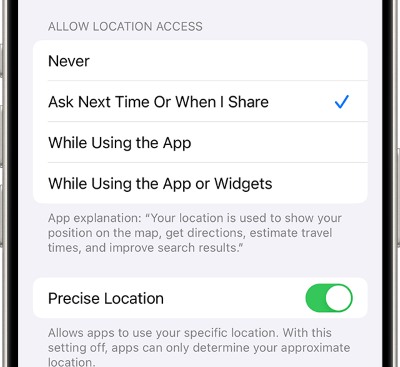
On iPhone, go to Settings > Privacy & Security > Location Services, make sure Location Services is on, find Thumbtack, and choose the right permission. You can also control whether an app uses Precise Location or only an approximate location.
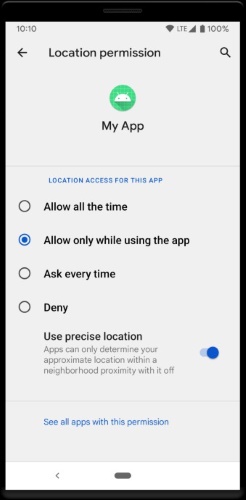
On Android, press and hold the Thumbtack app icon, open App info, go to Permissions > Location, and choose whether the app can access your location all the time, only while using the app, ask every time, or not at all. Android also lets you turn precise location on or off when location access is allowed.
If Thumbtack still shows the wrong area, try these fixes:
Step 1. Update the Thumbtack app to the latest version.
Step 2. Close and reopen the app after changing location permissions.
Step 3. Restart your phone if GPS continues showing an outdated area.
For Android, clearing the app cache may also help if the app keeps loading old location data. For iPhone, toggling Location Services off and back on can refresh app-level permission behavior.
Problem 6: “I Want to Temporarily Change My Phone GPS Location”
A temporary GPS change is different from changing your Thumbtack account address or Thumbtack Pro service area. It does not rewrite your official Thumbtack profile, billing details, business location, or lead preferences.

However, changing phone GPS location can be useful when you want to test how a location-based app behaves in another city, protect your real-time location privacy, or temporarily simulate a different device location. This is where PoKeep Location Changer fits.


PoKeep lets you change GPS location on iPhone and Android without jailbreak or root. It supports one-click location changes, GPS joystick movement, two-spot movement, multi-spot movement, jump teleport mode, and temporary reversible GPS changes.
Use this distinction clearly:
Thumbtack settings control your account, address, project, service area, and leads.
PoKeep controls your device GPS location.
That means PoKeep is not a replacement for updating your Thumbtack Pro travel area. It is a helpful tool when the location issue is tied to your phone’s GPS rather than your official Thumbtack account settings.
How to Use PoKeep for Temporary GPS Location Changes
PoKeep is best for users who need a simple GPS location changer for iPhone or Android. It is especially useful when you want a temporary, reversible way to change device location without changing account information inside every app manually.
Step 1 Download and install PoKeep
Install PoKeep on your Windows or Mac computer, then launch the program.
Step 2 Connect your iPhone or Android device

Connect your device by USB, Wi-Fi, or the available connection method shown in the software. PoKeep is designed to work without jailbreaking iPhone or rooting Android.
Step 3 Choose a location and start modifying
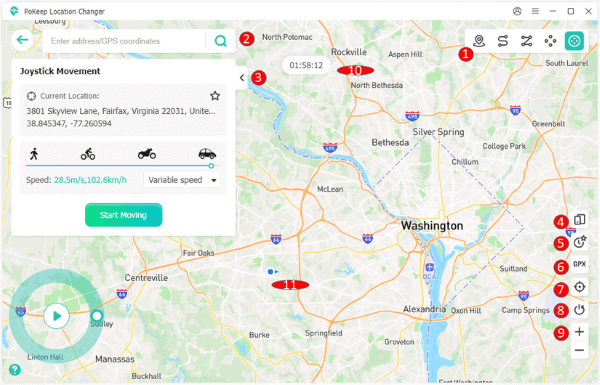
Pick the location you want on the map, then start the GPS change. When you are done, restart your device or restore your real location based on the software instructions.
For Thumbtack-related use, keep expectations realistic. PoKeep may help you simulate your device location, but your Thumbtack account address, project address, Pro service area, and lead preferences should still be changed inside Thumbtack.
FAQs About How to Change Location on Thumbtack
How do I change my location on Thumbtack?
It depends on the type of location. Customers should update their home address in the Thumbtack app. Pros should edit service area, travel area, business address, or targeting preferences in the Thumbtack Pro app.
How do I change my address on Thumbtack?
Customer address changes are handled in the Thumbtack app under the home profile. Thumbtack Pro users should check account details, business profile settings, and service-related location settings depending on what needs to be changed.
How do I change Thumbtack Pro service area?
Open the Thumbtack Pro app, go to Services, choose the service, open Job preferences, and update Travel areas. Review every service separately if your account offers multiple services.
Why am I getting Thumbtack leads from the wrong area?
Your travel radius may be too broad, your business address may be wrong, remote services may be enabled, or your targeting preferences may not match your current work area. Review job types, travel areas, availability, and related lead settings before turning preferences on. (Thumbtack Help)
Can I temporarily change Thumbtack location?
For official Thumbtack settings, temporarily changing location usually means editing travel preferences, pausing job preferences, or hiding your business temporarily. Thumbtack lets pros hide a business temporarily from customer search results through the Thumbtack Pro app.
Can PoKeep change my Thumbtack account location?
No. PoKeep changes your phone’s GPS location, not your official Thumbtack account data. Use Thumbtack settings for address, service area, project, and lead changes. Use PoKeep when you need temporary GPS simulation on iPhone or Android.
 Related Articles




 Leave Your Comment