 By
By 

Changing location on Uber sounds simple, but it can mean several different things. You might want to move your pickup pin, update your final destination, change an Uber Eats delivery address, edit your saved Home or Work address, switch your Uber Driver city, or fix a wrong GPS location.
The right solution depends on which “location” you want to change.
Which Uber Location Do You Want to Change?
Before changing anything, identify the exact location type. This helps you avoid wasting time in the wrong settings menu.
| What you want to change | Where to change it | Main limitation |
|---|---|---|
| Pickup location | Uber ride screen | After booking, it can usually be moved only once and only within the allowed map area |
| Drop-off location | Destination bar during the trip | Not available for some shared ride types |
| Extra stops | “Where to?” or on-trip feed | Fare and route may change |
| Uber Eats delivery address | Order progress screen > Help | Depends on order status and delivery distance |
| Saved Home/Work address | Account settings | Only changes address shortcuts |
| Uber Driver city | Driver requirements/city request flow | Requires meeting local requirements; temporary city changes may not be supported |
| Uber account country | Uber account settings or support flow | Usually not needed when traveling |
| Phone GPS location | Device settings or GPS tool | Should not be used to mislead Uber or bypass platform rules |
For most ride or food-order situations, start with Uber’s built-in edit options. A GPS location changer is only relevant when you are dealing with device-level GPS control, not when you simply need to correct a pickup point, delivery address, or driver-city setting.
How to Change Pickup Location on Uber
If your Uber pickup pin is wrong, first check whether you have already requested the ride. The process is different before and after booking.
How to Change Pickup Location Before Requesting a Ride
Before you confirm the ride, Uber uses your phone’s GPS to suggest a nearby pickup point. If the suggested location is wrong, you can change it manually.
Step 1. Open the Uber app and check the pickup location shown on the map.
Step 2. Tap the pickup location label.
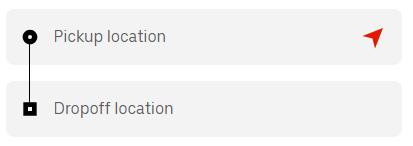
Step 3. Enter a new address, building name, business name, or landmark.
Step 4. Choose the correct option from the suggested locations.
This is the easiest time to change your Uber pickup location because no driver has been assigned yet. Take a few seconds to zoom in on the map and make sure the pin is on the correct side of the street, especially near malls, airports, apartment complexes, campuses, hotels, and large office buildings.
How to Change Pickup Location on Uber After Booking
If you already ordered the ride, you may still be able to adjust your pickup point. This is useful when the pin lands at the wrong entrance, the wrong side of the street, or a nearby building instead of your actual location.
Step 1. Open your active Uber trip screen.
Step 2. Tap Edit next to your pickup location.
Step 3. Type the correct address or drag the pickup pin on the map.
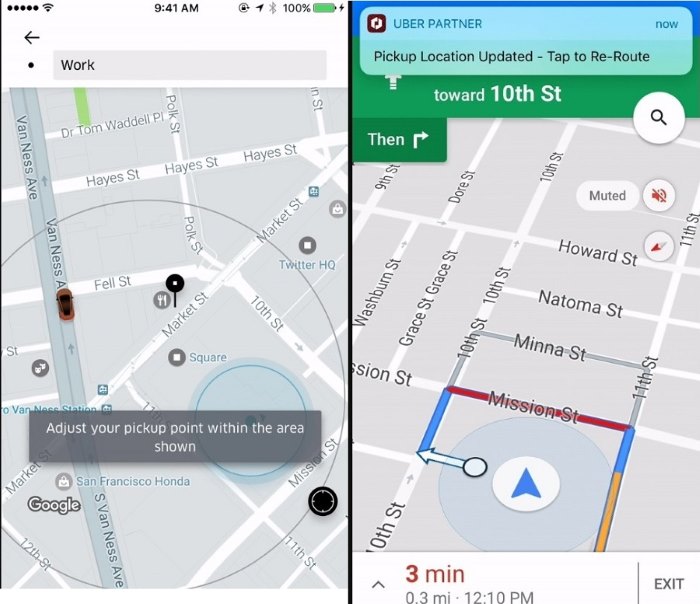
Step 4. Keep the new pickup point inside the grey circle shown in the app.
Step 5. Tap Confirm to send the updated pickup location.
After a ride is requested, pickup changes are usually limited. You may only be able to change the pickup point once, and the new pickup point must stay within the allowed area shown on the map. Some shared ride types may not support pickup changes.
Why You May Not See the Pickup Edit Option
Sometimes the Edit option does not appear. This can happen when the ride type does not support pickup edits, the driver is already too close, you have already used the one allowed pickup change, or the new location is too far from the original pickup area.
In that case, do not keep moving the pin randomly. Message or call the driver with a clear landmark, entrance name, building number, or nearby street corner. If the pickup is completely wrong and the driver cannot reach you safely, canceling and rebooking may be the cleaner option.
How to Change Drop-Off Location on Uber
If your plans change during a ride, you can usually update your final destination from the trip screen. This is different from changing the pickup location.
Step 1. Open the active trip in the Uber app.
Step 2. Tap the destination bar or Enter destination field.
Step 3. Type the new drop-off address.
Step 4. Choose the correct address from the suggestions.
Step 5. Confirm the change with your driver, especially if the new location has similar street names, multiple gates, or several possible entrances.
Changing your drop-off location may affect the final fare. A longer route, extra time, traffic, tolls, or a different destination area can change the price. If you only need a short detour, adding a stop may be better than replacing the destination entirely.
How to Add or Change Stops on Uber
Sometimes you do not actually need to change your final destination. You may need to pick up a friend, stop at a store, drop something off, or make a short stop before continuing to the final address.
In that case, use Uber’s stop feature instead of verbally changing the route.
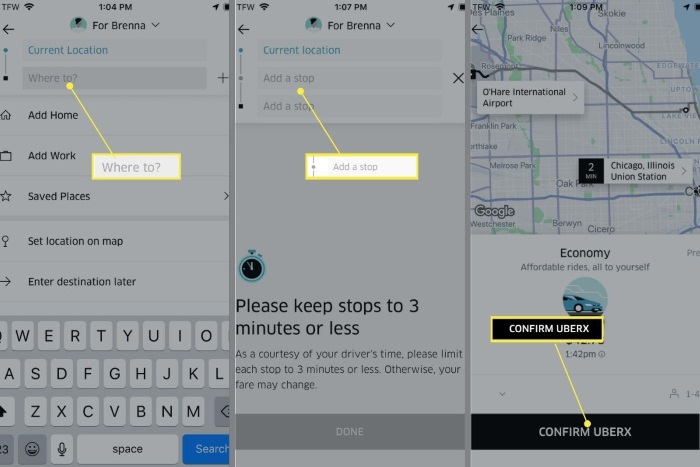
Step 1. Open the Uber app and tap Where to?
Step 2. Tap the + icon next to the destination field.
Step 3. Add the stop address.
Step 4. Add your final destination.
Step 5. Drag the stops into the correct order if needed.
Step 6. During the ride, use the on-trip feed to add, change, or remove stops when available.
Use stops thoughtfully. A short, planned stop is easier for both rider and driver than making last-minute route changes after the trip has already started.
How to Change Saved Home or Work Address on Uber
Saved addresses make future ride requests faster. They do not change an active ride, but they help you avoid typing the same locations again and again.
If you recently moved, changed jobs, or keep seeing an old address in Uber, update your saved places.
Step 1. Open the Uber app.
Step 2. Tap Account.
Step 3. Tap Settings.
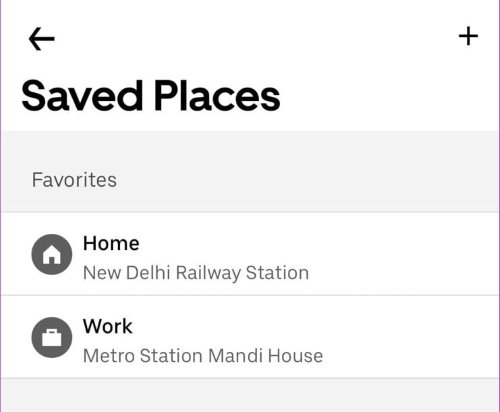
Step 4. Choose Add home, Add work, or the saved place you want to edit.
Step 5. Enter the correct address and save it.
If an old address keeps appearing, check both your Uber ride app and Uber Eats saved places. Home and Work addresses may need to be updated separately depending on which app or service you are using.
How to Change Uber Country or Region
If you are traveling abroad for a short trip, you usually do not need to change your Uber country or region. You can normally use Uber in supported areas as long as your account, payment method, phone number, mobile data, and app connection work properly.
If you have moved to another country long-term and need to update your Uber account country, the safer approach is to contact Uber Support from inside the app.
Step 1. Open the Uber app.
Step 2. Tap Account.
Step 3. Tap Help.
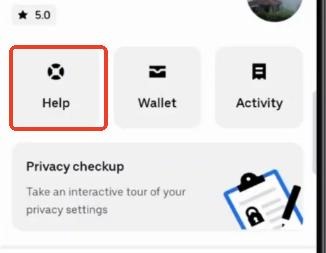
Step 4. Scroll to the support or account-related section.
Step 5. Choose Contact Support or the closest account/profile issue option.
Step 6. Explain that you want to change the country or region linked to your Uber account.
Step 7. Include your current country, the new country, and any relevant account details requested by support.
After submitting the request, wait for Uber Support to review it. If your account is connected to Uber Driver, mention that clearly, because driver-linked accounts may have extra requirements.
What to Do If Uber Shows the Wrong Location
A wrong Uber location can come from weak GPS, disabled permissions, inaccurate map data, an old app version, or a bad pickup pin. The fix depends on what is wrong.
Fix Uber Location Accuracy on iPhone
If Uber shows the wrong location on iPhone, check your location permissions first.
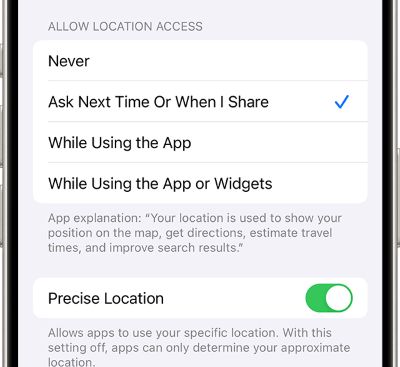
Step 1. Open Settings on your iPhone.
Step 2. Go to Privacy & Security.
Step 3. Tap Location Services.
Step 4. Select Uber.
Step 5. Turn on Precise Location.
You should also make sure the Uber app is updated. If the location still looks wrong, close and reopen the app, move to an open area if possible, and wait a few seconds for GPS to refresh.
Fix Uber Location Accuracy on Android
If Uber shows the wrong location on Android, check both app permissions and Google location accuracy settings.
Step 1. Swipe down from the top of your Android screen.
Step 2. Press and hold Location.
Step 3. Open Location services or Google Location Accuracy.
Step 4. Turn on Improve Location Accuracy.
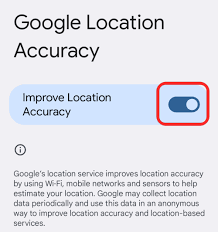
Step 5. Make sure Uber has permission to access your location.
Location accuracy can be worse inside large buildings, underground areas, parking garages, airports, and dense city blocks. If your pickup pin keeps jumping, manually enter the pickup address or move the pin to a more accurate nearby landmark.
Report an Incorrect Address or Map Pin
If the address itself is wrong on the map, report the issue through Uber’s map problem or location issue flow. This can help with missing addresses, misplaced pins, wrong road placement, incorrect business locations, and buildings with confusing entrances.
This is especially useful for apartment complexes, campuses, malls, airports, hotels, new buildings, rural roads, and businesses with multiple entrances.
Can a GPS Location Changer Help?
For active Uber rides, Uber Eats deliveries, or Uber Driver work zones, the safest and most reliable option is to use Uber’s built-in location tools. Edit the pickup, update the destination, change the delivery address through the order screen, or request a proper driver-city switch.
A GPS location changer is a different kind of tool. It changes or simulates your phone’s device-level GPS location, which may be useful for privacy, app testing, map behavior checks, location-based games, or other non-transactional location scenarios. It should not be used to mislead drivers, manipulate fares, bypass delivery zones, or work in an unapproved Uber Driver market.

PoKeep Location Changer fits this device-level GPS use case. It supports changing GPS location on iPhone and Android without jailbreak or root, offers one-click location changes, includes a 360° GPS joystick, supports route simulation modes, and lets users restore their real GPS location by restarting the device.


When PoKeep Makes Sense
PoKeep can be useful when your goal is broader GPS control rather than changing an active Uber transaction. For example, developers or testers may want to check how a location-based app behaves in another area. Privacy-conscious users may want more control over location sharing in supported apps. Location-based game users may want joystick or route simulation features.
The important boundary is simple.
Use Uber’s own settings for Uber rides, Eats orders, and driver-city changes. Use a GPS location changer only for appropriate device-level GPS scenarios where you are not deceiving a driver, courier, restaurant, rider, or platform.
FAQs About How to Change Location on Uber
Can I switch location on Uber?
Yes. The method depends on what you mean by “location.” You can change pickup location, drop-off destination, stops, saved addresses, Uber Eats delivery address, account country, or driver city through different parts of the Uber app or support flow.
Can you change pickup location on Uber after booking?
Yes, in many cases. Tap Edit next to the pickup location, enter a new address or drag the pin within the allowed area, then tap Confirm. You may only be able to make this change once after requesting the ride.
Can you change drop-off location on Uber during a ride?
Usually, yes. Tap the destination bar, enter the new address, and confirm the correct location before the trip ends. Some shared ride types may not allow destination changes.
How do I change location on Uber Eats after ordering?
Open the order progress screen, tap Help, choose Change my address, enter the new address, and follow the prompts. This works best before the delivery person picks up the order.
Why can’t I change my Uber location?
You may be outside the allowed pickup-edit area, using a ride type that does not support changes, trying to edit too late, changing an Uber Eats address after pickup, or dealing with a GPS/map accuracy problem. Check location permissions, update the app, and use the in-app help flow if the address or pin is incorrect.
Can I drive Uber in another state while on vacation?
Not automatically. Driving or delivering in a new city usually requires meeting that city’s local requirements and requesting a city change. Temporary city changes may not be supported.
Can I use Uber in another country without changing my country setting?
Yes, in most supported areas. You usually do not need to change your Uber account country for short-term travel. Make sure your payment method works, your phone has data access, and your pickup location is accurate.
 Related Articles




 Leave Your Comment