 By
By 

Wonolo is built around local work opportunities, so location matters from the moment you open the app. If Wonolo shows jobs in the wrong city, stops showing nearby shifts, or still reflects an old address after you move, it can directly affect what work you see and whether job alerts feel relevant.
But “change Wonolo location” can mean several different things. Sometimes you need to update your home address. Sometimes your phone location permission is wrong. In other cases, you may want to test how a location-based app responds to a different GPS position.
This guide walks through the safest ways to change location in Wonolo app settings, fix location problems on iPhone and Android, and understand when a GPS location changer like PoKeep Location Changer may be useful.
Before You Change Wonolo Location, Know These 3 Things
Wonolo connects users with flexible jobs and opportunities around their area, so your location can influence the jobs and alerts you see in the app. And Wonolo is an app for finding daily shifts and temp-to-perm opportunities “around your area,” which makes accurate location settings especially important.
Wonolo may also use phone-provided location information for job notifications and timekeeping accuracy. Because phone location can help notify users about suitable jobs and support arrival, departure, and payment-related workflows.
That means changing your Wonolo location should be handled carefully. There is a big difference between fixing an incorrect job-search area and trying to manipulate job-site attendance. For real jobs, check-ins, timekeeping, and payment issues, the safest path is always to use accurate location data and contact Wonolo Support if something goes wrong.
Method 1: Update Your Home Address or Profile Info in Wonolo
If you moved to another city or Wonolo still reflects an old area, start with your profile information. This is the most official and stable way to change your Wonolo location because it updates your account-level details rather than only changing your phone’s GPS signal.
Open the Wonolo app and look for your Account or Profile area. From there, check whether your home address, ZIP code, phone number, and other account details are current. If your profile includes an editable address field, update it to your new location and save the change.
After updating your profile, close and reopen the app. Then check whether the available jobs, job alerts, and location-based suggestions begin reflecting your new area.
When This Method Works Best
This method is best when you recently moved, changed your main work area, or created your account with the wrong home address. It is also the first thing to try if you are asking, “How do I change my location on Wonolo?” and you mean your account location rather than your live GPS position.
If the app does not let you edit a location-related field, do not keep changing unrelated settings randomly. Contact Wonolo Support and explain that your profile location or home address needs to be updated.
Method 2: Change Wonolo Location Permission on iPhone
If Wonolo is showing the wrong area on iPhone, the problem may be your iOS location permission. iPhone lets each app use different levels of location access, and turning off precise location can make some apps less accurate.
Step 1. Open Settings on your iPhone.
Step 2. Go to Privacy & Security > Location Services.
Step 3. Make sure Location Services is turned on.
Step 4. Scroll down and tap Wonolo.
Step 5. Choose a location access option that allows Wonolo to work while you use the app.
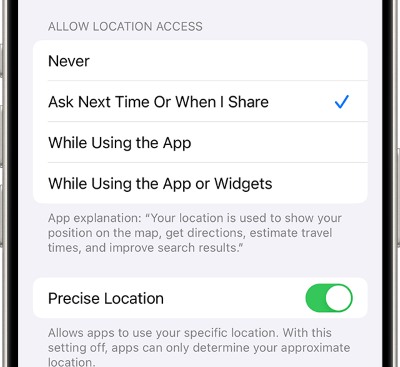
Step 6. Turn on Precise Location if you want Wonolo to use your specific location instead of only an approximate area.
Apple’s location settings allow users to manage app access and toggle Precise Location for specific apps. When Precise Location is off, apps may only receive an approximate location instead of a more exact one.
After changing the setting, force close Wonolo and reopen it. You can also restart your iPhone if the app still shows an outdated area.
Method 3: Change Wonolo Location Permission on Android
On Android, Wonolo may not show accurate nearby jobs if app location permission is blocked, limited, or set to approximate location. Android also lets you control whether an app can access location all the time, only while in use, every time you open it, or not at all.
Step 1. Touch and hold the Wonolo app icon.
Step 2. Tap App info.
Step 3. Open Permissions.
Step 4. Tap Location.
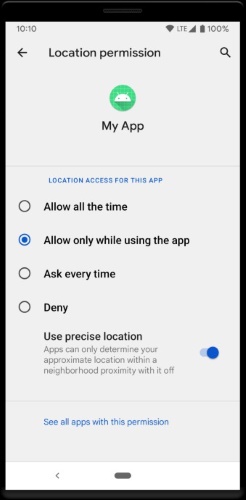
Step 5. Choose an access option such as Allow only while using the app.
Step 6. If available, turn on Use precise location.
Google’s Android Help explains that users can manage location permission per app and, when location access is allowed, also control whether precise location is used.
For better accuracy, also check your device-level location settings. On many Android phones, location accuracy can use GPS, Wi-Fi, Bluetooth, and mobile networks to improve positioning. If your phone is in battery saver mode, has weak signal, or has location accuracy disabled, Wonolo may have trouble detecting your area correctly.
Method 4: Refresh Wonolo App Location
If your profile and phone permissions are correct but Wonolo still shows the wrong location, refresh the app environment. Location-based apps can sometimes hold outdated GPS data, especially after travel, weak signal, VPN use, or a recent phone setting change.
Try these fixes first:
- Force close Wonolo, then reopen it.
- Restart your phone and check GPS again.
- Update Wonolo to the latest version from the App Store or Google Play.
Wonolo’s own troubleshooting guidance highlights location services, automatic date/time settings, and avoiding VPNs or mock locations when diagnosing app issues.
You should also check whether your internet connection is stable. GPS works best when your device can combine satellite, Wi-Fi, Bluetooth, and network signals. If you are indoors, inside a warehouse, underground, or near large buildings, your phone may temporarily report the wrong position.
Method 5: Contact Wonolo Support for Account or Job Location Problems
Contact Wonolo Support when your issue affects your account, accepted jobs, attendance, payment, or ability to start a job. This is especially important if Wonolo says you are not close enough to a job site, if your job location looks wrong, or if a missed shift was caused by a location problem.
Wonolo’s privacy policy lists support@wonolo.com as a support contact for help, and the App Store listing also points users to support@wonolo.com.
When contacting support, include the job date, job location, screenshots, your phone model, app version, and what troubleshooting steps you already tried. This gives the support team a clearer picture and may help prevent confusion around check-in, check-out, or account status.
Method 6: Use PoKeep to Change GPS Location on iPhone or Android
After you have checked official Wonolo settings and phone permissions, there are still cases where you may need a GPS location changer. For example, you may want to test how a location-based app behaves in another area, simulate GPS for privacy reasons, or check whether your phone’s GPS is responding correctly.

That is where PoKeep Location Changer can help. PoKeep is designed to change GPS location on iPhone and Android without jailbreak or root. It supports one-click location changing, mock iOS location, fake GPS on Android, joystick movement, and virtual route simulation.


PoKeep also works through Windows and macOS, offers download options for both systems, and includes a free trial for testing core location-changing features. Its product page highlights temporary, reversible location changes, and users can restore real GPS location by restarting the device.
How to Use PoKeep for GPS Simulation
Step 1. Download and install PoKeep Location Changer on your Windows or Mac computer.

Step 2. Connect your iPhone or Android device by following the on-screen setup instructions.
Step 3. Choose the location-changing mode you need, such as teleport mode for setting a new GPS point or route mode for simulated movement.
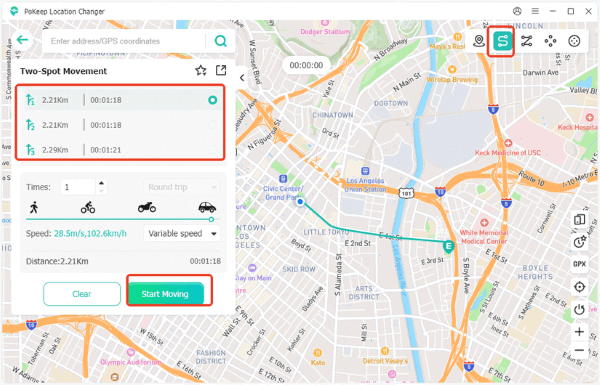
Step 4. Select the destination on the map and start modifying your GPS location.
Step 5. When finished, restart your device to return to your real location.
For Wonolo-related use, keep the goal practical and responsible. PoKeep is useful for controlled GPS simulation, app testing, location privacy, and understanding how your phone responds to virtual locations. It should not be used to falsify work attendance, bypass job-site requirements, or manipulate timekeeping.
FAQs About How to Change Location in Wonolo App
Can I change my location in the Wonolo app?
You may be able to update profile or address-related information inside the Wonolo app, depending on your account settings. If you cannot edit the location information you need, contact Wonolo Support instead of changing unrelated account details.
Why is Wonolo showing the wrong location?
Wonolo may show the wrong location if your phone location permission is disabled, Precise Location is off, GPS signal is weak, the app has cached old location data, or your profile address is outdated. Start by checking app permissions, restarting your phone, and updating Wonolo.
How do I change Wonolo location on iPhone?
Open iPhone Settings, go to Privacy & Security > Location Services, select Wonolo, allow location access, and turn on Precise Location. Then reopen the Wonolo app and check whether the nearby jobs update.
How do I change Wonolo location on Android?
Touch and hold the Wonolo app icon, open App info, go to Permissions > Location, and allow location access while using the app. If your Android version supports it, enable precise location for better accuracy.
Can I use PoKeep to change GPS location for Wonolo?
PoKeep can change GPS location on iPhone and Android for controlled location simulation, testing, and privacy-related use cases. For actual Wonolo jobs, do not use GPS tools to fake attendance, clock in remotely, or misrepresent your job-site location.
Does Wonolo use GPS location?
Wonolo may collect location information using methods that include GPS. It may also use phone-provided location information to notify users of suitable jobs and support timekeeping accuracy.
What should I do if I cannot start a Wonolo job because of location?
Make sure you are at the correct job site, location services are enabled, and your phone has a stable GPS signal. If the app still blocks you from starting the job, document the issue with screenshots and contact Wonolo Support.
Final Thoughts: Change Wonolo Location the Smart Way
Changing Wonolo location starts with understanding what kind of location problem you have. If your account area is wrong, update your profile. If nearby jobs are inaccurate, fix phone permissions and GPS settings. If the issue affects attendance, payment, or job status, contact Wonolo Support directly.
For users who need flexible GPS simulation beyond basic app settings, PoKeep Location Changer offers a simple way to change location on iPhone and Android without jailbreak or root. Use it for responsible GPS testing, privacy, and location-based app simulation—while keeping real work attendance and Wonolo job-site verification accurate.
 Related Articles



 Leave Your Comment