 By
By 

Quick Verdict
Changing Workday location depends on what you need to update: home address, office location, official work location, or phone GPS. Employees can usually edit basic address details, while work location changes often require HR or manager approval.
Who It's For
This guide is for employees, managers, and HR users who need to update location-related information in Workday or understand the difference between Workday records and GPS location.
Key Takeaways:
- Main Difference: Workday profile location and phone GPS location are not the same.
- Employee Changes: Home address, mailing address, and some office details may be editable in Workday.
- HR-Controlled Fields: Official work location usually needs manager, HR, or admin approval.
- GPS Tip: PoKeep can change device GPS location, but it does not edit Workday HR records.
Trying to change your location in Workday can be confusing because “location” does not always mean the same thing. You might want to update your home address after moving, change your office location, edit your workspace, request a transfer to another work site, or understand why the Workday mobile app is using your phone’s location.
The right method depends on which type of Workday location you need to change. Some location details can be edited by employees through self-service, while others are controlled by HR, managers, payroll, or your company’s Workday administrator. This guide explains how to change location in Workday, what to do when the field is locked, and when a GPS location changer like PoKeep is relevant.
What Does “Workday Location” Mean?
Before changing anything, identify the exact location field you are dealing with. Workday can store multiple types of location data, and each one may follow a different approval process.
| Location Type | What It Usually Means | Who Can Usually Change It |
|---|---|---|
| Home address | Your residential address | Employee, sometimes with verification |
| Mailing address | Where documents should be mailed | Employee, depending on company settings |
| Office location | Your office or alternate work location | Employee or HR, depending on permissions |
| Work space | Your room, floor, desk, or workspace inside a building | Employee or designated staff in some setups |
| Work location | The official location tied to your job or position | Manager, HR, or Workday admin |
| GPS location | Your phone’s real-time device location | Controlled by the device/app, not Workday profile data |
This is why a single “change Workday location” answer often does not work. If you moved to a new home, you need to change your address. If your job moved to another branch, HR may need to change your work location. If your phone GPS is involved, that is a separate device-level issue.
How to Change Your Home Address in Workday
If you moved or need to update your personal address, start with Workday’s Personal Information area. This is the most common meaning behind searches like change Workday address or how do I change my address in Workday.
Step 1. Log in to your company’s Workday account.
Step 2. Open the main menu and go to Personal Information.
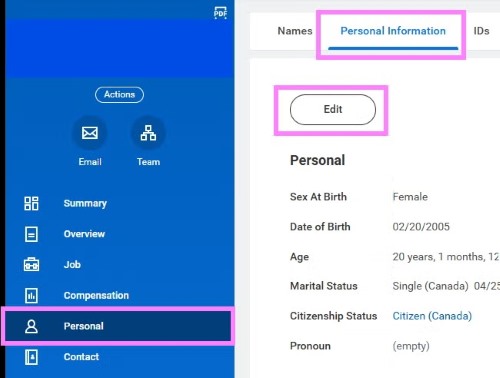
Step 3. Choose Contact Information or a similar option, depending on your company’s Workday setup.
Step 4. Find Home Contact Information and select the pencil icon or edit button next to your address.
Step 5. Enter the new address carefully, review the city, state, postal code, and country, then save the change.
Step 6. Submit the update and check whether Workday shows a confirmation, approval status, or pending request.
Your home address may affect tax forms, benefits, payroll documents, and other HR records, so it is worth checking every field before submitting. Some employers also require address verification or approval before the change becomes final.
How to Change Mailing Address in Workday
Your home address and mailing address may not always be the same. For example, you may live at one address but receive official documents somewhere else.
To update a mailing address, go to the same Personal Information or Contact Information area and check whether Workday lets you mark an address for mailing use. If your company allows multiple addresses, make sure the correct one is selected as the mailing address.
This matters because tax forms, benefit notices, or employment documents may be mailed to the address marked for official communication. If your home address is correct but documents still go to the wrong place, the mailing designation may be the issue.
How to Change Office Location in Workday
Some users want to change Workday office location, they want to update where they sit or work on-site. This is different from changing your home address.
In many Workday setups, office location can be found through your profile instead of the Personal Information app.
Step 1. Log in to Workday.
Step 2. Click your profile icon and open View Profile.
Step 3. Go to Contact or Contact Information.
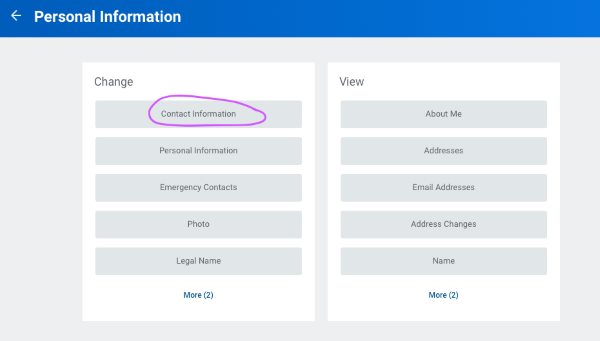
Step 4. Select Edit.
Step 5. Find Work Contact Information, Office Location, or Alternate Work Location.
Step 6. Add or edit the required office information, save the change, and submit it.
Your company may use office location for internal directories, emergency response, equipment assignment, deliveries, IT support, and workplace services. If the field is missing or locked, it likely means your employer controls office location centrally.
Work Space vs Work Location in Workday
A common mistake is assuming that Work Space and Work Location are the same. They are related, but they usually refer to different levels of workplace information.
A Work Space is often a specific place inside a location, such as a room, floor, cubicle, lab, or desk. An employee may be able to update a Work Space if the company allows self-service changes.
A Work Location is usually the official building, campus, store, branch, or region tied to your job. It may affect reporting, payroll rules, taxes, job requisitions, assets, procurement, approvals, and organizational structure. Because of that, employees usually cannot change their official work location by themselves.
If you only changed desks, look for Work Space or office location. If you changed cities, campuses, branches, or job sites, contact your manager or HR.
How Managers or HR Change Employee Work Location in Workday
If you are a manager, HR partner, or Workday admin want to change work location in Workday, the process is usually handled as a job-data or worker-location update. The exact menu names vary by company, but the workflow often starts from the employee profile.
Step 1. Search for the employee in Workday and open the worker profile.
Step 2. Open the Actions menu.
Step 3. Choose a job-related action such as Job Change, Change Location, Transfer, Promote, or Change Job.
Step 4. Enter the effective date. Some systems may default to a future pay period or require a specific date based on payroll timing.
Step 5. Select the reason for the change, such as a data change, relocation, office move, transfer, or location correction.
Step 6. Choose the new location and, if required, the related building, office, room, or work space.
Step 7. Add comments or attachments if your company requires documentation, then submit the request for approval.
This type of change may route to HR, payroll, finance, or department leadership. It should be handled carefully because a work location update can affect more than the employee directory.
Workday Location vs Phone GPS Location
Changing a Workday location record is not the same as changing your phone’s GPS location.
Your Workday profile may store your home address, work address, office location, and job location. Your phone GPS is real-time device location data used by apps, maps, and mobile services. Updating one does not automatically change the other.
This distinction is especially important if your employer uses Workday mobile features, time tracking, or location-based check-in tools. If your issue is related to work attendance, check-in rules, or job-site verification, follow your employer’s official policy and contact HR if the recorded location is wrong.
When PoKeep Location Changer Can Help

PoKeep Location Changer is useful when your problem is about device GPS location rather than official Workday HR records. It can change GPS location on iPhone and Android without jailbreak or root, and it supports one-click location changing, joystick movement, route simulation, and location-based app scenarios.


For example, PoKeep may be helpful when you need to test how an app behaves in another region, protect location privacy in supported apps, access location-based content, or simulate movement in GPS-based games. It is available for Windows and macOS, and users can connect a mobile device to change the GPS position through the desktop program.
However, PoKeep does not change your Workday profile, home address, payroll address, tax address, office assignment, or HR-approved work location. If the goal is to correct Workday employee data, the right path is still Workday self-service, your manager, or HR.
Can an Employer Change Your Work Location?
An employer may be able to change your work location depending on your contract, company policy, local labor rules, role requirements, and notice process. Some employment agreements include mobility or relocation clauses, while others may require employee consent or formal approval.
If your work location is changing in Workday and you are not sure why, ask HR for the reason, effective date, and expected impact. You may also want to confirm whether the change affects commuting expectations, hybrid work status, payroll taxes, benefits eligibility, or internal reporting.
For major relocation questions, do not rely only on Workday data. Workday may show the change, but HR policy determines what the change means for your job.
FAQs About Changing Workday Location
How do I change my location on Workday?
First, identify which location you mean. For a home address, go to Personal Information or Contact Information. For office location, check your profile’s Work Contact Information. For official work location, contact your manager or HR because it is usually tied to job data.
How do I change my address in Workday?
Open Workday, go to Personal Information, select Contact Information, edit your home address, save the change, and submit it. Some employers may require approval or verification before the new address becomes active.
Why won’t Workday let me change my address?
Your employer may have restricted that field, required verification, or locked changes while another request is pending. If the edit option is missing, contact HR or internal support instead of changing unrelated fields.
How do I change work location in Workday?
Employees usually cannot directly change official work location. A manager, HR partner, or Workday admin may need to start a Change Job, Change Location, Transfer, or related business process.
Can I change my office location in Workday?
You may be able to update office location through your profile under Contact or Work Contact Information. If the field is unavailable, your company likely manages office locations through HR or facilities.
Is Workday work location the same as GPS location?
No. Workday work location is an HR or job-data record. GPS location is your device’s real-time physical location. Changing GPS does not update your official Workday records.
Can PoKeep change my Workday location?
PoKeep can change device GPS location for supported apps, but it does not edit Workday HR data. To change your official Workday address, office location, or work location, use Workday’s approved process or contact HR.
Conclusion
Changing Workday location starts with understanding what “location” means in your situation. If you moved homes, update your home or mailing address. If your office or desk changed, look for office location, alternate work location, or work space. If your official job location changed, your manager or HR team usually needs to process the update.
PoKeep Location Changer is useful when your issue is device GPS location, not Workday records. For official employee data, payroll, tax, work assignment, or attendance-related questions, use the correct Workday workflow and follow your employer’s policy.
 Related Articles




 Leave Your Comment