 By
By 

You type the correct website address, press Enter, and expect to land on the real login page. The URL may look familiar, the page may look almost identical, and nothing may feel unusual at first. But behind the scenes, the DNS answer your device received could have been altered, sending you to a fake website instead of the real one.
That is the danger of DNS spoofing. It does not always require tricking you into clicking a strange link. In many cases, the attack works by manipulating the “address lookup” process that happens before a website loads.

This guide explains what DNS spoofing is, how a DNS spoofing attack works, the difference between DNS spoofing vs DNS cache poisoning, how to detect suspicious DNS redirects, and how to prevent DNS spoofing on personal devices, routers, and business networks.
What Is DNS Spoofing?
DNS spoofing is a cyberattack where false Domain Name System data redirects users from a legitimate domain to the wrong IP address. In simple terms, you may enter the correct website name, but your browser is quietly sent somewhere else.
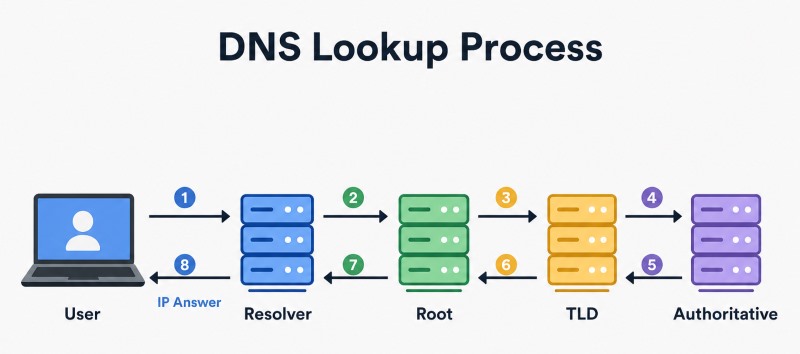
DNS stands for Domain Name System. It translates human-readable domain names into IP addresses that computers use to connect to websites. DNS cache poisoning is commonly described as the act of placing false information into a DNS resolver cache, causing DNS queries to return incorrect answers and redirect users to the wrong destination.
Think of DNS as the internet’s address book. When the address book is accurate, your browser finds the correct website. When DNS spoofing happens, the address book has been tampered with, so the same website name points to a fake or malicious destination.
How Does DNS Spoofing Work?
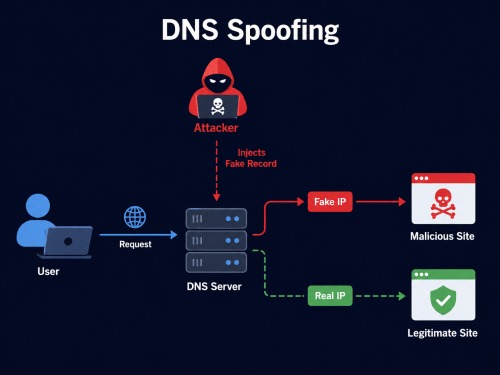
A normal DNS lookup is straightforward. You enter a domain, your device asks a DNS resolver for the matching IP address, and the resolver returns the address needed to load the website. Many resolvers also cache answers for a period of time so future visits load faster.
In a DNS spoofing attack, that answer is manipulated. The attacker may send a forged DNS response, poison a DNS resolver cache, compromise router DNS settings, or use malware to change DNS settings on the device. Once the wrong DNS information is accepted, users can be redirected to fake websites, phishing pages, malware downloads, or attacker-controlled servers.
The reason DNS spoofing can be so effective is that users often trust the domain they typed. They may not realize the problem is happening at the DNS resolution layer rather than the visible URL bar.
DNS Spoofing vs DNS Cache Poisoning vs DNS Hijacking
These terms are closely related, but they are not always identical. Understanding the difference helps you choose the right prevention method.
| Term | Meaning | Simple Example |
|---|---|---|
| DNS spoofing | The broader result of receiving fake DNS information and being sent to the wrong destination | A user types a real banking domain but lands on a fake login page |
| DNS cache poisoning | A specific method where false DNS records are inserted into a resolver cache | A resolver stores a fake IP address and keeps serving it until the cache is cleared or expires |
| DNS hijacking | A broader attack where DNS settings, records, routers, or DNS infrastructure are taken over or redirected | A router is compromised and starts sending all connected devices to a malicious DNS server |
| Domain spoofing | Impersonating a domain or brand, often through fake emails, lookalike domains, or forged identity signals | A phishing email appears to come from a trusted company |
| DNS snooping | Observing or monitoring DNS queries rather than falsifying DNS answers | Someone watches which domains a network user requests |
A practical way to remember it: DNS cache poisoning is often one method used to achieve DNS spoofing, while DNS hijacking can involve a wider takeover of DNS settings or infrastructure. Some security resources use “DNS spoofing” and “DNS cache poisoning” interchangeably, but separating them makes the attack easier to understand.
Common Types of DNS Spoofing Attacks
Fake DNS Responses
In this type of DNS spoof attack, the attacker attempts to make a device or resolver accept a false DNS answer. If the fake answer wins over the legitimate response, the user may be sent to the attacker’s chosen IP address.
This is especially dangerous when the fake website is designed to look like a real login page. The user may enter credentials without realizing the destination is fraudulent.
DNS Cache Poisoning
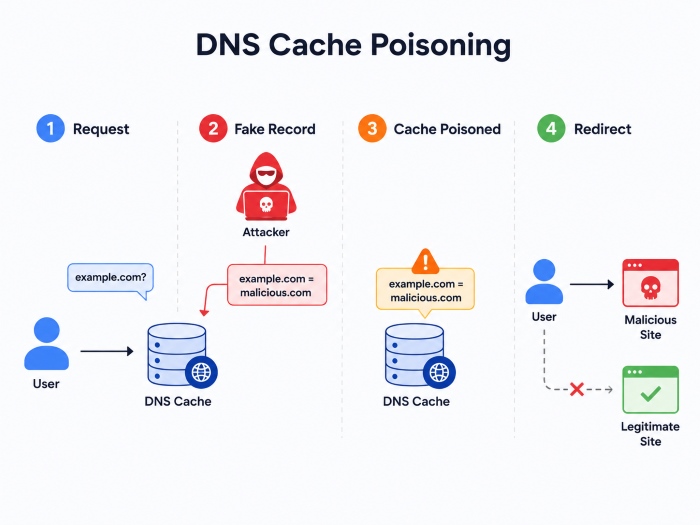
DNS caching exists to speed up browsing. A resolver stores recent DNS answers and reuses them until their time-to-live expires. If an attacker manages to insert false information into that cache, multiple users relying on the same resolver may receive the wrong answer.
That makes DNS cache poisoning more damaging than a one-time redirect. One poisoned cache can affect many future requests until the bad entry is removed or expires.
Router or DHCP DNS Manipulation
Routers often tell connected devices which DNS servers to use. If a router is compromised, it can push malicious DNS settings to phones, laptops, tablets, and IoT devices on the same network.
This is not just a theoretical risk. In April 2026, public cybersecurity advisories warned that vulnerable small-office/home-office routers were exploited for DNS hijacking operations that enabled adversary-in-the-middle activity and credential theft.
Public Wi-Fi and Man-in-the-Middle Risk
Public Wi-Fi networks can expose users to DNS manipulation when the network is malicious, poorly secured, or controlled by an attacker. A fake café, airport, or hotel Wi-Fi network may intercept traffic and attempt to redirect users before they reach the real destination.
Using HTTPS, secure DNS settings, a trusted VPN, and avoiding sensitive logins on unknown Wi-Fi can reduce risk. Still, users should not ignore browser warnings just because the website “looks normal.”
Malware-Changing DNS Settings
Malware can modify DNS settings on a device or router. This can make every browser and app on the device use an attacker-selected resolver. In this case, simply switching browsers will not solve the issue because the DNS layer underneath the browser has already been altered.
A full fix usually requires checking DNS settings, scanning for malware, removing unwanted software, and securing the router.
Real-World DNS Spoofing Examples
Fake Banking or Payment Pages
A common DNS spoofing example is a fake banking site. The user types the correct bank domain, but DNS manipulation sends the browser to a fake IP address. If the page copies the bank’s design, the user may enter login details, one-time codes, or payment information.
HTTPS certificate warnings are critical here. If the browser says the connection is not private, the certificate is invalid, or the site identity cannot be verified, stop immediately.
Email Login Credential Theft
Attackers may redirect users to fake Microsoft, Google, email, or company login pages. These pages are designed to capture passwords, session tokens, or authentication prompts.
The 2026 router DNS hijacking advisories are a strong reminder that DNS-level attacks can support credential theft at scale, especially when compromised routers silently redirect traffic through attacker-controlled infrastructure.
Malware Download Redirects
DNS spoofing can also send users to fake software update pages, fake browser warnings, or malicious downloads. A page may claim that your device needs a security patch, video player, or urgent update.
The safest rule is simple: download apps, updates, and installers only from official websites or trusted app stores.
Brand Impersonation
Businesses can be affected when attackers redirect customers, imitate login portals, or abuse DNS weaknesses to damage trust. Even if the real website stays online, users may believe the brand itself is unsafe because they were redirected while trying to access it.
That is why DNS monitoring, DNSSEC, registrar security, and fast incident response matter for companies.
How to Detect DNS Spoofing
DNS spoofing detection is difficult because the visible website may appear convincing. Still, there are warning signs users and admins can watch for.
Signs Users May Notice
Be cautious if a trusted website suddenly behaves differently. The page may ask for unusual information, show broken formatting, trigger browser certificate warnings, or redirect to unexpected pages. A login page that appears at the wrong time should also raise suspicion.
Other warning signs include repeated redirects, security software alerts, unexpected changes in search behavior, or multiple devices on the same Wi-Fi network experiencing similar issues.
Checks for Personal Devices
Start by checking the DNS servers configured on your device and router. They should match your ISP, company network, or a trusted DNS provider you intentionally chose.
You can also compare DNS results using another network, such as mobile data. If the same domain resolves differently on your home Wi-Fi than on a trusted mobile connection, the router or DNS resolver may need investigation.
Checks for Businesses
Organizations should monitor DNS activity for unusual spikes, unexpected resolver behavior, suspicious domain lookups, and mismatches between expected and returned IP addresses. Manual detection is hard, so DNS logging and automated DNS security tools are often necessary for larger networks.
Businesses should also monitor domain records, registrar changes, SSL/TLS certificate activity, and DNSSEC validation issues. DNS spoofing is often part of a broader attack chain, not an isolated event.
How to Prevent DNS Spoofing
There is no single switch that blocks every DNS spoofing attack. Strong prevention comes from layered protection across DNS, browsers, routers, devices, and user behavior.
Use Trusted DNS Resolvers
Use a DNS resolver from a trusted provider, ISP, or organization. Avoid random DNS servers found online, especially if they promise suspiciously fast access, unrestricted content, or unknown privacy benefits.
For businesses, DNS resolvers should support logging, filtering, threat intelligence, and administrative controls. For individuals, using a reputable resolver is often safer than leaving DNS settings exposed to malware or rogue routers.
Enable DNSSEC Where Available
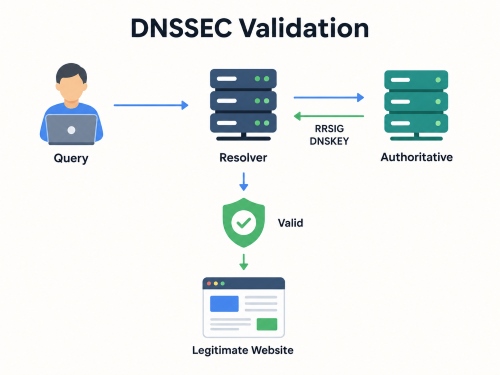
DNSSEC helps verify that DNS data is authentic and has not been altered. It uses a chain of trust and cryptographic validation so resolvers can check whether DNS data is legitimate.
DNSSEC is important, but it is not the same as encryption. It helps validate DNS answers; it does not hide your DNS queries from every network observer. For better privacy in transit, secure DNS protocols such as DoH or DoT may also be useful.
Use Secure DNS: DoH or DoT
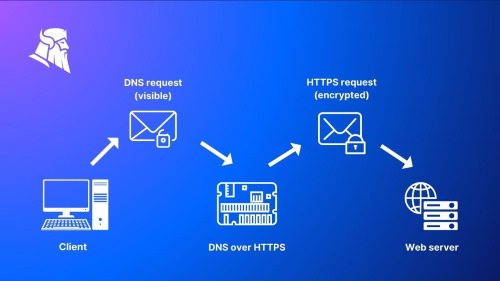
DNS over HTTPS and DNS over TLS encrypt DNS queries between the client and resolver. This can reduce the risk of eavesdropping and on-path manipulation, especially on untrusted networks. DoH in Windows is designed to encrypt DNS traffic by carrying DNS messages over HTTPS and TLS, improving confidentiality, integrity, and server authentication.
For home users, secure DNS can be configured in some browsers, operating systems, routers, or VPN apps. For businesses, secure DNS should be deployed carefully so it does not bypass internal security monitoring or compliance controls.
Do Not Ignore HTTPS Warnings
HTTPS helps confirm that your browser is talking to the right website after the DNS lookup. If a DNS spoofing attack sends you to a fake server, the fake server should not have a valid certificate for the real domain.
Browser warnings about invalid certificates, mismatched domains, or unsafe connections should be treated seriously. Do not click through warnings on banking, email, cloud storage, work portals, or payment pages.
Secure Your Router
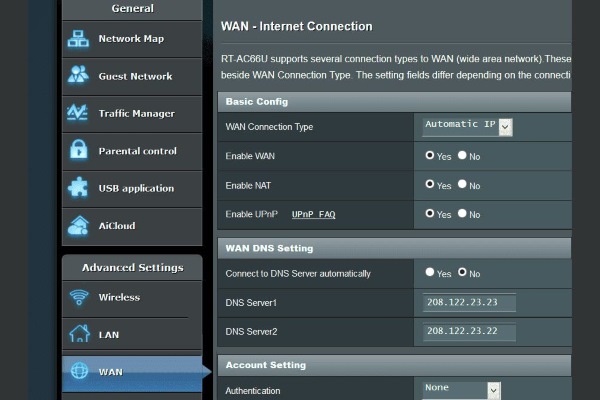
Your router is one of the most important defenses against DNS spoofing. Change the default admin password, update firmware, disable remote administration unless you truly need it, and replace unsupported routers that no longer receive security updates.
Also check WAN DNS and DHCP DNS settings. If the router is pushing unfamiliar DNS servers to connected devices, investigate before entering sensitive information online.
Avoid Risky Public Wi-Fi Behavior
Public Wi-Fi is convenient, but it is not always trustworthy. Avoid logging into financial, work, or sensitive accounts on unknown networks. If you must use public Wi-Fi, use HTTPS-only websites, secure DNS, and a reputable VPN where appropriate.
A VPN can help protect traffic on untrusted networks, but it is not a complete replacement for DNSSEC, router security, endpoint protection, or careful login habits.
Keep Devices and Security Tools Updated
Operating systems, browsers, DNS software, routers, and endpoint protection tools should stay updated. Attackers often rely on outdated devices, weak router firmware, and old DNS software.
For businesses, patching DNS infrastructure and routers should be part of the same security routine as patching servers and endpoints.
How to Fix DNS Poisoning or Suspicious DNS Redirects
If you suspect DNS spoofing or DNS poisoning, act quickly but methodically. The goal is to remove bad DNS entries, restore trusted DNS settings, and check whether the device or router was compromised.
Step 1. Disconnect from the Suspicious Network
If the problem happens on public Wi-Fi or a specific router, disconnect first. Switch to mobile data or another trusted network before logging into important accounts.
Step 2. Flush the DNS Cache
Flushing DNS removes stored DNS entries from the local device so future requests must be resolved again. On Windows, the ipconfig /flushdns parameter flushes and resets the DNS client resolver cache during troubleshooting.
This helps if the bad entry is local, but it will not fix a compromised router, malicious DNS server, or malware that keeps changing DNS settings.
Step 3. Check Device DNS Settings
Look at the DNS servers configured on your device. If you see unfamiliar addresses, switch to your trusted resolver, ISP resolver, workplace DNS, or another known safe option.
Also check browser-level secure DNS settings because some browsers can use DNS settings separate from the operating system.
Step 4. Check Router DNS Settings
Log in to the router admin panel and review DNS settings. Look for WAN DNS servers and DHCP DNS servers. Both should be intentional and recognizable.
If you find unfamiliar DNS servers, change the router admin password, update firmware, disable remote access, restore DNS settings, and consider a factory reset if compromise is likely.
Step 5. Scan for Malware
Run a full scan with trusted security software. Malware can modify DNS settings, install browser extensions, redirect traffic, or reapply malicious settings after you change them.
Remove suspicious apps, extensions, proxy settings, and configuration profiles.
Step 6. Change Passwords from a Trusted Device
If you entered credentials while redirected, change those passwords from a clean device on a trusted network. Prioritize email, banking, cloud storage, password managers, work accounts, and social accounts.
Enable multi-factor authentication, preferably phishing-resistant options such as passkeys or security keys where available.
Use PoKeep to Control GPS Location Privacy on iPhone and Android
After securing DNS, many users also want better control over app-based location sharing. PoKeep Location Changer is designed for GPS location control on iPhone and Android, helping users change GPS location without jailbreak or root. It supports Windows and macOS, offers iOS/Android compatibility, and includes download options for both platforms.


PoKeep is not a DNS spoofing prevention tool, and it should not be treated as a replacement for DNSSEC, secure DNS, HTTPS, router security, or malware protection. Its value is in a different privacy layer: controlling GPS location shown to location-based apps.

With PoKeep, users can change location with 1 click, use joystick-style movement, test virtual routes, and restore real location because the changes are temporary and reversible. The product page also states that PoKeep works without jailbreak/root and offers a free trial for location changing and joystick mode.
Use PoKeep when your goal is GPS privacy or virtual location control. Use DNS security tools when your goal is preventing DNS spoofing, DNS poisoning, or malicious web redirection. Together, they help protect different parts of your digital footprint. 🌍
FAQs About DNS Spoofing
What is meant by DNS spoofing?
DNS spoofing means false DNS information redirects users to the wrong IP address. A user may type the correct domain name but still land on a fake or malicious site because the DNS response has been manipulated.
What is the difference between DNS spoofing and DNS poisoning?
DNS poisoning usually refers to placing false information into a DNS resolver cache. DNS spoofing often describes the resulting redirection, where users receive a fake DNS answer and are sent to the wrong website. In everyday cybersecurity writing, the two terms are often used together.
What is a DNS spoofing attack in cyber security?
A DNS spoofing attack in cyber security is an attempt to manipulate DNS responses so victims visit attacker-controlled destinations. It can be used for phishing, malware delivery, credential theft, fake login pages, or traffic interception.
Is DNS hijacking illegal?
Unauthorized DNS hijacking is typically treated as malicious activity and may violate cybercrime, fraud, unauthorized access, or data theft laws depending on the country and facts involved. Legal details vary by jurisdiction, so businesses dealing with DNS hijacking incidents should document evidence and consult qualified legal or incident-response professionals.
What is an example of spoofing?
A simple example is a fake banking login page. The user types the real bank domain, but DNS spoofing redirects the browser to a fraudulent server. The page looks familiar, but credentials entered there go to the attacker.
Can a VPN prevent DNS spoofing?
A VPN can reduce DNS spoofing risk on untrusted networks if it routes DNS queries through a trusted encrypted tunnel. However, it is not a complete fix. A compromised router, infected device, malicious browser setting, or unsafe DNS configuration can still create problems.
How do I prevent DNS spoofing on public Wi-Fi?
Use HTTPS websites, avoid sensitive logins, enable secure DNS where appropriate, use a reputable VPN, keep your device updated, and disconnect immediately if you see certificate warnings or unexpected redirects.
How do I fix DNS poisoning?
Flush the local DNS cache, check DNS settings, restart and secure the router, remove suspicious DNS servers, scan for malware, update firmware, and change passwords from a trusted device if you entered credentials during a suspicious redirect.
Final Thoughts on DNS Spoofing Prevention
DNS spoofing is dangerous because it can make a fake destination feel legitimate. You may type the correct domain, see a familiar page, and still be interacting with an attacker-controlled server. That is why prevention needs more than one defense.
Use trusted DNS resolvers, enable DNSSEC where available, use secure DNS carefully, keep routers patched, watch HTTPS warnings, and treat public Wi-Fi with caution. Then, for broader privacy control, manage other exposure points too—including app-based GPS location.
DNS security protects where your web traffic goes. PoKeep helps you control what location-based apps see. Together, they support a more complete approach to everyday digital privacy.
 Related Articles




 Leave Your Comment