 By
By 

Have you recently opened your Google Maps app only to find your location history completely vanished? Or maybe you've been searching for the familiar web version and keep hitting a dead end. You are definitely not alone.

Google has completely overhauled how the Google Maps Timeline works, shifting from cloud-based tracking to strict on-device storage. This massive update has left millions of users confused, missing their data, and wondering how to fix tracking errors.
In this comprehensive guide, we will walk you through exactly how to find, fix, and control your location history.
Where Did the Google Maps Timeline Desktop Go?
For years, users could log into their Google account on a computer and view a detailed map of their past travels. However, the Google Maps Timeline desktop version has been permanently shut down. This wasn't a glitch, but a deliberate move by Google to enhance user privacy.
Your location data is no longer stored on Google's centralized servers. Instead, it is stored locally right on your smartphone. Because the data lives on your physical device rather than the cloud, web access is simply no longer possible.
How to Recover Missing Google Maps Timeline History
The transition to on-device storage is the primary reason users are searching for missing Google Maps Timeline history. When you get a new phone, your location data no longer automatically syncs from the cloud just by logging into your account.
To prevent losing years of travel memories, you must manually activate encrypted backups on your old device first.
Step 1. Open Google Maps on your old phone and tap your profile picture.
Step 2. Select "Your timeline" and tap the cloud icon in the top right corner.
Step 3. Turn on "Backup" to encrypt and save your data.
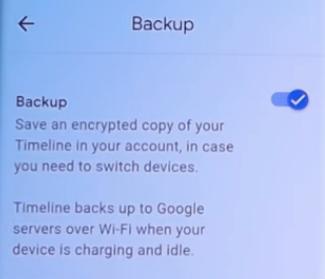
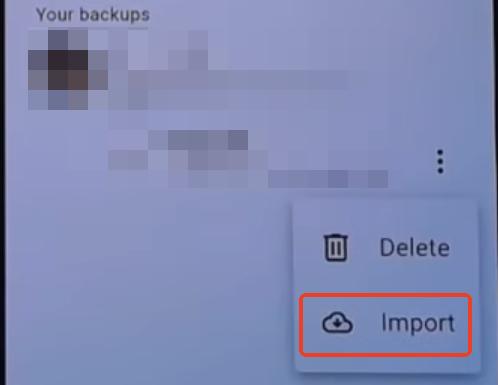
Step 4. Open Google Maps on your new phone, navigate to the Timeline, and follow the prompt to import your backed-up data.
How to View and Manage Your Google Maps Timeline (iPhone & Android)
Whether you are using a Google Maps Timeline iPhone or Android setup, the process to view and edit your daily routes is nearly identical. Timeline helps you go back in time and remember where you've been by automatically saving your visits and routes. Google Maps allows you to review your stops, edit incorrect locations, or delete specific days entirely.
It is important to note that Google recently changed the default auto-delete setting from 18 months to just 3 months. If you want to keep your history longer, you need to adjust this in your settings immediately.
Step 1. Open the Google Maps app on your smartphone.
Step 2. Tap your profile picture in the top right corner and select "Your timeline".
Step 3. Tap the three-dot menu icon in the top right and choose "Settings and privacy" (or "Location and privacy settings").
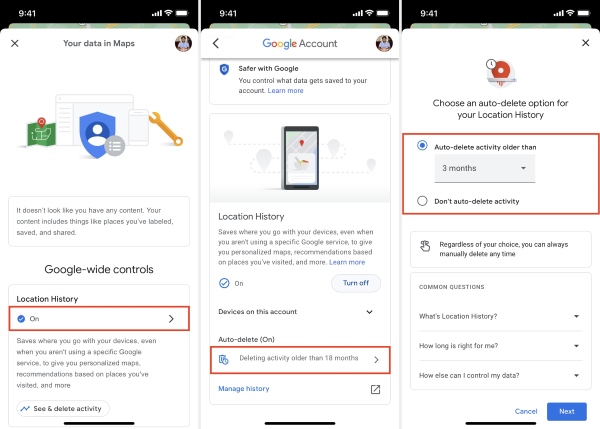
Step 4. Scroll down to the "Location settings" section and tap "Automatically delete Location History".
Step 5. Choose your preferred timeframe (such as 18 months, 36 months, or "Don't auto-delete") and tap to confirm your choice.
Google Maps Timeline Not Working? Top Fixes
A very common issue is the Google Maps Timeline not working, where it either stops recording your routes entirely or draws inaccurate, straight lines between distant locations. This almost always boils down to your phone's system permissions restricting the app from running in the background.
If your device is aggressively saving battery, it will shut down GPS tracking when the app is closed.
- Check Location Permissions: Go to your phone's Settings, find Google Maps, and ensure Location Services are set to "Always" (iPhone) or "Allow all the time" (Android).
- Enable Background App Refresh: Make sure Google Maps is allowed to refresh its data in the background, otherwise it will only track you when the screen is actively on.
- Disable Battery Saver: Low power modes often disable background GPS polling, which completely breaks the timeline's accuracy.
How to Change Your Google Map Timeline History
Sometimes, simply turning off your location history or deleting specific stops isn't the best solution. A blank timeline or massive gaps in your history can raise questions on shared family accounts or tracking apps. If you want to keep your Timeline active but need to protect your actual whereabouts, you can simulate a completely different route.
Google Maps records whatever GPS coordinates your operating system provides. By using a dedicated tool like the PoKeep Location Changer, you can feed custom GPS data directly into your phone. This allows you to create a realistic, simulated commute that Google Maps will accurately record as genuine history.


PoKeep doesn't require you to jailbreak or root your device. You can connect your phone to your computer and use the built-in modes to map out a believable journey.
- Multi-Spot Movement: Plan a complex route with multiple stops. PoKeep will move your GPS smoothly through each waypoint at a realistic walking, cycling, or driving speed.
- 360° GPS Joystick: Take manual control of your location in real-time, allowing you to "walk" around a different neighborhood while sitting on your couch.
Because PoKeep uses fluctuation mode to mimic natural speed variations, the resulting data in your Google Maps Timeline looks incredibly authentic.
The recent updates to the Google Maps Timeline have prioritized privacy by moving data directly to your device. While the loss of desktop access takes some getting used to, mastering the local backup and permission settings ensures you never lose your travel memories.
Take a moment today to check your auto-delete settings and verify your background permissions so your timeline stays accurate and fully under your control.
FAQs About Google Maps Timeline
Why is my Google Maps Timeline desktop version not working?
Google recently discontinued the web browser version of the timeline for privacy reasons. All of your location history is now strictly stored directly on your physical smartphone rather than on Google's centralized cloud servers. Because the data only lives locally on your phone, you can no longer access timeline.google.com from a desktop or laptop computer.
Can I recover my deleted Google Maps Timeline history?
Unfortunately, once location history is deleted from your device, it is permanently erased. This applies to both manual deletions and data removed by the automatic deletion settings.
Because Google changed the default auto-delete timeframe to just three months, many users lose their history without realizing it. It is highly recommended that you review your privacy settings to ensure you aren't losing precious travel memories by accident.
How can I make my Google Maps timeline more accurate or customize my route?
Inaccurate tracking usually happens when your phone's battery saver mode restricts the Maps app from refreshing in the background. Ensuring your location permissions are set to "Always" and keeping your app updated will solve most genuine tracking glitches.
However, if you want to intentionally alter your timeline for privacy reasons or to hide your real commute, standard settings won't help. You can use a tool like PoKeep Location Changer to take full control of your location narrative. By planning a custom route through the software, PoKeep feeds precise, simulated movement data directly to your phone's system, allowing you to generate a completely accurate—but entirely customized—Google Maps Timeline history.
 Related Articles





 Leave Your Comment