 By
By 

Moving to a new city, delivering in a different area, or seeing the wrong pin in the Uber Driver app can all make you search for the same thing: how to change Uber driver location. But the right fix depends on what “location” means in your situation.
For Uber drivers, there is a big difference between changing your approved driving city and changing your phone’s GPS position.
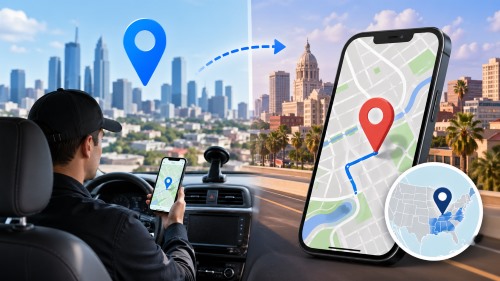
That distinction matters. Your Uber driver city is tied to local requirements, documents, background checks, vehicle rules, and account eligibility. Your phone GPS only tells apps where your device appears to be at the moment.
Can You Change Your Uber Driver Location?
Yes, you can request to change your Uber driver location, but only through Uber’s official city-change process.
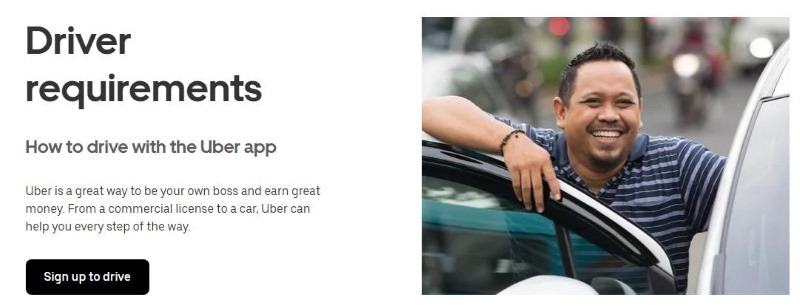
To drive in a new city, you need to meet that city’s requirements. The official process involves checking the driver requirements page, selecting the new city, reviewing the requirements for that location, and then requesting the switch if you qualify. Temporary city changes are not supported, and some city changes may take time to process.
This means a GPS location changer cannot replace an Uber driver city change.
If your goal is to actually work in another city or market, focus on account approval first. If your goal is to fix an inaccurate map pin, then focus on phone settings, location permissions, cellular coverage, and app updates.
How to Change Uber Driver Location to Another City
If you moved or plan to work in a different city, start with the official city requirements. Uber’s city-switch process is based on whether you meet the rules for the new market, not just where your phone is located.
Step 1. Check Uber driver requirements for the new city
Go to the driver requirements page and make sure the page is showing the city where you want to drive. The city selector is usually located near the bottom or lower-right area of the requirements page. Once the new city is selected, review the driver and vehicle requirements for that market.
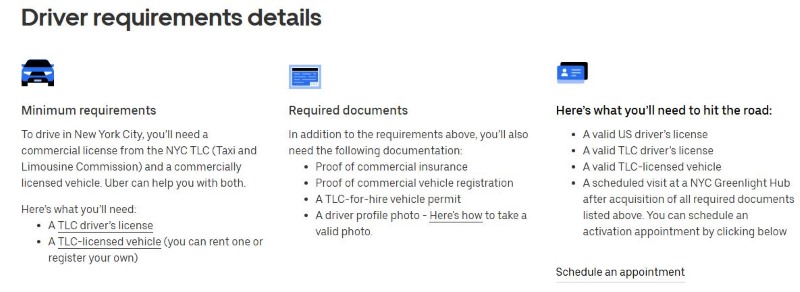
Requirements can vary by region. In the U.S., for example, Uber lists minimum requirements such as meeting the minimum driving age in the city, having licensed driving experience, and using an eligible 4-door vehicle. Required documents may include a valid driver’s license, proof of residency, proof of insurance, and a driver profile photo.
Step 2. Review vehicle requirements before switching cities
Your car may be approved in one city but not meet the rules in another. Common requirements include having 4 doors, seating at least 4 riders, meeting the city’s vehicle age rules, and avoiding salvaged, reconstructed, or rebuilt titles. Some ride types and cities may have additional requirements.
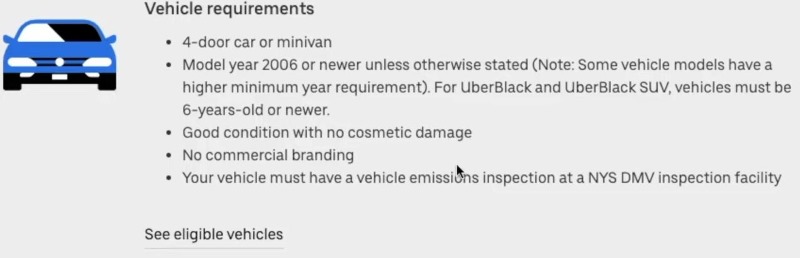
This is why it is worth checking the new city before you submit a request. If your vehicle, license, insurance, or inspection documents do not match the new market, the switch may be delayed or rejected.
Step 3. Request the city change
After confirming that you meet the local requirements, submit the city-change request through Uber’s help flow. While the switch is being processed, you may need to upload new documents or complete another background check. Uber also notes that you cannot accept trip or delivery requests while the city change is processing.
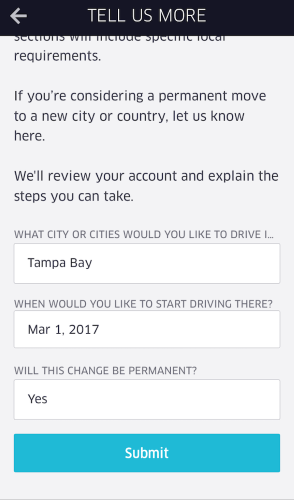
Plan ahead before you move.
The process is not designed for short trips, vacations, or temporary weekend driving. Uber states that temporary city changes are not supported, and driving in a market other than the one you are signed up for may result in deactivation.
How Long Does an Uber Driver Location Change Take?
Processing time can vary. One current Uber help flow lists 3 to 5 business days for a city switch, while another official city-change page says changes may take up to 14 days.
The safest expectation is to prepare for several business days and avoid planning the switch at the last minute.
During the review, you may be asked for new documents, a new background check, updated vehicle details, or proof that you meet local rules. If your new city has special regulations, the process may take longer.
Why Your Uber Driver Location Change May Be Delayed
A city switch is not only a map update. Uber may need to confirm that you are eligible to operate in the new market.
Common reasons for delay include:
- New background check requirements
- Missing or outdated documents
- Insurance or residency mismatch
- Vehicle age or inspection rules in the new city
- Local market restrictions or waitlists
For example, Uber notes that different places can have specific rules, and switching cities may require a new background check, additional documents, and a period when you cannot accept trips or deliveries.
If the app still shows your old city after you requested a switch, wait for the confirmation message before assuming the change is complete.
How to Fix Wrong Location in the Uber Driver App
Sometimes users searching how to change location on Uber Driver do not actually need a city switch. They simply see the wrong map location, a frozen GPS pin, or an “unable to determine location” message.
In that case, start with device troubleshooting.
Check location permissions
Make sure location services are enabled for the Uber Driver app. If the map is not loading, weak cellular data or disabled location services can be the cause. Moving to an area with stronger cellular coverage may also help.
Turn on precise or high-accuracy location
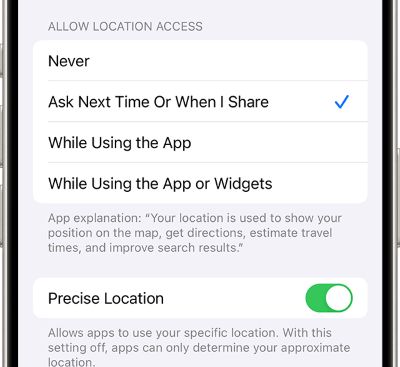
On iPhone, go to Location Services and make sure Precise Location is turned on for Uber. On Android, check Google Location Accuracy and enable improved location accuracy when available.
This is especially important in dense city areas, airports, parking garages, apartment complexes, and places where GPS signals can drift.
Update the Uber Driver app
An outdated app can cause location and navigation issues. Keep the Uber Driver app updated, and restart your phone if the location still seems stuck.
Avoid settings that interfere with GPS
The Driver app is designed to work best on phones with standard factory settings. Mock Location apps on Android, non-official Driver apps, rooted devices, and jailbroken devices can interfere with how the app determines your location.
This is an important point: using a GPS changer while actively using the Uber Driver app can create app errors, location conflicts, or account risk. For Uber work, use your real location and official Uber account settings.
Can You Use a GPS Location Changer for Uber Driver?
You should not use a GPS location changer to bypass Uber’s city, market, or delivery rules.
Changing your phone’s GPS does not update your approved Uber driver city. It also does not replace background checks, local documents, insurance requirements, or vehicle eligibility. In fact, Uber’s own device-settings guidance warns that Mock Location or mock-location apps can make it harder for the Driver app to pinpoint your location and may disrupt normal app behavior.
So, if your goal is to work in another city, use the official city-change process.
If your goal is to test or change GPS location for non-Uber apps, that is a separate use case.
When a Location Changer Like PoKeep Can Help

A tool like PoKeep Location Changer is useful when your goal is general GPS location changing outside active Uber driving. PoKeep is designed to change location on iPhone and Android without jailbreak or root, support one-click location changes, and provide movement features such as a 360° GPS joystick and route simulation.


That makes it more suitable for scenarios like:
- Testing how a location-based app behaves in another city
- Simulating movement for location-based games
- Adjusting GPS location for social, dating, privacy, or geo-restricted app experiences
- Previewing routes or virtual movement without physically traveling
PoKeep should not be presented as a shortcut for Uber driver approval. Think of it as a GPS utility for broader location-based app needs, not as a replacement for Uber’s account, document, and city requirements.
If you used a location changer for another app and now need to return to your real location, restart your device or restore your actual GPS state before opening the Uber Driver app again.
How to Use Driver Destination Instead of Changing Uber Driver Location
If you do not want to switch cities but simply want trips heading toward a certain place, use Uber’s destination feature when it is available in your market.
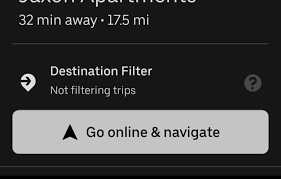
With Destination Filter, you can enter a destination address, and the app will try to match you with rider requests going toward your final destination. This may reduce the number of trip requests you receive because the app is filtering for direction, not just nearby demand. Some Uber help content also notes a daily limit of two destination uses, and that Destination Filters are not available to Eats-only drivers and couriers.
This feature is useful when you want to drive toward home, an appointment, or another part of town without changing your official Uber driver location.
Can Uber Drivers Change Pickup or Drop-Off Location?
Pickup and drop-off issues are different from changing your driver location.
If the pickup pin is wrong, the rider can usually edit the pickup location in the rider app by tapping Edit, entering a new address, or dragging the pin within the allowed area. Uber notes that pickup changes may be limited to one adjustment and must stay within the circle shown in the app.
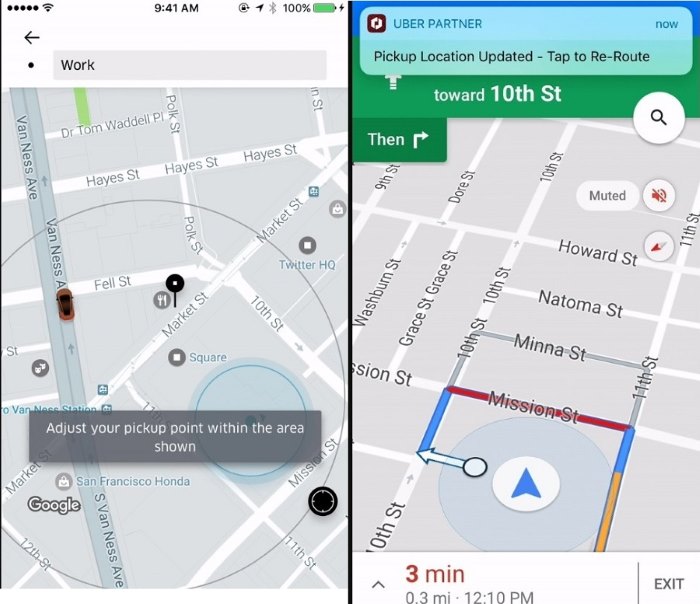
If the final destination needs to change during a trip, riders can change the destination before the trip ends for most Uber ride types, but this feature is not allowed for UberX Share trips.
If the Driver app repeatedly gives inaccurate pickup or drop-off information, submit feedback through the app. Uber has a review process for mapping issues when drivers provide accurate details.
Quick Checklist: Which Uber Location Fix Do You Need?
Before changing anything, match your problem to the correct solution.
- If you moved to another city: request an official driver city switch.
- If you want to deliver somewhere else: check Uber Eats delivery requirements and request a delivery city switch.
- If your map pin is wrong: fix location permissions, GPS accuracy, app updates, and cellular coverage.
- If you want trips toward home: use Destination Filter if available.
- If a rider’s pickup or drop-off is wrong: ask the rider to update it in the app or report the mapping issue.
- If you want to change GPS for non-Uber apps: use a GPS tool like PoKeep responsibly and restore your real location before driving.
FAQs About Changing Uber Driver Location
Can I change my Uber Driver location to another city?
Yes, but you need to meet the new city’s requirements and request the switch through Uber’s official process. It may involve document updates, a background check, and processing time.
Can I temporarily drive Uber in another city while traveling?
Temporary city changes are not supported. Driving in a market other than the one assigned to your account may put your account at risk.
How do I change location on Uber Eats Driver?
Check the delivery requirements for the new city, confirm that you qualify, and request a switch through Uber’s delivery city-change process. Temporary delivery city changes are not supported.
Why is my Uber Driver app showing the wrong location?
The most common causes are disabled location services, weak cellular data, poor GPS signal, outdated app versions, or device settings that interfere with location accuracy. Start by enabling location services and precise/high-accuracy location settings.
Can a GPS changer change my Uber driver city?
No. A GPS changer can change where your phone appears to be, but it cannot update your Uber-approved driver market, documents, background check, or vehicle eligibility. For Uber work, use the official city-change process.
Is PoKeep useful for changing Uber Driver location?
PoKeep is useful for general GPS location changing on iPhone and Android, including non-Uber scenarios such as location-based games, app testing, route simulation, privacy, and social apps. It should not be used to bypass Uber’s driver location, city, or delivery rules.
Final Thoughts on Changing Uber Driver Location
Changing Uber Driver location is simple only when you know what kind of location you are trying to change. For a new work city or Uber Eats delivery city, follow Uber’s official market-switch process. For inaccurate GPS, fix your device settings and app permissions. For trips toward a certain place, use Destination Filter when available.
A GPS location changer like PoKeep can be helpful for broader location-based app needs, but it is not a substitute for Uber account approval.
For Uber driving and delivery, your safest path is always: real location, correct documents, approved city, and working GPS.
 Related Articles



 Leave Your Comment