 By
By 

You open the Dasher app in a new city, ready to start earning, but the app still shows your old area. Or maybe the map knows where you are, yet the schedule screen keeps showing zones from another state. For many drivers, trying to change DoorDash Dasher location is not just about moving a pin on a map—it is about getting the app to recognize where you can actually dash.
The good news is that DoorDash generally allows Dashers to dash in different cities where the platform is available. The important part is knowing which method applies to your situation: starting a dash now, scheduling ahead, switching nearby zones, or fixing a phone-level GPS issue. DoorDash states that Dashers can dash in another city as long as DoorDash is available there.
How to Change DoorDash Dasher Location in the Dasher App
The best way to change DoorDash driver location is to start with the built-in options inside the Dasher app. These methods are more reliable than trying random settings because DoorDash uses your real-time app location, zone availability, and current market demand to decide what you can see.
Method 1: Change DoorDash Dasher Location with Dash Now
If you have moved or traveled to a new city, the most direct method is to open the Dasher app when you are physically in the new area.
Step 1. Go to the city or zone where you want to dash.
Step 2. Open the Dasher app and check the map.
Step 3. Tap Dash Now if it is available.
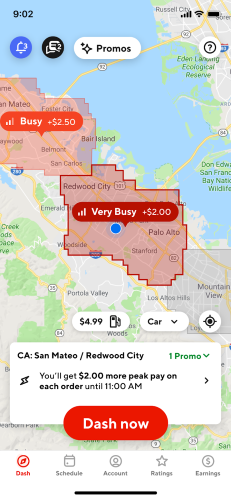
Step 4. If the app shows a confirmation pop-up asking whether you want to dash in the new location, confirm it.
Step 5. Start your dash once the app accepts the location change.
DoorDash’s support result describes this flow: open the Dasher app, tap Dash Now, confirm the pop-up for the new location, and tap Okay to change your dashing location.
This method is best when you are already in the new area and the zone is available. If you do not see Dash Now, that does not always mean your location failed to update. It may simply mean the area is not busy enough for immediate dashing.
Method 2: Schedule a Dash in the New DoorDash Location
If Dash Now is not available, check the scheduling options. A grey or unavailable zone often means you cannot start immediately, but you may still be able to schedule a future dash.
Step 1. Open the Dasher app.
Step 2. Go to the Schedule tab.
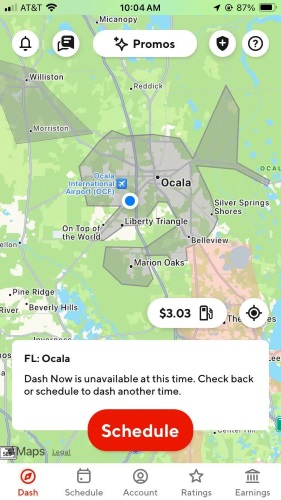
Step 3. Look for available cities, zones, and time slots.
Step 4. Choose the new area and save the scheduled dash.
DoorDash’s schedule guidance explains that Dashers can schedule available time slots, and if a preferred city or time does not appear, it may be because enough Dashers are already scheduled or active in that area.
Scheduling is especially useful if you are moving to a new city and want to plan your first dash before peak hours. It also helps when the local market is competitive and Dash Now only appears during busy periods.
Method 3: Use Dash Along the Way for Nearby Zones
If you want to dash in a nearby zone but are not physically there yet, Dash Along the Way may help. This option is designed for situations where you are close enough to travel toward another zone and want to start moving in that direction.
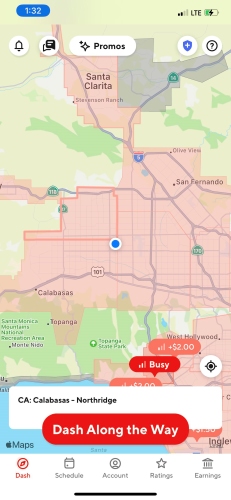
Select the target zone on the map, then tap Dash Along the Way if the app offers it. DoorDash describes this as an option for dashing in a zone you are not currently located in, allowing you to hold your spot while you travel toward that zone.
This is not the same as changing your full DoorDash Dasher location to another city or state. It is more useful for nearby zone movement, especially when you are already within driving distance.
Changing DoorDash Dasher Location vs. Switching Zones
Changing your DoorDash Dasher location usually means moving to a new city, market, or starting area where you want to work. Switching zones is more specific. It usually happens when you are already dashing and want to continue working in another nearby delivery zone.
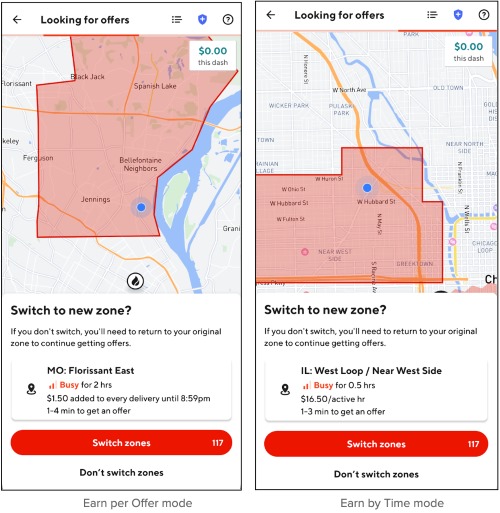
This distinction matters because DoorDash zone switching can depend on your earning mode. DoorDash states that Dashers using Earn per Offer can only switch zones once, while Dashers using Earn by Time may be able to switch zones multiple times as the app allows.
If you are trying to move from one side of town to another, zone switching or Dash Along the Way may be enough. If you moved from Florida to North Carolina, or from one state to another, you are dealing with a broader dashing location issue rather than a simple zone switch.
Why Can’t I Change DoorDash Dasher Location?
If you cannot change DoorDash Dasher location, the cause is not always obvious. The app may show your current GPS position correctly but still display old scheduling zones. Or it may show no Dash Now button even though you are in a DoorDash service area.
Here are the most common reasons.
The New Area Is Not Busy Enough
If the zone is grey or Dash Now is missing, DoorDash may not need more Dashers there at that moment. In this case, scheduling may be the only available option. This is a demand issue, not necessarily a GPS issue.
Try checking the app during lunch, dinner, weekends, or known busy periods. You can also look at nearby zones instead of only focusing on one starting point.
You Are Not Physically Close Enough to the New Zone
DoorDash’s location tools are designed around where you actually are. If you are trying to schedule or dash in a faraway area before arriving there, the app may not show the options you expect.
For nearby zones, Dash Along the Way may appear. For distant markets, you may need to physically arrive in or near the new area before the app fully updates your dashing options.
Your Schedule Screen Still Shows the Old Market
This is one of the most frustrating cases. Your phone GPS may be correct, but the schedule screen still shows old cities or zones. When that happens, try basic app troubleshooting first: restart the app, refresh your connection, log out and back in, and check again.
If the app continues to show the wrong market after you are clearly in the new area, contact DoorDash Support and explain that your Dasher schedule or starting location still appears linked to your previous market.
DoorDash Location Not Updating? Try These Fixes
If your DoorDash location is not updating, separate the problem into two parts: your phone’s GPS settings and the Dasher app’s market/zone display. Fix the phone settings first, then check whether the app updates correctly.
Fix DoorDash Location Not Updating on iPhone
On iPhone, check Location Services and Precise Location. Apple lets users control whether an app receives location access and whether that app can use precise GPS instead of approximate location.
Step 1. Open Settings.
Step 2. Tap Privacy & Security.
Step 3. Tap Location Services.

Step 4. Find the Dasher app.
Step 5. Allow location access while using the app, and keep Precise Location turned on.
After changing the setting, fully close the Dasher app and reopen it. If the map still shows the wrong location, restart your iPhone and check again.
Fix DoorDash Location Not Updating on Android
On Android, check both app-level permissions and device-level location accuracy. Android lets users choose which apps can use location and whether an app can access precise location.
Step 1. Open Settings.
Step 2. Tap Location.
Step 3. Open App location permissions.
Step 4. Find the Dasher app.
Step 5. Allow location access while using the app, and enable precise location if available.
Google also notes that Location Accuracy helps the device use more sources for better positioning, while Android 12 and later allow precise location permission to be managed per app.
If the Dasher app still does not update, clear the app cache if your Android device offers that option, restart the phone, and reopen the app near the zone where you want to dash.
When to Contact DoorDash Support
Contact DoorDash Support if the basic fixes do not work and you see one of these patterns:
- Your phone map shows the correct city, but Dasher scheduling still shows your old city.
- You moved to another state and cannot see any nearby zones.
- You have restarted, updated, and re-logged into the app, but nothing changes.
- The app seems locked to your old starting market.
When contacting support, be specific. Say that you are a Dasher, you are physically located in the new city, your app or schedule still shows the old dashing area, and you need help updating your Dasher location or market.
Use PoKeep Location Changer to Manage GPS More Easily
If your broader need is phone-level GPS control—not misleading DoorDash during active deliveries—PoKeep Location Changer can be a practical option. PoKeep is designed to change GPS location on iPhone and Android, works without jailbreak or root, supports 1-click location changes, and includes a 360° GPS joystick for simulated movement.


For example, PoKeep may be useful when you want to test how apps read your phone location, manage location privacy in non-delivery apps, or temporarily set a virtual location for general GPS-based app scenarios. It also offers a free trial, and the location changes are temporary and can be restored by restarting the device.
A simple PoKeep workflow looks like this:
Step 1. Download and install PoKeep on your computer.
Step 2. Connect your iPhone or Android device.

Step 3. Choose a location mode and select a point on the map.

Step 4. Start modifying your GPS location.
Step 5. Restore your real location before using DoorDash for active dashing.
FAQs About How to Change DoorDash Dasher Location
Can I DoorDash in another state?
In many cases, yes. DoorDash allows Dashers to dash in other cities where DoorDash is available. You may need to physically arrive in the new area and use the Dasher app to see local zones and available dashing times.
How do I change my DoorDash Dasher location after moving?
Go to your new area, open the Dasher app, and check whether Dash Now appears. If it does, tap it and confirm the new location if prompted. If Dash Now is unavailable, check the Schedule tab for future time slots.
Why is my DoorDash Dasher app still showing my old city?
Your app may need to refresh, your phone may not be sharing precise location, or your Dasher schedule may still be tied to your old market. Start with location permission checks, restart the app, log out and back in, and contact DoorDash Support if the old city remains.
What happens if I change my dashing location?
You may start seeing zones, schedules, and availability for the new area. However, local demand, Dasher availability, and earning-mode rules can affect whether you can start immediately or need to schedule.
Is changing DoorDash Dasher location the same as switching zones?
Not exactly. Changing your Dasher location usually refers to working in a new city or market. Switching zones usually refers to moving between nearby zones while dashing. DoorDash’s zone-switching rules can vary by earning mode.
Can I use PoKeep to change DoorDash Dasher location?
Use the Dasher app’s official location and scheduling tools for active DoorDash work. PoKeep is better positioned for broader GPS management, app testing, privacy, and non-active-delivery location scenarios. Do not use any location changer to misrepresent your real position during active dashing.
Conclusion: The Best Way to Change DoorDash Dasher Location
The safest and most reliable way to change DoorDash Dasher location is to use the Dasher app itself. If you are in a new city, open the app, check the map, tap Dash Now if available, or schedule a dash for the new area. If you are moving between nearby zones, Dash Along the Way or zone switching may help.
When DoorDash location is not updating, do not jump straight to advanced fixes. Check iPhone or Android location permissions, restart the app, refresh your connection, and contact DoorDash Support if your market or schedule still appears stuck.
PoKeep Location Changer can be a helpful GPS management tool for iPhone and Android, especially for location testing, privacy control, and non-delivery GPS scenarios. For active DoorDash work, keep your real location accurate and let the Dasher app guide where and when you can dash.
 Related Articles



 Leave Your Comment