 By
By 

Encountering the "failed to detect location 12" error in Pokémon GO can instantly ruin a community day or raid hour. Whether you are walking through your local park or exploring virtual coordinates from your desk, this sudden red banner halts all gameplay. It is one of the most common and frustrating roadblocks players face today.
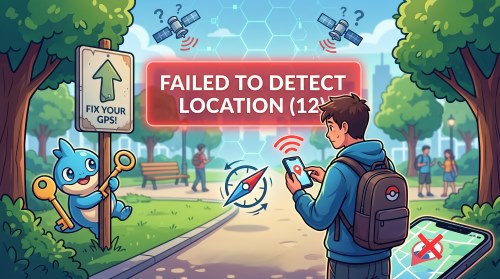
Fortunately, understanding why this happens is the first step toward getting back into the action. We will explore the exact causes and provide tested fixes for both everyday players and those looking for a reliable way to simulate their routes.
What Causes the Failed to Detect Location 12 Error in Pokemon Go?
In recent updates, Niantic developers have significantly tightened their anti-cheat and location verification systems. Pokemon Go now actively scans your device for anomalies, such as mismatched GPS coordinates or active system settings that manipulate your position.
For many Android users, the app specifically searches for background services attempting to feed fake GPS data with the “Mock location app” feature. On iOS devices, the game has become incredibly strict regarding tethered connections that alter Apple's native location framework.
However, you do not need to be using a location modifier to see this error. Simple environmental factors, like dense city buildings blocking your GPS signal—often called "urban canyons"—can trigger the exact same warning.
Basic Fixes for Failed to Detect Location 12
If you are playing normally and still receiving the "pokemon go failed to detect location 12" message, your device is likely struggling to establish a clear connection with GPS satellites. Before diving into complex developer settings, try these foundational troubleshooting methods.
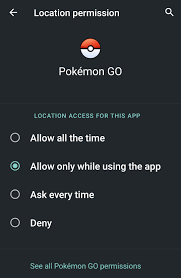
Step 1. Reset your location permissions. Go to your phone's settings, find the game app, turn off the location permission, then turn on it again and ensure location access is set to "Allow all the time" or "Always" with the precise tracking option enabled.
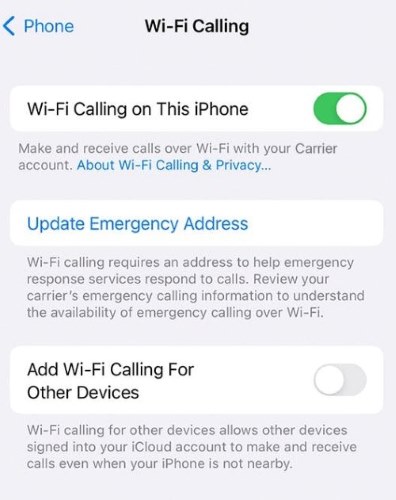
Step 2. Toggle your Wi-Fi settings. Even if you are not connected to a network, keeping Wi-Fi turned on allows your phone to scan nearby routers to pinpoint your physical location more accurately.
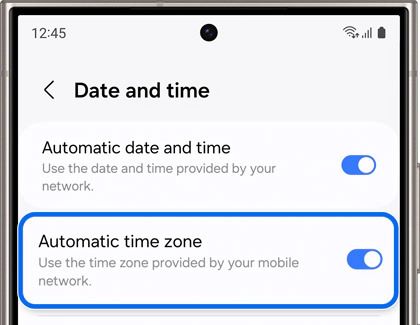
Step 3. Synchronize your system clock. Set your device's Date & Time settings to "Automatic" so it perfectly matches the game's server time, which is crucial for authenticating your location data.
How to Fix Failed to Detect Location 12 While Spoofing
Many players use simulated GPS to plan content, test location-based apps, or strategize in gaming scenarios. However, traditional mobile tools frequently trigger the "failed to detect location 12 while spoofing" warning due to the enhanced security measures previously mentioned. Resolving this requires platform-specific adjustments to bypass detection.
Android Solutions for Fake GPS
Android users face strict scrutiny regarding the built-in developer settings. If the game detects that a "pokemon go fake gps android" app is utilizing the mock locations feature, it will immediately halt services.
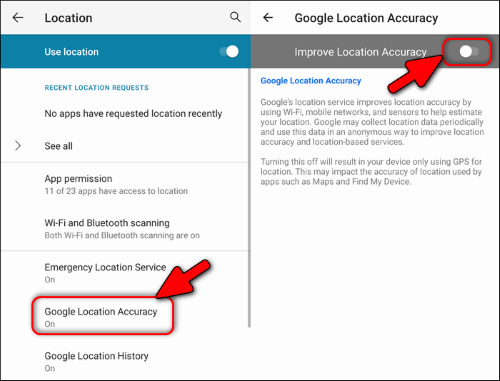
One common workaround involves disabling "Google Location Accuracy" in your system settings, as it often conflicts with your modified GPS coordinates.
For rooted devices, players frequently rely on advanced frameworks like Magisk combined with specific modules to effectively hide their mock location status from the game client.
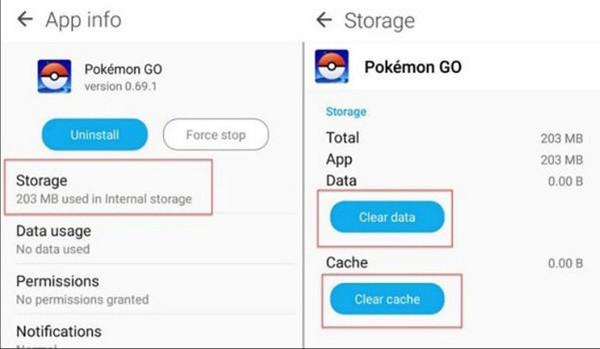
Additionally, always remember to clear the game's cache and data after a failed session to wipe out conflicting location files that might linger.
iOS Solutions and Desktop Tools
Apple's closed ecosystem makes modifying GPS data inherently different, generally relying on desktop tethering software. Recently, many popular tools have encountered the "failed to detect location 12 ianygo" or similar errors because the game's client easily recognizes the modified Apple location framework.
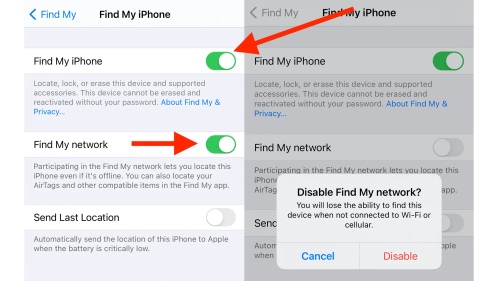
To bypass this, modern desktop simulators often require users to enable "Developer Mode" in their iPhone's Privacy & Security settings. Furthermore, temporarily disabling the "Find My" feature can prevent iOS from aggressively overriding your simulated coordinates with your actual physical location.
Preventing Pokemon Go Error 12: The Importance of Realistic Movement
Successfully bypassing the error screen is only half the battle. Maintaining the integrity of your account requires a thorough understanding of cooldown periods and realistic movement simulation.
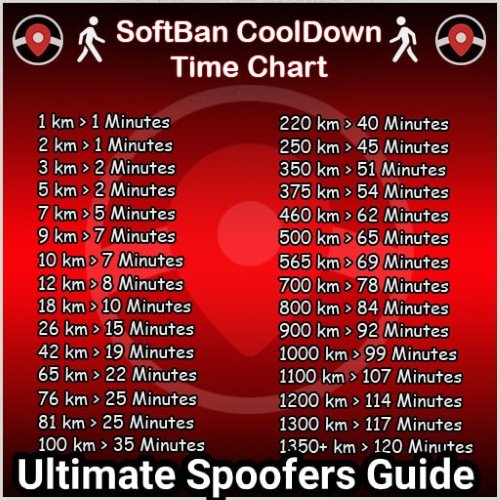
Jumping vast distances—like instantly teleporting from New York to Tokyo—will flag your account and trigger a soft ban, rendering the game unplayable for a period.
Modern safety protocols dictate that you must mimic natural human behavior. Rather than teleporting wildly across the globe, you should simulate walking, cycling, or driving at sensible speeds. Adhering strictly to cooldown timers based on the distance traveled is absolutely essential to avoid permanent account strikes.
FAQs about Failed to Detect Location Error 12
Does using a standard VPN cause Error 12?
Yes, it absolutely can. Even if you are not using any location-altering software, a standard virtual private network (VPN) masks your IP address and routes it through a different server.
When the game compares your physical GPS coordinates with the geographic location of your VPN's IP address, it detects a massive mismatch. This security flag often results in the immediate appearance of the error banner. To resolve this, simply pause your VPN application while playing the game.
Will I lose my active premium items if this error occurs?
Unfortunately, the game's internal timer does not pause when you encounter a location error. If you have an Incense, Star Piece, or Lucky Egg active, the countdown will continue ticking down while the red banner is stuck on your screen.
You will not be able to interact with any spawns or stops until the GPS is resolved.
If the error was caused by a temporary signal drop, the items will function normally once you reconnect to the map. However, player support generally does not refund premium items lost due to localized connectivity or GPS issues.
Does Error 12 stop Adventure Sync from tracking my steps?
Interestingly, Adventure Sync operates somewhat independently of the active game map. Because it relies on your phone's native health applications (like Apple Health or Google Fit) to track physical steps rather than constant GPS pinging, your steps can still be recorded while the game is fully closed.
However, if you have the app open and the error is actively displaying on your screen, active distance tracking for egg hatching and buddy candy will be temporarily halted.
What is "rubber-banding" and why does it trigger the error?
Rubber-banding is a common phenomenon where your in-game avatar rapidly snaps back and forth between your actual physical location and your simulated coordinates.
This usually happens when your phone's native GPS signal momentarily overpowers the simulated data you are providing. The game's anti-cheat system detects this physically impossible movement speed—jumping miles in a fraction of a second—and immediately throws the Error 12 flag to halt gameplay.
Ultimate Fix to Pokemon Go Failed to Detect Location (Error 12)
Constant troubleshooting can turn an enjoyable hobby into a frustrating chore. If you are tired of wrestling with the "how to fix failed to detect location 12" dilemma, upgrading to a more sophisticated desktop tool can stabilize your experience. This is where Pokeep Location Changer serves as a highly effective solution.


Pokeep Location Changer is a desktop tool designed for privacy-safe location simulation, making it highly useful for gaming scenarios and app testing. It completely bypasses the erratic behavior of basic phone apps by offering a robust, tethered approach that focuses on natural movement.

Here is how it helps maintain safe, error-free workflows:
- Route simulation with multi-point movement ensures your pathing looks natural to location-based services, rather than appearing as sudden jumps.
- Adjustable speed settings allow you to dial in realistic walking or driving paces, severely reducing the risk of triggering sudden security flags.
The software also includes a convenient history and favorites feature. This makes it incredibly easy to return to your preferred testing or gaming spots without having to manually recalculate safe distances and paths every single time.
Dealing with location errors requires a mix of technical know-how and the right tools. By understanding the root causes and applying these targeted fixes, you can overcome GPS roadblocks and get back to enjoying your location-based experiences smoothly.
 Related Articles





 Leave Your Comment