 By
By 

Quick Verdict
Adventure Sync in Pokémon GO is worth enabling if you want your real-world walking to count toward Eggs, Buddy Candy, and weekly rewards while the app is closed. If it stops tracking, the first things to check are location permission, Apple Health or Google Fit, and battery restrictions.
Who It's For
This guide is for Pokémon GO players who want to turn on Adventure Sync, fix missing distance, understand weekly rewards, and make Egg hatching more reliable.
Key Takeaways:
- Main Uses: Hatch Eggs, earn Buddy Candy, and unlock weekly walking rewards.
- Common Fixes: Set location to Always, reconnect Apple Health or Google Fit, and disable strict battery limits.
- Movement Tip: Use Adventure Sync for passive walking, and PoKeep for controlled Pokémon GO routes.
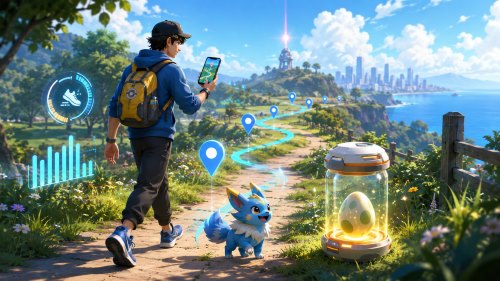
Adventure Sync sounds simple: walk in real life, keep Pokémon GO closed, and still earn distance for Eggs, Buddy Candy, and weekly rewards. But when it does not update, turns itself off, or misses several kilometers, it can quickly become one of the most frustrating settings in the game.
The good news is that most Pokemon Go Adventure Sync not working problems come from a few common causes: location permission, Apple Health or Google Fit connection, battery restrictions, delayed syncing, or app-version issues. This guide explains how Adventure Sync works, how to turn it on, how to fix tracking problems, and what rewards you can get from weekly walking progress.
What Is Adventure Sync in Pokemon Go?
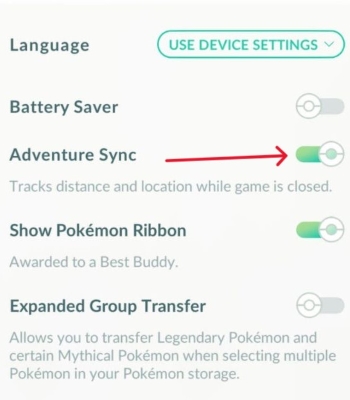
Adventure Sync in Pokemon Go is an optional feature that tracks your walking distance even when Pokémon GO is not open. Instead of requiring the game to stay active on your screen, it connects with your phone’s fitness system to record distance in the background.
On iPhone, Adventure Sync works through Apple Health. On Android, it works through Google Fit. Once enabled correctly, your walking distance can contribute to Egg hatching, Buddy Candy progress, weekly walking goals, and Adventure Sync rewards.
This makes Adventure Sync useful for daily movement that would otherwise be wasted. A walk to work, a trip around campus, or a long shopping day can all help your Pokémon GO progress without keeping the app open the whole time.
How Does Pokemon Go Adventure Sync Work?
Adventure Sync uses your device’s fitness and location permissions to read activity data from Apple Health or Google Fit. Pokémon GO then syncs that distance back into the game and applies it to eligible features.
It can help with several parts of the game:
- Hatching Eggs without keeping Pokémon GO open
- Earning Buddy Candy through walking distance
- Building weekly walking progress for milestone rewards
Adventure Sync does not always update instantly. Sometimes the game needs time to sync with your fitness app, so a missing distance update does not always mean the feature is broken. Before changing every setting on your phone, wait a little, restart Pokémon GO, and check whether the distance appears later.
How to Turn On Adventure Sync in Pokemon Go
Before turning on Adventure Sync, make sure your account has reached Trainer Level 5. If the option does not appear, your level may be too low, or the app may need to be updated.
How to Enable Adventure Sync on iPhone
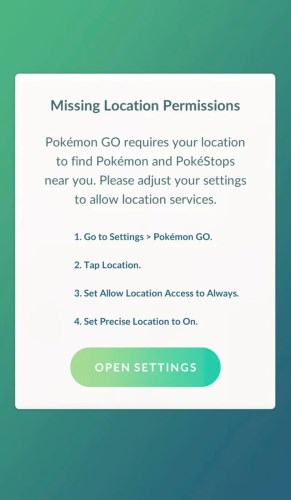
Open Pokémon GO and go to Main Menu > Settings > General > Adventure Sync. Turn on Adventure Sync, then allow Pokémon GO to access Apple Health data when prompted.
Next, check your iPhone permission settings. Pokémon GO should have location access set to Always, not only while using the app. If Apple Health does not allow Pokémon GO to read activity data, distance tracking may fail even if Adventure Sync looks enabled in-game.
You can also open the Health app and check whether Pokémon GO appears under connected apps or data sources. If it is missing, turn Adventure Sync off and on again inside Pokémon GO to trigger the permission request.
How to Enable Adventure Sync on Android
Open Pokémon GO and go to Main Menu > Settings > General > Adventure Sync. Turn it on, then connect it with the Google account used for Google Fit.
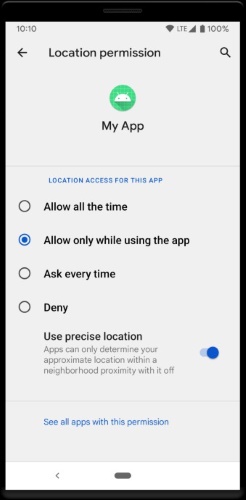
After that, open your phone settings and check Pokémon GO permissions. Location, physical activity, and background activity settings should be allowed. If Google Fit is logged into a different account from the one connected to Pokémon GO, Adventure Sync may not record your distance correctly.
For Android users, battery optimization is especially important. If your phone aggressively limits Pokémon GO or Google Fit in the background, Adventure Sync may stop tracking or only record part of your walking distance.
Pokemon Go Adventure Sync Not Working? Try These Fixes
When Pokemon Go Adventure Sync is not working, do not start with reinstalling the game. Begin with the basic settings that control background tracking. Most problems come from permission mismatches or phone-level restrictions.
Fix 1. Set Location Permission to Always Allow
Adventure Sync needs background access to work properly. On iPhone, go to your device settings, find Pokémon GO, and set location access to Always. On Android, check the app permission screen and make sure location access is allowed.
If the permission is set to “Only while using the app,” Pokémon GO may not receive enough background data. This is one of the most common reasons Adventure Sync tracks poorly or fails completely.
After changing the permission, restart Pokémon GO and check whether Adventure Sync is still enabled in the game settings.
Fix 2. Reconnect Apple Health or Google Fit
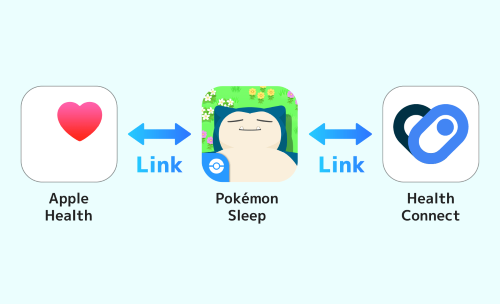
If Pokémon GO is not properly connected with Apple Health or Google Fit, Adventure Sync cannot read your walking data. Open your health app settings and confirm that Pokémon GO has permission to access activity or fitness data.
On iPhone, check the Health app’s data access settings. On Android, check Google Fit’s connected apps and devices. If Pokémon GO is missing, turn Adventure Sync off and on again in the game to reconnect it.
Also confirm that Google Fit is using the correct Google account. If your phone has multiple Google accounts, the wrong account connection can make Adventure Sync look active while still failing to sync distance.
Fix 3. Turn Off Battery Saver and Background Restrictions
Battery settings can block the sensors or background activity that Adventure Sync depends on. This is especially common on Android phones with aggressive battery management.
Check whether Pokémon GO, Google Fit, Apple Health, or system fitness tracking is restricted in the background. Disable battery optimization for Pokémon GO and Google Fit if your phone gives that option.
Do not confuse Pokémon GO’s in-game Battery Saver setting with your phone’s system battery saver. The phone-level power saver is more likely to interfere with Adventure Sync tracking.
Fix 4. Make Sure Your Fitness App Is Recording Steps
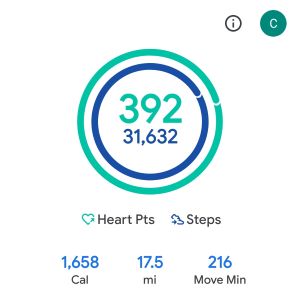
Adventure Sync cannot sync distance that your phone never recorded. Open Apple Health or Google Fit and check whether your steps or walking distance appear there first.
If the fitness app itself is not tracking, the issue is not Pokémon GO yet. Your phone may lack motion permission, sensor access may be disabled, or the device may not be carried in a way that records steps properly.
For best results, keep your phone with you while walking. If your phone is sitting on a desk while you walk with only a wearable, Adventure Sync may not count that distance reliably unless the wearable data is properly accepted by Apple Health or Google Fit.
Fix 5. Wait for Adventure Sync Delay
Adventure Sync distance may take time to appear in Pokémon GO. If you finish a walk, open the app immediately, and see no distance update, wait before assuming it failed.
Try closing and reopening Pokémon GO after a while. You can also open Apple Health or Google Fit first to confirm that the walk was recorded. Once the fitness app shows the data, Pokémon GO may still need additional time to sync it.
This is especially important for Egg hatching. An Egg may look stuck for a while, then update later after the sync finishes.
Fix 6. Avoid Manually Entered Fitness Data
Manually entered steps or distance usually should not be treated as valid Adventure Sync movement. If you add a workout by hand in Apple Health or Google Fit, Pokémon GO may ignore it.
Adventure Sync is designed around real activity recorded by your phone’s sensors and supported fitness tracking systems. If distance looks suspicious, imported, or manually created, it may not count toward Eggs, Buddy Candy, or weekly rewards.
This is also why some third-party wearable sync methods can be inconsistent. Even if the data appears in your fitness app, Pokémon GO may not always accept it as valid Adventure Sync distance.
Fix 7. Refresh Game Data, Restart, or Reinstall
If permissions and fitness app connections look correct, try lighter fixes before reinstalling. Restart Pokémon GO, restart your phone, and check whether the app has an update available.
You can also refresh game data from Pokémon GO’s advanced settings. If nothing works, reinstalling Pokémon GO can reset broken permissions and trigger the Adventure Sync setup flow again.
After reinstalling, check Adventure Sync manually. It may be disabled by default until you turn it on again and approve the required permissions.
Why Does Pokemon Go Adventure Sync Keep Turning Off?
Sometimes Adventure Sync appears to turn off after an update, login change, crash, or permission reset. If this happens, open Pokémon GO settings and check the Adventure Sync toggle again.
When the problem appears after a Pokémon GO update, check whether a newer version is available. Some Adventure Sync toggle issues are app-version related and may be fixed by an update rather than by changing your phone settings.
If Adventure Sync keeps turning off repeatedly, use this quick checklist:
- Update Pokémon GO to the latest version.
- Re-enable Adventure Sync after logging out or reinstalling.
- Confirm location, motion, Apple Health, or Google Fit permissions again.
This issue is especially annoying because the feature may look enabled one day and disabled the next. For that reason, it is worth checking Adventure Sync before long walks, events, or weekly reward deadlines.
Pokemon Go Adventure Sync Rewards Explained
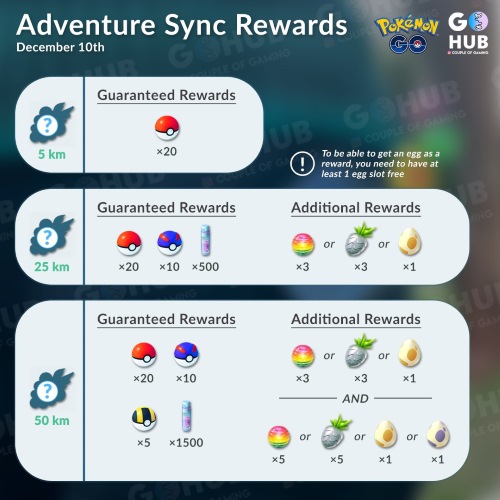
Adventure Sync rewards are based on your weekly walking distance. The game usually checks your weekly progress on Monday morning local time and gives rewards based on the distance milestones you reached.
The commonly discussed milestones include 5 km, 25 km, 50 km, and 100 km. Higher distance goals usually give better rewards, and reaching a higher tier may include rewards from lower tiers as well.
Possible rewards can include Poké Balls, Great Balls, Ultra Balls, Stardust, Rare Candy, Silver Pinap Berries, and special Adventure Sync Eggs. Reward pools can change by season or event, so check the current in-game reward details or reliable Pokémon GO egg charts when exact hatch pools matter.
25 km and 50 km Adventure Sync Eggs
Adventure Sync Eggs are one of the main reasons players care about weekly walking progress. Reaching 25 km may reward a 5 km Adventure Sync Egg, while reaching 50 km may reward a 10 km Adventure Sync Egg.
These eggs can have different hatch pools from normal PokéStop Eggs. That means a 10 km Adventure Sync Egg is not always the same as a regular 10 km Egg.
To receive Adventure Sync Eggs, make sure you have open Egg storage before weekly rewards are distributed. If your Egg slots are full, you may miss the Adventure Sync Egg and receive other items instead.
Pokemon Go Adventure Sync Eggs and Buddy Candy
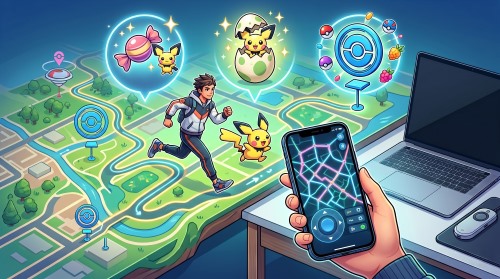
Adventure Sync is especially useful for Egg hatching because it lets normal walking count while Pokémon GO is closed. If you walk a lot during the day but do not want to keep the game open, Adventure Sync helps convert that movement into Egg progress.
It also helps with Buddy Candy. When your Buddy Pokémon needs walking distance to earn Candy, Adventure Sync can add progress from background walking. This is useful for rare Pokémon, evolutions, and long-term Candy farming.
If Egg or Buddy distance does not update immediately, check Apple Health or Google Fit first. If your fitness app recorded the movement, Pokémon GO may simply need more time to sync.
Does Adventure Sync Work on a Treadmill?
Adventure Sync can work on a treadmill if your phone or connected fitness system records real steps. The key is not the treadmill itself; the key is whether Apple Health or Google Fit captures valid walking data that Pokémon GO accepts.
For better treadmill results, keep your phone on your body instead of placing it on the treadmill console. A pocket, armband, or hand-held position may record steps more reliably than leaving the phone still.
Stationary bikes and non-step workouts are less predictable. Even if your fitness app records a workout, Pokémon GO may not treat it the same way as walking distance.
Does Pokemon Go Adventure Sync Work with Fitbit, Apple Watch, or Samsung Health?
Adventure Sync officially depends on Apple Health or Google Fit. Wearables can be more complicated because the data may pass through another app before reaching the system Pokémon GO reads.
Adventure Sync and Fitbit
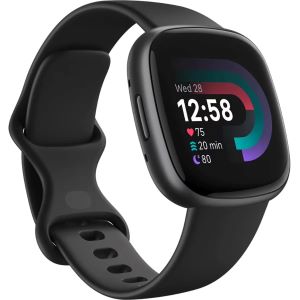
Fitbit does not function as the main official Adventure Sync connection by itself. If Fitbit data is synced into Apple Health or Google Fit through another method, results may vary.
The safest expectation is that phone-recorded steps are more reliable than wearable-imported data. If your Fitbit steps appear in a health app but not in Pokémon GO, the data transfer path may not be accepted by Adventure Sync.
Adventure Sync and Apple Watch
The old Pokémon GO Apple Watch app is no longer supported. On iPhone, Adventure Sync works through Apple Health instead.
Apple Watch activity may appear in Apple Health, but if Adventure Sync does not update properly, check the Apple Health permissions for Pokémon GO and confirm that the data is visible in the Health app.
Adventure Sync and Samsung Health
Samsung Health is not the main official connection point for Pokémon GO Adventure Sync. Android users should focus on Google Fit connection first.
Some phones and third-party tools may move Samsung Health data into Google Fit, but this setup can be inconsistent. For a reliable fix guide, Google Fit permission and background activity settings should be checked before relying on Samsung Health data.
Does Adventure Sync Drain Battery?
Adventure Sync is usually more battery-friendly than keeping Pokémon GO open for every walk. Because it uses your phone’s fitness tracking system, it can record movement without requiring the full game screen, map, GPS gameplay, and animations to stay active.
However, battery settings still matter. If your phone’s system battery saver blocks sensors or background activity, Adventure Sync may stop working correctly.
The best balance is to let Pokémon GO and your fitness app run with the required background permissions, while avoiding unnecessary screen-on gameplay when you only want distance tracking.
When Adventure Sync Is Not Enough: Use PoKeep for Controlled Pokemon Go Movement
Adventure Sync is great for passive walking progress, but it is not a route-control tool. You cannot use it to choose where you move in Pokémon GO, plan a farming path, test a specific area, or move around the map with precision.

That is where PoKeep Location Changer fits naturally. PoKeep lets you change GPS location on iPhone and Android, use a 360° GPS joystick, simulate movement with custom speed, and create two-spot or multi-spot routes for location-based games like Pokémon GO.


For example, Adventure Sync can help when you are walking with the app closed. PoKeep is more useful when you want controlled in-game movement, such as exploring a park route, moving between PokéStops, checking different spawn areas, or following a planned path.
PoKeep also includes route-related features such as multi-spot movement, jump teleport, favorite routes, history records, GPX file support, and a cooldown timer. These features make it more suitable for players who want flexible Pokémon GO movement instead of only passive step tracking.
PoKeep should not be treated as a direct repair button for Adventure Sync. If Adventure Sync is broken, you still need to fix permissions, Apple Health, Google Fit, and background settings. But if your bigger problem is that Adventure Sync feels too passive or unreliable for active gameplay, PoKeep gives you a more controllable way to move in Pokémon GO.
Pokemon Go Adventure Sync FAQs
Why is my Pokemon Go Adventure Sync not working?
The most common causes are location permission, Apple Health or Google Fit connection, battery restrictions, sync delay, or disabled background activity. Check permissions first before reinstalling the game.
Why is Adventure Sync not counting my steps?
Open Apple Health or Google Fit and check whether your steps are recorded there. If the fitness app does not show the steps, Pokémon GO cannot sync them. If the fitness app shows them but Pokémon GO does not, wait for a sync delay and check permissions.
Does Adventure Sync work when Pokemon Go is open?
Adventure Sync is mainly designed to count distance when Pokémon GO is closed. When the game is open, Pokémon GO can track movement directly through the app.
Does Adventure Sync hatch Eggs?
Yes. Adventure Sync distance can contribute to Egg hatching as long as the distance is properly recorded and synced through Apple Health or Google Fit.
Does Adventure Sync work on a treadmill?
It can work if your phone or fitness app records valid steps. Keep your phone with you while walking on the treadmill for better results.
Does Adventure Sync work with Fitbit?
Fitbit is not the main official Adventure Sync connection. If Fitbit data transfers into Apple Health or Google Fit, it may work in some setups, but results are not guaranteed.
Why did Adventure Sync turn itself off?
Adventure Sync may turn off after updates, login changes, reinstalling, or permission resets. Open Pokémon GO settings and re-enable it, then check your phone permissions again.
Can PoKeep fix Adventure Sync?
PoKeep is not designed to repair Apple Health, Google Fit, or Adventure Sync permission issues. It is better used for controlled Pokémon GO GPS movement, joystick control, route planning, and flexible location changes when you want more than passive background tracking.
Final Thoughts on Pokemon Go Adventure Sync
Pokemon Go Adventure Sync is one of the most useful settings for Egg hatching, Buddy Candy, and weekly rewards. When it works correctly, it turns normal walking into steady progress without keeping Pokémon GO open all day.
When it fails, focus on the basics: location permission, Apple Health or Google Fit connection, battery restrictions, background activity, and sync delay. Most issues can be fixed by checking these settings carefully.
For passive walking, Adventure Sync is the right tool. For controlled movement, planned Pokémon GO routes, joystick movement, and flexible location exploration, PoKeep Location Changer is a better fit. Use each tool for the job it actually handles best, and your Pokémon GO experience becomes much easier to manage.
 Related Articles




 Leave Your Comment