 By
By 

You open FanDuel, expect to check odds or place an entry, and suddenly see a location error: “Restricted Location,” “Can’t verify location,” or a message saying your current location could not be confirmed. The confusing part is that you may actually be in an eligible area, your GPS may look correct in Maps, and your account address may already be updated.
That is why “change FanDuel location” can mean several different things. Sometimes you need to refresh your real-time location. Sometimes you need to fix app permissions. Sometimes you need to update your FanDuel Sports Network Home ZIP. And sometimes the answer is simply that FanDuel cannot be used for certain products in your current state or region.
This guide explains how to change location on FanDuel safely, how to fix FanDuel location restricted errors, what to do on iPhone, Android, and PC, and where a GPS tool like PoKeep Location Changer fits in without crossing FanDuel’s rules.
Can You Manually Change Your FanDuel Sportsbook Location?
No, not in the way you might change a city in a weather app or dating app. FanDuel Sportsbook location is tied to real-time eligibility, so you generally cannot just choose another state inside account settings and make FanDuel treat you as physically there.
If you are in an eligible state but FanDuel still shows a restricted location message, the issue is usually a detection problem. That can happen because of disabled permissions, weak GPS, blocked browser access, VPN interference, Wi-Fi routing issues, a geolocation plugin problem, or conflicting device settings.
If you are not physically in an eligible area, changing your account address or using location-masking tools is not a safe workaround. FanDuel’s terms prohibit using proxy servers or other software or technology to misrepresent identity or location to enter or participate in contests, and violations can result in consequences such as forfeiture of winnings or account cancellation.
You can try to use PoKeep Location Changer just for testing though.


Why FanDuel Shows “Restricted Location” or “Can’t Verify Location”
FanDuel location errors usually happen for one of two reasons. Either you are actually outside the eligible area for the product you want, or FanDuel cannot confidently verify your device location.
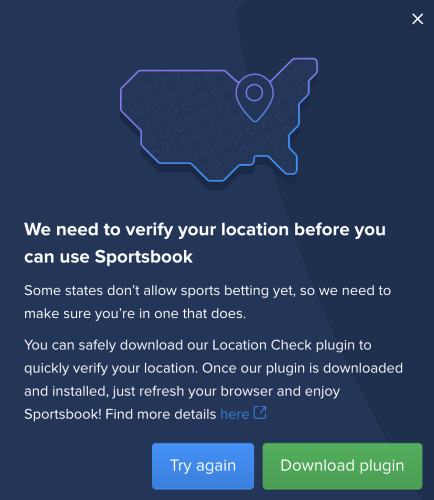
A FanDuel restricted location message may appear when your current location does not allow deposits, wagering, or gameplay for that product. But it can also appear when FanDuel receives incomplete or conflicting location signals. For example, your GPS may say one thing, your IP address may suggest another region, and your VPN or browser settings may block verification.
Common causes include:
- VPN, proxy, corporate network, or remote desktop connection.
- Location Services turned off.
- Precise Location disabled on iPhone.
- FanDuel app location permission blocked.
- Browser location permission denied.
- Weak Wi-Fi or unstable cellular connection.
- Outdated app, browser, or operating system.
- Cache or stored site data causing repeated errors.
- Location-blocking or mock-location apps interfering with detection.
- Desktop geolocation plugin issues.
When a restricted-location error appears even though you are in an eligible area, the first fixes are usually to log out, close and reopen the app, restart the device, disconnect VPNs or external networks, reset location settings, make sure FanDuel has location access, disable apps that block location, and reset Wi-Fi.
How to Change FanDuel Location on iPhone by Fixing GPS Settings
If FanDuel detects the wrong location on iPhone, start with permissions. iOS gives users several privacy controls, and FanDuel needs enough access to confirm where the device actually is.
Check Location Services and FanDuel Permissions
Step 1. Open Settings on your iPhone.
Step 2. Go to Privacy & Security.
Step 3. Tap Location Services and make sure it is turned on.

Step 4. Scroll to the FanDuel app you are using.
Step 5. Set location access to While Using the App and enable Precise Location if the option appears.
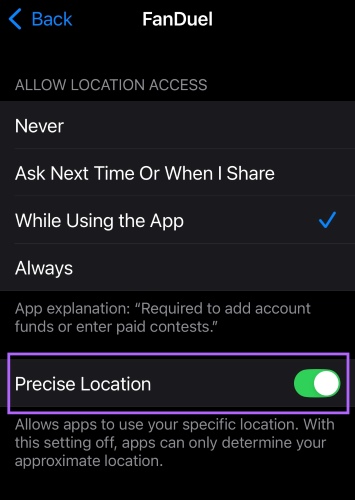
Precise Location matters because approximate location may be too broad for regulated location checks. If FanDuel only receives a vague location, it may not be able to verify that you are inside an eligible area.
Refresh the FanDuel App Location Check
After changing permissions, do not just return to the same error screen. Fully refresh the app session.
Step 1. Log out of FanDuel.
Step 2. Force close the app.
Step 3. Turn Wi-Fi off and back on, or switch between Wi-Fi and cellular.
Step 4. Restart your iPhone.
Step 5. Reopen FanDuel and try the location check again.
If the error continues, update the FanDuel app and iOS. Old app builds and outdated system location services can cause compatibility problems, especially after an iOS update.
Remove Location Interference on iPhone
VPNs, private relay features, corporate profiles, security apps, and external networks can interfere with FanDuel location checks. If you are physically in an eligible area but still blocked, temporarily turn off VPN-style services and retry.
Also check whether you are using hotel Wi-Fi, school Wi-Fi, workplace Wi-Fi, or a public network. These networks may route traffic through another city or block location verification. In that case, switching to cellular data may help FanDuel read a cleaner signal.
How to Change FanDuel Location on Android by Fixing Location Accuracy
Android location settings vary by brand and system version, but the core idea is the same: FanDuel needs permission to access your location, and your phone should be using accurate location signals.
Enable Location and App Permission on Android
Step 1. Open Settings.
Step 2. Go to Location and turn it on.
Step 3. Open Apps or App Management.
Step 4. Find the FanDuel app.
Step 5. Open Permissions and allow location access while using the app.
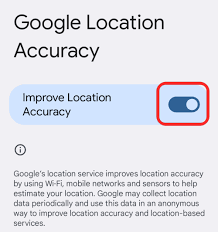
For better accuracy, turn on Google Location Accuracy or a similar high-accuracy option if your device provides it. This helps your phone combine GPS, Wi-Fi, mobile networks, and sensors instead of relying on one weak signal.
Restart and Recheck FanDuel Location
After adjusting permissions, restart both the app and the phone. Location services sometimes keep old or cached signals until the app starts a new session.
Step 1. Log out of FanDuel.
Step 2. Clear the app from recent apps.
Step 3. Restart your Android phone.
Step 4. Reconnect to a stable Wi-Fi network or use mobile data.
Step 5. Open FanDuel and try again.
If the issue appears only on Wi-Fi, test mobile data. If it appears only on mobile data, test a trusted home Wi-Fi network. This helps you identify whether the problem comes from the device or the network.
Check Mock Location and VPN Settings
Android users should also check for mock-location apps, developer settings, VPN apps, proxy apps, DNS tools, or battery/security tools that limit background location. Even if you are not actively trying to spoof your location, these tools may make FanDuel reject or fail the location check.
If you previously used a GPS changer for gaming, maps, dating apps, testing, or privacy, restore your real GPS location before opening FanDuel. Restarting the device is often the simplest way to clear temporary location changes.
How to Fix FanDuel Location on PC or Desktop
PC location issues are different from mobile issues. A desktop computer may not have GPS, so FanDuel may rely on browser permissions, Wi-Fi location, IP information, and sometimes a geolocation service or plugin.
If you search “FanDuel can’t verify location PC,” the issue is often not your FanDuel account. It is usually your browser, network, location permission, or geolocation plugin.
Check Browser Location Permission
Step 1. Open FanDuel in your browser.
Step 2. Click the lock, settings, or permission icon near the address bar.
Step 3. Find Location permissions.
Step 4. Set FanDuel to Allow.
Step 5. Reload the page and try location verification again.
Chrome, Edge, Firefox, and Safari all handle permissions differently, but the principle is the same: if the browser blocks location access, FanDuel cannot verify where you are.
Clear Cache and Try a Clean Session
If you previously denied permission or FanDuel keeps showing the same old error, clear the site data for FanDuel.
Step 1. Log out of FanDuel.
Step 2. Clear cache and cookies for FanDuel.
Step 3. Close all browser windows.
Step 4. Reopen the browser.
Step 5. Log back in and allow location when prompted.
This is especially useful if you recently moved, changed networks, updated your browser, or switched from VPN to a normal connection.
Check the Geolocation Plugin or Location Service
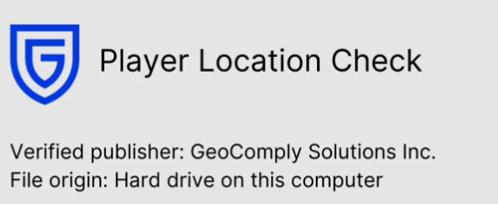
Some desktop FanDuel experiences may require a geolocation plugin or location service. If it is installed but not working, restart it or reinstall it from the official FanDuel support path. Avoid downloading any FanDuel location plugin from unofficial sites because fake plugins can be risky.
If you use Windows, also check whether system location is disabled. If you use macOS, check privacy permissions for your browser.
Avoid VPN, Proxy, Remote Desktop, and Corporate Networks
Desktop users often forget that a VPN or work network may stay active in the background. FanDuel location verification can fail if your browser traffic appears to come from a different region, a data center, a remote desktop session, or an external network.
Before trying again, disconnect VPNs, proxies, remote desktop tools, and workplace networks. Then use a normal home connection or mobile hotspot.
There is also a travel-related concept called Couch Rights or Local Rights. After activation from the Home ZIP area, FanDuel Sports Network may allow streaming away from home for up to 30 days, but after that period users may need to return home or contact support if there is a move or location mismatch.
Where PoKeep Location Changer Fits In
A GPS location changer can still be useful — just not as a shortcut around FanDuel’s location rules.
PoKeep Location Changer is designed for iPhone and Android GPS control. It supports changing location without jailbreak or root, offers one-click GPS changes, includes a 360° GPS joystick, and works with Windows and macOS. It also supports for virtual movement modes, route simulation, and temporary location changes that can be restored by restarting the device.
That makes PoKeep a practical option for many everyday GPS scenarios, such as:
- Testing how an app behaves in another city.
- Managing location visibility in supported social or map-based apps.
- Simulating movement in location-based games where allowed.
- Exploring GPS-based features without physically traveling.
How to Use PoKeep for General GPS Location Control
For non-regulated apps where location changing is allowed, PoKeep keeps the process simple.
Step 1. Download and install PoKeep on your Windows or Mac computer.
Step 2. Connect your iPhone or Android device by USB or Wi-Fi, depending on your setup.

Step 3. Choose a destination on the map.
Step 4. Select the mode you need, such as teleport, joystick, two-spot movement, or multi-spot movement.

Step 5. Start modifying the device GPS location.
After you finish using a location changer, restart your device to return to your real location before opening apps that require accurate location verification, including FanDuel.
FAQs About How to Change Location on FanDuel
How do I switch my FanDuel location?
If you mean FanDuel Sportsbook, you usually cannot manually switch your location inside the app. FanDuel verifies your real-time physical location. If the detected location is wrong, fix device permissions, restart the app, disable VPNs, and refresh the location check.
Why is FanDuel restricting my location?
FanDuel may restrict your location because you are outside an eligible area, or because your device cannot provide a clear location signal. VPNs, proxies, blocked permissions, weak Wi-Fi, browser settings, and location-blocking apps can all cause problems.
Can I change location on FanDuel Sportsbook by changing my address?
No. Updating your account address does not replace real-time location verification. Your address may matter for account records, but Sportsbook eligibility depends on your physical location when you use the product.
Why can’t FanDuel verify my location on PC?
PC issues often come from browser permissions, cached site data, VPNs, Wi-Fi routing, or a geolocation plugin/service problem. Allow location access in your browser, clear FanDuel site data, disconnect VPNs, and restart the browser.
How do I change FanDuel Sports Network Home ZIP?
For FanDuel Sports Network, go to Settings → Account Details and look for Home ZIP Code. Non-subscribed users may be able to update it directly, while subscribed users may need to contact support.
Can I use PoKeep to change FanDuel location?
PoKeep can change GPS location on iPhone and Android for supported, non-regulated use cases, it should be used carefully to misrepresent your FanDuel eligibility. For FanDuel errors, use PoKeep only in the broader sense of understanding and managing GPS responsibly, and restore your real location before using regulated platforms.
Can I use a VPN for FanDuel if I am already in a legal state?
Even if you are physically in an eligible state, a VPN can interfere with location verification. If FanDuel cannot verify your location, disconnect the VPN and retry using your normal network. FanDuel troubleshooting guidance specifically includes disconnecting VPNs or external networks when location checks fail.
Conclusion: Change FanDuel Location the Right Way
The best way to change FanDuel location depends on what you are trying to fix. If FanDuel is reading your real location incorrectly, focus on permissions, Wi-Fi, browser settings, app updates, and VPN removal. If you need to change FanDuel Sports Network Home ZIP, use Account Details or contact support. If you want FanDuel Sportsbook access from a restricted area, that is not a location settings problem — it is a legal and product availability limit.
For general GPS control outside regulated platforms, PoKeep Location Changer can be a helpful tool for iPhone and Android users who want one-click location changes, joystick movement, and route simulation without jailbreak or root.
 Related Articles


 Leave Your Comment