 By
By 

You open Instawork expecting to find shifts nearby, but the app keeps showing gigs in another city, another state, or somewhere two hours away. Maybe your home address is already correct. Maybe your phone location is turned on. Still, the results do not match where you actually want to work.
That is why “change Instawork location” can mean several different things. You may need to update your Instawork home address, adjust shift notification distance, fix your phone’s GPS permissions, troubleshoot location accuracy, or, if you are a business, edit a work location or shift pin.
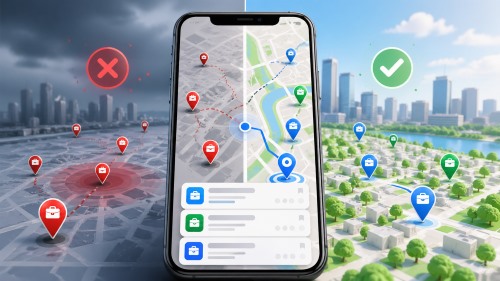
This guide walks through the practical fixes first. Then, for users who need more control over device GPS for testing, privacy, or location-based app management, it explains when a GPS tool like PoKeep Location Changer may be useful — without using it to misrepresent attendance or bypass work rules.
Why Your Instawork Location May Be Wrong
Instawork location problems usually come from one of several places: your profile address, your phone GPS, notification settings, app permissions, market availability, or a business-side shift location setup.
For Instawork Pros, the first thing to understand is that your home address and your current phone GPS location are not always the same thing. Your home address helps Instawork calculate shift distance, while your phone location helps the app understand where you are when location-based features are needed. Instawork’s Pro location settings include updating the home address and setting shift notification distance in the app.
Another common misunderstanding is notification radius. A closer notification distance can reduce far-away alerts, but it may not remove every far-away shift from the Open Shifts area. That means you might still see jobs outside your preferred range, especially if local shift supply is limited.
Your location may also look wrong if precise location is disabled, GPS accuracy is low indoors, your VPN or network is interfering, the app cache is outdated, or the area simply has fewer Instawork shifts available.
How to Change Your Location on Instawork as a Pro
If you are an Instawork Pro trying to change where shifts appear, start with your profile settings rather than business dashboard settings. The dashboard “work location” feature is mainly for businesses managing work sites, not regular workers looking for nearby gigs.
Update Your Home Address on Instawork
Your home address is one of the most important settings for shift distance calculations. If Instawork is showing gigs too far away, check this first.
Step 1. Open the Instawork app.
Step 2. Tap your profile icon.
Step 3. Open the settings menu.
Step 4. Go to Account Information.
Step 5. Tap Home Address, enter your current address, and save the change.
After saving, close and reopen the app. If the shift list still looks wrong, refresh the Open Shifts page and check whether the app is using your current filters or an older search area.
Adjust Your Shift Notification Distance
If your main issue is receiving alerts for jobs too far away, change your notification distance. This does not always act as a strict search boundary, but it can make your alerts more relevant.
Step 1. Open Instawork.
Step 2. Go to your profile or settings area.
Step 3. Open notification settings.
Step 4. Look for shift notification distance or location-based shift alerts.
Step 5. Choose a range that matches how far you are willing to travel.
This is especially helpful if you live near multiple cities and only want alerts from your closest work area.
Refresh Your Instawork Search Area
After changing your home address or notification distance, give the app a fresh location signal. Close Instawork completely, reopen it, and check Open Shifts again. If you recently moved, also log out and log back in so the app reloads your profile data.
If the app still shows the wrong area, compare three things: your saved home address, your phone’s live GPS location, and any filters in the Open Shifts tab. A mismatch between these can make it feel like Instawork “has the wrong location” even when only one setting is outdated.
How to Fix Instawork Location on iPhone
On iPhone, Instawork needs the right location permission to work properly. If location access is blocked or only approximate location is shared, nearby shift results and clock-in features may not behave as expected.
Turn On Location Services for Instawork
Open your iPhone settings and check whether Location Services are enabled. Apple lets users manage location access for each app under Settings > Privacy & Security > Location Services, where you can choose how an app may access your location and whether it can use precise location.
Step 1. Open Settings on your iPhone.
Step 2. Tap Privacy & Security.
Step 3. Tap Location Services.

Step 4. Make sure Location Services are turned on.
Step 5. Find Instawork and choose the permission level required for the app to function properly.
Step 6. Keep Precise Location turned on if Instawork needs your exact location for nearby shifts or shift-related actions.
Improve iPhone GPS Accuracy
If Instawork still places you in the wrong area, move outdoors or near a window, turn Wi-Fi on, and disable VPN temporarily. GPS can be less reliable inside large buildings, parking garages, basements, and dense city areas.
Restarting your iPhone can also help clear temporary GPS glitches. After restarting, open a map app first to confirm your blue dot is accurate, then reopen Instawork.
How to Fix Instawork Location on Android
Android users should check both app-level permission and device-level location accuracy. These are related, but they are not the same.
Allow Instawork to Use Location on Android
Open your Android app settings and confirm that Instawork has location permission. Android allows different permission levels, and newer Android versions also let users choose precise or approximate location for individual apps.
Step 1. Long-press the Instawork app icon.
Step 2. Tap App info.
Step 3. Open Permissions.
Step 4. Tap Location.
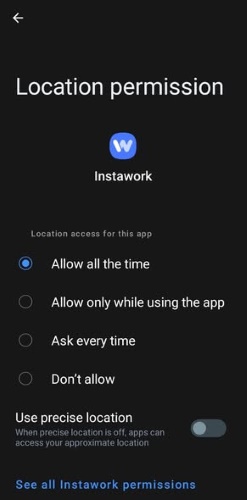
Step 5. Choose the location access option that Instawork needs.
Step 6. Enable precise location if your device shows that option.
Turn On Android Location Accuracy
Android’s Location Accuracy feature can use GPS, Wi-Fi, cellular networks, and device sensors to estimate your location more accurately, especially indoors or near tall buildings. Google explains that this can help devices locate you faster when GPS alone is limited.
Step 1. Open Settings.
Step 2. Go to Location.
Step 3. Open Location Services.
Step 4. Tap Location Accuracy.
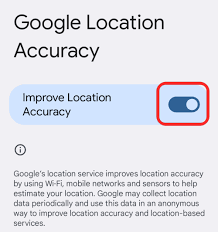
Step 5. Turn on Improve Location Accuracy.
If your location still jumps around, turn off battery saver mode, enable Wi-Fi or mobile data, turn off Airplane Mode, and test your current location in Google Maps before reopening Instawork.
If You Are a Business: How to Change Work Location or Shift Pin on Instawork
For businesses, “change work location Instawork” has a different meaning. You may need to edit a saved work location, adjust a shift pin, or review the geofence around the job site.
Edit a Work Location in the Instawork Dashboard
Businesses can edit work locations from the dashboard by opening Work locations, selecting the location, choosing Edit work location, updating the details, then reviewing the geofence and pin before saving.
This is useful when a venue address changed, a business moved, or the saved location has incorrect details.
Change the Shift Location by PIN Drop
If the street address is technically correct but the exact meeting point is wrong, a pin adjustment may help. For large buildings, event venues, warehouses, campuses, or multi-entrance properties, the map pin can guide workers to the correct arrival spot.
The shift pin should be placed where Pros are expected to arrive, not just at the center of the property. This helps reduce late arrivals and confusion.
Review the Geofence
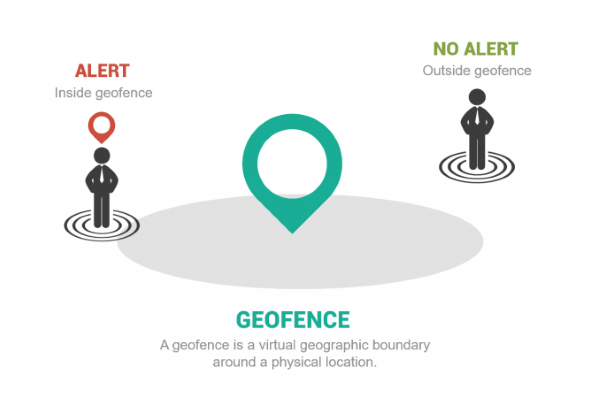
Instawork uses geofencing for shift verification. Workers can only clock in and out when they are inside the shift geofence, which Instawork describes as approximately 500 feet around the building.
If workers are physically on-site but cannot clock in, they may be outside the geofence, in a weak-signal area, or too far from the center of the building. Moving closer to the actual worksite, checking location permissions, and refreshing the shift page can help.
Use PoKeep Location Changer to Manage GPS Location on iPhone and Android
If your goal is broader GPS control rather than changing Instawork account settings, PoKeep Location Changer can be a practical tool to consider. PoKeep is designed to change GPS location on iPhone and Android, with support for one-click location changes, GPS joystick movement, and use without jailbreak or root.


PoKeep is most relevant when you want to test or manage your phone’s GPS location for apps that depend on location signals. For example, you may want to see whether your device is sending an incorrect GPS point, simulate a different area for app testing, or protect your exact location in non-work verification contexts.
How to Use PoKeep Location Changer
Step 1. Download and install PoKeep on your Windows or Mac computer.

Step 2. Connect your iPhone or Android device to the computer.
Step 3. Choose universal mode.

Step 4. Search for a destination or select a point on the map.
Step 5. Start modifying your GPS location.
What to Do If Instawork Still Shows the Wrong Location
If you have updated your home address, checked phone permissions, and refreshed the app, but Instawork still shows the wrong area, the issue may not be a simple location setting.
First, check whether Instawork has enough shifts near your city. The app may show farther opportunities when local demand is low or when your preferred work type is limited in your area. Instawork’s public app listings describe it as a platform for local shift-based work, but availability can vary by market.
Next, update the Instawork app to the latest version. App updates often include maintenance, bug fixes, and improvements, so an outdated version may not handle location or shift filters correctly.
Then try a full reset sequence: close Instawork, turn location off and on, switch between Wi-Fi and mobile data, disable VPN, restart the phone, open a map app to verify GPS accuracy, and reopen Instawork.
If nothing changes, contact Instawork through the app’s Help option. Instawork directs users with persistent issues to use the Help button in the app and choose the most appropriate support category.
FAQs About Changing Instawork Location
How do I change my location on Instawork?
If you are a Pro, start by updating your home address in your account settings and adjusting your shift notification distance. If the app still shows the wrong area, check your phone’s location permission, precise location setting, network connection, VPN, and app version.
Why is Instawork showing gigs far away?
Instawork may show far-away gigs because your home address is outdated, your notification radius is not acting as a strict search boundary, your phone GPS is inaccurate, your app filters are broad, or there are limited shifts near your area.
Does Instawork track your location?
Instawork uses location in connection with shifts. Tracking begins before the shift, continues during the shift, and stops after clock-out. Location is also used for ETA and shift verification features.
Can I change Instawork location on iPhone?
Yes, you can update your Instawork account location details and manage iPhone location permissions. On iPhone, check Settings > Privacy & Security > Location Services, choose Instawork, and make sure the app has the required access and Precise Location is enabled when needed.
Can I change Instawork location on Android?
Yes, you can update your Instawork profile settings and manage Android location permission. On Android, check Instawork’s app permissions, allow location access, enable precise location if available, and turn on Location Accuracy to improve GPS reliability.
Q: Can I use PoKeep with Instawork?
A: PoKeep can change your device GPS location on iPhone and Android, but it should not be used to fake attendance, bypass a shift geofence, or misrepresent your work location. It is better suited for GPS testing, privacy control, travel preparation, and general location-based app management.
Final Thoughts on Changing Instawork Location
Changing your Instawork location is not always a single-button fix. For most Pros, the best path is to update your home address, adjust shift notifications, enable accurate phone location, refresh the app, and check whether nearby shifts are actually available.
For businesses, the right fix is usually in the dashboard: edit the work location, adjust the shift pin, and review the geofence.
If you need broader GPS control on your device, PoKeep Location Changer can help you manage iPhone or Android location in a flexible way. Just keep Instawork’s shift verification rules separate: use official Instawork settings for work, and use GPS-changing tools only for responsible, non-deceptive location management.
 Related Articles





 Leave Your Comment