 By
By 

You open Pokémon GO, a red bar slides down with GPS signal not found. (11), and the map goes blank. Nothing spawns, PokéStops won't spin, and the raid you were about to join can start without you. Error 11 means one thing: right now the game isn't getting a location it can use from your phone.
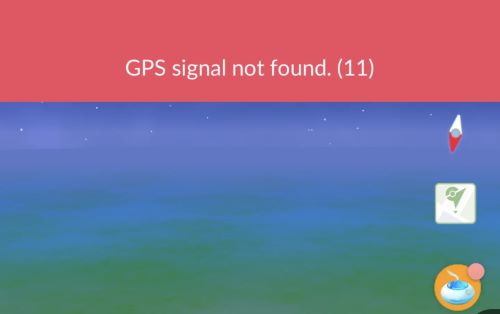
Where the location gets lost decides the fix. Sometimes the phone can't find itself. Sometimes it knows exactly where you are and Pokémon GO can't read it. And in 2026, a game bug has made the error pop up for some players every time they come back from another app. Google Maps or Apple Maps tells you which one you have in about 30 seconds, so open it before you change a single setting.
What GPS Signal Not Found (11) Means in Pokémon GO
Pokémon GO keeps asking your phone where you are. When no usable answer comes back, the game shows the red bar and freezes everything that depends on your position. Wild Pokémon vanish, PokéStops and Gyms stop responding, your avatar stays put, and a Route you're walking pauses. It isn't a ban, though. The bar clears the moment a usable location comes back, and everything you caught or spun before it stays saved.
| Message | What the game is telling you | Check first |
|---|---|---|
| GPS signal not found. (11) | No usable location is coming from the phone | Maps on the same phone, then your location settings |
| Failed to detect location (12) | A location arrives, and the game rejects it | Android's mock location app setting or a location tool, covered in our Failed to Detect Location (12) guide |
Of the two, only Error 12 is officially tied to faked locations. The Pokémon GO Help Center's GPS troubleshooting guide says Failed to detect location can come from the mock locations setting in Android's Developer options.
Run the Maps Test Before You Fix Pokémon GO Error 11
Swipe Pokémon GO closed, open Google Maps on Android or Apple Maps on iPhone, tap the location arrow and give it about 30 seconds. Watch the blue dot and the circle around it. The smaller the circle, the more precisely the phone knows where you are. Run the test outside too if you can. A phone that finds you on the sidewalk but not at your desk has a signal problem, not a broken setting.
| What Maps shows | What it means | Go to |
|---|---|---|
| No dot, a huge circle, or a jumpy dot | The phone has no fix or a weak one | Phone fixes |
| A tight circle in the right place | The phone is fine, the game isn't reading it | Game access |
| Fine, but Error 11 follows app switches | A game bug reported through 2026 | Switch-apps bug |
| A spot you set with a location tool | The tool's feed dropped or left a setting on | Location changers |
Fix GPS Signal Not Found (11) When Maps Can't Find You Either
Get a Stronger Signal for Pokémon GO Error 11
When Maps fails too, the phone can't work out where it is, and every app that needs location is stuck with it. GPS wants a clear view of the sky. Concrete walls, basements, parking garages, trains and the middle of a big hotel all block it, and the Help Center's GPS guide warns that your position can drift or jump between tall buildings. Step outside or stand by a window for a minute and watch the circle in Maps shrink.

Turn Wi-Fi on, even if you don't join a network. Phones place themselves with nearby Wi-Fi networks and cell towers as well as GPS, and Silph Road players on Reddit kept confirming this fix from 2023 into 2025. Then turn Airplane Mode on for about 10 seconds and off again, so the phone asks for a fresh fix.
Turn On Location Accuracy for Error 11 on Android
On Android 12 and later, open Settings > Location > Location services > Google Location Accuracy and turn on Improve Location Accuracy. Some phones file it under Settings > Google > All services instead. Google says the switch adds Wi-Fi, mobile networks and motion sensors to GPS, which helps most indoors and near big buildings. With it off, apps may not get your precise location.
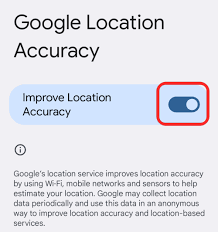
On the same screen, turn on Wi-Fi scanning and Bluetooth scanning too. You won't find a High accuracy mode on a current phone. That menu stopped at Android 8.1, and Pokémon GO needs Android 9 or later anyway.
Reset Location Settings for Error 11 on iPhone
Start with Settings > Privacy & Security > Location Services and make sure the top switch is on. If it is and Apple Maps still can't find you outside, go to Settings > General > Transfer or Reset iPhone > Reset > Reset Location & Privacy. This puts location and privacy settings back to their defaults without erasing your content.

After the reset, each app asks for location again, Pokémon GO included. Reset Network Settings on the same menu is the heavier choice. It removes saved Wi-Fi networks and VPN settings and doesn't target location, so save it for real connection trouble.
Why Pokémon GO Error 11 Keeps Coming Back on an iPad or Tablet
Many tablets don't have a GPS chip. Apple's Location Services and GPS support page lists GPS for iPhones and for iPads with Wi-Fi + Cellular, so a Wi-Fi-only iPad has to place itself from nearby networks. Google says the same about Wi-Fi-only Android tablets. Pokémon GO's own list of supported devices also warns that tablets may not hold a strong enough GPS signal at crowded events like GO Fest and Safari Zones.
| Device | GPS chip | Where its location comes from |
|---|---|---|
| iPhone | Yes | GPS, Wi-Fi, cell towers and Bluetooth |
| iPad Wi-Fi + Cellular | Yes | GPS, Wi-Fi, cell towers and Bluetooth |
| iPad Wi-Fi only | No | Nearby Wi-Fi networks and Bluetooth |
| Wi-Fi-only Android tablet | No | Nearby Wi-Fi networks |
Wi-Fi positioning can work at home and fail in a park with few networks around, which is exactly where the game sends you. No setting adds a GPS chip, so play on your phone or a cellular iPad.
When Error 11 Points to a Failing GPS
If Maps can't find you outside, after a restart, with location on, suspect the hardware. On Android, a free GPS test app shows how many satellites the phone sees, and zero under an open sky is a bad sign. Either way, the maker's support can check it.
Fix Pokémon GO Error 11 When Maps Works but the Game Doesn't
A tight blue dot in Maps means the phone knows where you are, so the problem is what Pokémon GO is allowed to read. These are the settings to match:
| Setting | iPhone | Android |
|---|---|---|
| Location access | While Using the App (Always for Adventure Sync) | Allow only while using the app (Allow all the time for Adventure Sync) |
| Precise location | Precise Location on | Use precise location on |
| Battery | No per-app battery switch | Unrestricted, Pause app activity if unused off |
| Date and time | Set Automatically on | Automatic date and time on |
Fix Error 11 on iPhone With Precise Location
Open Settings > Privacy & Security > Location Services > Pokémon GO. Pick While Using the App, or Always if you use Adventure Sync, since that feature needs it. Then make sure Precise Location is on. Without it, apps only get an approximate location, and Pokémon GO needs your exact spot.
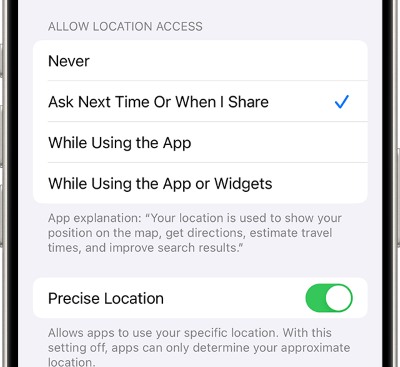
Big iOS updates can reset this screen. A player who updated to iOS 27.0.1 in October 2026 had to allow location again for every app, so check it after any major update.
Fix Error 11 on Android With Precise Location
Long-press the Pokémon GO icon and tap App info > Permissions > Location. Choose Allow only while using the app, or Allow all the time for Adventure Sync, and turn on Use precise location. Android 12 and later lets you give an app only your approximate location, and that isn't enough for the game.
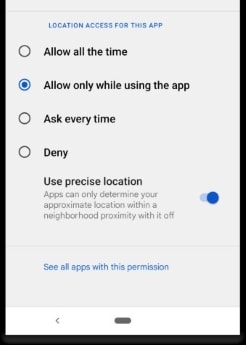
In App info, also set Battery to Unrestricted and turn off Pause app activity if unused, called Manage app if unused on newer versions. That second switch takes away an app's permissions after a few months without use, and one Silph Road player said turning it off ended their Error 11.
Refresh Game Data and the Clock to Clear Error 11
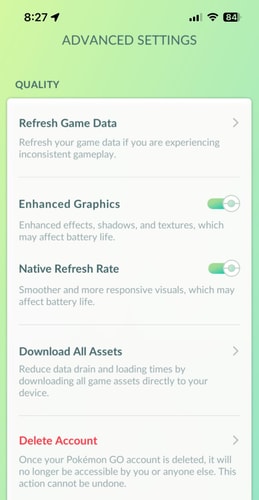
Inside Pokémon GO, open Settings > Advanced Settings > Refresh Game Data. The Help Center's troubleshooting guides for Android and iPhone both suggest it for a range of gameplay problems. A refresh may turn Adventure Sync off, so look at that toggle afterward. Both guides also ask you to let the phone set the date and time automatically.
Clear the Cache on Android When Error 11 Won't Go Away
Clear Pokémon GO's cache under App info > Storage > Clear cache. Your Pokémon and progress live on the game's servers, so nothing in your account goes with it.
If Maps sometimes loses you at home too, clear the cache of Google Play services, the part of Android that hands location to apps. On Reddit, a Silph Road thread about Error 11 that wouldn't go away kept getting the same answer from 2021 through 2025: clearing Google Play services storage fixed what nothing else had. Try the cache first, since clearing storage resets some Google settings on the phone.
Error 11 Only on Your Home Wi-Fi
When the error shows up on one Wi-Fi network but not on mobile data, check that network's privacy setting.
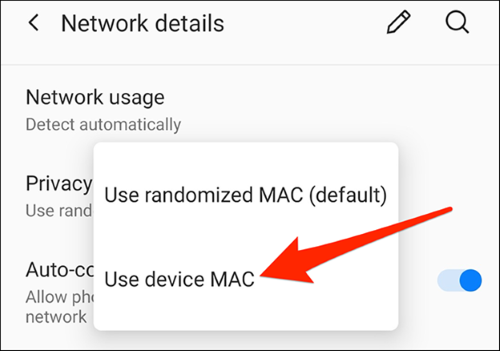
On Android, open the network's details and change Privacy from Use randomized MAC to Use device MAC. Several Silph Road players said this ended their Error 11 in 2024 and 2025. None of them could say why it works, and every report we found came from Android.
Reinstall Pokémon GO When Error 11 Won't Quit
When nothing else works, uninstall the game, restart the phone and reinstall it from the App Store or Google Play. The Help Center says your progress isn't lost, because it's stored online. If the game then shows its Missing Location Permissions box, follow the steps in it.
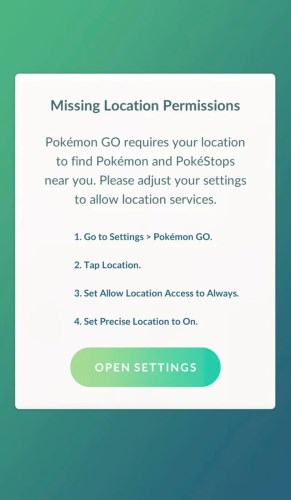
One Galaxy S21 owner got rid of the error in August 2026 by turning location and precise location off and back on between the uninstall and the reinstall.
Pokémon GO Error 11 After You Switch Apps or Lock the Screen
This one isn't your phone. In January 2026, version 0.395.0 brought back a bug that kept throwing Error 11 when players minimized the game, answered a message or unlocked the screen. Maps kept working, and only closing and reopening the game cleared it.
| Date | Version | What players reported |
|---|---|---|
| Jan 22, 2026 | Pokémon GO 0.395.0 | Error 11 after minimizing or locking, avatar stuck, Routes paused, restart needed |
| Jan 24, 2026 | Pokémon GO 0.395.1 | One player said the error stopped after updating |
| Jun 5, 2026 | Pokémon GO 0.413.1 | Another player said it was back |
| Oct 18, 2026 | iOS 27.0.1 on iPhone | Error 11 on about 9 of 10 returns to the game |
Samsung, Pixel, OnePlus and iPhone owners all reported it in a Silph Road thread on the 0.395.0 update, and the October row comes from an iOS 27.0.1 player on r/pokemongo. The Help Center's Known Issues list had no entry for this bug on October 28, 2026, so everything in the table comes from player reports.
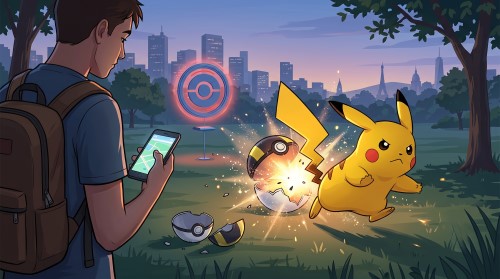
It also bites mid-catch. One Silph Road player watched a shiny Shadow Carvanha break out of every ball and flee, and only then did the GPS bar appear. If a Pokémon pops out instantly after you've been in another app, restart the game before you spend a Golden Razz Berry on it.
A full restart is the fix that works. One iPhone player saw the error less often after swiping the game closed before locking the phone, and another got the map back faster by turning Wi-Fi off and on. Settings changes and reinstalls won't help with this bug, so keep the game updated instead.
Pokémon GO Error 11 While Using a Location Changer
A location changer swaps the phone's real location for one you pick. If that feed stops, the phone falls back to where you really are or has nothing to hand the game. A setting the tool needed can also stay on after you stop. On Android, check Settings > Developer options > Select mock location app.

If an app is still picked there and you're not using it, clear it so the line reads No mock location app set. Rooted setups can do the same thing: in 2024, a player on the Pokémon GO spoofing subreddit got Error 11 on every real walk until they turned off their location-hiding module.
Before any fix, keep in mind that Scopely Explore's Terms of Service count altering or falsifying a device's location as cheating, and nothing in this section changes that.
If You See Error 11 While Using PoKeep

We make PoKeep Location Changer, and this part is for people who already play with it. When Error 11 throws you out of a raid lobby or a Route and you have to restart the game, open History under the star icon and click Go To on the spot you were using. The phone lands back on those exact coordinates, so you don't have to hunt for the gym on the map again.


Then work through these steps in order.
Step 1 Use Game Mode for Pokémon GO
Game Mode is the one PoKeep built for location games, Pokémon GO included, while Universal Mode covers WhatsApp, Tinder, Life360, Find My and similar apps. On Android, Universal Mode runs through the mock location setting that the Help Center links to Error 12.
Step 2 Keep the Phone Connected
The location PoKeep sets lasts only while the phone stays connected, and if Bluetooth, USB or Wi-Fi drops, the phone may fall back to your real location. In iPhone Game Mode, leave Bluetooth on. If the pairing drops, switch Bluetooth off for 10 seconds on both devices, restart the phone and pair again with Connect Now.
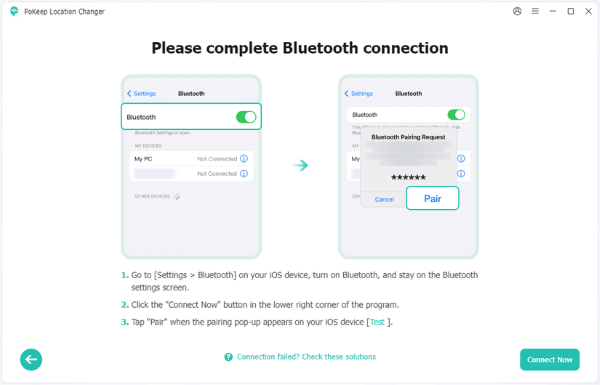
If pairing still fails, forget the PoKeep pairing under Settings > Bluetooth and pair from scratch. Over Wi-Fi, keep the phone and the computer on the same network, and set Auto-Lock to Never under Settings > Display & Brightness for long sessions. That also keeps you clear of the lock-screen bug above.
Step 3 Use the Long-Jump Steps on iPhone
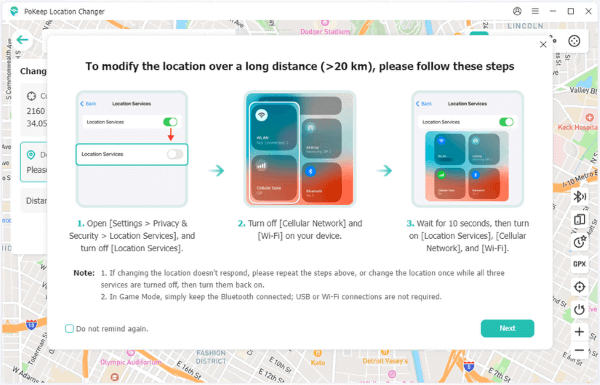
For a jump of more than 20 km on iPhone, PoKeep puts these steps on screen. Turn off Location Services, then cellular data and Wi-Fi. Wait at least 10 seconds, change the location during that wait, and turn all three back on. Repeat if the new spot doesn't take. Then wait out the cooldown timer before you catch or spin.
Step 4. Close other apps that use or change your location, so they don't fight PoKeep over the phone's position.
Step 5. Force-close Pokémon GO and open it again, so it reads the new location instead of a cached one.
Step 6 Give the Phone Its Real Location Back
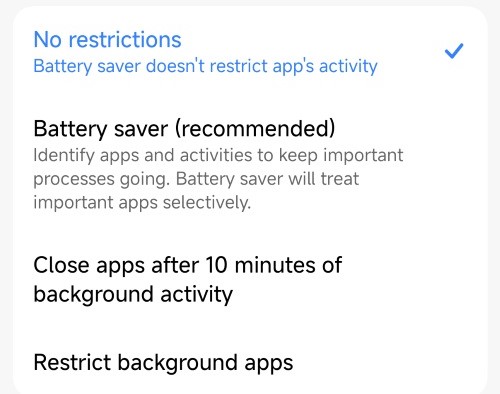
Click Reset Location in PoKeep before you disconnect. On iPhone, a restart also brings your real location back, and on Android, unplugging the cable usually does. If Android still can't find you, turn the mock location app setting off or restart the phone. In Universal Mode, PoKeep's guide asks you to keep its helper app on No restrictions and never force-stop it mid-change.
Still stuck after all six steps? Write to us through the PoKeep support page with your phone model, its iOS or Android version, how it connects (Bluetooth, USB or Wi-Fi) and the mode you picked. Those four details show support where the location gets lost.
Pokémon GO GPS Signal Not Found (11) FAQ
Is GPS signal not found (11) a ban in Pokémon GO?
No. Error 11 is a location message, not an action on your account. Warnings and suspensions come as their own notices, and the red bar goes away as soon as the game gets a usable location again.
Why does my iPad show GPS signal not found (11) in Pokémon GO?
Most likely it has no GPS chip. Apple lists GPS only for iPhone and iPad Wi-Fi + Cellular models, so a Wi-Fi-only iPad finds itself from nearby networks and often loses you outdoors. Playing on a phone or a cellular iPad fixes it.
Does Pokémon GO Error 11 mean my phone's GPS is broken?
Usually not. If your Maps app puts the blue dot in the right place with a small circle, the GPS works, and the problem is the game's access or a game bug. Check the hardware only if Maps also fails outside after a restart.
Why does Pokémon GO show Error 11 every time I switch apps?
It's a game bug players have reported through 2026, starting with version 0.395.0 in January. Closing the game fully and opening it again clears it. Settings changes don't help, so keep the game updated and restart when it hits.
What's the difference between Error 11 and Error 12 in Pokémon GO?
Error 11, GPS signal not found, means no usable location is reaching the game. Error 12, Failed to detect location, means a location arrives and the game rejects it, which the Pokémon GO Help Center ties to Android's mock locations setting.
Can a VPN or DNS app fix GPS signal not found (11)?
No. A VPN or DNS app changes how your internet traffic is routed, while your location comes from GPS, Wi-Fi and cell towers. Neither one gives the game a GPS fix it didn't have.
Does iPhone's Limit Precise Location setting cause Pokémon GO Error 11?
No. Apple says that Cellular setting only limits what your carrier can work out from cell towers and doesn't change the location apps get through Location Services. The Precise Location switch on Pokémon GO's own location screen is the one that matters.
Will reinstalling Pokémon GO to fix Error 11 delete my progress?
No. The Pokémon GO Help Center says game progress is stored online, so a reinstall only removes the app and its cached files. Sign back in with the same account method you used before.
Why do I get GPS signal not found (11) after changing location with PoKeep?
Check the connection first, because the location PoKeep sets lasts only while the phone stays connected. On iPhone, use the long-jump steps for anything over 20 km. When you finish, click Reset Location, and on Android turn the mock location app setting off if your real location doesn't come back.
 Related Articles


 Leave Your Comment