 By
By 

SpooferPro is a modified Pokémon GO client for iPhone: joystick, coordinate teleport, IV text on the map, and a Settings list split into Free, Pro, and Elite. If you mainly need GPS movement for best Pokemon Go locations, the Free overlay is already enough. Elite automation is a different product: it can play gyms, raids, and Rocket battles for you, which is also the riskiest way to use a modified IPA. Below are the features, three install methods, and a more stable alternative if you would rather keep the official app.
Part 1. What is SpooferPro?
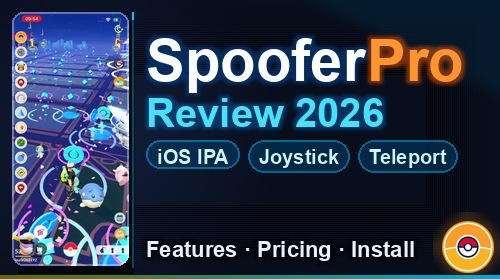
SpooferPro is a modified IPA that replaces the App Store client. After it launches, a vertical strip of circular icons sits on the left of the map: Settings, a Pikachu scanner shortcut, a home jump, a speedometer, a map pin, a nearby radar, a globe for coordinates, and a route tool. A translucent joystick can sit on the map at the same time.

Because the tools live inside the game binary, everything feels instant: you tap the globe, paste coordinates, and the same app that is rendering the map also fakes location. That convenience is the trade-off. Niantic is not reading a system GPS feed from a computer; it is talking to a third-party client. There is no official Android build. Any “SpooferPro APK” is a fake.
-
An iOS modified client: it installs as Pokémon GO, not as a second location app.
-
An overlay toolkit: joystick, teleport, IV strings, scanner, and routes sit on the official-looking map.
-
A three-tier Settings list: Free Options, Pro Options, and Elite Options are separate groups of toggles, not just a paywall on the same three buttons.
-
Certificate-dependent: Direct Install can vanish when Apple revokes the signing profile; a free Apple ID sideload lasts 7 days.
Part 2. What I Found Using SpooferPro
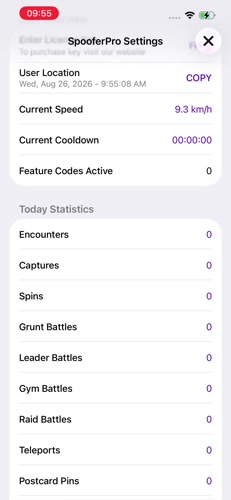
SpooferPro Settings opens with a live dashboard: a timestamp with a Copy button, current speed (mine showed 9.3 km/h), and cooldown at 00:00:00. Today Statistics then lists encounters, captures, spins, grunt/leader/gym/raid battles, teleports, and postcard pins. Walk Today showed 0.00 / 16.24 km, so the client is also counting simulated walking against a daily cap.
1 Free Options I Turned On
Under Free Options I enabled Fake Location, Joystick, Notifications, and IV Previews. Those four are the actual spoofing kit. The same list also has Pokémon Scanner, Inventory Stats, Fast Map Load, Virtual Go Plus, Cooldown Warnings, GPX Loop, Tap to Walk, Suppress Teleport Warnings, and Suppress Adventure Sync. I left the extras off so I could see the default overlay first.
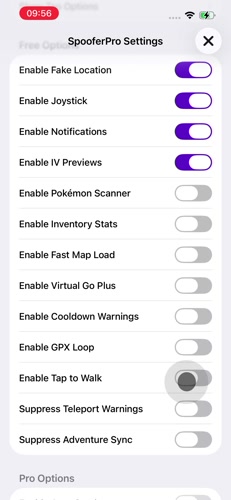
With the joystick on, a gray stick appears on the map. Combined with Fake Location, that is enough to walk a dense stop cluster without a computer cable. Cooldown Warnings is the toggle to flip on before city-to-city jumps; if it stays off, the teleport confirm dialog is the place that still shows distance and cooldown.
2 Encounter Settings
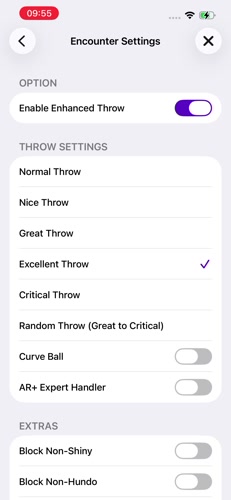
Encounter Settings is its own page. I turned on Enable Enhanced Throw and selected Excellent Throw. The throw list also includes Normal, Nice, Great, Critical, and Random Throw (Great to Critical), plus Curve Ball and AR+ Expert Handler. At the bottom, Block Non-Shiny and Block Non-Hundo skip encounters that are not shiny or 100% IV. I left those off. They are camping tools, not everyday catch settings.
3 Teleport With a Cooldown Readout
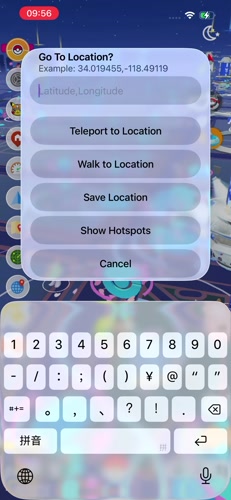
The globe icon opens Go To Location? The example on screen was 34.019455, -118.49119. You type latitude and longitude, then pick Teleport to Location, Walk to Location, Save Location, or Show Hotspots. Walk is the safer-looking choice if you want the avatar to travel instead of snapping.
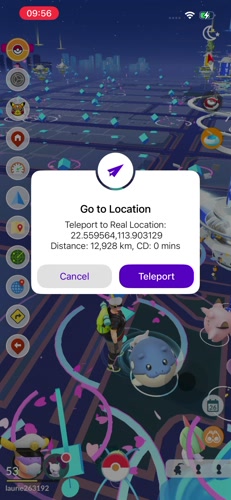
When I confirmed a jump, it did not silently move me. A second sheet showed Teleport to Real Location: 22.559564, 113.903129, Distance: 12,928 km, and CD: 0 mins, with Cancel and Teleport. That cooldown line is useful as a reminder that distance exists. I would not treat CD: 0 mins on a 12,928 km hop as Niantic-safe. The game’s own softban timer is still the one that matters, and a modified client can display 0 while the servers disagree.
4 IV Preview on a Stored Pokémon
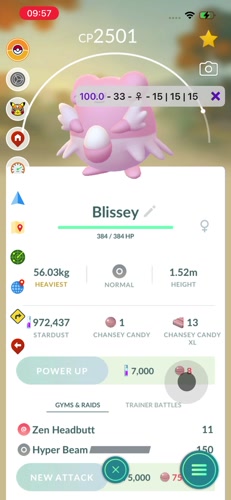
IV Previews is not a second appraisal screen. On a stored Blissey at CP 2501, SpooferPro drew a strip above the model: 100.0 - 33 - ♀ - 15 | 15 | 15. That is IV percent, level, gender, and Attack / Defense / Stamina. In the storage grid the same data prints under each sprite as strings such as 100-33-15-15-15, so you can mark hundos without opening every Pokémon.
5 Elite Automation Options
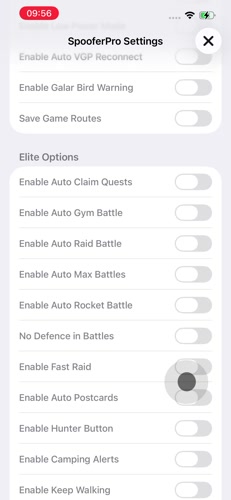
Further down Settings, Elite Options is a wall of auto-play switches: Auto Claim Quests, Auto Gym Battle, Auto Raid Battle, Auto Max Battles, Auto Rocket Battle, No Defence in Battles, Fast Raid, Auto Postcards, Hunter Button, Camping Alerts, and Keep Walking. I did not turn these on. They are why people call SpooferPro a bot, and they are the settings most likely to produce battle or movement patterns a human cannot match.
The overlay I used is genuinely convenient: joystick, coordinate jump, and IV text on a live map. What I would not do on a main account is flip Elite auto-raid or auto-gym. Paying for Pro or Elite does not make the IPA look like the App Store client. It only adds more automation on top of the same modified binary.
Part 3. How to Install Spooferpro in 3 Ways
When you visit the SpooferPro website, you are presented with three distinct ways to get the app. Choosing the wrong one is often the primary reason users experience crashes.
1 Direct Install (Online)
This is the most convenient method as it requires no computer, but it is also the most unstable.
Step 1. Visit the official SpooferPro website on your phone and tap the Direct Install button.

Step 2. If the certificate is active, a prompt will appear asking to install "Pokémon GO".
Step 3. Once installed, go to Settings > General > VPN & Device Management and tap on the enterprise profile to Trust it.

Step 4. Enable Developer Mode in Settings > Privacy & Security and restart your device.
 Note:
Note:
Developer mode is required for iOS 16 or above.
2 Manual IPA Installation (Sideloadly)
This provides the raw installation file that you must manually "sign" using a computer.
Step 1. Make sure you have downloaded Sideloadly on your computer from its official website.

Note:
If you have the official iTunes or iCloud installed on your computer, you need to uninstall it first, then install the version provided on official Sideloadly website, same for the Altsotre method below.
Step 2. Download the latest SpooferPro IPA file to your PC or Mac from the official site.

Step 3. Connect your iPhone via USB, drag the IPA file into Sideloadly, and enter your Apple ID.

Step 4. Click Start to install the app; remember that free Apple IDs must re-sign the app every 7 days.

3 Add to AltStore (Recommended)
This is the most stable path for long-term players because it allows for easier updates.
Step 1. Install AltServer on your computer and then install AltStore onto your connected iPhone.

Step 2. Open AltStore on your phone and tap the + button in the "My Apps" tab.
Step 3. Select the SpooferPro IPA you downloaded using Safari.
Step 4. Sign in with your Apple ID to finish; AltStore can automatically refresh the app over Wi-Fi if your computer is running AltServer.
Part 4. SpooferPro Free vs Pro vs Elite
The Settings list I scrolled is the clearest way to see what you actually pay for. Free Options are the spoofing tools. Pro Options are speed-ups and light automation. Elite Options are full auto-play. Pricing in the community is typically about $5.00/month for Pro and $10.00/month for Elite, with Elite often covering up to three devices.
| Tier | What I saw in Settings | Best for |
|---|---|---|
| Free | Fake location, joystick, IV previews, scanner, Virtual Go Plus, cooldown warnings, GPX loop, tap to walk | Joystick spoofing and IV checks on one iPhone |
| Pro (~$5/month) | Fast spin, skip animations, tap to teleport, auto egg hatching, auto transfer, fast battles, spawn booster | Faster grinding without full auto-raid |
| Elite (~$10/month) | Auto gym / raid / Max / Rocket battles, auto-claim quests, keep walking, hunter button, camping alerts | Unattended farming — also the highest detection profile |
Paying does not change the binary. Free, Pro, and Elite all run inside the same modified IPA. I would keep Elite auto-battle off on any account I still care about. If the weekly re-sign or certificate revoke is the part you hate, skip the IPA entirely and use a system-level GPS changer with the official Pokémon GO app.
Part 5. A More Stable SpooferPro Alternative
If you want joystick movement and teleport without living inside a modified IPA, PoKeep Location Changer is the setup I would use instead. It overrides GPS from a computer, so you keep playing on the official Pokémon GO app. That avoids Apple certificate revokes and the 7-day sideload timer I described above.


This tethered approach is far more stable and safe, because it avoids the enterprise certificates that Apple frequently revokes, and is harder to be detected. By using untouched software, you eliminate "Integrity Could Not Be Verified" errors and save hours of monthly troubleshooting.
-
No Weekly Re-signing: PoKeep uses the official game app, so you never face the 7-day expiration bug common with sideloaded IPAs.
-
Unmatched Device Support: One license manages up to 10 iOS and Android devices, which is ideal for multi-account players.
-
Enhanced Safety Features: It includes a 360° GPS joystick for natural movement and a built-in cooldown timer to ensure safe teleportation.
Getting your setup running takes only a few minutes and completely avoids the risks associated with jailbreaking your device.
Step 1 Download & Install
To begin, you must download the PoKeep software to your Windows or Mac computer from the official website. After the download finishes, simply run the installer and launch the program to prepare for your first teleport.
Step 2 Connect Your Device

Now, you should connect your iPhone or Android device to your computer using a standard USB cable. For a more flexible experience, you can also choose to connect via Wi-Fi or Bluetooth, allowing you to spoof safely without being tethered to your desk.
Step 3 Move Your Location

Finally, select your desired movement mode from the dashboard and pick any destination on the world map. Click the "Start modifying" button, and your phone’s GPS will instantly update across all location-based games and social apps.
Part 6. FAQs about Spooferpro
What is SpooferPro?
SpooferPro is a modified Pokémon GO client for iOS. After you sideload the IPA, it runs as the game app with an overlay for fake location, a joystick, coordinate teleport, IV previews, a Pokémon scanner, and optional Pro/Elite automation. There is no official Android version.
What are the main features included in SpooferPro Free, Pro, and Elite?
In SpooferPro Settings, Free Options include fake location, joystick, IV previews, a Pokémon scanner, Virtual Go Plus, cooldown warnings, and GPX loop. Pro Options add speed-ups such as fast spin, skip animations, tap to teleport, auto egg hatching, and auto transfer. Elite Options go further into auto gym, raid, Max, and Rocket battles, auto-claim quests, and keep walking. The Free tools are enough for joystick spoofing; Elite is full automation.
How much does SpooferPro cost and how many devices can I use?
SpooferPro currently offers two paid tiers: the Pro version at $5.00 per month and the Elite version at $10.00 per month. While the Free and Pro versions are typically tied to a single account or device, an Elite license key allows you to activate the software on up to three separate devices simultaneously. This makes the Elite tier a popular choice for trainers who manage a small group of alternate accounts.
Is the Paid version of SpooferPro safer than the Free version?
No. Free, Pro, and Elite all run inside the same modified IPA. Niantic’s detection sees a third-party client either way. Elite automation such as auto-raiding can actually raise risk, because the play pattern is harder to explain as a human trainer.
Is there a version of SpooferPro for Android?
There is no official version of SpooferPro for Android devices. The development team focuses exclusively on iOS, so any "SpooferPro APK" you find online is likely a scam or malware that could compromise your device. If you are an Android user looking for a reliable solution, PoKeep Location Changer is a great choice as it fully supports Android 6.0 through Android 17.
Why does SpooferPro keep crashing on my iPhone?
Crashing is usually caused by one of two things: a certificate revoke by Apple or an expired 7-day signature if you sideloaded the app. If you used the "Direct Install" method and the app won't open, the certificate has likely been revoked, and you will need to wait for a new one or switch to the AltStore/Sideloadly method for better stability.
 Related Articles


 Leave Your Comment